Keyboard Shortcuts in Sprinklr
Updated
Keyboard shortcuts helps you work faster by reducing the time spent navigating menus or reaching for the mouse. Across the Sprinklr platform, shortcuts allow you to quickly take actions, move between fields, and access modules—saving valuable time, especially for power users such as social media managers, analysts, marketing teams, and care agents.
This article explains:
Essential accessibility features that support shortcut-based navigation
Keyboard shortcuts available across key Sprinklr products
How to enable, disable, and customize shortcuts in the platform
This article covers the following topics:
Enablement note:
To learn more about getting this capability enabled in your environment, work with your Success Manager. Internal note: Use this DP for Keyboard Shortcuts: KEYBOARD_SHORTCUTS_CONFIGURABLE_ENABLED Enablement of this capability requires additional setup. |
Accessibility Features That Enhance Navigation
Sprinklr includes built-in accessibility tools to support seamless navigation for all users.
Navigation Assistant
The Navigation Assistant helps you move across Sprinklr modules using only your keyboard. Keyboard shortcuts appear as the first focusable element to support easy switching between tabs, options, and fields.
 Note: Some browsers limit which on‑screen elements you can navigate using the Tab key. If you are unable to move focus between items such as menus, buttons, or interactive elements, enable full keyboard navigation in your browser:
Chrome / Edge:
Go to Settings > Accessibility and enable Navigate pages with a text cursor.
Firefox:
In the address bar, type about:config, search for accessibility.tabfocus, and set its value to 7 to enable full Tab navigation.
Safari (macOS):
Go to System Settings > Keyboard > Keyboard Navigation and enable Use keyboard navigation to move focus between controls.”
Enabling these settings ensures that all interface elements are reachable via the Tab key when using Sprinklr.
Assistive Technology (AT) Support
Sprinklr supports screen readers that read text aloud to help users understand the purpose and function of on-screen elements.
Note: Install a WCAG-compliant screen reader extension in your browser to use this feature.
Keyboard Shortcuts by Product
You can easily navigate through the Quick/Advanced Publisher and Editorial Calendar using these keyboard shortcuts.
Action | Keyboard Shortcuts for Mac and PC |
Universal Search & Spotlight Search | ⌘ k or Ctrl k |
Quick Publish | p |
New Message | j or Alt + Down Arrow |
Previous Message | k or Alt + Up Arrow |
Sprinklr Marketing (Ads)
You can easily navigate through the Ads Composer and Ads Manager using these keyboard shortcuts.
Action | Keyboard Shortcuts for Mac and PC |
Next Field/Entity | Tab |
Previous Field/Entity | Shift + Tab |
Open the Menu | Enter/Return |
Navigate between Menu Options | Up/Down Arrow |
Select the Option | Enter/Return |
You can add Alternate Texts (Alt Text) to your Ad Images or GIFs via Creative Library, Ads Composer, and Ads Manager.
Capability | Description |
Alt Text |
To learn more, see Add Alt Text to Ad Images or GIFs. |
Sprinklr Service
You can easily navigate through the Care Console using these keyboard shortcuts.
Action | Keyboard Shortcuts for Mac and PC |
Open the macro box at the case level | Cmd/Ctrl + m |
Send a message | Cmd/Ctrl + Enter |
Move the focus to the next case in case stream | Shift + j |
Move the focus to the previous case in case stream | Shift + k |
Move to next console tab | Cmd/Ctrl + Shift + Alt + [ |
Move to previous console tab | Cmd/Ctrl + Shift + Alt + ] |
Multiple case selection to take bulk actions | Cmd/Ctrl + click on the case in case stream |
To learn more about enabling the shortcut to send a message in your environment, work with your Success Manager.
Note: The following articles outline Service product-level keyboard shortcuts. These cannot be enabled or disabled from All Settings page.
Sprinklr Insights
Below are the shortcuts to provide you with quick navigation and enhanced accessibility while exploring Sprinklr Insights.
Action | Keyboard Shortcuts for Mac and PC |
Next field | Tab |
Previous field | Shift + Tab |
Open menu/dialog box | Enter/Return |
Navigate between menu items | Up/Down Arrow |
Selecting/unselecting checkbox or toggle button | Enter/Return |
Hover out | Esc |
Sprinklr Social
Below are the shortcuts to provide you with quick navigation and enhanced accessibility while exploring Sprinklr Social.
General
Action | Keyboard Shortcuts for Mac | Keyboard Shortcuts for PC |
Universal Search & Spotlight Search | ⌘ k | Ctrl k |
Publisher | p | p |
New Tab Page | ⌥ t | ⎇ t |
URL Shortener | Shift ⌘ k | Shift Ctrl k |
View Message Workflow | o | o |
Add Selected Media | ⌘ Return | Shift Enter |
Close Media Selector | Esc | Esc |
Keyboard Shortcuts | Shift ? | Shift ? |
Engagement Dashboards
Action | Keyboard Shortcuts for Mac | Keyboard Shortcuts for PC |
Previous column | ⌥ Left | ⎇ Left |
Next column | ⌥ Right | ⎇ Right |
Next Message | j or ⌥ Down | j or ⎇ Down |
Previous Message | k or ⌥ Up | k or ⎇ Up |
Select/Unselect a Message | x | x |
View Profile Workflow | u | u |
Open Conversations History | h | h |
View on a Social Channel | v | v |
Change Status | s | s |
Assign to User | a | a |
Assign to Self | m | m |
Add/Remove Queues | q | q |
Tag Message(s) | t | t |
Mark/Unmark as Spam | Shift ! | Shift ! |
Archive Message(s) | e | e |
Translate to English | l | l |
Add Workflow Comment | c | c |
Change Sentiment (Neutral) | n | n |
Change Sentiment (Positive) | Shift + | Shift + |
Change Sentiment (Negative) | - | - |
Set Reminder | r | r |
Reply (Only for Twitter) | Shift r | Shift r |
Retweet (Only for Twitter) | Shift t | Shift t |
Direct Message (Only for Twitter) | Shift m | Shift m |
Enable or Disable Keyboard Shortcuts
Keyboard shortcuts are managed from the All Settings page. You can enable or disable them collectively, but individual shortcuts cannot be turned on or off separately.
Click the New Tab icon
.. Under Platform Modules, click All Settings within Listen.

From the left panel, navigate to Miscellaneous and then click Keyboard Shortcuts.

In the top right corner of the Keyboard Shortcuts window, click Enable all Shortcuts.
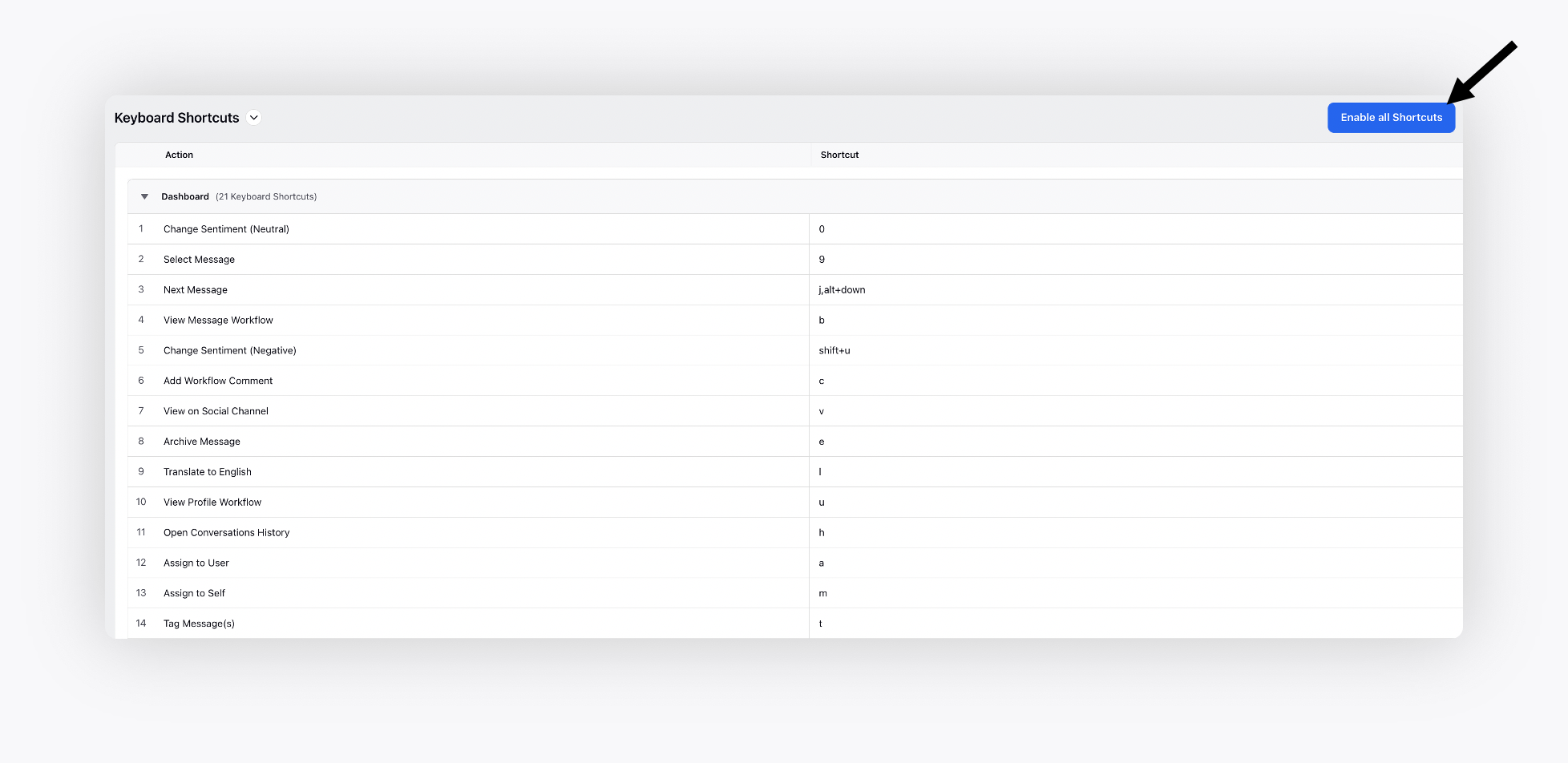
To disable keyboard shortcuts, click Disable all Shortcuts in the top right corner of the Keyboard Shortcuts window.
Note: Platform‑level keyboard shortcuts can be enabled or disabled globally via All Settings. Product‑level shortcuts, such as those in Sprinklr Service, do not have a global on/off switch. Instead, some shortcuts (like message send behavior) can be configured at the channel or workflow level, while others are fixed to support agent efficiency. Also, note that you will be able to enable or disable all the keyboard shortcuts from the All Settings page and will not be able to enable or disable a single keyboard shortcut.
Customize Keyboard Shortcuts
Click the New Tab icon
From the left panel, navigate to Miscellaneous and then click Keyboard Shortcuts.
On the Keyboard Shortcuts window, double click (or, press the enter/return key) on the desired Shortcut to edit it.
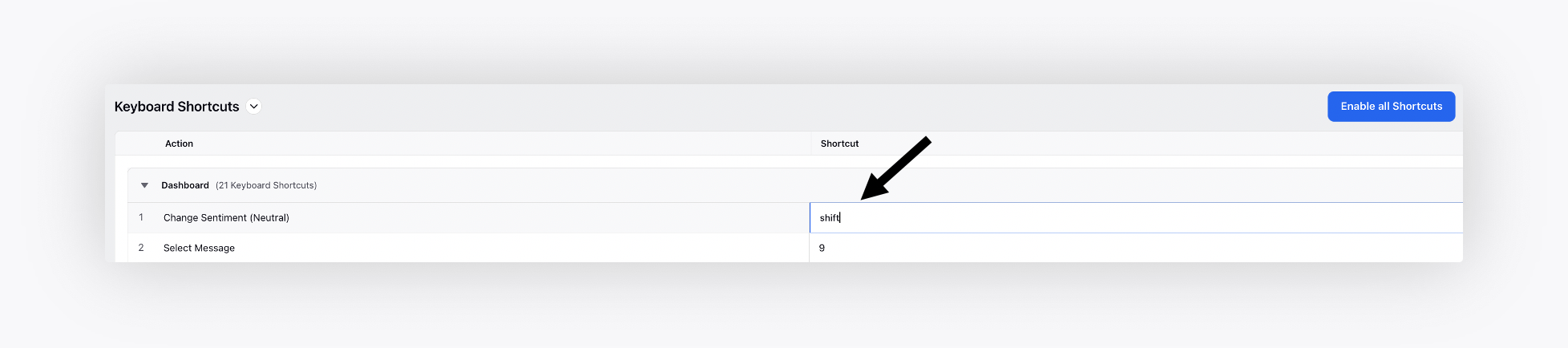
Next, type the desired key and press enter/return key on the keyboard to save it.