Create and Export an Outbound Change Set
Updated
An Outbound Change Set allows you to move selected entities from one environment to another connected environment (for example, from a sandbox to a production environment). When you add an entity to a change set, Sprinklr automatically identifies and includes all dependent entities to ensure that the deployment succeeds. This article explains how to create an outbound change set, select the entities you want to move, and export the list of dependent entities for review.
The Sprinklr system automatically selects and adds the dependent entities to an outbound change set during creation.
Accessing Sandbox Outbound Change Sets Page
Follow the steps below to access the Outbound Change Sets page in New All Settings UI:
Navigate to Launchpad. Under the Platform Modules, click All Settings within Settings.
On the Settings window, under General, click Sandbox Manager from the left pane and select Outbound Change Sets.
Create an Outbound Change Set
Click Create New in the top right corner of the Outbound Change Sets page.

Enter a Name and Description for the outbound change set.
Add Tags by selecting existing tags from the drop‑down menu or creating new ones.
In the Action Type section, choose how Sprinklr should handle objects that already exist in the destination environment:
Skip if exists: Existing objects with same ID in the destination are skipped. Only new objects are created.
Update if exists: New objects are created, and existing objects are updated.
User‑selected updates only: New objects are created, and only the objects you selected are updated. Any dependent entity that already exists in the destination is skipped.
Select the Destination environment from the drop-down menu.
Under Entities to Transfer, choose the entities you want to move.

Apply Filters based on the entity’s properties to narrow down the list of objects.
In Preview of Objects, review and select the specific entities to be transferred.
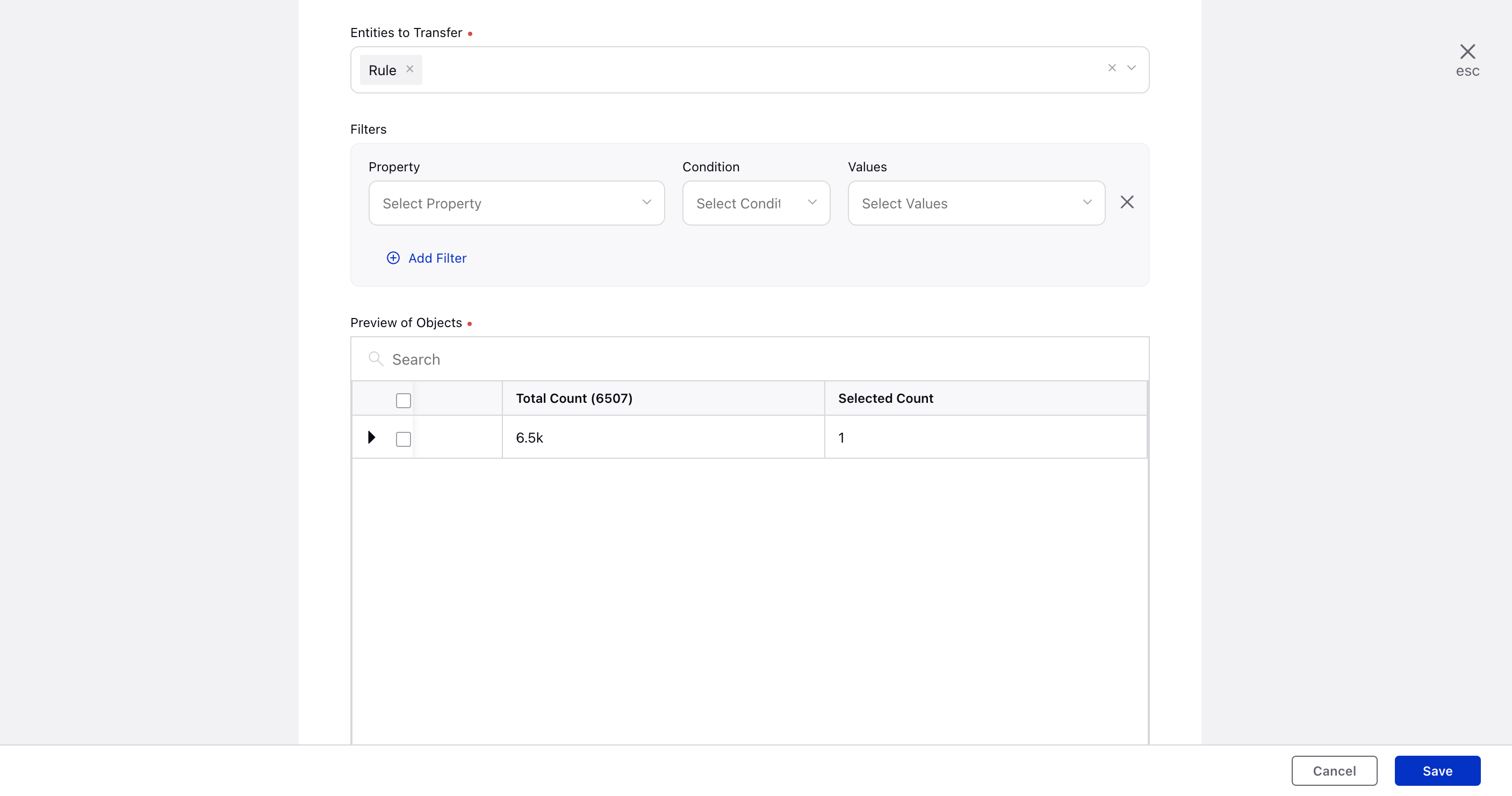
Click Save.
Once the change set is created, Sprinklr automatically identifies all dependent entities and adds them to the change set.
Export an Outbound Change Set
After the change set Status updates to Sent, hover over the Options icon
 .
.Select Export from the drop‑down menu to view details of the dependent entities.
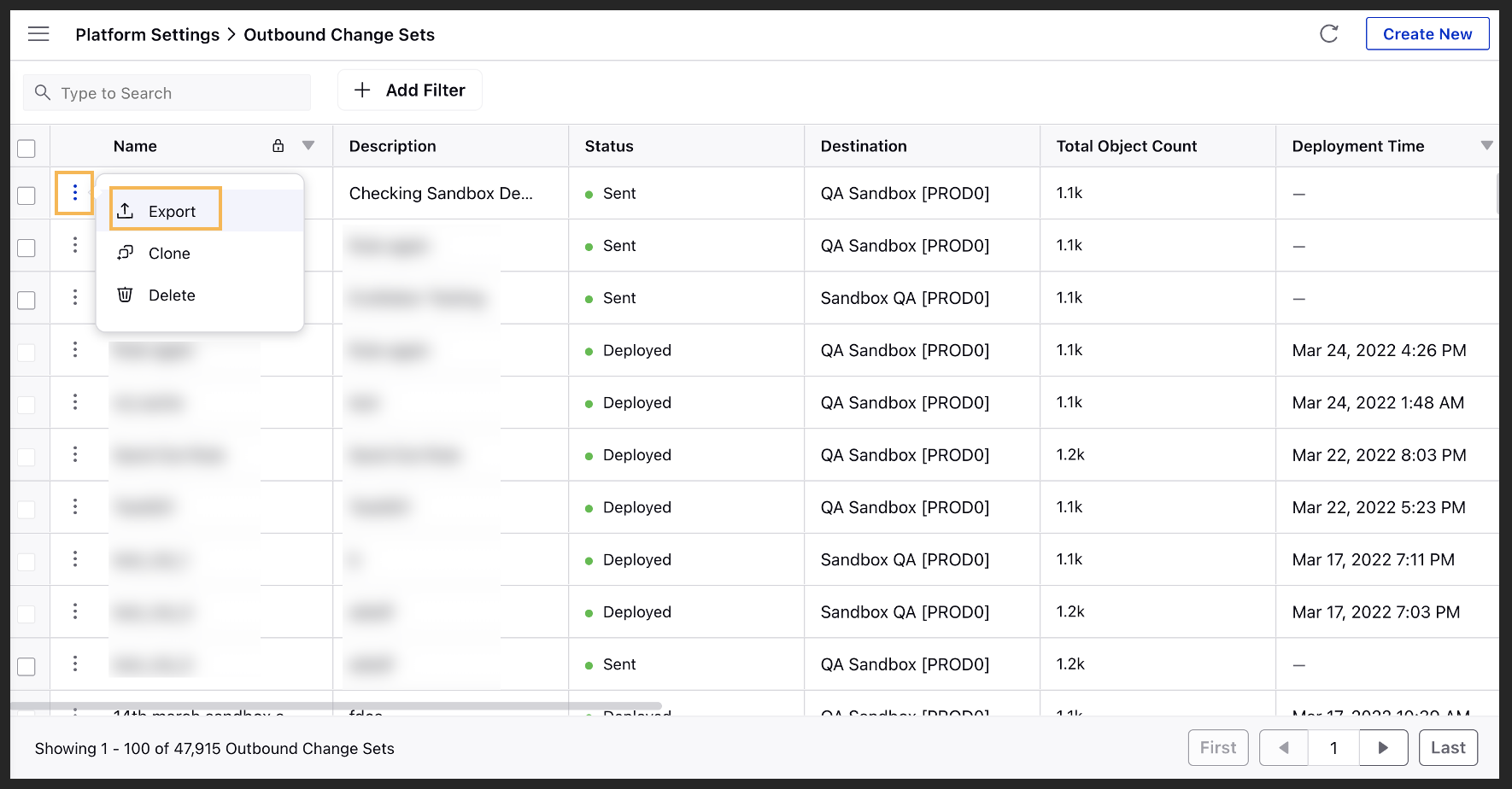
Sprinklr will download an Excel file that contains the list of dependent entities.
Using the downloaded excel, you will be able to view the list of dependent entities.
 Note: The Excel file includes a dedicated tab for Bot Intent entities so that users can clearly identify and access them easily.
 For more information about the columns available in excel, see Outbound Changesets Export — Field Description.
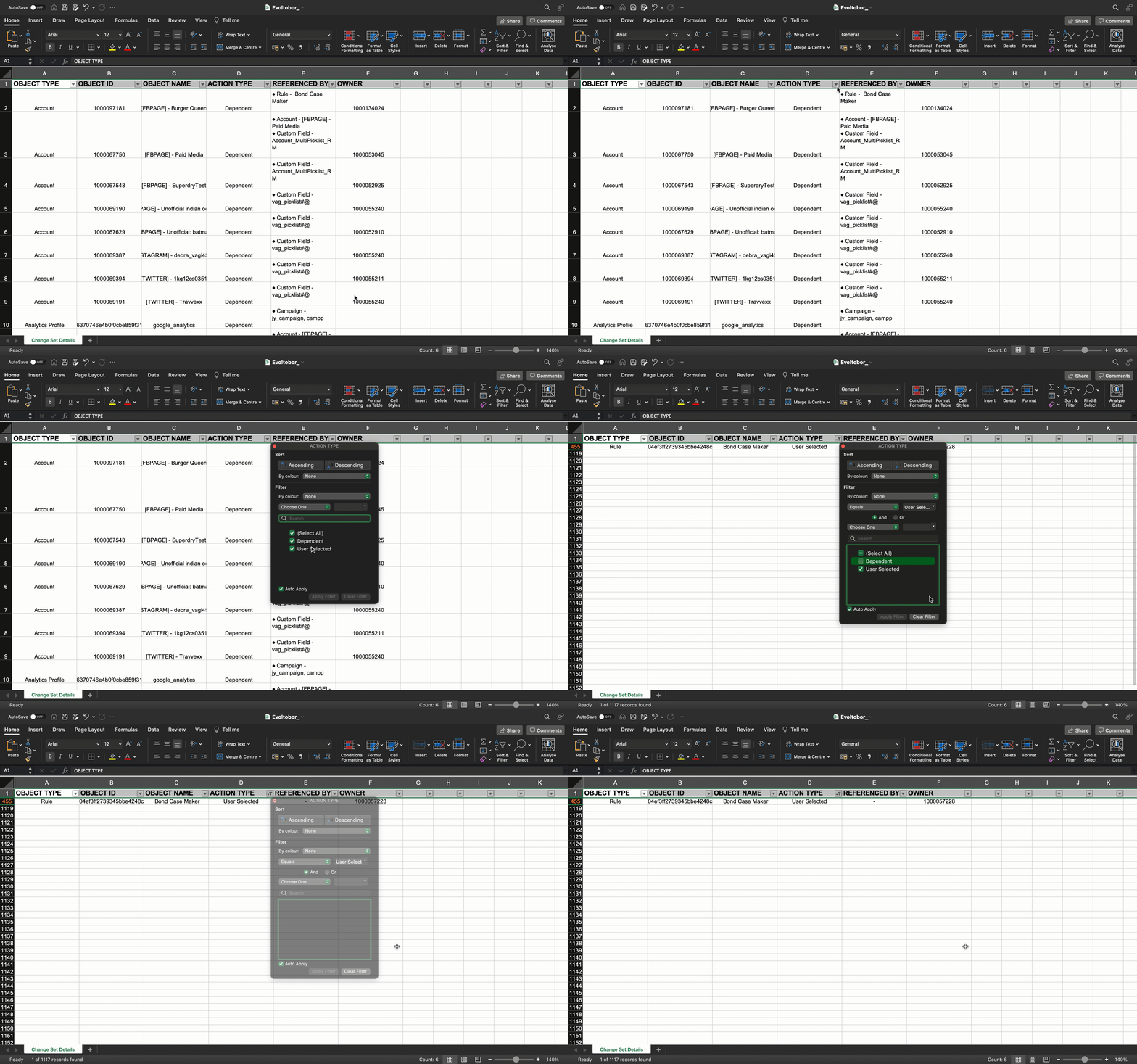
Outbound Changesets Export — Field Description
Field | Description |
Object Type | Shows the list of entities that are being moved through the changeset. It includes both user-selected and Dependent entities. |
Object ID | Displays the backend IDs of the entities being moved through the changeset. |
Object Name | Lists all the entities that are being moved through the changeset. |
Action Type | Indicates whether an entity was selected by the user or added by the system as a dependent entity.
|
Referenced By | Shows how the dependent entities are referenced by the user-selected one. |
Owner | Displays the name of the owner associated with the entity. |