Create Localised copies of your messages for local audience
Updated
In this article, you will learn how to create Localised Copies of any message in different languages by automatically translating the original message using the in-built Google Translator.
How it works
Localized copies help you save time by translating the original message in the platform itself, and creating a copy of it with its properties cloned. You can Edit a Scheduled or Drafted message from the Editorial Calendar or Production Dashboards. The message will open in the Advanced Publisher.
Navigate to the Localized Copies tab.
Select the languages and language groups from the list in which you want to localize your message.
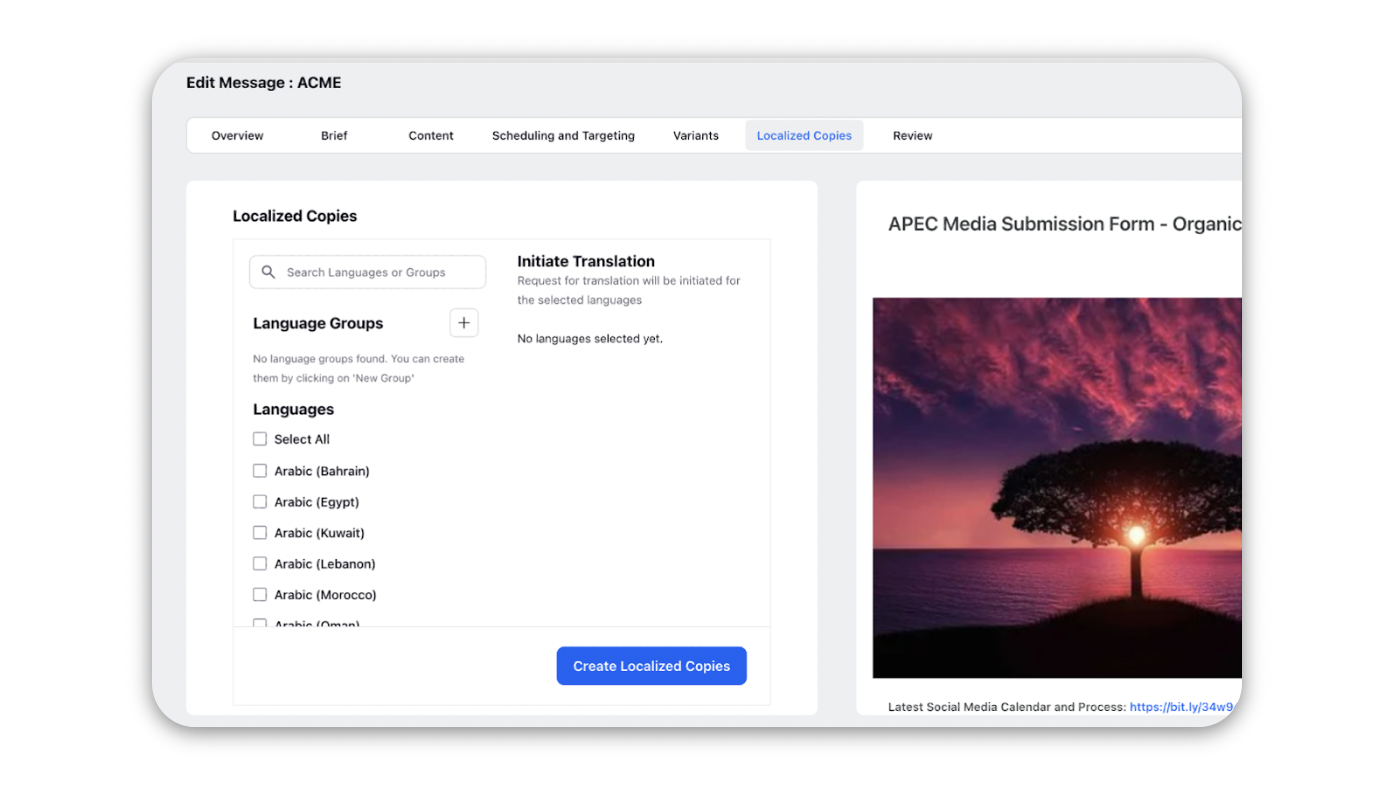
Click Create Localized Copies to create one copy of the message for each language/language group selected.
You can translate the message name along with the message content of the localized copy. To enable translation of message name as well in your environment, contact your Success Manager. Alternatively, you can submit a request at tickets@sprinklr.com.

 Note:
Note: You can create a Language Group consisting of multiple languages by clicking the '+' Addition icon next to the Language Groups section, this will allow you to translate your message into multiple languages simultaneously.
If a naming convention is used, the message will be named as per the naming convention and it will not be affected by the translation.
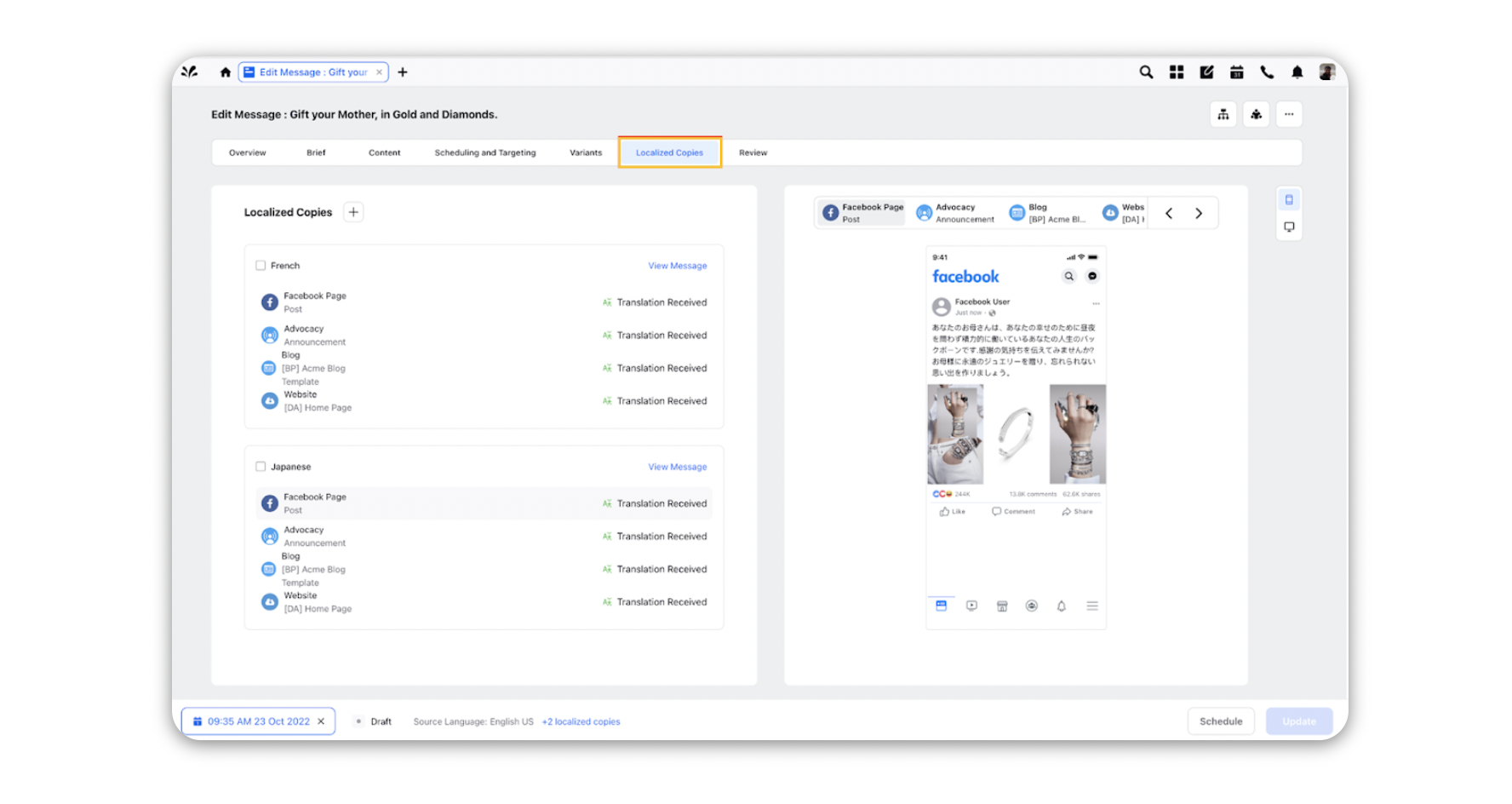
All the created localised copies are shown in a table with the following information:
Language of the localised copy.
Account Type with Channel Icon.
Template used in localised copy.
Translation Status.
“View Message” redirect to view the localised copy in the Advanced Publisher.
Note:
Localized Copies tab only appears in Advanced Publisher when a message is scheduled or drafted and you cannot create Localised copies of a message that is already a localised copy.
Localise Post Content and Images Together
Content Variants extends the existing localization workflow by allowing you to localise image content along with post content.
You can start the localization workflow from either of the following locations:
From the Editorial Calendar, hover over a post and click Create localised copies.
From the Post details pane, click Create localised copies.

Click Create localised copies from Advanced Publisher, the post card, or the Post details pane. Sprinklr displays the language selection dialog, where you can select languages and configure localization settings.
Select the target languages.
Enable Localise Images. Sprinklr includes the associated image assets in the localization request.

Click Submit. Sprinklr initiates localization for the selected languages and generates localised versions of the post content and corresponding image variants.
Review the generated localised copies. Each localised copy contains translated post content and the corresponding localised image.
Verify that the localised copies are available for each selected language.