How to Disable Comments on LinkedIn Ad Posts
Updated
Managing engagement on LinkedIn ads is essential for a controlled advertising environment.
Disabling comments can help you focus the conversation and avoid potential issues. This article provides a concise, technical walkthrough on how to disable comments on your LinkedIn ad posts, ensuring a streamlined approach to managing interactions.
Disabling Comments on LinkedIn Ad Posts
Step 1: Navigate to Ads Composer
Login to your Sprinklr Account.
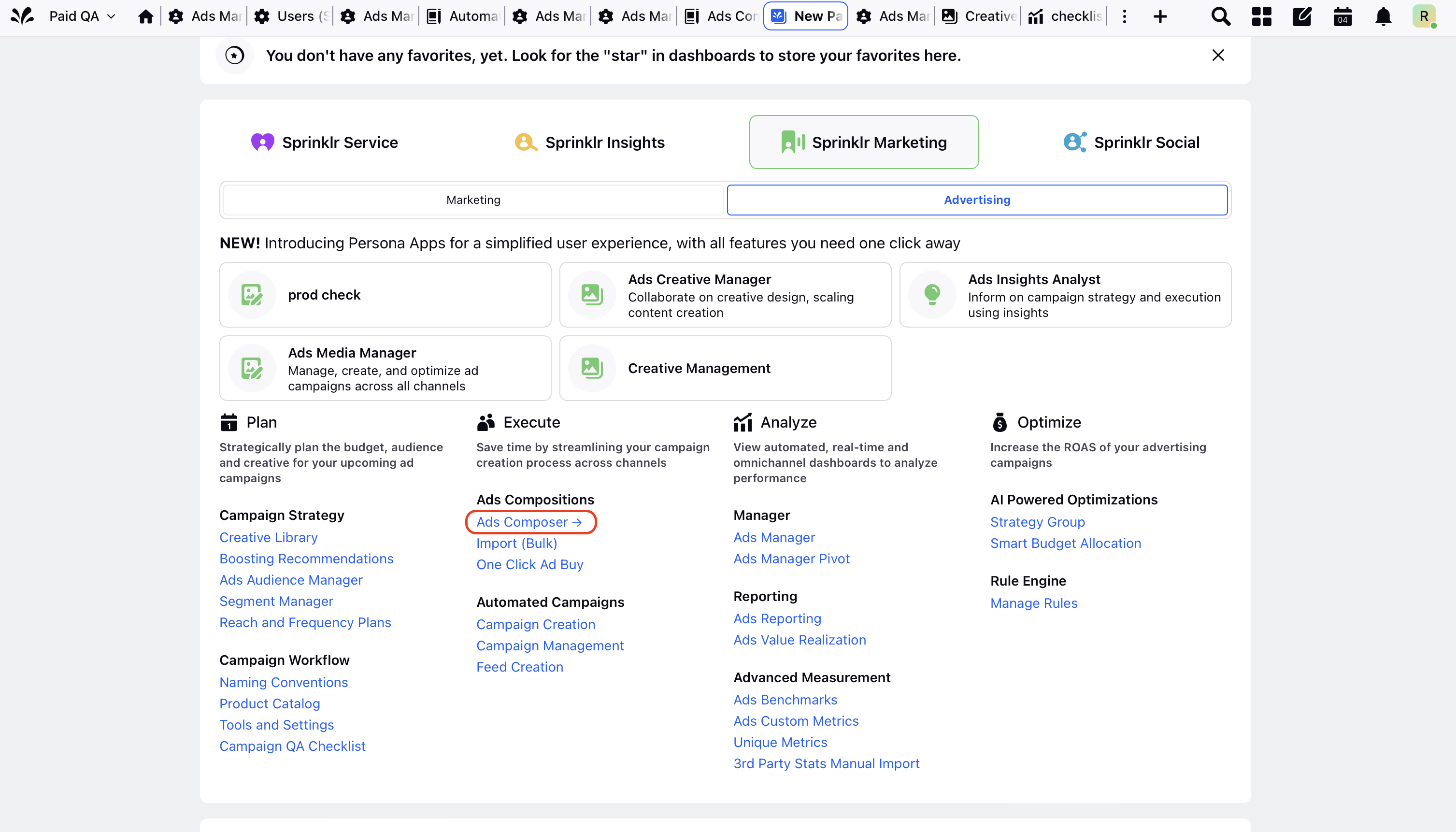
Select the 'Ads Composer' from the main dashboard as shown below in the screenshot.
Step 2: Create New Paid Initiative
1. Choose an Ad Account to begin a new paid initiative.
2. Complete all the required fields to create a Paid Initiative in Ads Composer.
3. After completing all necessary fields for creating a Paid Initiative in Ads Composer, proceed by selecting the target audience, defining the budget and schedule.
Step 3: Choose the Creative and Upload the asset for the Ad
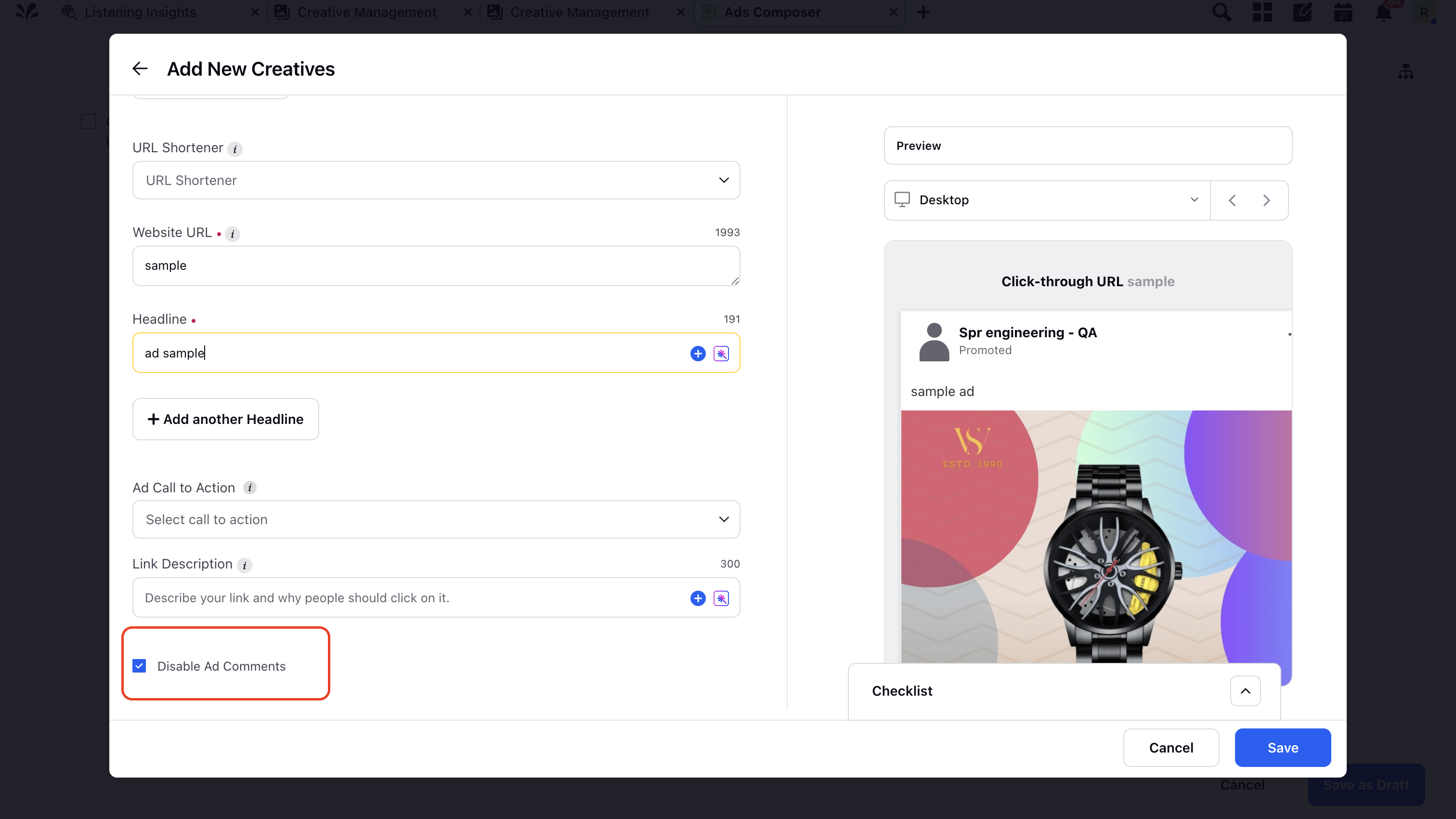
1. When you click on the “Add New Creatives” option and scroll down, as demonstrated in the video below, you'll find the "Disable Ad Comments".
 Note:
Note:
To disable comment the page needs to be added by content admin or super admin of the page.
Additionally, the user adding the ad account through which comments are disabled, must hold admin permissions for the company page.
On desktop and the LinkedIn mobile app (Android), if comments are turned off after you share a post, existing comments will remain and are not deleted.
On the LinkedIn mobile app (iOS), turning off comments will delete existing comments on the post. Re-enabling comments will not restore any deleted comments.