Profiles and Profile Lists
Updated
The Audience Profiles, Lists, and Segments components within Customer Feedback Management streamline contact management and facilitate the organization, searching, and filtering of profile information. Audience Profiles help in organizing and filtering this profile data. Profile Lists and Segments allow for targeted engagement with the audience. For more details on use cases and value additions, refer to the following article.
 Note: When interacting with the same user through Sprinklr on a single channel, whether through other Product Suites like Sprinklr Social or through surveys sent using Customer Feedback Management, you can access all related conversations, including social interactions and survey responses, in one unified location.
Prerequisites
The features discussed here are generally available as part of Customer Feedback Management. No additional permissions are required to access the Audience Management modules. Access to individual components within the app is governed by the necessary permissions outlined in their respective articles.
Setting Up Audience Profile
Audience Profiles, serve as a unified, platform-wide database of records for each account (user) engaging with the Sprinklr platform. These profiles ensure that brands avoid duplicate or conflicting records for users. Additionally, they support threaded conversations, enabling seamless interaction tracking within the platform.
The Audience Profiles module enables efficient management of individual contacts within Customer Feedback Management, offering a comprehensive Record Manager view for profile data. You can easily search, filter, add, and organize profiles.
 Note: When interacting with the same user through Sprinklr on a single channel, whether through other Product Suites like Sprinklr Social or through surveys sent using Customer Feedback Management, you can access all related conversations, including social interactions and survey responses, in one unified location.
The steps are detailed below:
Navigate to Customer Feedback Management and go to Audience Management in the left pane.

Select Audience Profile.

Manage Audience Profile
Search: Profiles can be located using Name, Email, Phone Number, or Social Handle.
Filter: Filter profiles by any column values within the Record Manager to refine your view and quickly find relevant data.
Record Manager
The Audience Profiles Record Manager includes the following columns for each profile:
Name
Bio
Tags
Profile Lists
Profiles
Reach
Following
Created By
Note: You can now search profiles in Audience Profiles Record Manager using Name, Email, Phone Number, or ID.
Import and Export Profiles

Export Profiles: Download profile data in Excel or CSV format. The export includes any applied filters and excludes empty columns.
Click Vertical Ellipsis (⋮) to access Export.
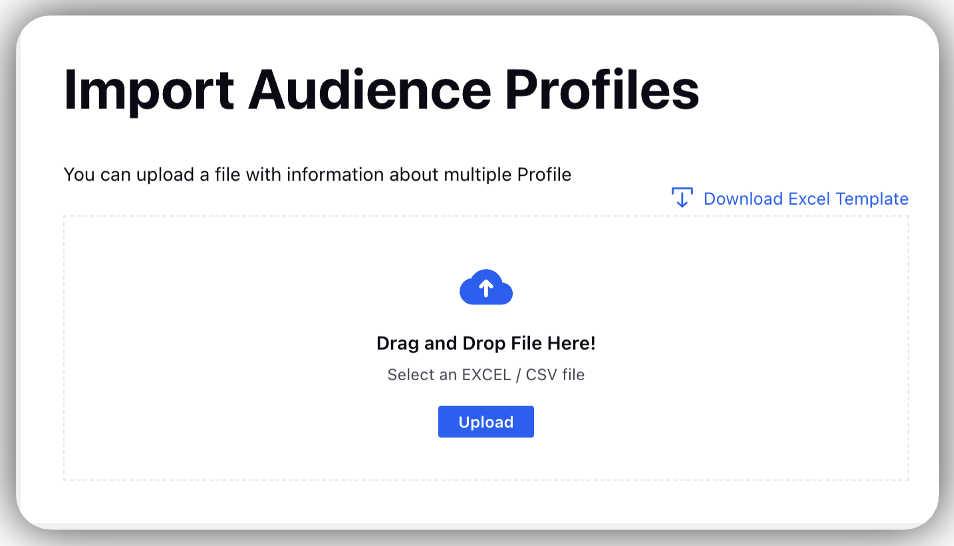
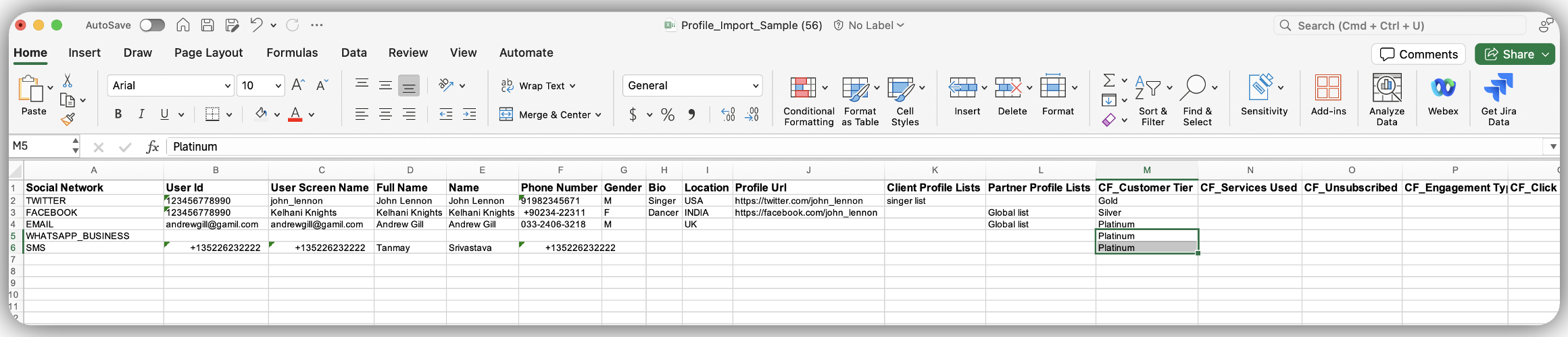
Import Profiles: Add profiles in bulk using the Import option for efficient data management. The provided Excel template includes:
Columns for Standard Profile Fields.
Any custom fields (Asset Type = Profile) available in the system.
Note: Mandatory Fields
Social Network (WHATSAPP_BUSINESS, EMAIL, etc)
User Id (Contact number : 91XXXXXXXXXX)
Full Name
Name
Optional fields:
Partner Profile Lists
Custom Fields (e.g CF_WA_Campaign, CF_Language)
Non-essential columns (except mandatory ones) can be removed from the template, if required.
Custom fields already in the system can be re-added to the template using the header format "CF_Custom Field Name". The data will map to the corresponding fields automatically.
Note: In addition to importing profiles through Excel or CSV files, there are capabilities to dynamically create profiles in real-time based on external triggers. These features will be explored in detail within the Workflows Module.
How to use it?
Import Audience Profile: Upload contacts or profiles via Excel or CSV files, tag them for easy management, and use them to trigger survey distributions.
Profile Segments and Samples: Use existing profiles to create Segments by grouping them based on custom properties, or generate Profile Samples to select a specific percentage or number of profiles as needed.
Trigger Ad Hoc Survey Distributions: Use Profiles, Profile Lists, Segments, or Samples as recipients for survey distributions through Email, WhatsApp, SMS, or Personalized Link channels.
Trigger Website Distribution: Use Profile Custom Properties as intercept conditions for Website Distributions. This feature is covered in a separate section.
Custom Reporting: Survey responses are automatically linked to the profiles they were triggered from. Custom dashboards can be created to include relevant profile details, offering deeper insights.
Note: For adding profiles within existing profile list:
You can select “Add to Profile List” from the Vertical Ellipsis menu under Audience Profile Record Manager or the snackbar message after selecting a profile. You can add multiple profile lists.


Profile Lists
The Profile Lists section under Audience Management allows you to create predefined lists for organizing audience profiles, helping to build an organized Record Manager for efficiently managing and categorizing profile groups.
Setting Up Profile Lists
Navigate to Sprinklr Insights and select Customer Feedback Management Persona App.
Go to Audience Management in the left pane.
Select Profile Lists.

Click + Add Profile List and fill in the details:

Name: Enter the title for the profile list. This is a mandatory field.
List Owner: Assign the Sprinklr user who will own or manage the profile list.
Description: Provide a brief overview of the list’s purpose or contents.
List Type: Select between Contact List or Profile List, depending on the type of data you're organizing. If you select Contact List you need to select filters aswell , like phone number, email id, etc.
Tags: Add relevant tags to help group and quickly filter multiple lists.
Visibility: Set visibility options to share the list with specific users, granting them access to view the profiles within the list.
On clicking Save, you will be re-directed to a pop-up where you can select between the following options, and click Continue or Add Later:

Select Profiles: In Select Profiles, you view the Audience Profile Record Manager to select and save profiles. The system adds the selected profiles to the profile list.

Import Profiles: On the import page, you can import profiles by uploading profile data in either XLSX or CSV format, and then clicking Save.

Managing Profile Lists
Click Vertical Ellipsis (⋮) against each Profile Lists:

View Setup: Review the setup and details of the selected profile list.
Edit Setup: Make changes to the profile list’s Name and Description
Delete: Remove the selected profile list.
Add Profile Lists: Select profiles to add to the chosen profile list(s).
Import Profiles: Import profiles into the chosen profile list(s).
Activity: Review changes to the selected profile list.
Snack bar Options
Access further choices for each profile list entry in the Record Manager through the snack bar:

Add Tag
Remove Tag
Add Profiles
Import Profiles
Importing and Exporting Profile Lists
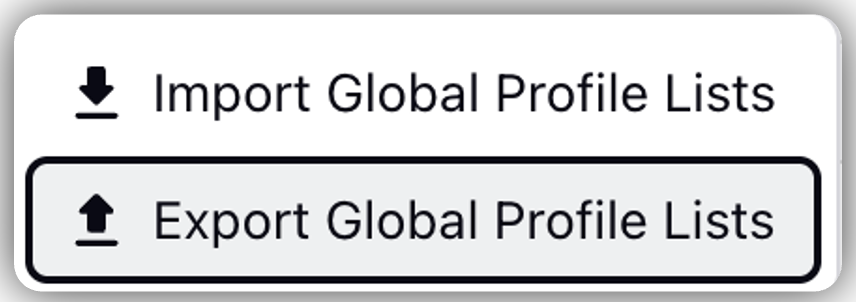
Import Global Profile Lists:
Click More Actions (...).
To create multiple profile lists simultaneously, click 'Download Excel Template'. Proceed to fill in the Name (mandatory) and Description columns with the required details, and then save the file.
Choose File to upload to upload the file.
Click Import.
Once uploaded, the system confirms the number of profile lists successfully added.

Note: After profile import completes, you see a concise notification with counts of added, updated, and failed profiles, along with a single report listing all processed profiles, including successes, updates, and failures with reasons. The existing import behavior and custom field handling remain unchanged, and this applies to imports from both Profiles Record Manager and Profile Lists Record Manager.
Export Global Profile Lists: Click More Actions and download a file that lists all Profile Lists within the environment for easy reference and management.
Record Manager Columns and Controls
The Profile List Record Manager includes the following columns:
Name: The title of each profile list.
Description: A brief overview of the list’s purpose.
Owner: The Sprinklr user responsible for managing the list.
Created By: The user who originally created the profile list.
Created On: The date the profile list was created.