Create an Editorial Calendar Board
Updated
Editorial Calendar Boards help you save frequently used Marketing Calendar views. You can save your selected view, time period, filters, and Group By settings in a board and reuse them without reapplying the configuration each time. A Marketing Calendar board configuration stores your selected view, period, filters, and grouping settings, making it easier to access frequently used views.
How to create Editorial Calendar Boards?
The feature is available by default, but you must configure a board before you can use it. The steps mentioned below are necessary to set up the Marketing Calendar Boards:
Navigate to the Editorial Calendar.
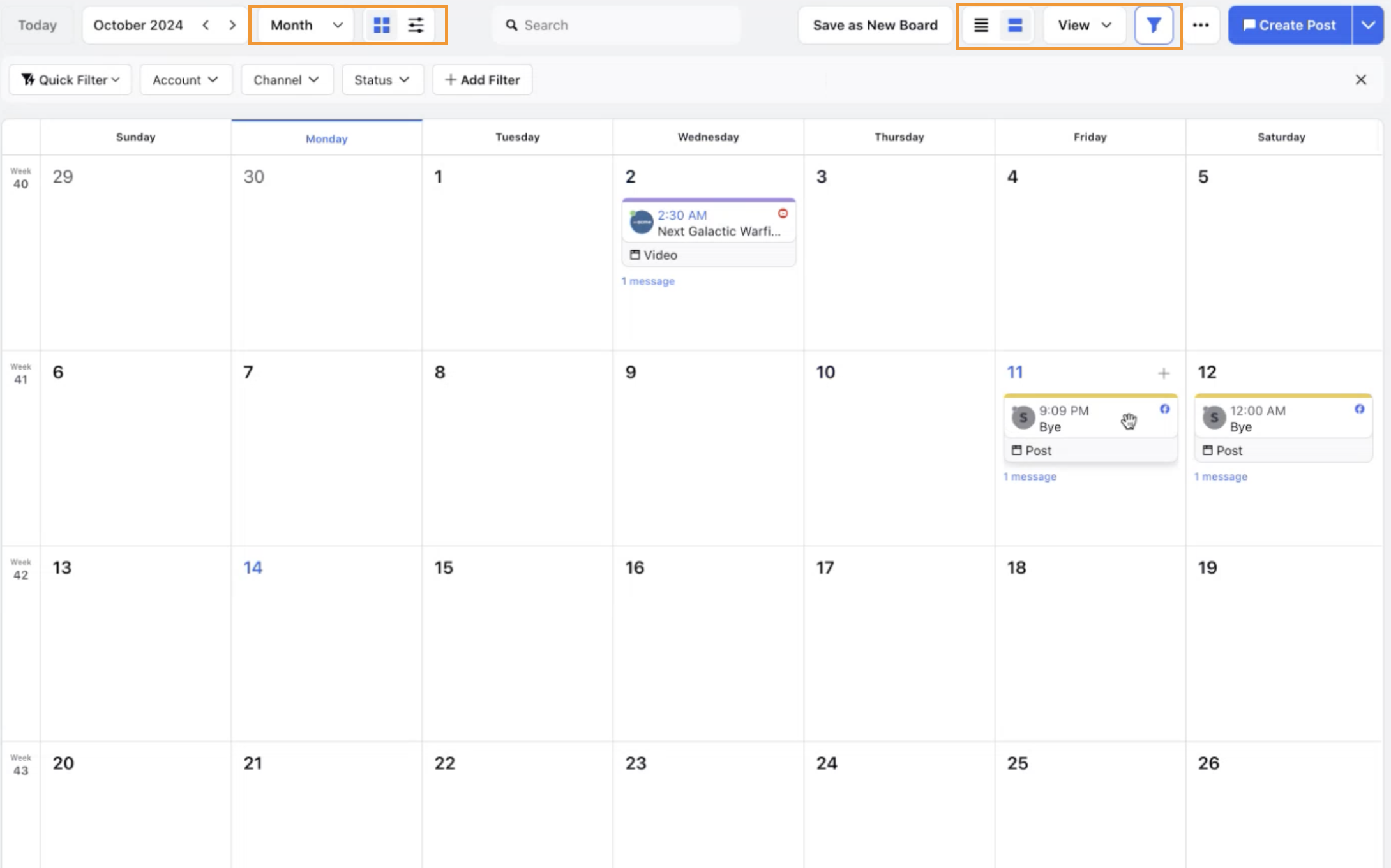
Select your view settings: Select the entity you want to display on the board: Campaigns, Sub-Campaigns, Events, Messages, Paid Initiatives, or Tasks.

Set your display configurations:
Select the view: Calendar or Timeline for the board.
Select the period: Year, Season, Month, Two Week, Week, Day or List.
Select the card size: Large or Small.
Apply the filters you need for the board.
Apply Group By configurations you need for the board.
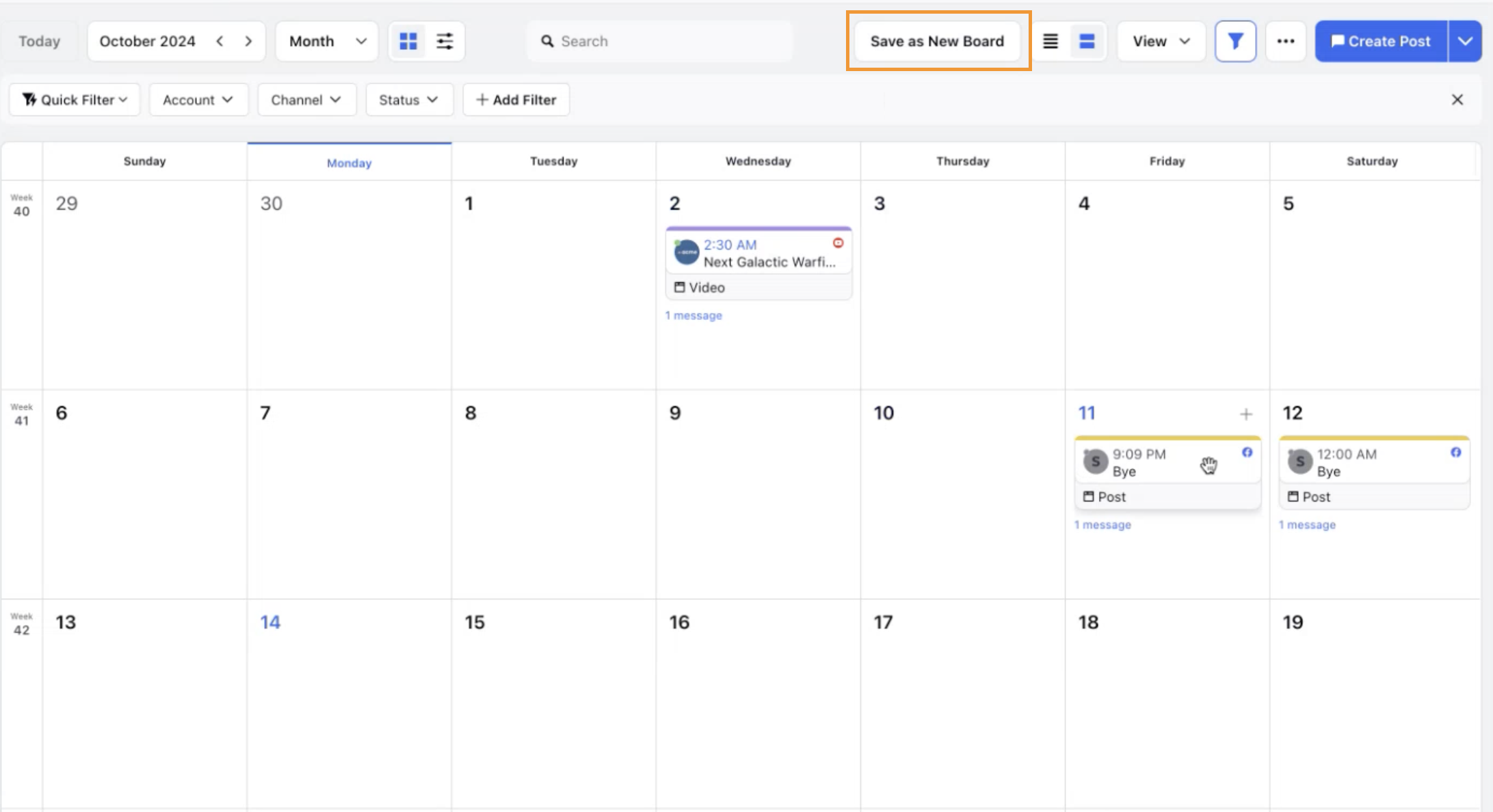
Click Save as New Board to proceed to the Board Details page.
Fill in the following fields in the Board Details page.
Basic Information:
Board Name [Mandatory]
View Type [Auto Filled]
Content Type [Auto Filled]
Card Size
Tags [Optional - fill to organize your boards based on various tags]
Sharing and Permissions [Optional - fill to restrict visibility]
Workspaces [the workspaces you want to share this board with]
User / User Groups [the User / User Groups you want to share this board with]
Filters [Auto Filled]
Grouping [Auto Filled]
Click on Save to save the view as a board.