External Editorial Calendar
Updated
You can create and share your Editorial Calendar with other users (non-Sprinklr) via External Links. With this capability enabled, you can sync live changes to the external calendar so that the export will be up-to-date with recent configuration and data changes. Additionally, the link will auto-refresh every 2 hours. You can view all the applied filters in the external view. This way the external view will be similar to the Editorial Calendar within the platform.
The External Link of the Editorial Calendar will have the following views:
Calendar View:
Year: Campaigns, Events, Messages (only count)
Quarter: Campaigns, Events, Messages (only count)
Month: Campaigns, Events, Messages along with Grouped View
Week: Campaigns, Events, Messages along with Grouped View
Day: Campaigns, Events, Messages along with Grouped View
Timeline View:
Year: Campaigns, Sub-campaigns
Quarter: Campaigns, Sub-campaigns
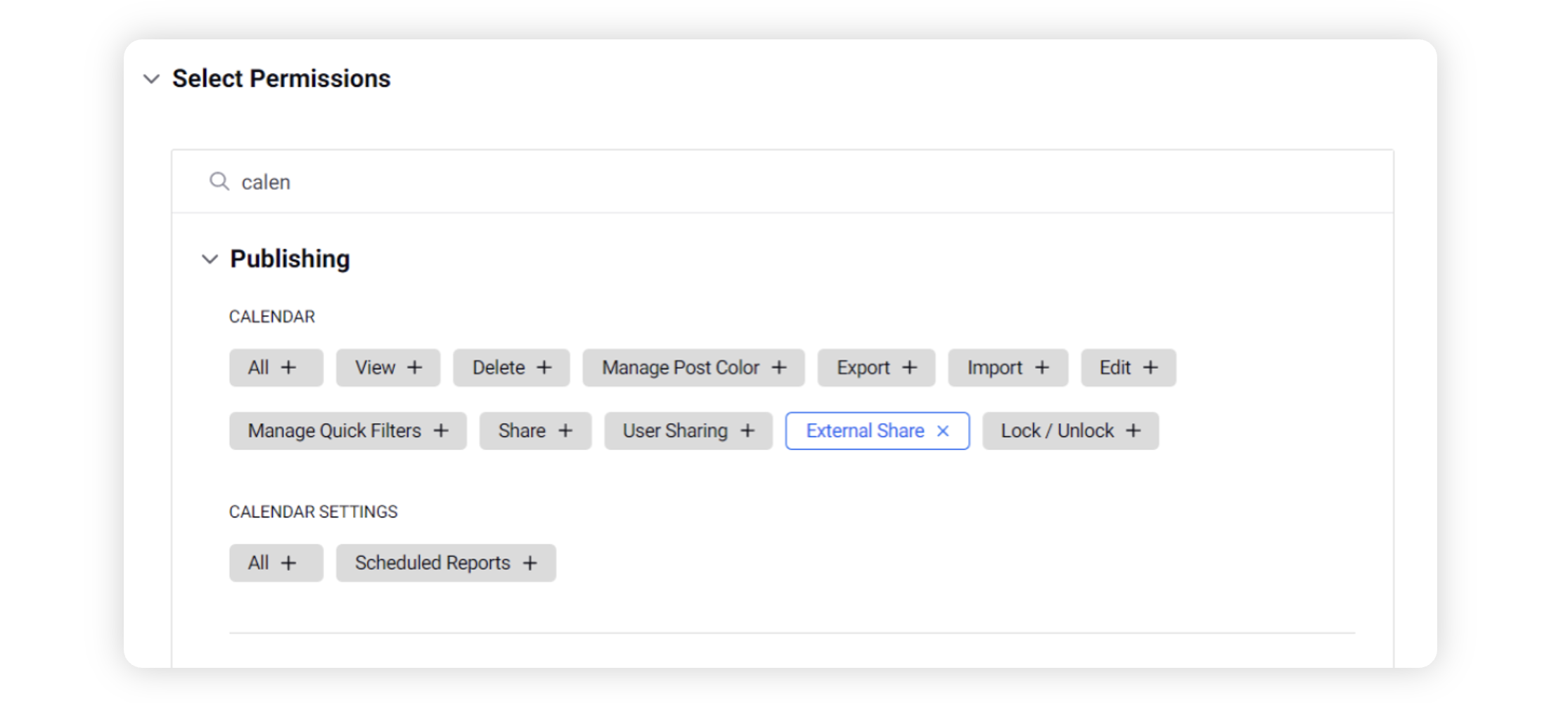
To access the External Link feature, users need to have “Calendar External Share” permission enabled.
To share Editorial Calendar externally
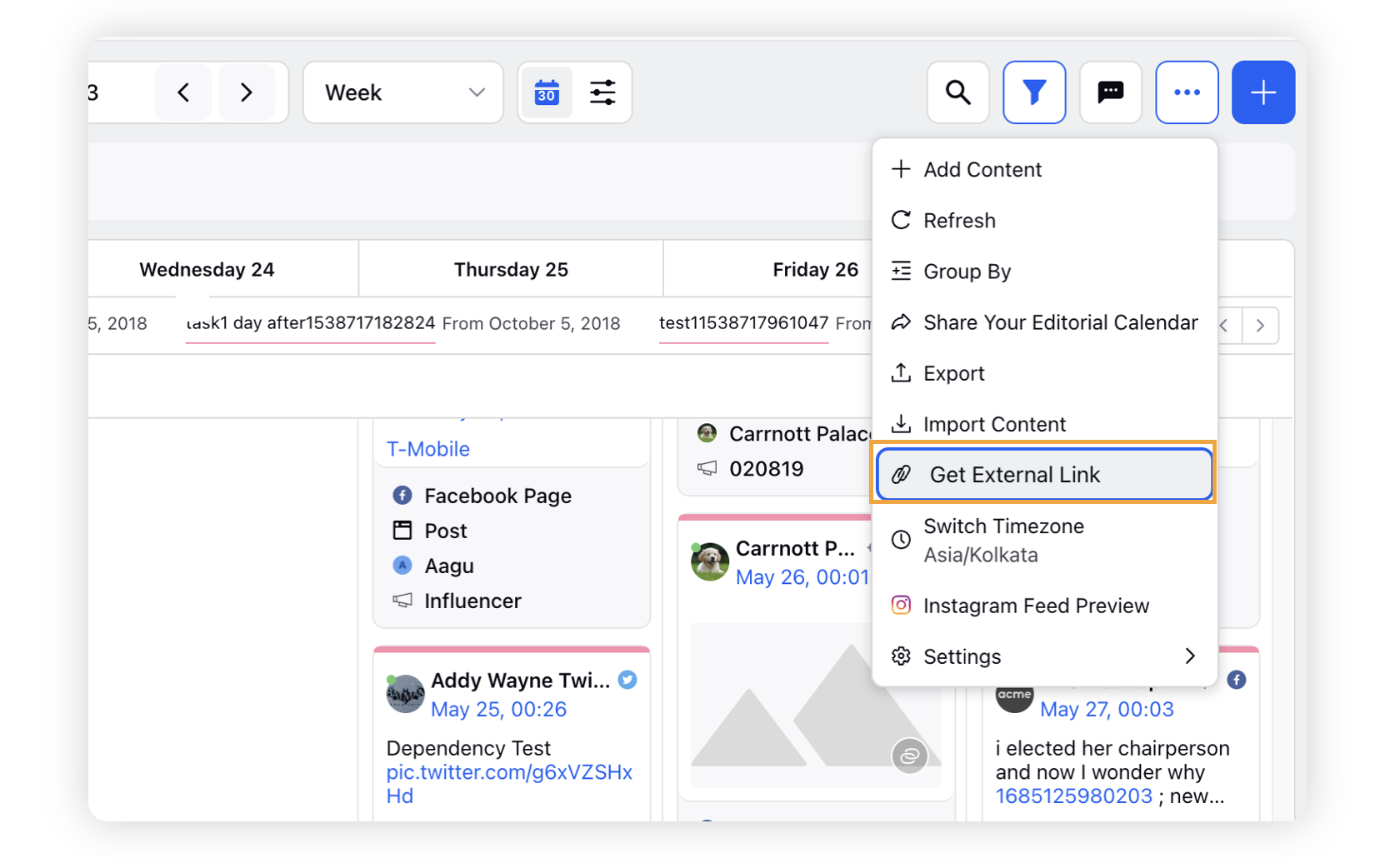
Click the New Tab icon. Under the Sprinklr Marketing tab, switch to the Marketing section, then click Editorial Calendar within Plan.
In the top right corner of your Editorial Calendar window, click the Options icon.
Select Get External Link.
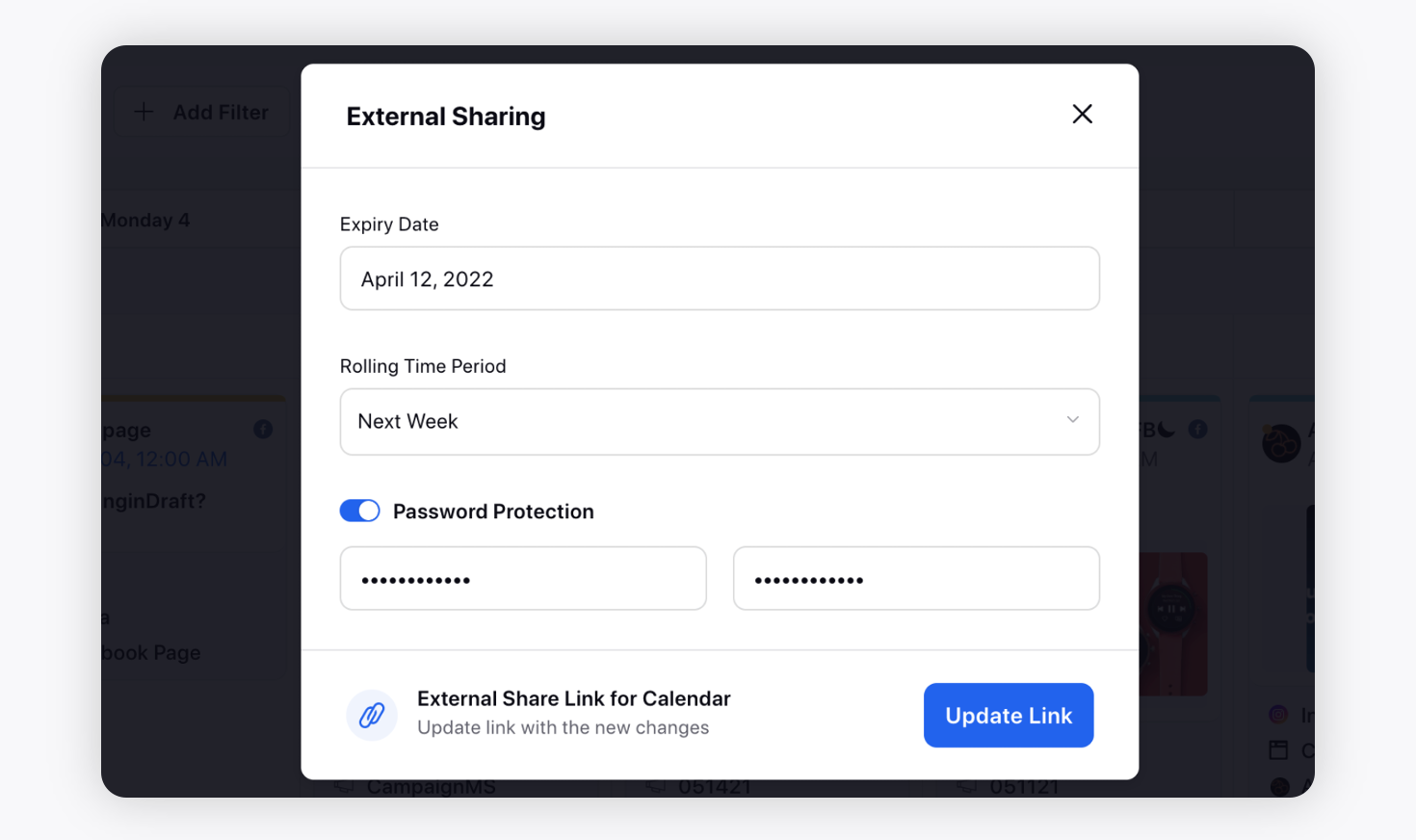
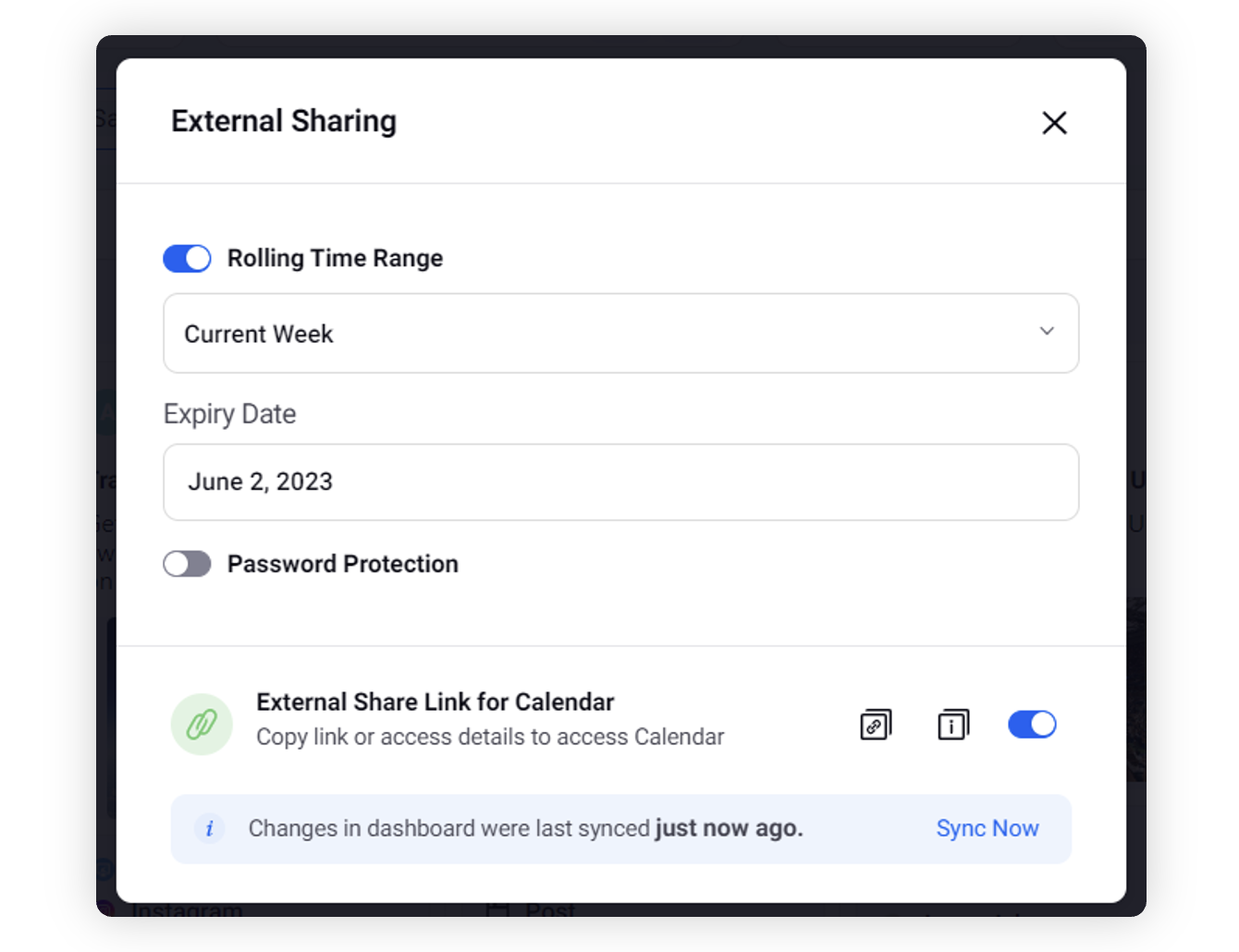
Set Expiry Date from the External Sharing pop-up window along with Rolling Time Period. Also, you can enable Password Protection for your link.
Additional Features Supported in External Link:
Time Period
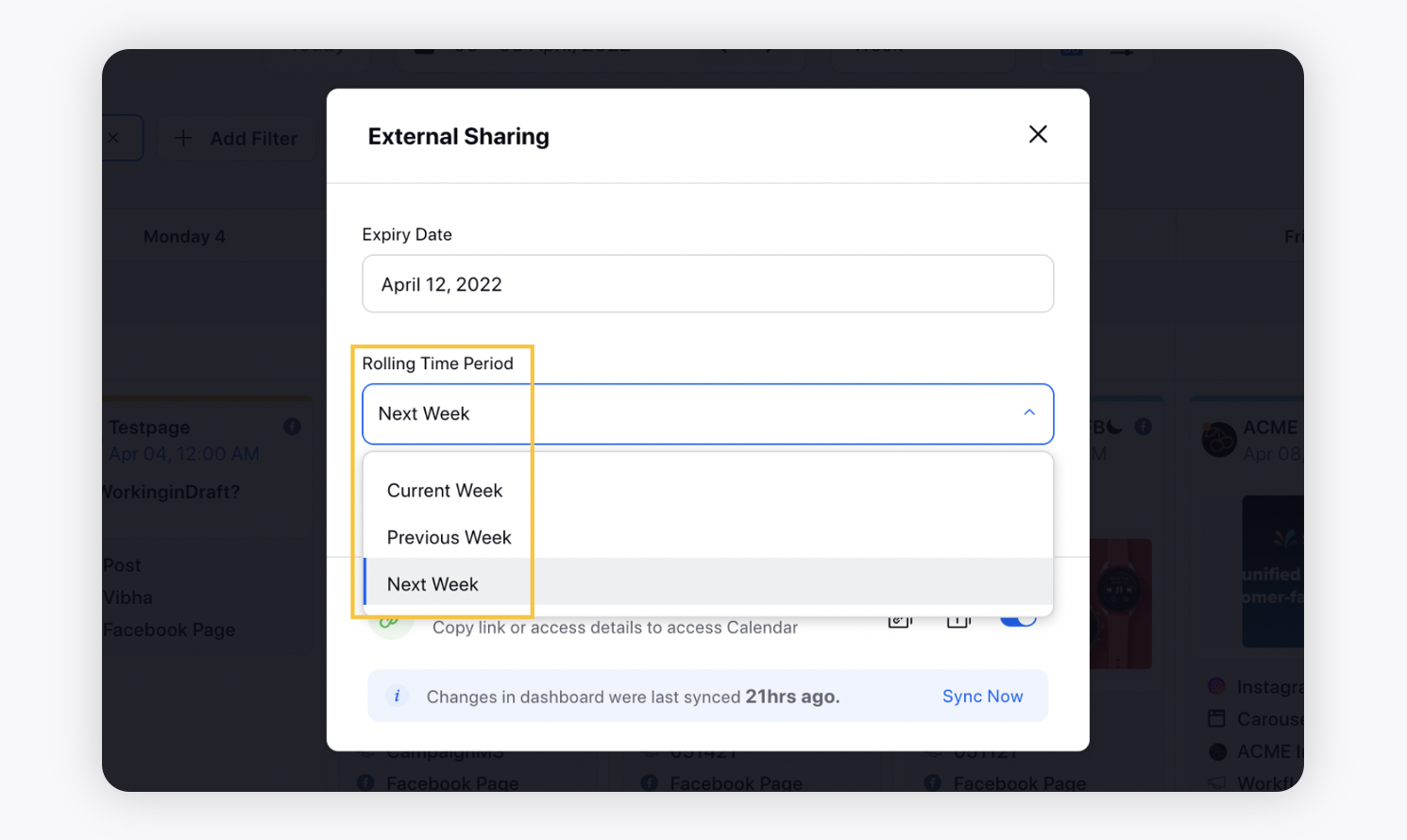
Select the Rolling Time Period to view the content strategy and planning for a given time period. Note that the options available in dropdown may vary depending on the view types:
Year View: Current Year (default auto-filled), Previous Year, Next Year
Quarter View: Current Quarter (default auto-filled), Previous Quarter, Next Quarter
Month View: Current Month (default auto-filled), Previous Month, Next Month
Week View: Current Week (default auto-filled), Previous Week, Next Week
Day View: Today (default auto-filled), Yesterday, Tomorrow
Dynamic Rolling Time Range
You can configure dynamic rolling time ranges when generating an external Editorial Calendar link. These options adjust automatically based on the current date and help you view recent and upcoming content without regenerating the external link.
Calendar View | Rolling Time Range | Behavior |
Month | Next 30 Days | Displays content planned for the next 30 days and includes the weeks containing the start and end dates. |
Month | Last 30 Days | Displays content published or scheduled in the previous 30 days and includes the weeks containing the start and end dates. |
Month | Next 14 Days | Displays content planned for the next 14 days and includes the weeks containing the start and end dates. |
Month | Last 14 Days | Displays content published or scheduled in the previous 14 days and includes the weeks containing the start and end dates. |
Week | Next 7 Days | Displays content planned for the next 7 days, starting from the current day. |
Week | Last 7 Days | Displays content from the previous 7 days, ending on the current day. |
Password Protection
External Links can be password protected and can have an expiry date. Apart from this, you can enable or disable external link sharing.
Sync Now
Users can update the configuration of an externally shared calendar and sync it with the editorial calendar within Sprinklr when there are any configuration changes to the calendar such as filtering parameters, grouping parameters, sorting parameters, date range, viewed entities or calendar view.
Preview Message Content in External Calendar Cards
You can preview message content and associated media directly from external calendar cards. The preview is available in Month, Week, and Day views. You can quickly view post details without opening the full post. This improves visibility for stakeholders using the shared calendar.
Media Attachments
Download media attachments from the external link generated to improve collaboration with the external users. This enables you to view all the assets of a carousel even in the Week and Day view of the Editorial Calendar to get a preview of the post. Also, download the media files added to messages, campaigns, sub-campaigns, and requests.
Post Links in Native Webpage
Similar to the Editorial Calendar within Sprinklr, you can view the published post’s link in the externally shared Calendar Board as well. Clicking the published post’s link will redirect you to the post on the associated channel’s native page.