Call Controls Overview
Updated
Call Control provides agents with real‑time call management capabilities within Sprinklr Voice. These controls help agents handle conversations efficiently by allowing them to mute, hold, record, transfer, or conference calls without leaving the case screen.When an agent answers an inbound call from the call popup—or when a customer accepts an outbound call initiated by the brand—the Case Overview screen opens automatically with the Call Control widget displayed.
This article is intended for contact center agents, supervisors, and administrators who manage or support voice operations in Sprinklr.
Supported Headset Controls
Agents can use supported Voyager and Jabra headsets to perform basic call actions:
Answer calls
Mute / Unmute
Increase or decrease volume
 Note: These actions work only on compatible devices integrated with Sprinklr Voice.
How Call Controls Help Agents
Easy call transfer
Using the call control widget, an agent can transfer the call to other departments when a customer has multiple queries within the same call. This improves the customer experience with the brand.
Call Conferencing
If an agent needs expert assistance during a conversation, they can add another team member to the call. This improves first call resolution and agents’ confidence in resolving complex issues.
Call Recording
Using call control widget, Agents can record calls for training, auditing, and quality assurance. Recording can be started, paused, resumed, or stopped at any time.
Promote Secondary Agent to Primary
Sprinklr allows Primary Agents to promote a Secondary Agent to Primary, giving them full call control capabilities.
If a Primary Agent chooses Leave Call, the system automatically promotes one Secondary Agent.
When the Primary Agent clicks End Call, a confirmation dialog is displayed with two options:
Leave Call — exit the call and promote a Secondary Agent
End Call for All — disconnect the call entirely
A promoted Secondary Agent becomes the new Primary Agent and can:
Add or remove participants
Initiate transfers (blind, consult, conference)
Access all call controls previously limited to the original Primary Agent
This ensures the call can continue seamlessly even if the Primary Agent must leave.
Call Control Widget - Functionalities
The Call Control widget includes several tools to manage a live voice call:
Feature | Icon | Description |
Talk Timer |
| Displays the duration of the ongoing call. If the call exceeds its allowed service level, the timer acts as an indicator. |
Call Directory |
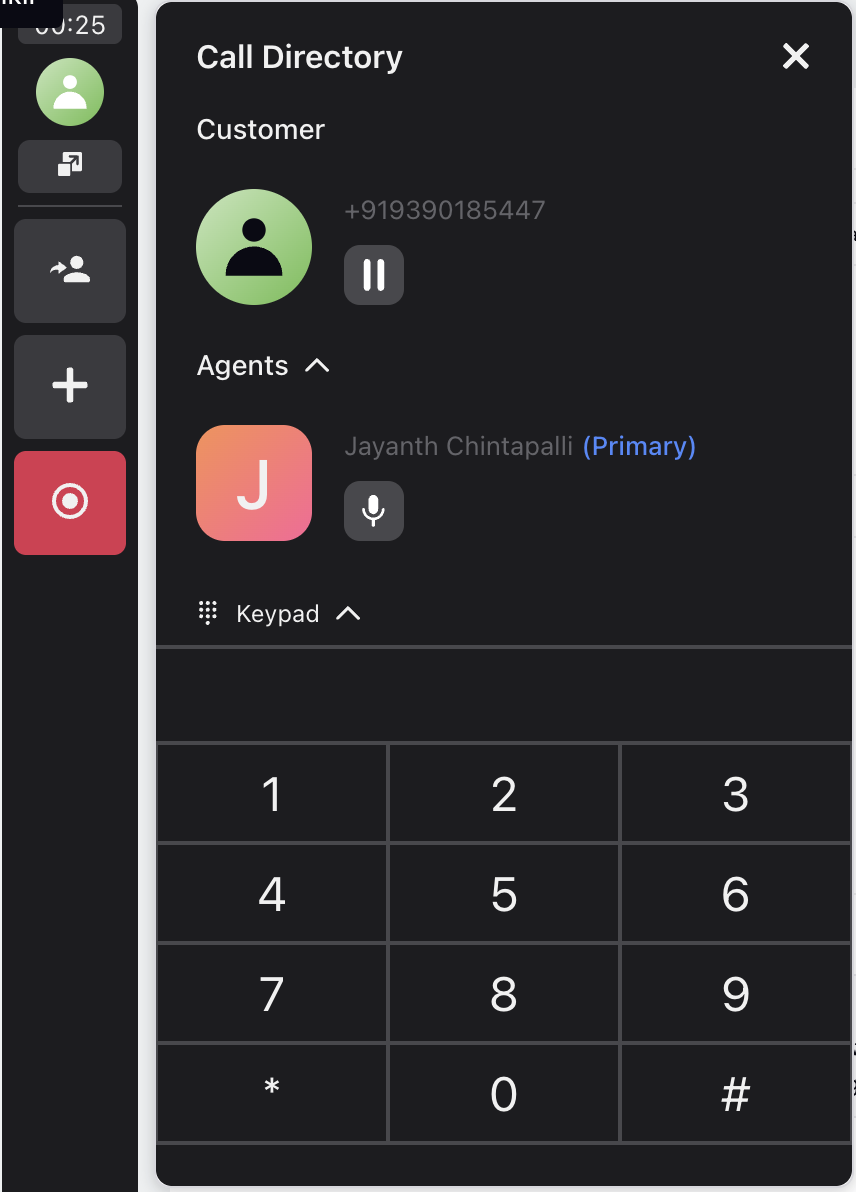
| Click the profile icon to open a panel showing all agents participating in the call. If enabled, the keypad is also accessible from this menu. |
Open Case |
| Opens the case details in the right‑side pane, allowing agents to view properties and context without leaving the call. |
Transfer Call |
| Allows agents to transfer the call to:
Agents can choose to remain on the call or leave after transferring. For Ozonetel or Voice Connect providers, agents can also start an IVR conference. |
Add Agent |
| Lets agents bring additional team members into the call for assistance. This is useful for multi‑department coordination or expert involvement.
|
After Call Work (ACW) |
| Displays a form where agents can select call disposition and add notes. ACW can be completed during the call or immediately after it ends (depending on admin settings). |
Recording |
| Agents can:
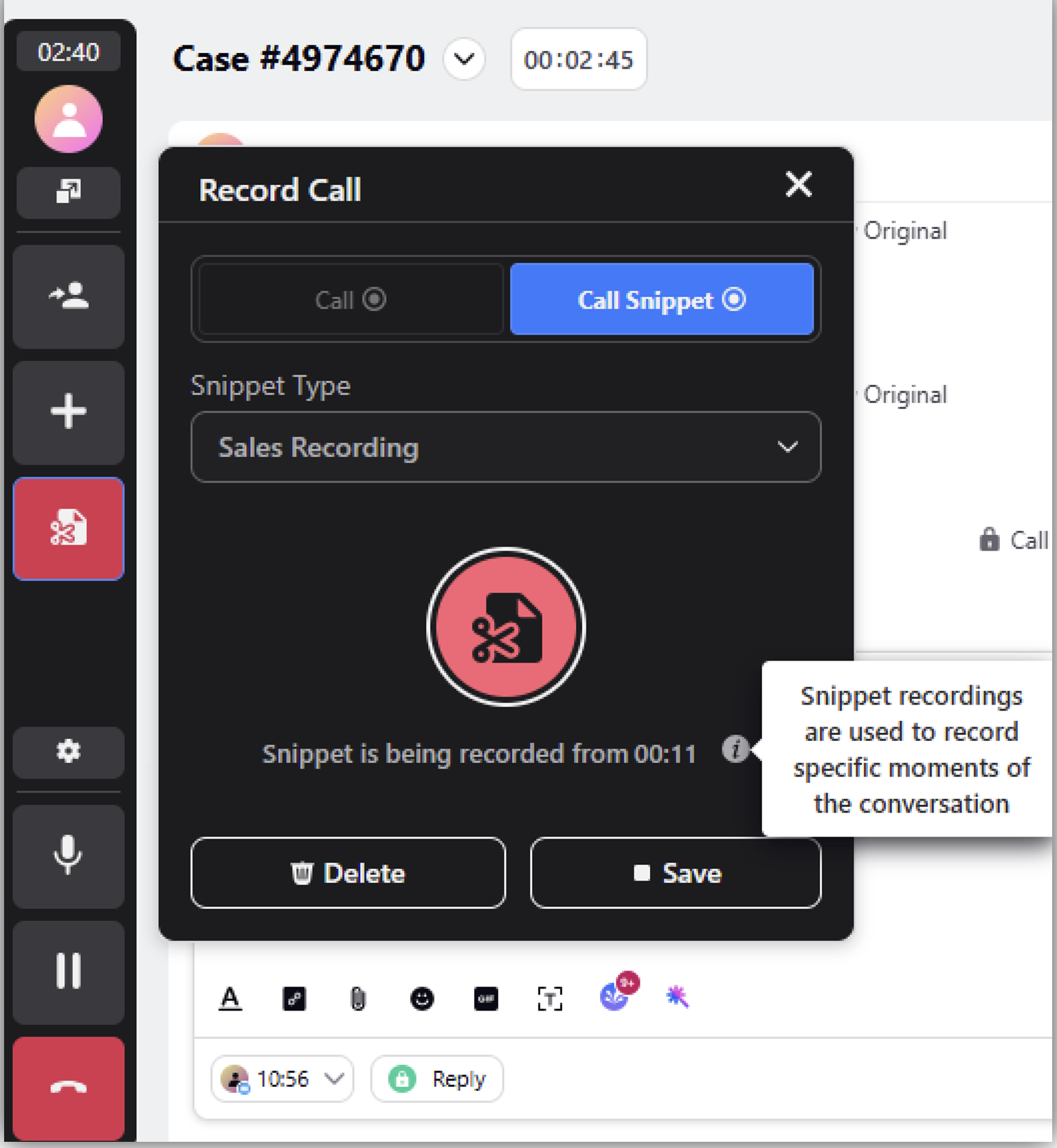
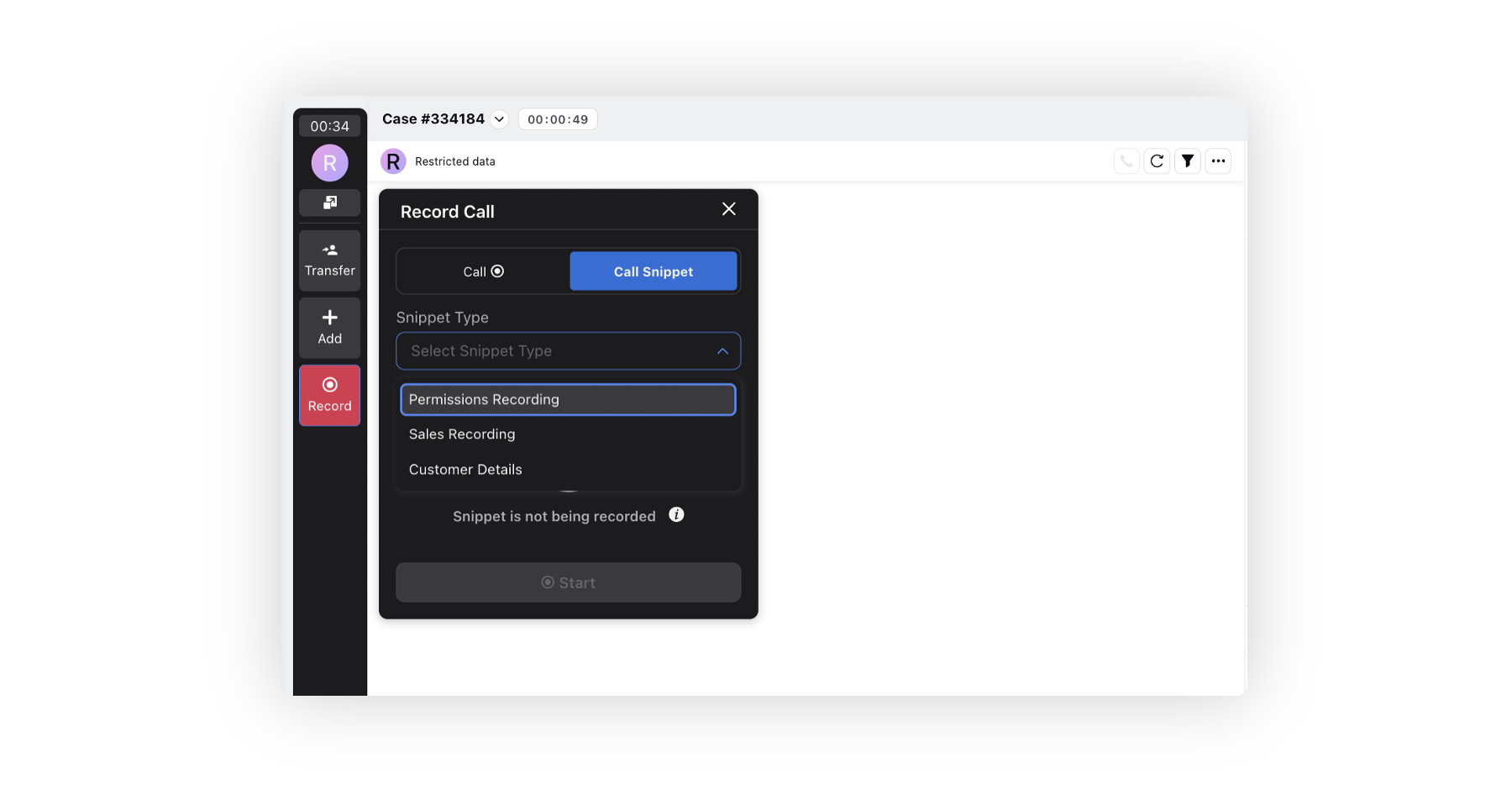
Recordings are stored as part of call history and can be managed in the Care Console using message‑level actions. Agents require the Delete permission under Voice Recording to remove recordings. Snippet Recording Agents can capture short, targeted snippets—for example, customer consent or sales confirmations—by selecting a snippet type from a predefined list.
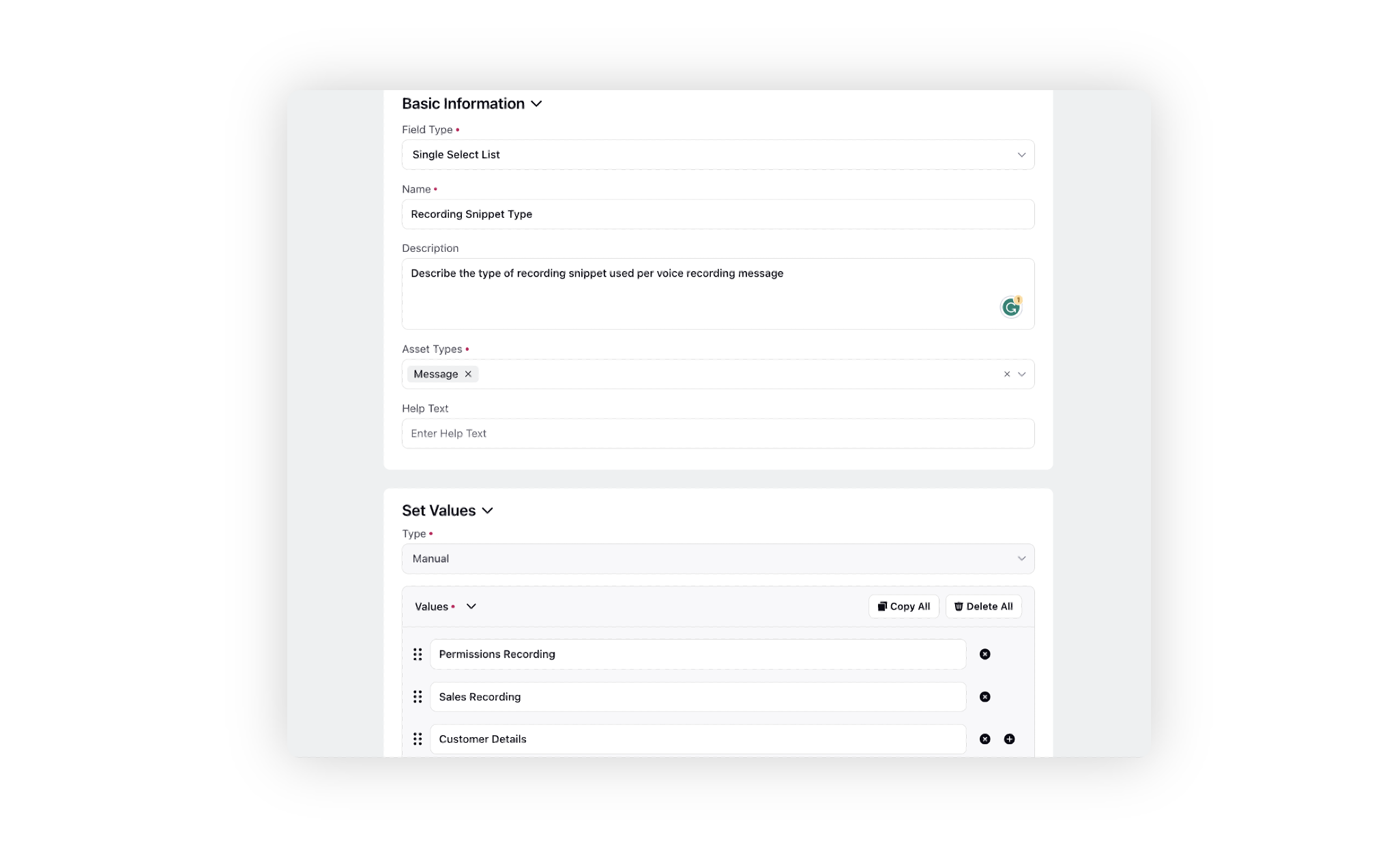
The snippet types can be defined through a picklist-type message level custom field.
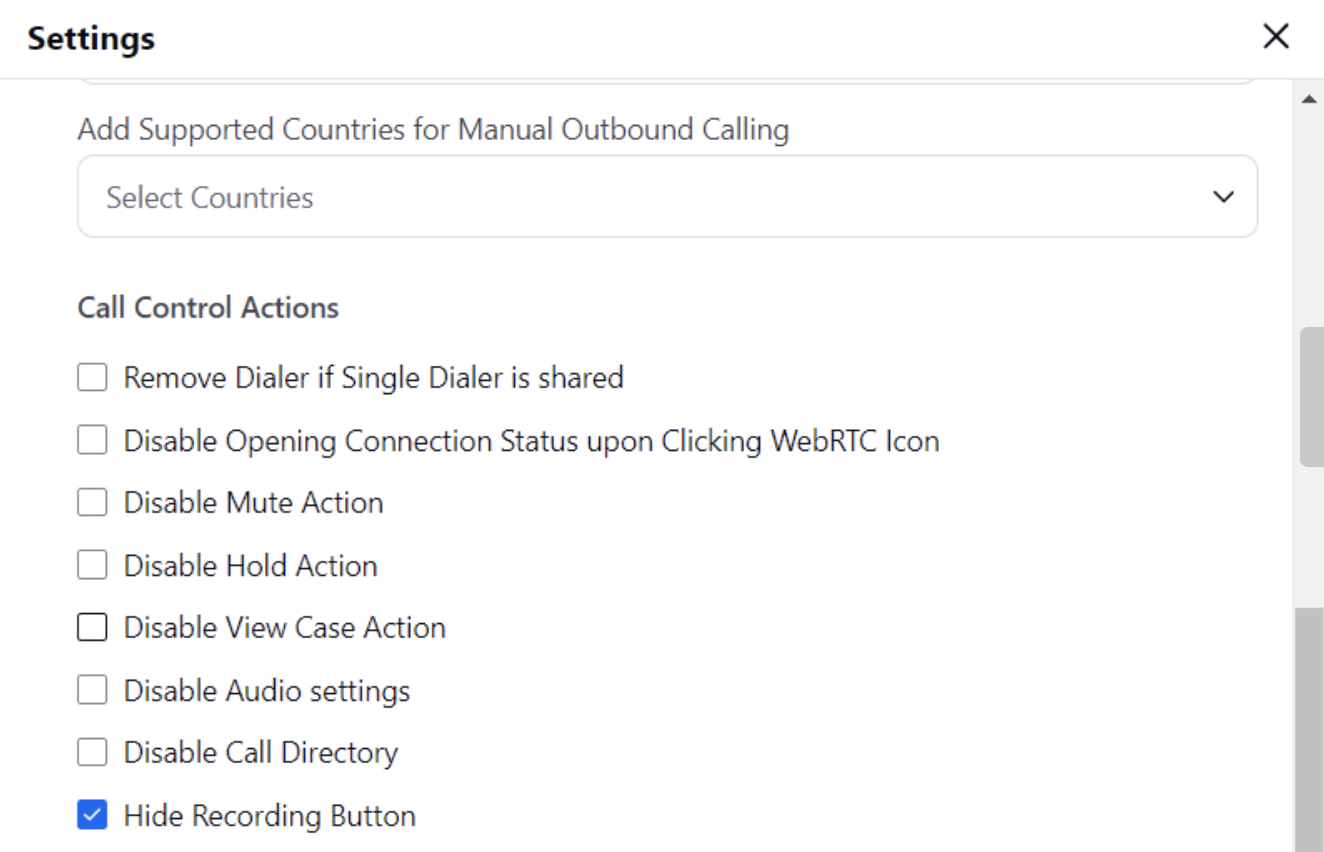
You can hide the call recording button from call controls, preventing agents from seeing if a call is being recorded. This allows you to evaluate actual agent performance by listening to these calls without their knowledge. This feature can be enabled through persona configuration.
|
Keypad |
| To access the keypad:
Agents can use it to dial extensions or transfer calls to another team member.
For more information on enabling the Keypad, refer to Dialpad availability in IVR transfers and conferences section of the Transfer Call article. |
Mute |
|
Agents can mute or unmute a customer without having to worry about the conversation widget alerting them to your mute status by displaying the message, "Agent Name" has been muted on the call. This functionality is controlled by Dynamic Property. If the DP is not enabled, you will see these messages in the Care Console that indicate whether you are muted or unmuted.
|
Hold |
| Places the customer on hold.
|
End Call |
| Ends the agent’s interaction with the caller. If ACW is enabled, the ACW panel opens automatically. When multiple agents are on a call: If the Primary Agent clicks End Call, Sprinklr displays:
|
Leave |
| Appears when the agent joins via Transfer or Conference. |





Call Control Permissions
Sprinklr controls all call actions through permissions. Administrators must enable these based on the agent’s role.
To update permissions:
Go to All Settings → User Management → Global Roles.
Click the More Options icon for the role.
Select Edit.
Scroll to Role Permissions.
Expand Sprinklr Voice Call Controls.
Enable the required permissions.
An agent can access only those call control options which are permitted to them.
.png)