Messages in the Editorial Calendar
Updated
Messages are available for you to visualise and engage with in the Editorial Calendar. You can create messages from the Editorial Calendar, view existing messages, and update message properties as needed. Messages are available across supported Calendar and Timeline views, enabling you to plan, review, and manage content schedules from a single workspace.
To navigate to the Editorial Calendar and view Messages:
Click the New Tab icon.
Under Sprinklr Marketing, click the Marketing tab.
Click Editorial Calendar under Plan.
Click View and select Messages.
Select the desired Calendar or Timeline view.
Calendar View: Year & Season Periods
This view groups messages by month. Click a message to open the third pane, where you can view and engage with it.

When you select Campaigns, Sub-Campaigns, Paid Initiatives, Messages, and Events in the View configuration, the calendar displays all related entities within the campaign hierarchy. You can engage with messages only from the third pane.

Calendar View: Month Period
This view groups messages by day of the month. Click + n more to view all messages for the selected day.

When you select Campaigns, Messages, Tasks, and Events in the View configuration, messages appear below the campaign hierarchy.

Calendar View: Week & Day Periods
Messages are grouped by day of the week in the Week view and by the selected day in the Day view. By default, messages appear on a time-based grid according to their scheduled time.

To show or hide the time-based layout:
Click the More Options (⋯) icon.
Select View Options.

Turn Show Time Axis on or off.
When Show Time Axis is enabled, messages are displayed along a time axis based on their scheduled time.

When Show Time Axis is disabled, messages are displayed in a continuous list without time slots.

When you select Campaigns, Sub-Campaigns, Tasks, and Events in the View configuration, messages appear below campaigns, events, and tasks.
Timeline View: Month & Two Week Period
Messages are categorized by day of the month in this view.

When you select Campaigns, Sub-Campaigns, Paid Initiatives, Messages, and Events in the View configuration, the calendar displays two sections. The first section displays messages and events. The second section displays campaigns, sub-campaigns, and paid initiatives. Messages appear after events in the first section.
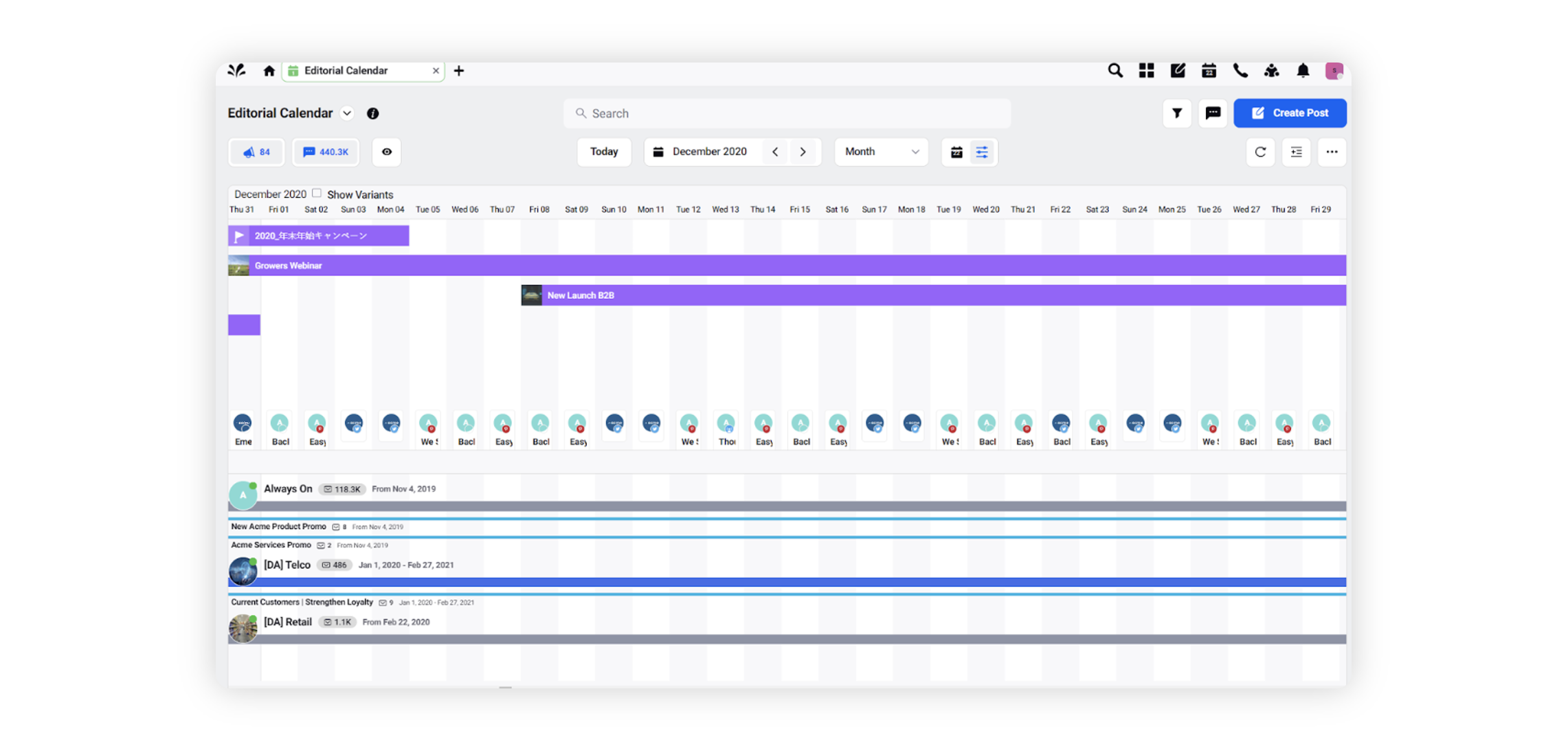
Timeline View: Week Period
Messages are categorized by day of the month in this view.

When you select Campaigns, Sub-Campaigns, Paid Initiatives, Messages, and Events in the View configuration, the calendar displays two sections. The first section displays messages and events. The second section displays campaigns, sub-campaigns, and paid initiatives. Messages appear after events in the first section.

Key properties to filter Messages
Filter | Description |
Account | Name of the account in Sprinklr. Displays the account that is used to publish the Message. |
Ad Type | Type of Ad such as Carousel Ad, Image Post, Link Post, Twitter Card Post, etc. |
Ad Optimisation Type | Type of customizations for the Ad creatives such as Dynamic Creatives, Language Asset Customization, Placement Asset Customization, etc. |
Campaigns | Name of the Campaign to which the message is associated with. |
Channel | Name of the channel used for publishing the outbound message. |
Created By | The Sprinklr user who created the Message. |
Localized Copy | Informs us if the message is a Localized Copy or not. "Yes" indicates that the message is a Localized Copy and "No" indicates that the message is not a Localized Copy. |
Has Targeting? | Informs about the Targeting / Gating details of the message. "Yes" indicates that the message has targeting defined and "No" indicates that the message does not have targeting defined. |
Message Brief | Informs about the Brief details of the message. "Not Set" indicates that Briefs are not associated to the message. |
Message Idea | Informs us whether the entity is a Message Idea or not. "Yes" indicates that the entity is a message idea and "No" indicates that the entity is not a message idea. |
Message Custom Fields | These are custom Message properties defined in the environment. You can also use these properties to filter messages. |
Is Dark Post | Informs us if the message is a Dark Post or not. "Yes" indicates that the message is a dark post and "No" indicates that the message is not a dark post. |
Is Variant | Informs us whether the message is a variant or not. "Yes" indicates that the message is a variant and "No" indicates that the message is not a variant. |
Sub-Campaigns | Name of the Sub-Campaign to which the message is associated with. |
Status | Current status of the Message such as Sent, Scheduled, Draft etc. |