Understand Message Cards in Calendar View
Updated
Message cards in the Calendar view help you quickly review key post details across the Month, Week, and Day views. Each card displays information such as the account name, message name, publishing status, and scheduled publishing date and time.
You can also customise the calendar layout by showing or hiding message properties and the time axis in the Day and Week views for a more compact display. Additionally, you can hover over sections of a message card to view more details about a specific element.
Calendar Message Card
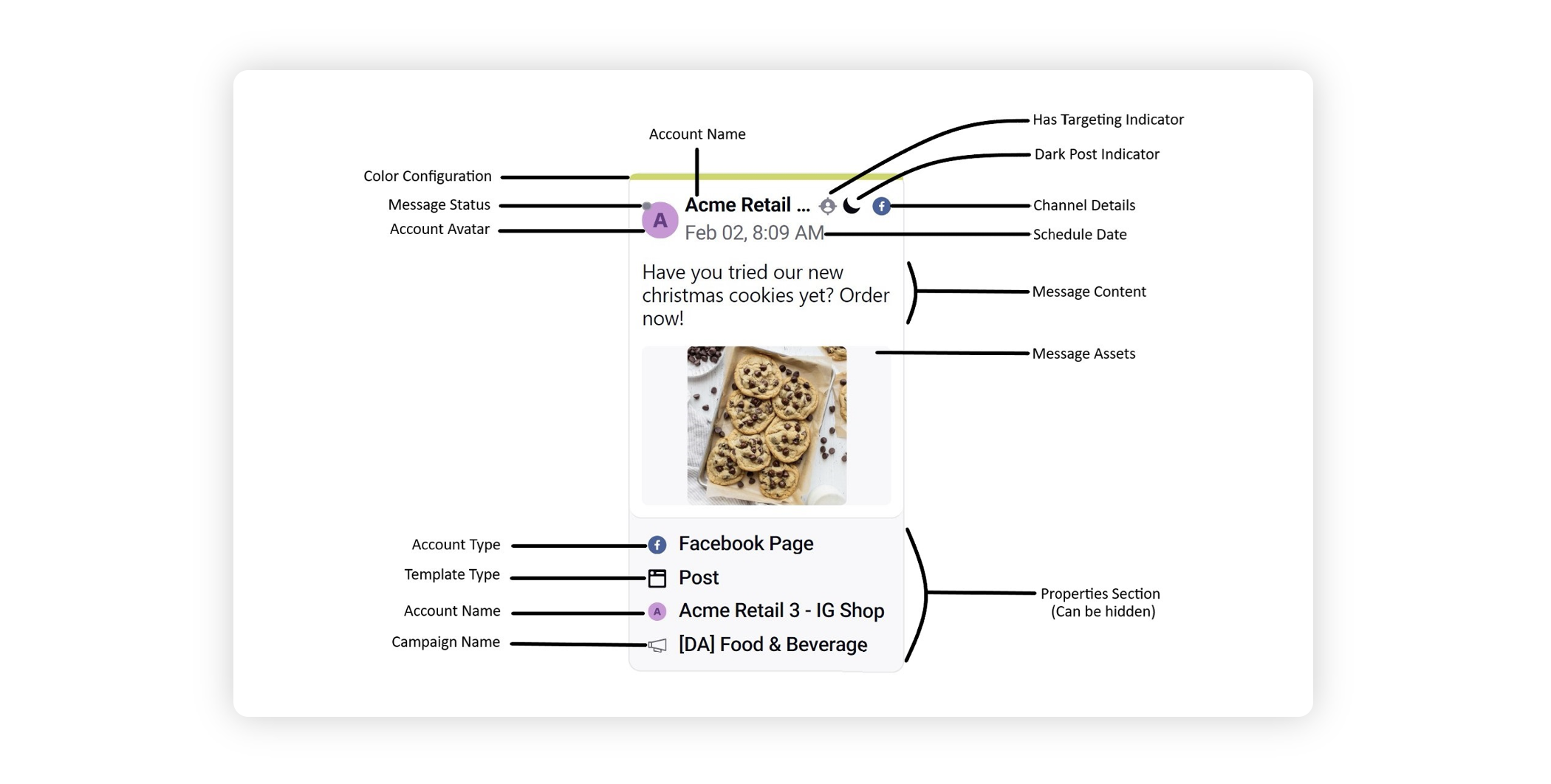
Message Card Descriptions
Term | Description |
Account Name | The name of the account from which the message is getting published. |
Account Avatar | The avatar for the account used to publish the message. |
Color Configuration | The color configuration defined from the settings of the editorial calendar. |
Message Status | Standard Message status defined in Sprinklr - Draft, Scheduled, Sent, Failed, Awaiting approval, Rejected / Rejected by Rule etc. |
Has Targeting Indicator | Helps us identify if the message has a Targeting section or not. If this indicator is absent on a message, then the message does not have a Targeting section defined. |
Dark Post Indicator | Helps us identify if the message is a Dark Post or not. If this indicator is absent on a message, then the message is not a Dark post. |
Channel Detail | The channel(s) (social, non-social or paid) on which the message is being published. |
Schedule Date | The schedule Date of the message. After the message gets published, this becomes the published date of the message. If a post is published, the published Date and Time becomes a link that you can click on to open the message in its native channel where you can preview your post. |
Message Content | This section is a preview of the message content that has been defined for this message. |
Message Assets | The media / creatives used as a part of this message. |
Account Type | The type of account used to publish the message. While viewing a multi-channel message (only applicable on multi-channel posts that are in draft status) within the week and day view the Editorial Calendar, you can also view the details of multiple channels associated with that particular post. The calendar cards will highlight key information upfront to simplify the content planning and review process. |
Template Type | The template used for the specific account type. |
Campaign Name | The name of the campaign to which the message is associated with. |
Properties Section | This section contains the Account type, Template Type, Account Name & Campaign Name. This can be hidden from the view configuration by toggling off “Show Properties”. |
Define your Calendar Message Card
Adjust your Card Size: You can adjust the size of message cards using the Card Size controls in the toolbar. Switch to Small size to display more posts in a compact layout, or Large size to view additional post details. The calendar updates automatically when you change the card size.
Adjust Message Card Size in Month view: You can adjust the size of the card from the view configuration.
Small Card Size
Large Card Size


Adjust Message Card Size in Week / Day view: You can adjust the size of the card from the view configuration.
Small Card Size
Large Card Size


Show Properties in Large Cards
You can customize the information displayed on large message cards using the Post Card Properties option. Click the More Options (three-dot) icon in the Editorial Calendar toolbar and select Post Card Properties. From the panel that appears, enable the properties you want to display on message cards and click Apply. The selected properties are then shown on all large message cards, allowing you to view additional post details directly from the calendar.
