Create an Engagement Dashboard
Updated
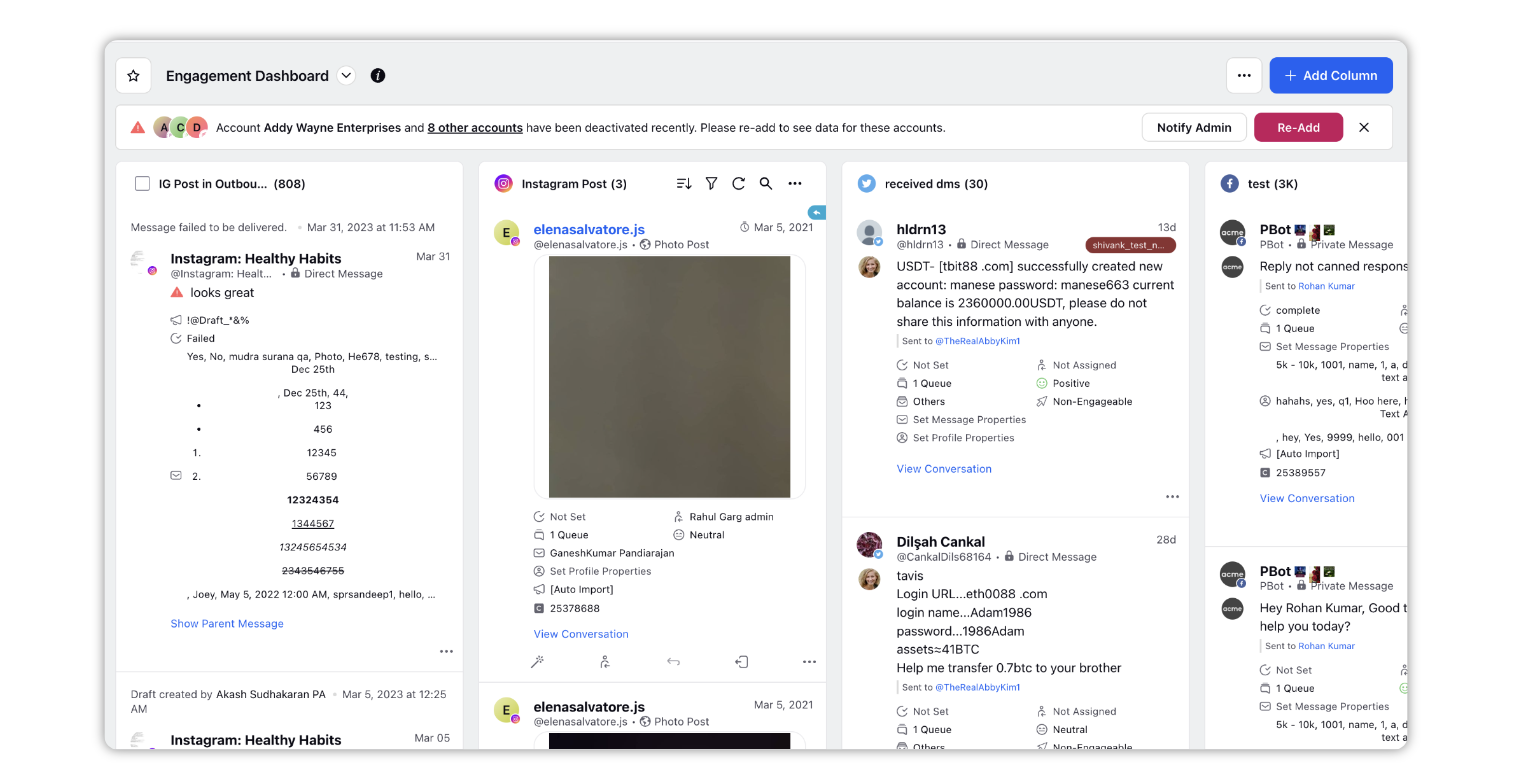
Engagement in Sprinklr helps teams efficiently manage response workflows through structured dashboards. It enables routing, prioritizing, and responding to inbound social messages to ensure faster, more effective resolutions.
Engagement Dashboards offer customizable views where messages can be monitored, acted upon, assigned, and engaged with using configurable columns that surface the most relevant information for quick decision-making.
Steps To Create/View a Engagement Dashboards
Click the New Tab icon. Under the Sprinklr Social tab, click Engagement Dashboards within Engage.
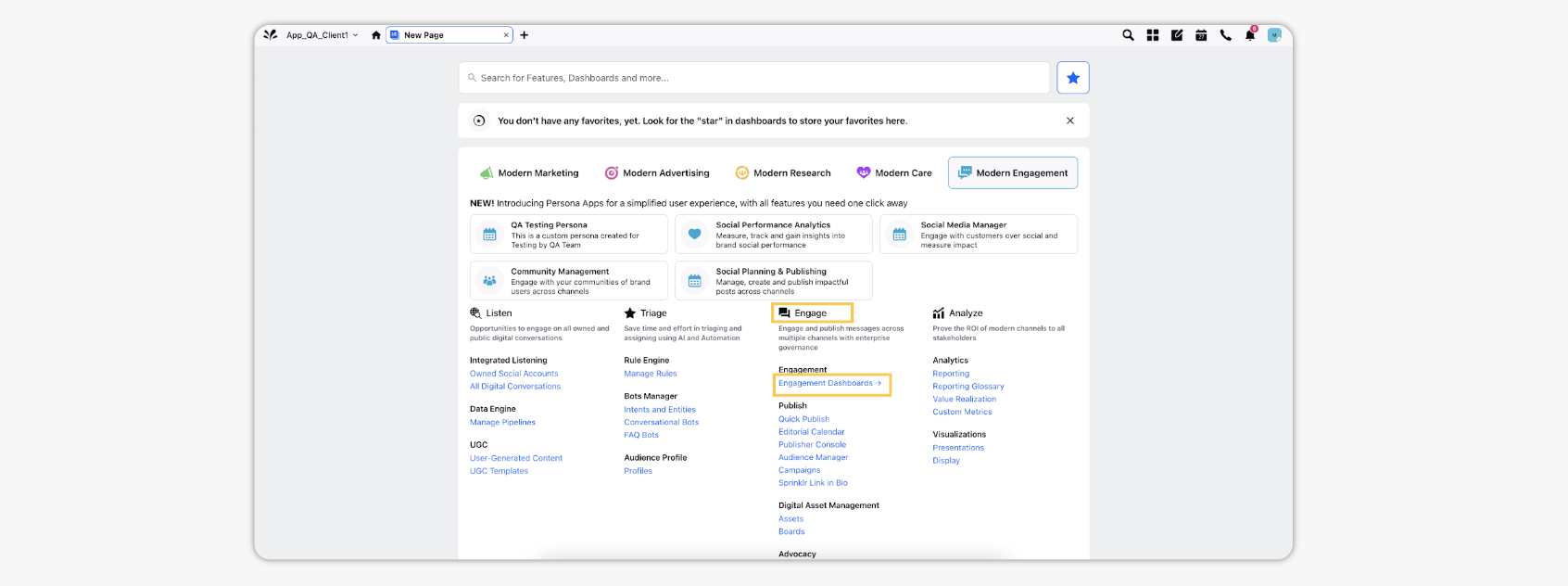
You can view all the created Engagement dashboards.
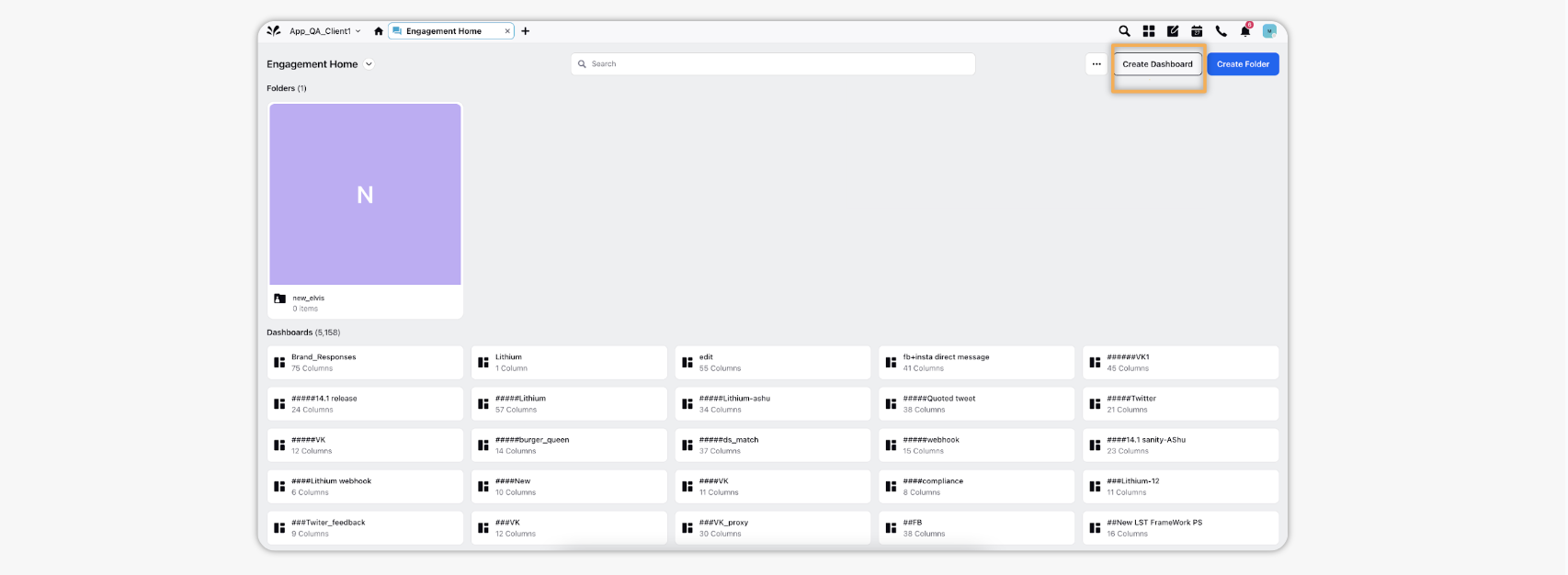
Click Create Dashboard in the top right corner for creating a new Engagement dashboard.
On the Add New Dashboard window, provide the Name of the Dashboard, required Folder name.
Select Tags from the drop-down menu. You can add multiple tags for a particular dashboard. Tags help you in organizing your engagement dashboards in the Dashboard Menu.
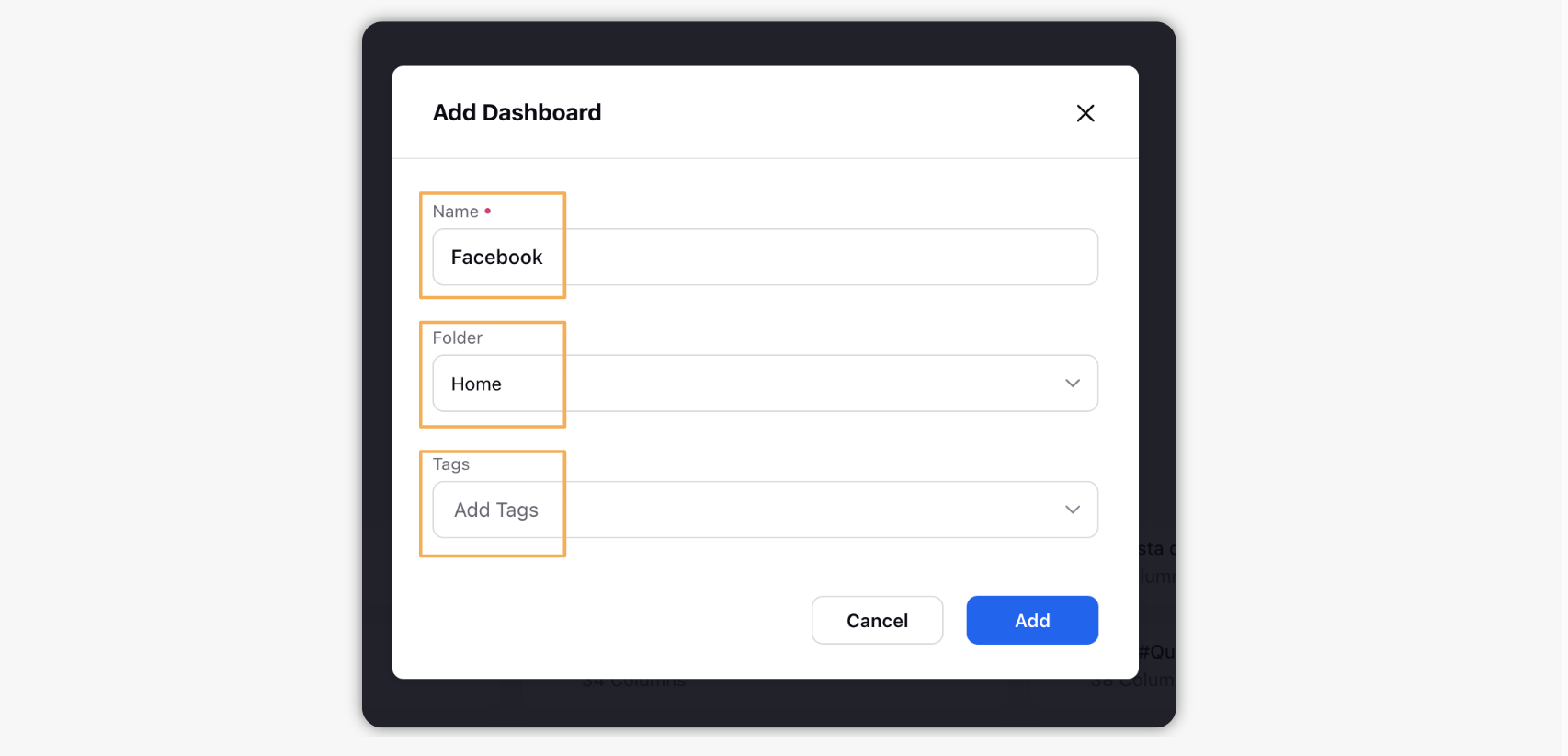
Click Add in the bottom right corner of the Add New Dashboard pop-up window to save your Dashboard.
Click Add Column on the top right corner. This will give all the channels currently available, and you can select any of them to create a channel specific column.