Roles and Permissions in Community
Updated
Roles and Permissions in Community enable you to manage access for community members and administrators in a clear and efficient way. It lets you create custom Roles that match your organization’s structure and assign permissions based on specific responsibilities. By defining granular permissions, you ensure that each user can access only the tools and resources required for their Role. This approach helps reduce the risk of unauthorized access, improves overall security, and simplifies ongoing access management as your community evolves.
Sprinklr Service Community uses two types of permissions to control user access and actions: Community-specific permissions and Platform-level permissions. These permissions operate at different levels and serve different purposes.
Platform-level Permissions: Control the Community management and configuration operations that users can perform within the Sprinklr platform. These permissions govern administrative capabilities such as creating and managing Categories, Topics, Roles, Badges, Ranks, Events, Polls, Contests, and other Community configurations.
Community-specific Permissions: Control what users can do within a particular Community, such as creating posts, commenting, replying, and performing moderation actions. You configure these permissions separately for each Community, allowing the same user or role to have different levels of access across different Communities.
For example, a user might have permission to moderate posts and comments in one Community but not another. Separately, the user's Sprinklr permissions determine whether the user can perform administrative operations, such as creating Categories or managing Community roles.
Configure Platform-Level Roles and Permissions for Community
The following are the Sprinklr Platform permissions for Community.
Permission | Description |
View | Allows users to view Community Builder on the Sprinklr platform. |
Create | Allows users to create and configure Community. |
Edit | Allows users to edit Community content or configuration items available to their role. |
View Topic | Allows users to view Topics in Community. |
Create Topic | Allows users to create Topics in Community. |
Edit Topic | Allows users to edit existing Topics in Community. |
Delete Topic | Allows users to delete Topics from Community. |
View Category | Allows users to view Categories in Community. |
Create Category | Allows users to create Categories in Community. |
Edit Category | Allows users to edit existing Categories in Community. |
Delete Category | Allows users to delete Categories from Community. |
Manage Shared Categories | Allows users to only manage Categories that are shared with them. |
Manage Community Tag | Allows users to create, edit, and manage Tags used in Community. |
Map Kb Folders To Community | Allows users to map Knowledge Base Categories (folders) to Community Categories. |
Map Guided Workflow To Community | Allows users to map supported Guided Workflows to Community. |
Community Create Badge | Allows users to create Badges in Community. |
Community View Badge | Allows users to view Badges and their configurations in Community. |
Community Update Badge | Allows users to update existing Community Badges. |
Community Delete Badge | Allows users to delete Community Badges. |
Community Create Rank | Allows users to create Ranks in Community. |
Community View Rank | Allows users to view Ranks and their configurations in Community. |
Community Update Rank | Allows users to update existing Community Ranks. |
Community Delete Rank | Allows users to delete Community Ranks. |
Community Create Role | Allows users to create Roles in Community. |
Community View Role | Allows users to view Community Roles and their configurations. |
Community Update Role | Allows users to update existing Community Roles. |
Community Delete Role | Allows users to delete Community Roles. |
Community Add Bonus Points | Allows users to award bonus points to Community users. |
Customize Labels | Allows users to customize supported Labels displayed in Community. |
Move Posts Bulk | Allows users to move multiple Community Posts in a single operation. |
Edit Email Templates | Allows users to edit email templates used for Community communications and notifications. |
Manage Polls | Allows users to create, edit, and manage Polls in Community. |
Manage Community Event | Allows users to create, edit, and manage Community Events. |
Manage Community Survey | Allows users to create, edit, and manage Surveys in Community. |
Manage Contests | Allows users to create, edit, and manage Contests in Community. |
Attach Photo | Allows users to attach photos to supported Community content. |
Attach Video | Allows users to attach videos to supported Community content. |
Manage Trusted URLs | Allows users to configure and manage trusted URLs for Community. |
Build Community Widgets | Allows users to create and configure widgets for Community pages. |
Configure Community-Specific Roles and Permissions
Follow these steps to configure Community-specific Roles and Permissions:
Navigate to Community Builder.

Click the vertical ellipsis (⋮) icon corresponding to the Community for which you want to configure Roles and Permissions. This displays a list of available options.
Select Roles and Permissions from the list of options to open the Roles and Permissions Record Manager.
Select Create Roles in the upper-right corner to open the Create Role page.
Fill in the required fields in the Create Role page. Fields marked with a red star are mandatory. Below are the descriptions of all the fields in this section:

Role Name: Enter a unique name that identifies the Role. (Required)
Description: Enter a brief description of the Role and its purpose. (Required)
Scope: Select the scope to define where the Role applies within the selected Community. (Required)
Global: Applies the Role to all available assets in the selected Community.
Local: Applies the Role only to the selected assets in the selected Community.
Community Permissions: Select the Community permissions to assign to the Role. These permissions determine the actions that users assigned to the Role can perform within the applicable Community.

Select Profiles: Select individual user profiles to assign the Role to specific users.
Select Profile Lists: Select Profile Lists to assign the Role to all applicable users included in those lists.
Signature: Add Signature in HTML or CSS.
Select Create.
This completes the process of creating a Role for the selected Community. The configured Community permissions are now assigned to the selected users.
Community-Specific Permissions
The following are the available Community-Specific permissions.
Permission | Description | |
All | Allows users to have all the below-mentioned permissions. | |
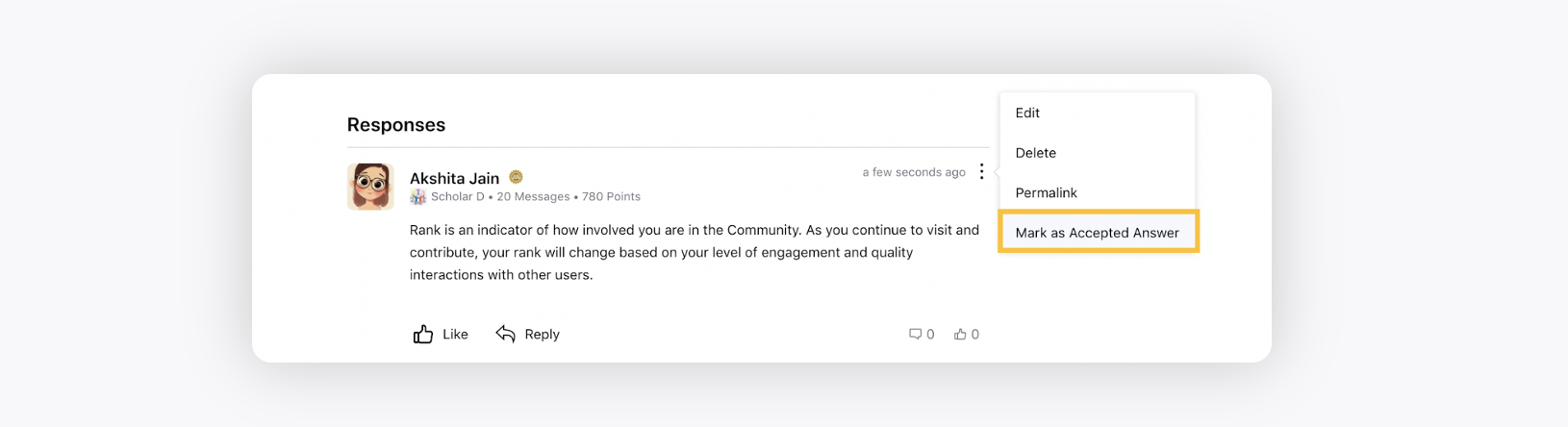
Mark As Accepted Answer | Allows users to mark/unmark any comment on any post as an Accepted Answer. By default, the authors of the post have permission to mark/unmark any comment on their posts as an acceptable answer.
| |
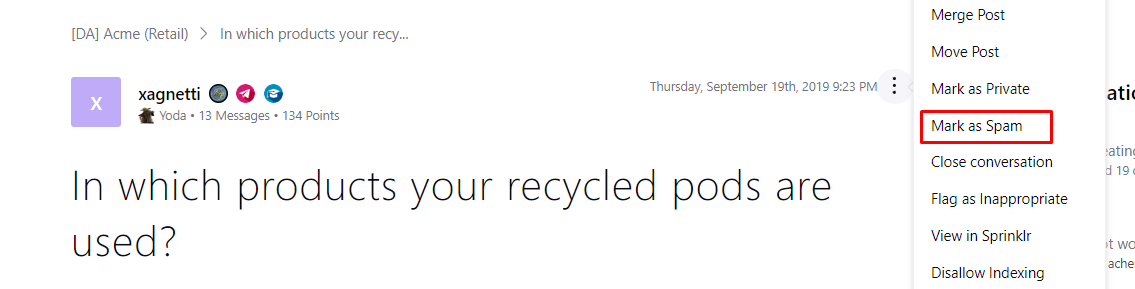
Mark as Spam | Allows users to mark the post as Spam. Once a post is marked as spam, the post will disappear from the community. You cannot unmark a spam post from within the community but from Sprinklr. Note that only the posts can be marked as spam, but not comments and replies. | |
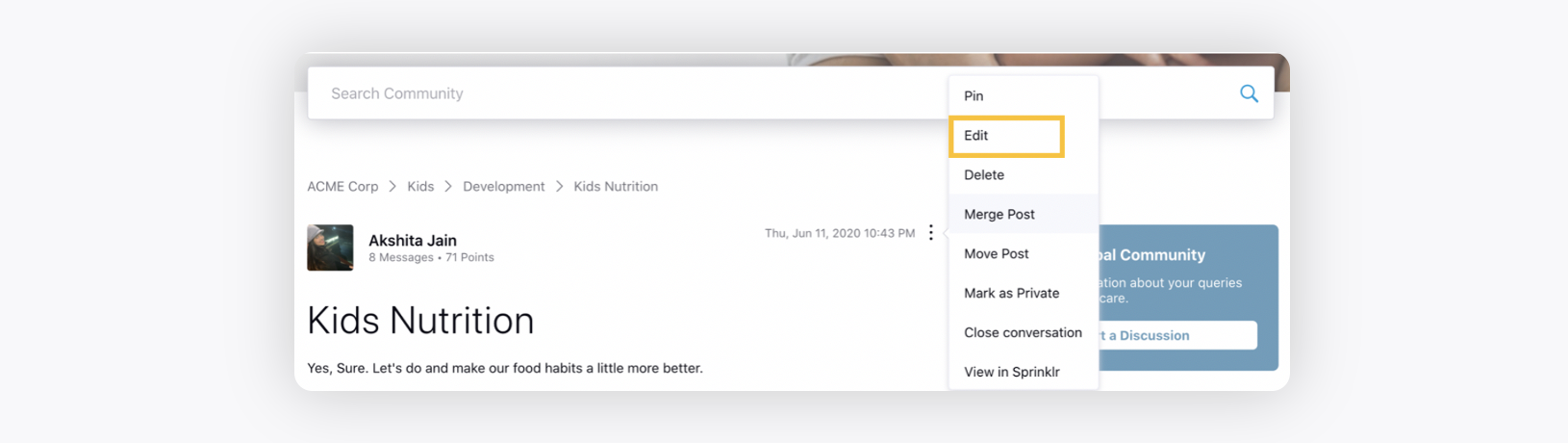
Edit any Post | Allows users to edit any post, reply, or comment of other users in the community. By default, the author can edit the post but s/he cannot edit the comment and reply of other users if they don't have this permission.
| |
Silent Edit any Message | Allows users to edit their posts silently so that the edited post doesn’t start appearing at the top as the activity time gets updated. | |
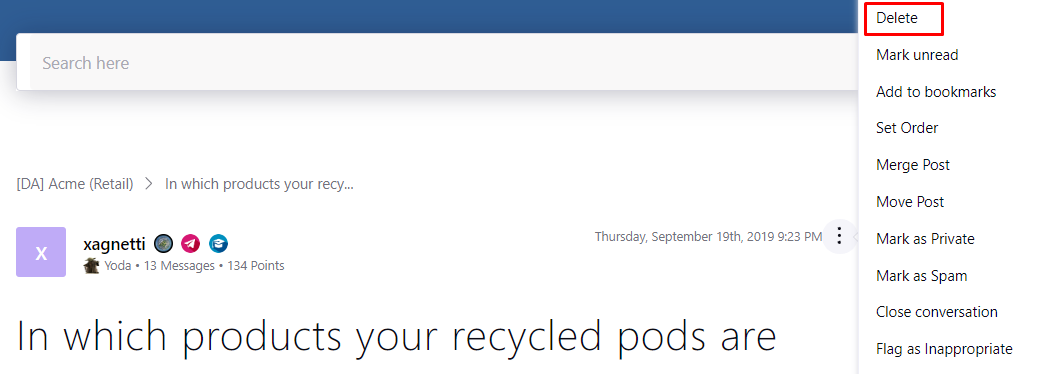
Delete Post | Allows users to delete any post, reply, or comment of other users in the community. By default, the author can delete his/her post, comment, or reply. | |
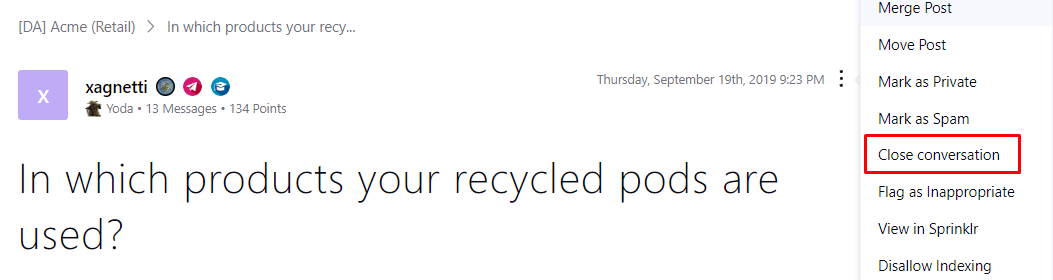
Close Post | Allows users to close any post anytime and a Closed tag will start appearing on the post. After closing the post, no one can reply or comment on the post. Note that the closed posts can be re-opened by the users who have this permission. | |
Edit User | Allows users to edit the profile of other users except for username, user signature, and user employee id. To edit these fields, a user should have separate permissions that are Edit User Signature, Edit User Employee Id, Edit Username. | |
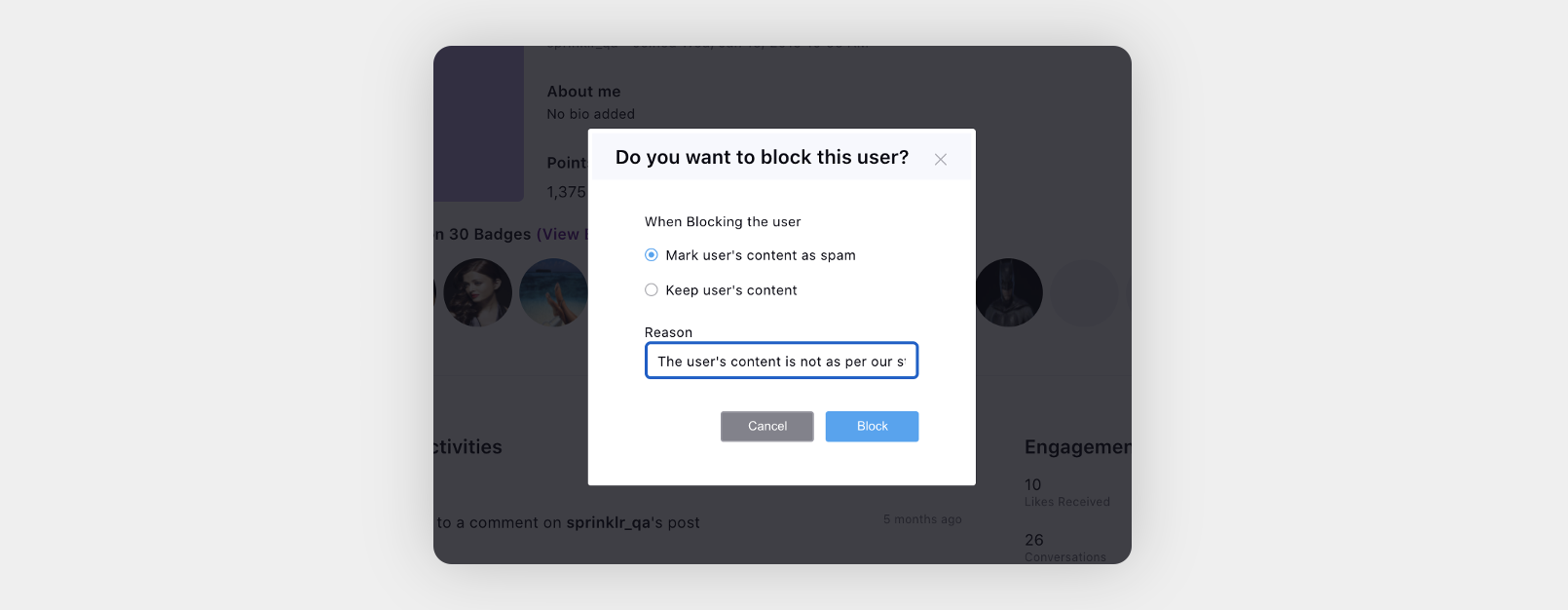
Block Any User | Allows users to block all other users. Blocking someone will remove all the activities of that user from the community. You will also get an option to keep the user's content even after blocking them. Also, you will have an option to specify the reason for blocking.
| |
Block Only Lower Ranked User | Allows users to block only lower-ranked users. For example, the user with rank 5 can only block the users with the lower ranks i.e. 4, 3, 2, and 1. The order of the ranks can be defined while creating a rank. For more information, see Rank Management. Blocking someone will remove all the activities of that user from the community. You will also get an option to keep the user's content even after blocking them. Also, you will have an option to specify the reason for blocking. | |
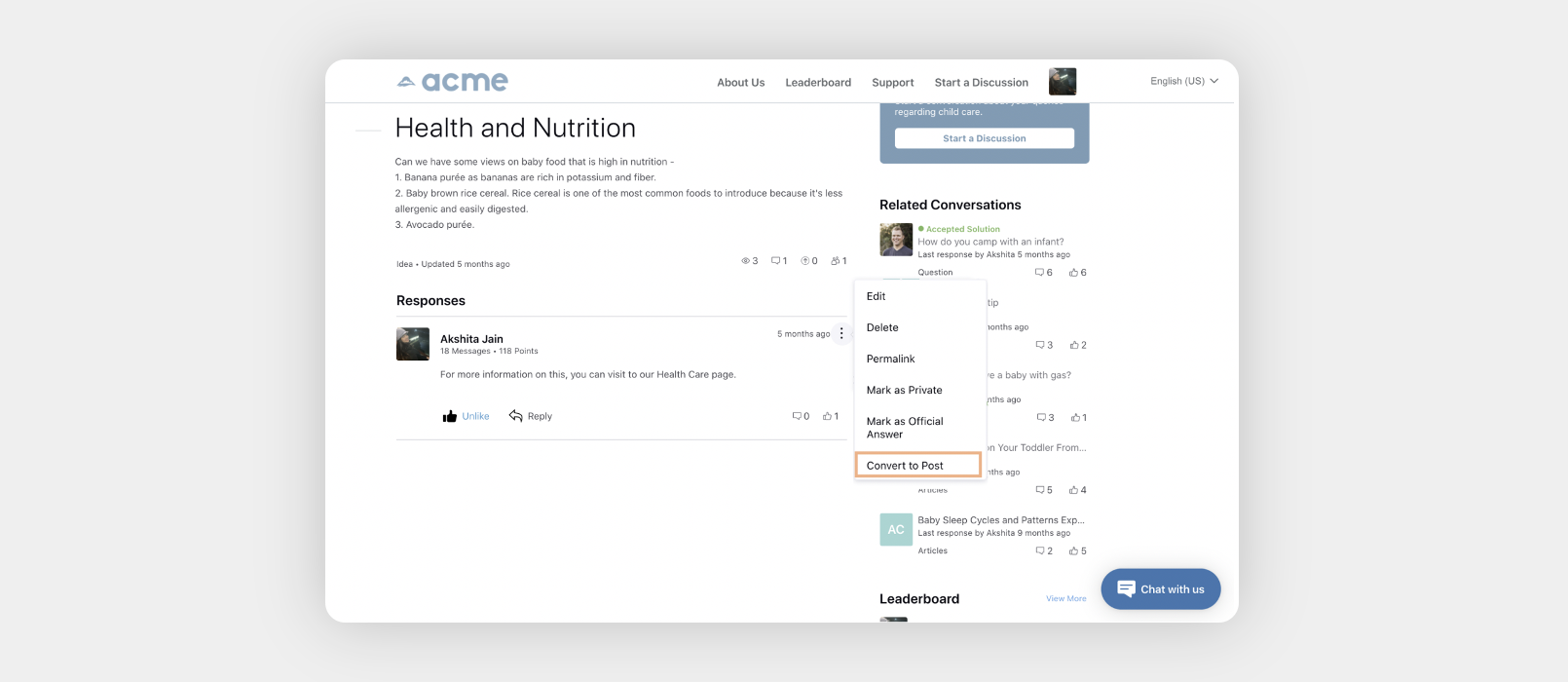
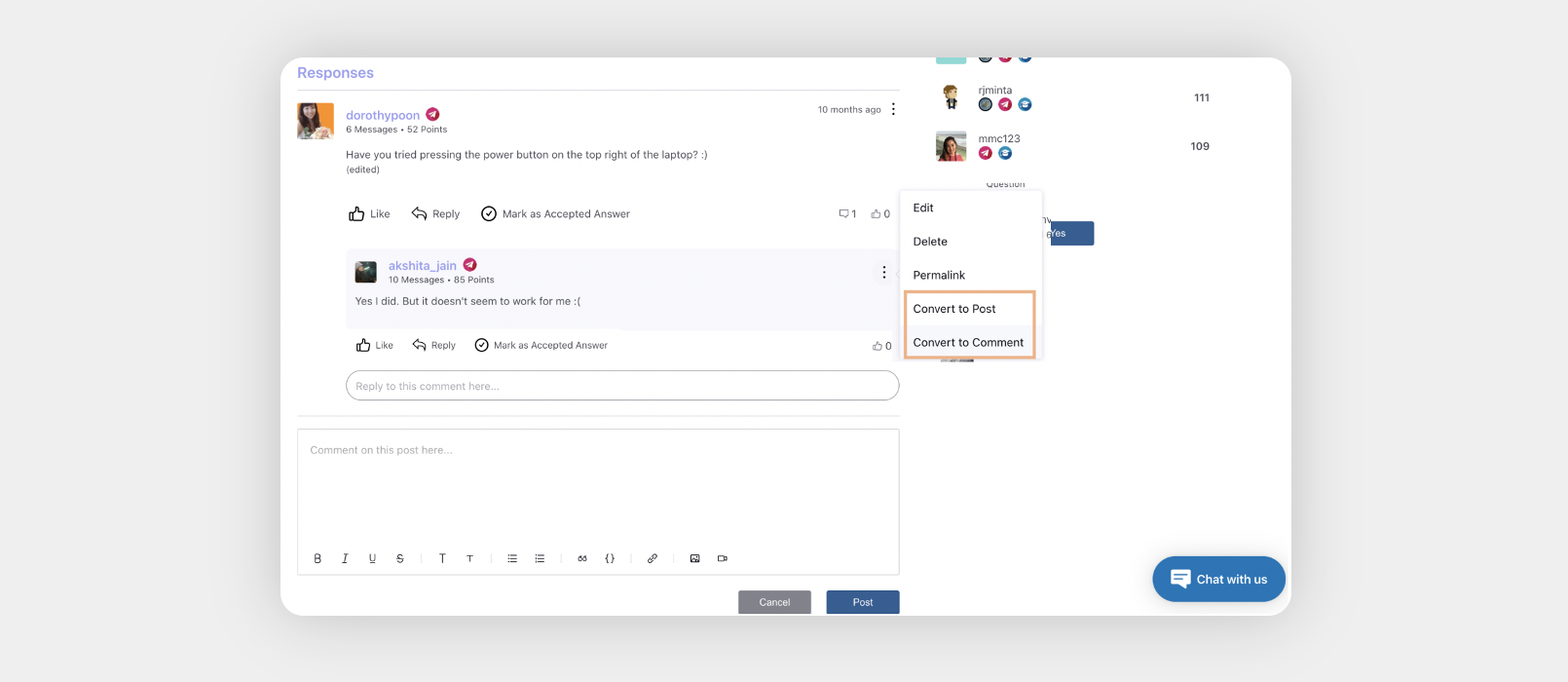
Fork Message | Allows users to convert a comment to a new post with an option of migrating its replies as new post's comments.
Also, users can convert a reply to either a new comment or a new post.
| |
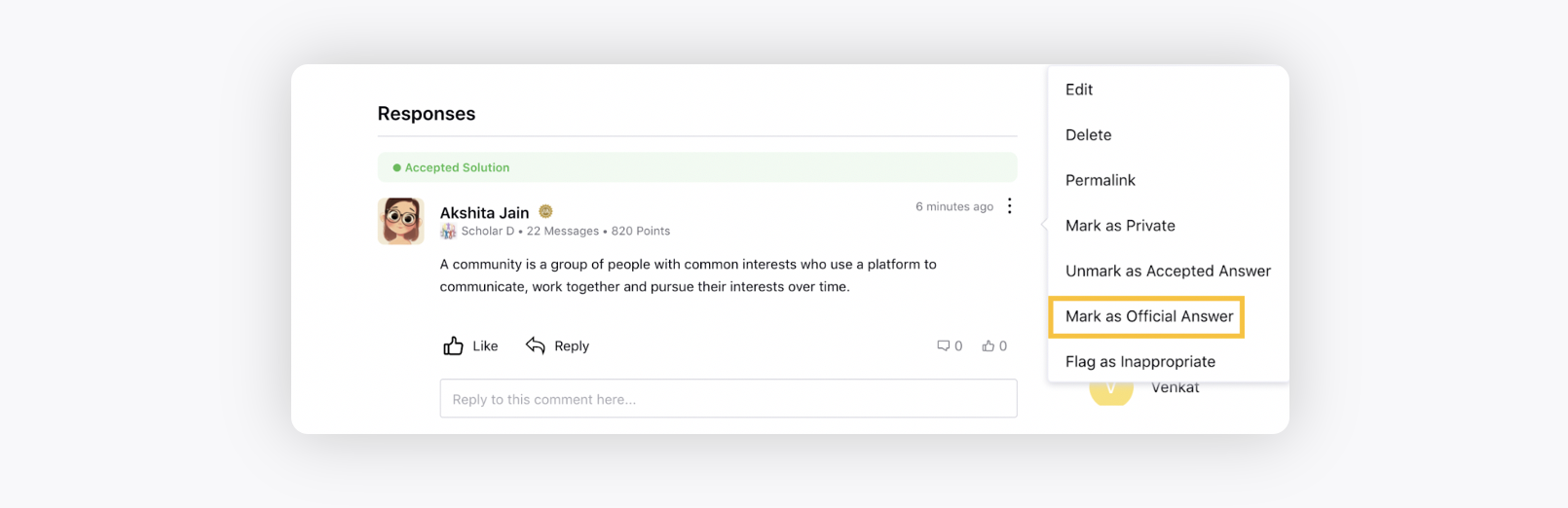
Mark as Official Answer | Allows users to mark/unmark any comment on any post as an official answer. It is a way to tell other users that the comment has been endorsed by the brand. Usually given to the admin of the community.
| |
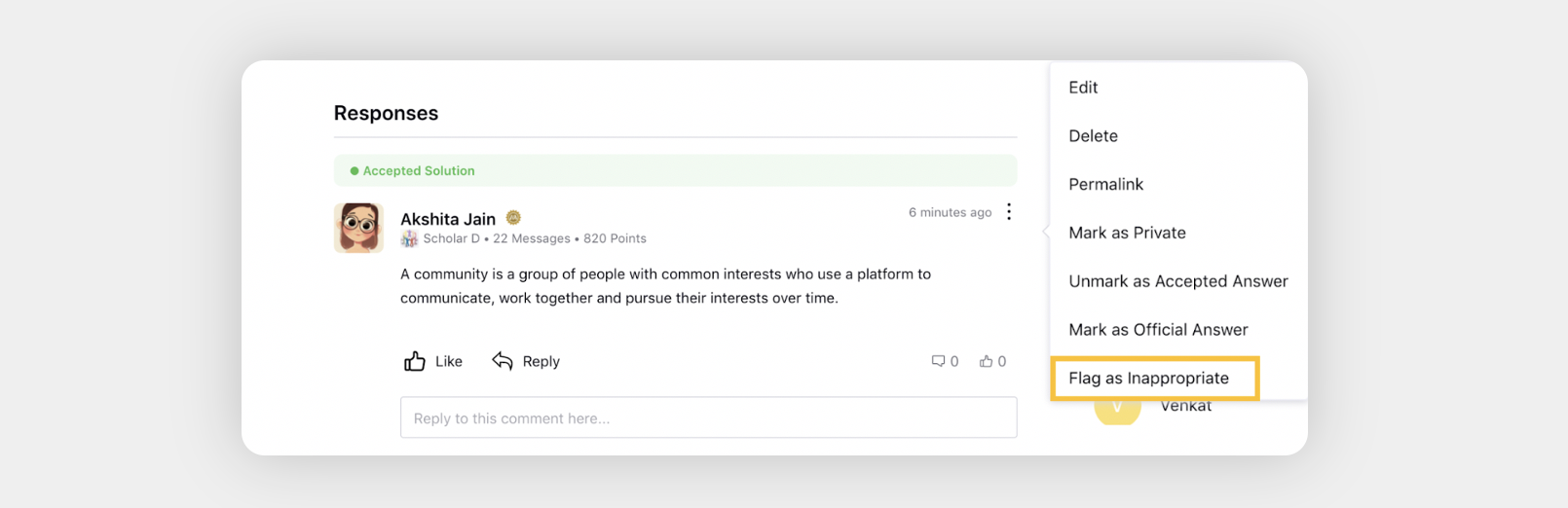
Flag as Inappropriate | Allows users to mark the post as inappropriate, however, this will not be visible to other users.
| |
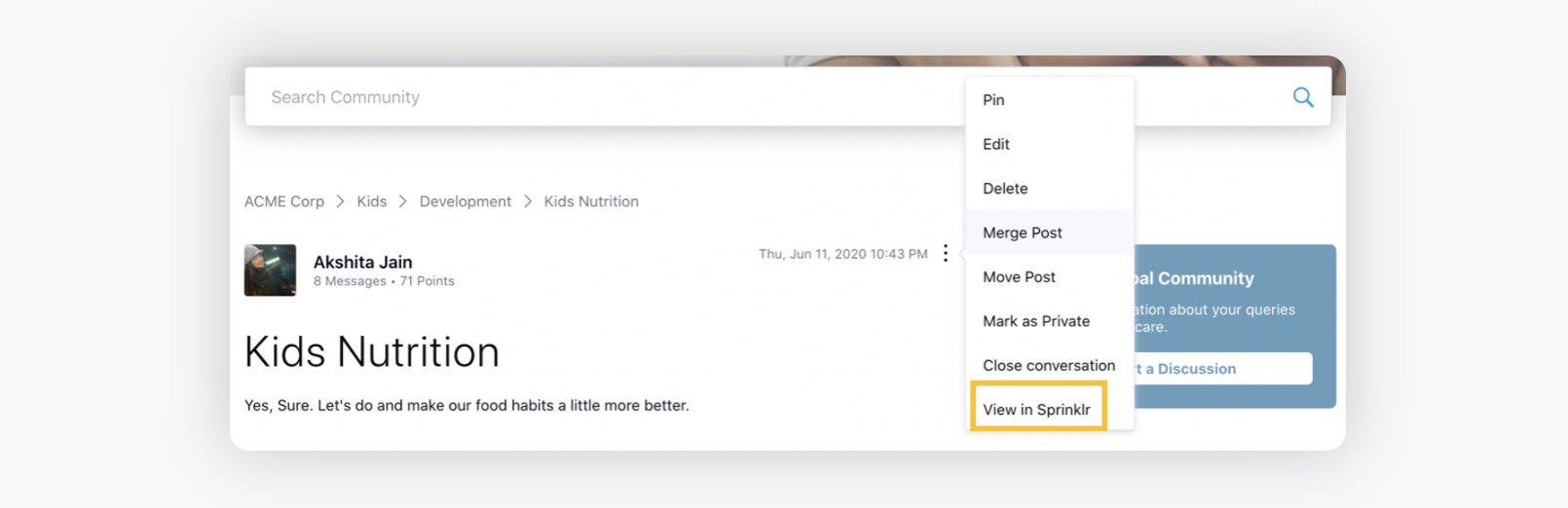
View Post in Sprinklr | Allows users to directly open the post/user's profile in Sprinklr.
| |
Edit User Signature | For this permission, a user must have the Edit User permission. Allows users to edit the user signature of other users by editing it in the profile section of that user. Usually given to the admin of the community. | |
View Activity Log | View the activities performed on a post by users.
| |
Edit User Employee Id | For this permission, a user must have the Edit User permission. Allows users to edit the user employee ID of other users by editing it in the profile section of that user. Usually given to the admin of the community. | |
Edit Username | For this permission, a user must have the Edit User permission. Allows users to edit the username of other users by editing it in the profile section of that user. Usually given to the admin of the community. | |
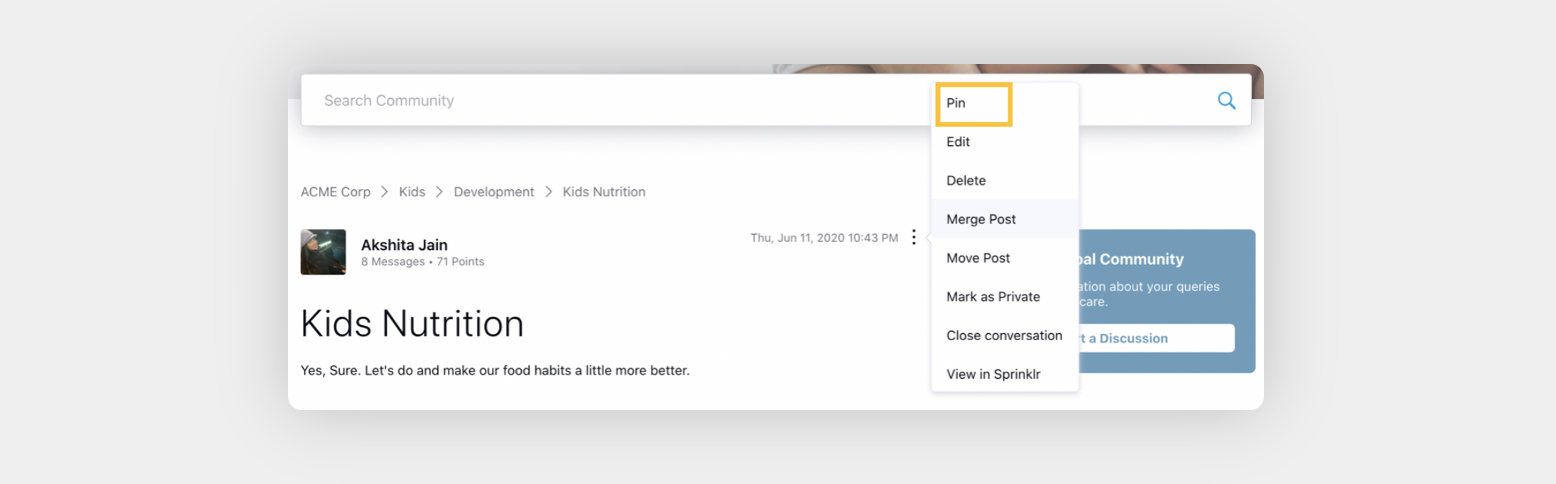
Pin Post | Allows users to pin any post. A widget option of “Pinned posts” can be added on the home page, category page, or topic page.
| |
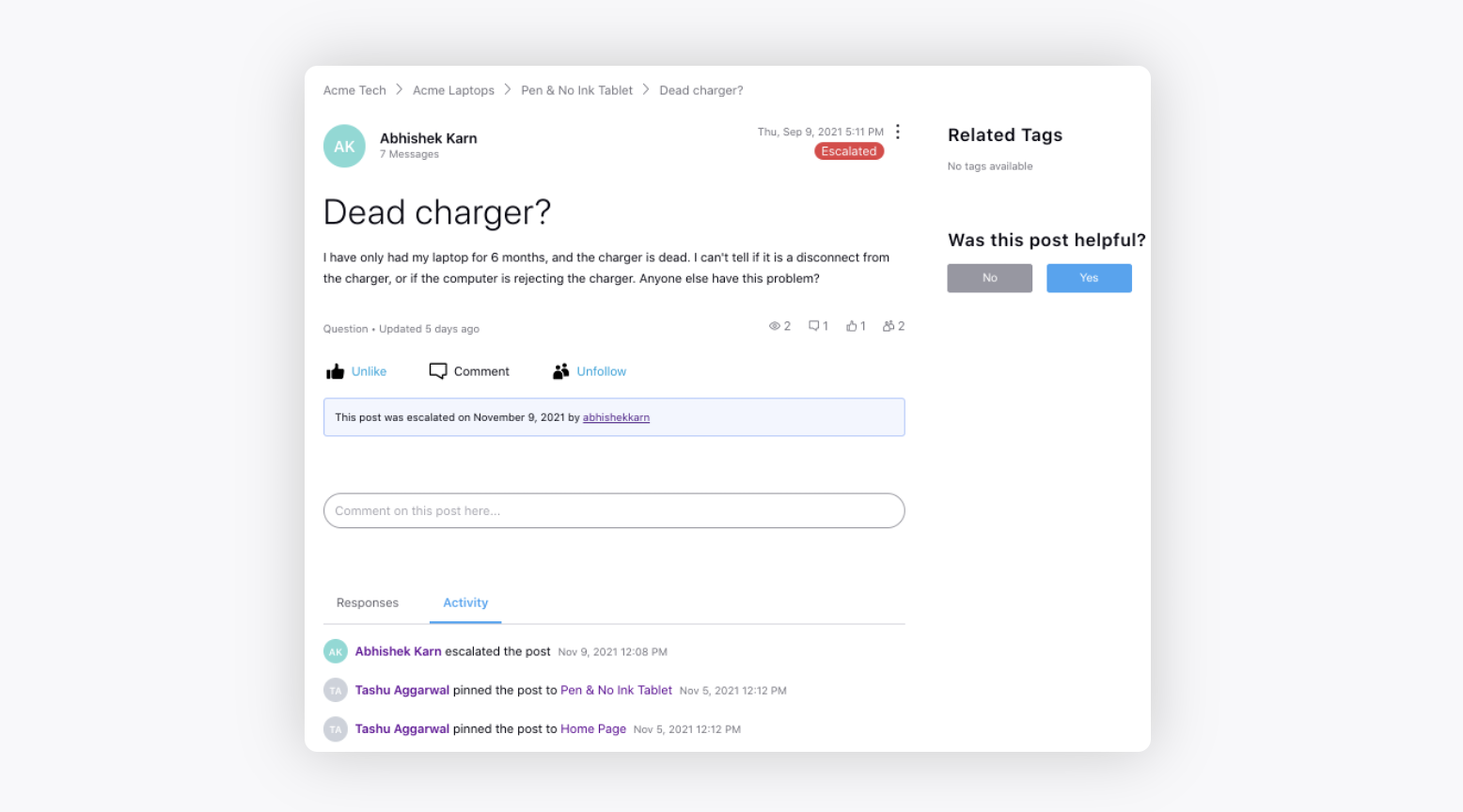
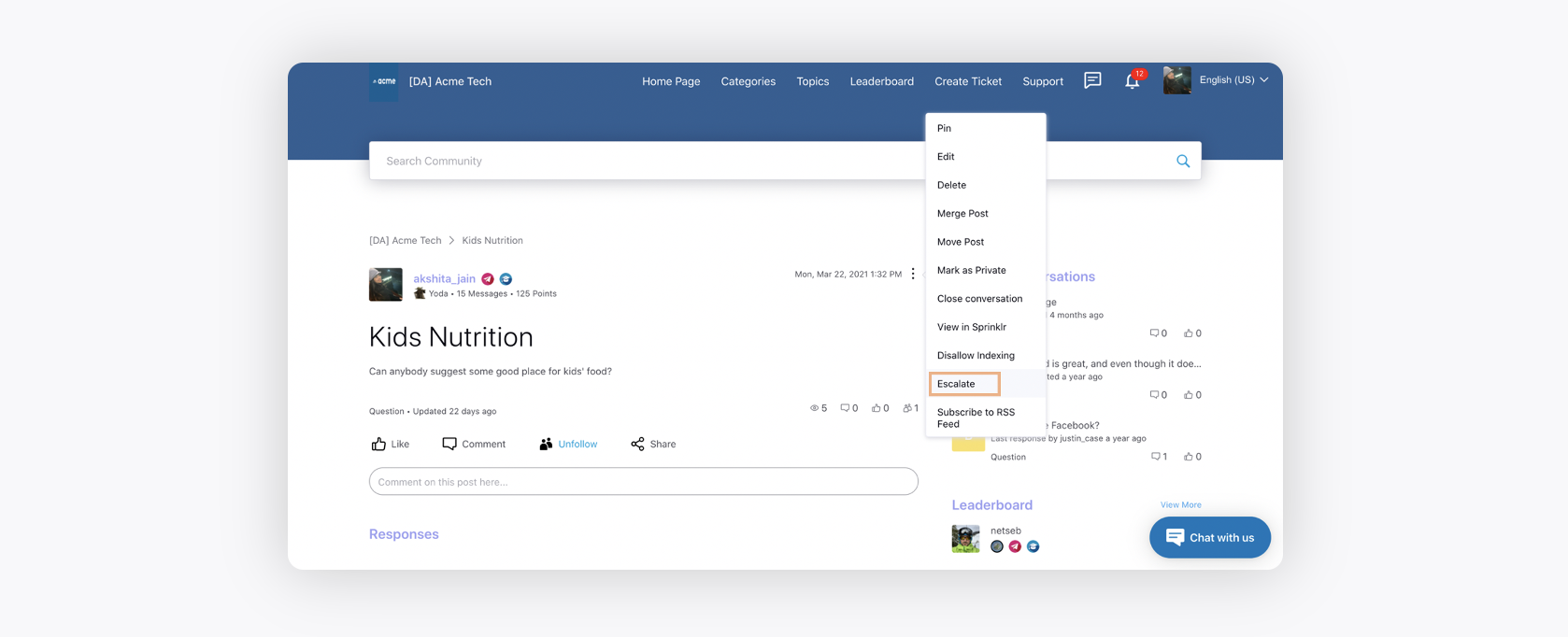
Escalate Post | Allows users to escalate the post, for example, if they feel it needs to be addressed urgently.
| |
Moderate Tags | Allows users to create new tags or select pre-existing tags while creating a post. | |
Create Tags | Allows users to create tags on community. | |
Use Tags | Allws users to add tags to their posts on community. | |
Manage Private Messages | Allows users to mark any post/comment/reply in the community as private. Once the post is marked private, then only the users who have this permission will be able to see the post and interact on that post. The author of the post will also be able to see all the comments and replies done by the users on the private post. | |
Manage Self Private Messages | Gives users an option to post/comment/reply privately while creating or editing their own posts. These private posts will only be visible to those users who have the permission “Manage Private Messages”. | |
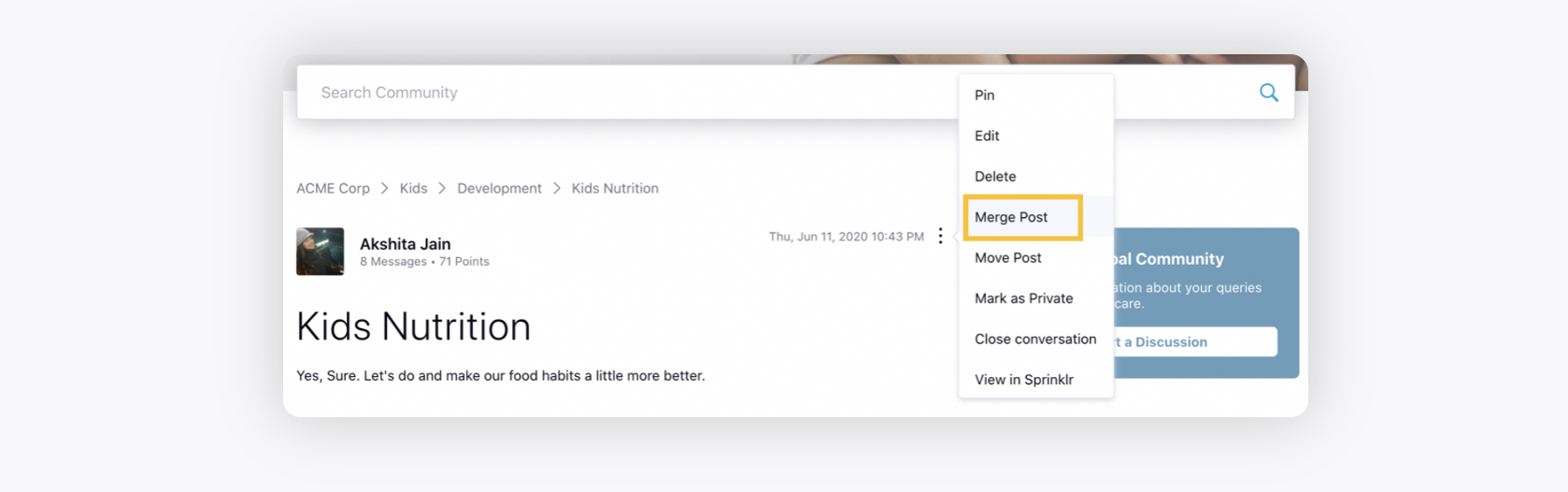
Merge Post | Allows users to merge any number of posts. The post to which the current post will be merged will appear in the form of a link in the comments.
| |
Reset User Password | Allows users to reset the password of other users in the community. Usually given to the admin of the community. | |
Update Topic | Allows users to update the topic of any post in the community. Usually given to the admin of the community. | |
Skip message length validation | Allows brand users to create posts on Community bypassing the character limit of title and description defined in 'Content Settings'. | |
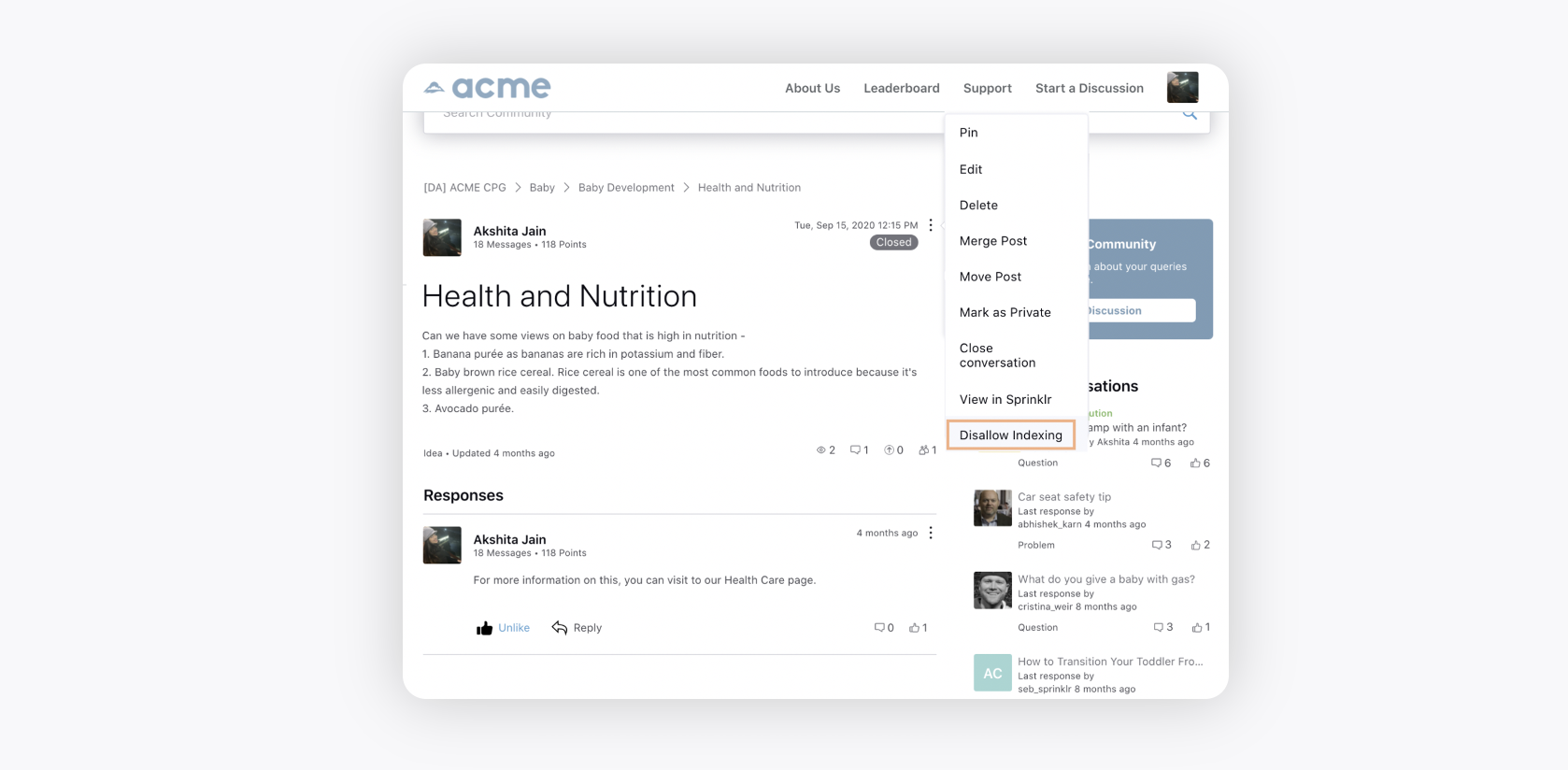
Allow Link Indexing | Allows users to disallow indexing for certain articles/posts on Community by clicking on the Options icon and selecting Disallow Indexing. It will prevent those posts/articles from appearing in the index, and also prevents them from being crawled by search engine web crawlers.
| |
Publish Custom HTML | Allows users to view and edit the source code of the content while creating any post/comment on the community forum. | |
Allow Attachment | Allows users to post media content (Image, Video, Files like PDF, CSV, etc.) on the community. Also, within the Community Editor section under the Advanced Settings tab of the Community Builder, you need to slide the toggle to the right to allow the desired users to post media content. Also, it allows users to edit/delete the attachments in their posts. Additionally, to edit/delete the attachments in the published posts, raise a support ticket at | |
Create Group DM | Allows users to create and close Group DMs. | |
Manage Group DM | Allows users to add and remove partcipants from Group DMs. | |
Send Broadcast DM | Allows users to broadcast a single direct message to multiple users individually or to predefined profile lists at once. | |
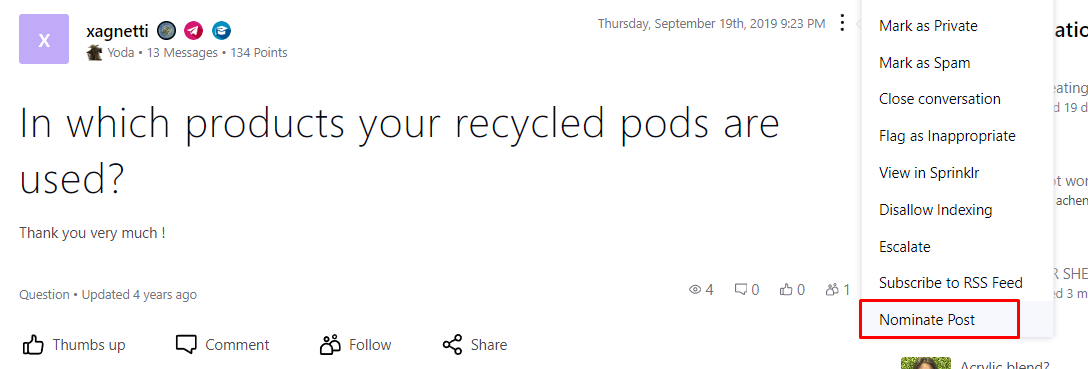
Nominate Post | Allows users to nominate community posts to create Knowledge Base articles. | |
Manage User Approval | Allows users to enable approval workflow to restrict users to access a private community. | |
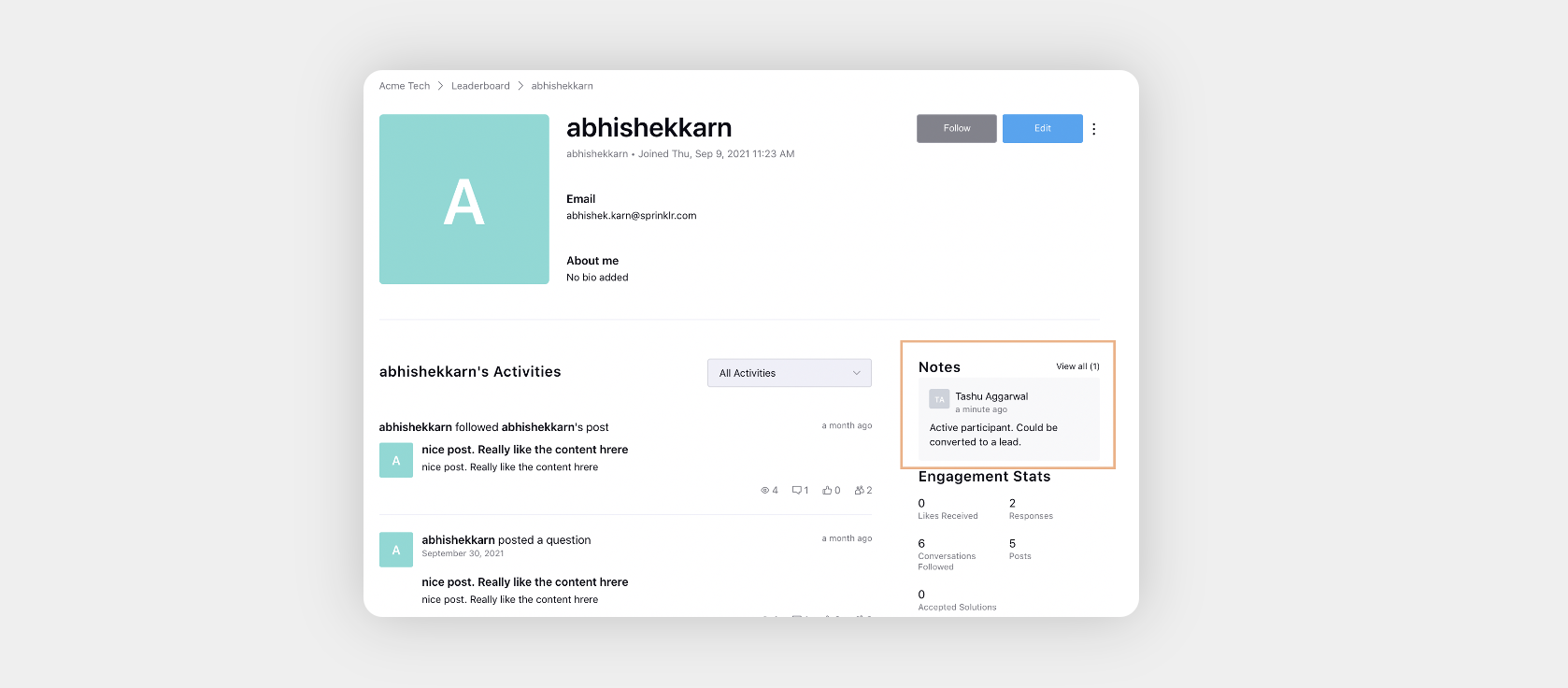
Manage Notes | Allows users to add notes on users' profiles which will be visible only to the users who have this permission. | |
Skip Username Validation | Allows brand users to skip any kind of validation in creating usernames irrespective of how many characters/special characters/numeric conditions are set in the backend or the builder side. | |
Add Order to Community Message | Allows users to define order of community posts/articles. | |
Manage Spam Posts | Allows brand users to manage the spam posts. | |
Add Gamification Points To User | Allows authorized users to award gamification points to other users within the community. These points are typically used to incentivize users such as active participation, helpful contributions or achieving specific milestones within the community platform. | |
Blacklist user Activity | Users with this permission allows to blacklist specific users from engaging in certain activities within the community platform. Blacklisting a user's activity might involve restricting their ability to post content, comment or interact with other users. | |
Edit Index | With this permission a user can allow/disallow indexing of Posts for Search Engine Crawlers. This permission is generally given to Admin users only. | |
Suspend User | With this permission if a user blocks some other user then he/she has the option to keep the user's content as it is on the Community. This permission is generally given to selected brand users only. | |
View User Employee Id | Allow users with the ability to view the employee ID associated with a particular user profile within the community platform. This is generally for community admins. | |
Edit User Profile List | Allows users to modify or update the profiles list of users at Sprinklr community. | |
Edit Survey Response | Allows users to modify or update responses submitted to surveys within the community platform. | |
Delete Survey Response | Allows users to remove or delete responses submitted to surveys within the community platform. | |
Toggle Location Activity | Allow users with this permissions to toggle the visibility or tracking of location-based activity within the community platform | |
Manage IP/Email Blacklisting | With this permission, a user can navigate to the Blocked users module page. This allows them to see all the users who have been blocked in the past and with an option to unblock them at the same place. From here, Admins can also restrict users from some specific IP Addresses and Email domains. This permission is given to Community Admins only. | |
View Partner Level Case | Allows users to view list of cases for users at Sprinklr community. | |
Allow Chat with Opted Out User | With this permission, a user can send Private Messages to other Community users who have opted out of Private Messaging. This permission is given to Moderators and Admins. | |
Show Brand Disclaimer Card | This permission is specific to Direct Messaging. Users with this permission will have the Disclaimer card displayed as that of the Brand Users as specified in the Direct Messaging Configuration This permission is only given to Official Brand Users. | |
Search messages unfiltered | With this permission, users accessing the api will be able to get all the community data without any filters. This is specifically required for the community users accessing the community api’s. | |
Manage Contests | Allow users to oversee and administer contests within the community platform. This includes tasks such as creating new contests, setting rules and guidelines, managing submissions. | |
Manage Polls | Allow users to create, edit, and manage polls within the community platform. | |
Moderate Events | Allow users to oversee and manage events hosted within the community platform. This includes tasks such as creating new events, scheduling event listings and monitoring event activities. | |
Moderate Managed Entity Users | Allow users to Approve/reject user requests for a group. | |
Invite Managed Entity Users | Allow users to invite users to a group | |
Update Managed Entity Roles | Allow users to update or edit roles of a user in a group. | |
Edit Admin Custom Fields | Allow users to setup custom fields on messages on sprinklr which can be leveraged on community side, admins can edit these using this permission. | |
View Jira Cases | Allows users to view linked Jira on the posts along with its status. | |
Create Jira Cases | Allows users to create Jira cases on community posts. | |
Exclude From CAPTCHA | Allows users to bypass the CAPTCHA requirement during post creation. | |
Manage Message Approval Workflow | Allows users to approve posts and send them back to draft. | |
Switch User | Allows users to switch profiles on community.
| |
Mention User Groups | Allows users to mention specific profile lists for posts, comments, and replies. | |
Manage Meta Tags | Allows users to add an SEO title and description when creating posts. | |
Access Version History | Allows you to view previous versions of the Community. If you do not have this permission, attempts to access earlier versions return a 404 (Not Found) error.
| |
Request User Deletion | Allows you to submit a request to delete a user’s personal data from the Community, supporting data subject rights under applicable data protection laws. The request is subject to review and approval before any deletion is carried out, ensuring proper validation and auditability. | |
Approve User Deletion | Allows you to review, approve, or reject requests to delete a user’s personal data, in line with data protection regulations. Approved requests initiate the deletion process. |