Add/Replace/Delete Banners for Campaigns in Distributed
Updated
After creating campaigns, admins can add or edit thumbnails in the Space environment. This article is a guide to add or change thumbnails for Campaigns.
Add/Replace/Delete Banners for Campaigns in Distributed
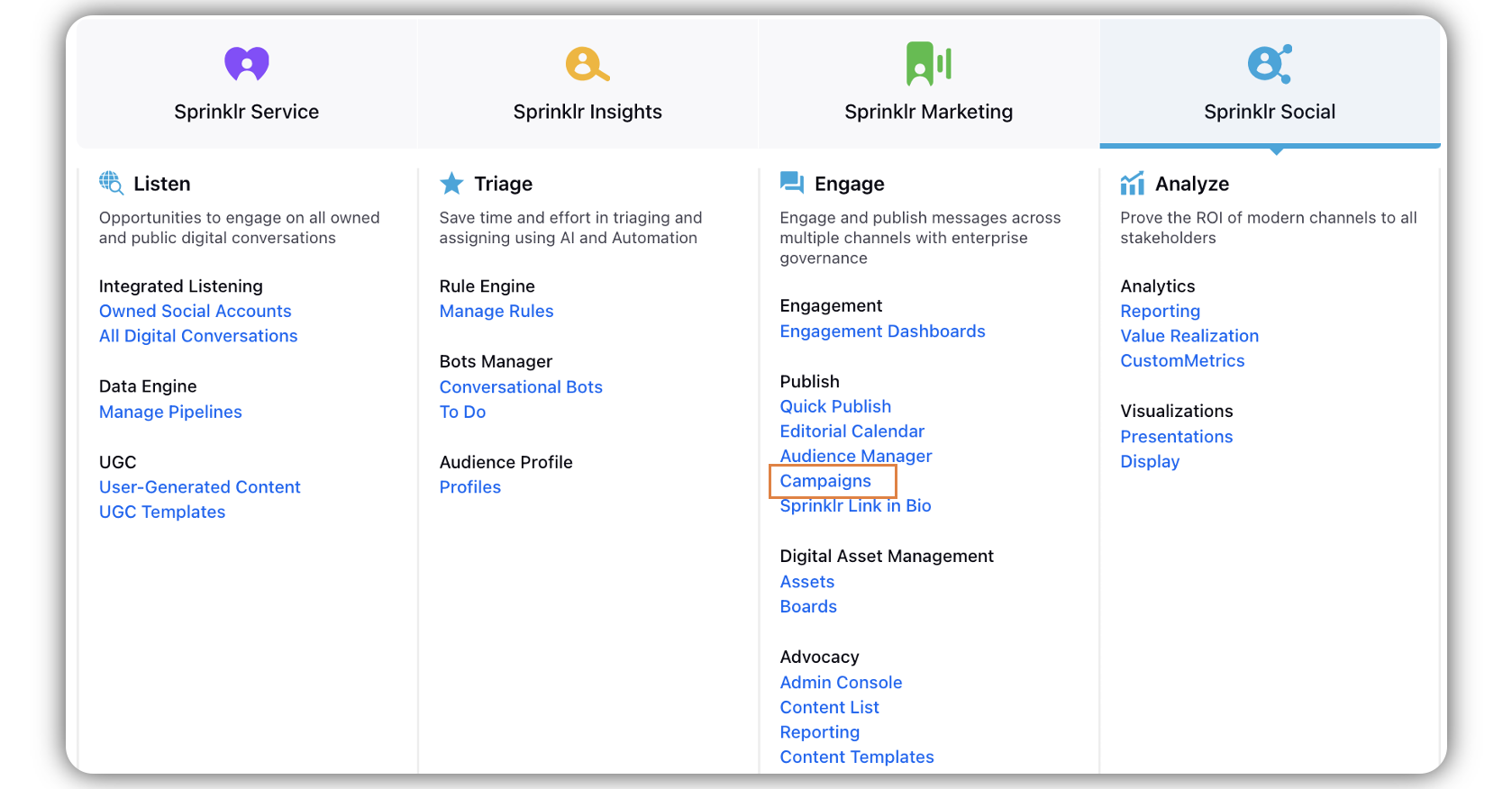
Click the New Tab icon
 . Under Sprinklr Social, click Campaigns within Engage.
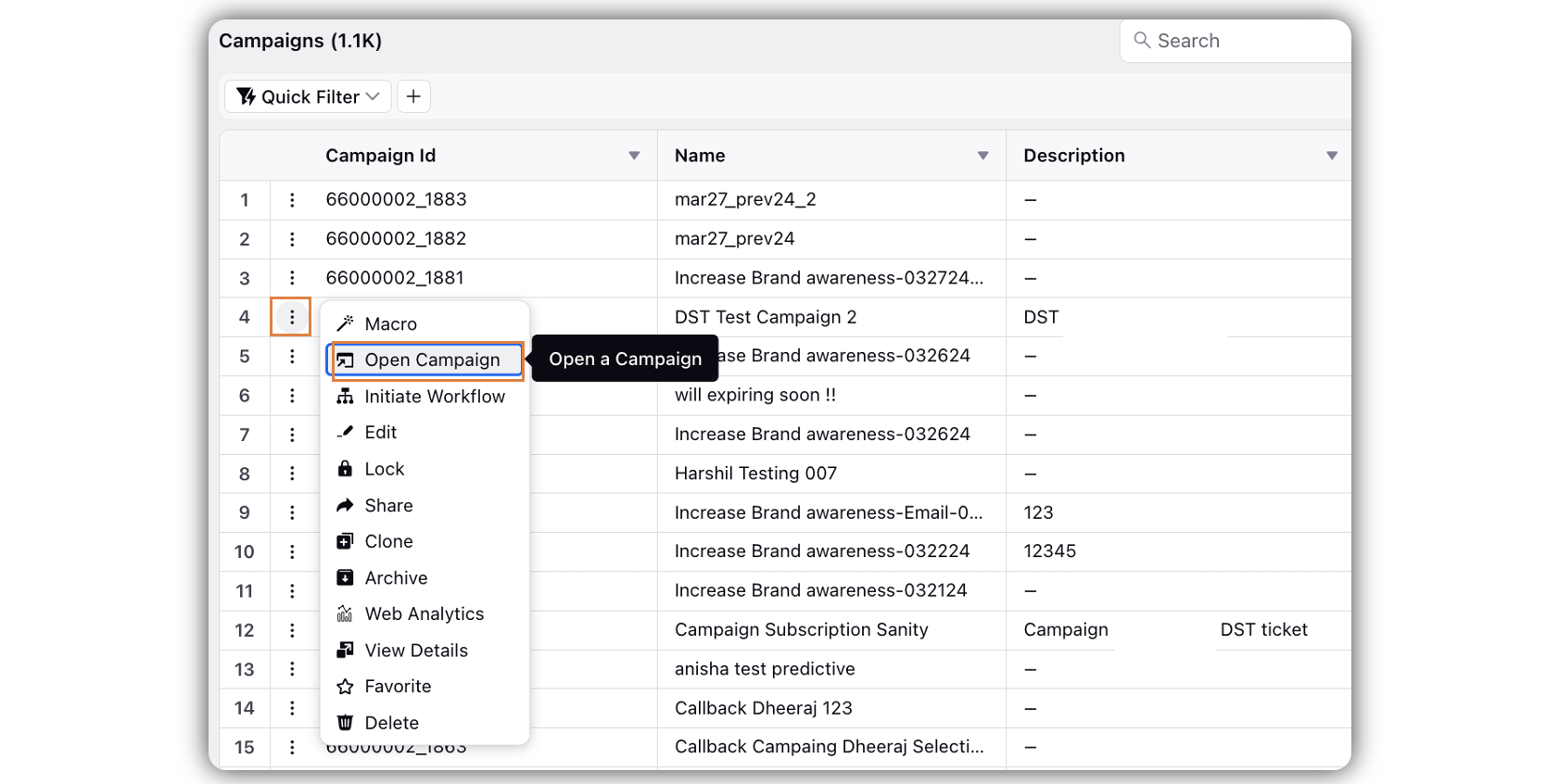
Search and find the campaign for which you want to add/change thumbnail. Hover over the Options icon
 and click Open Campaign.
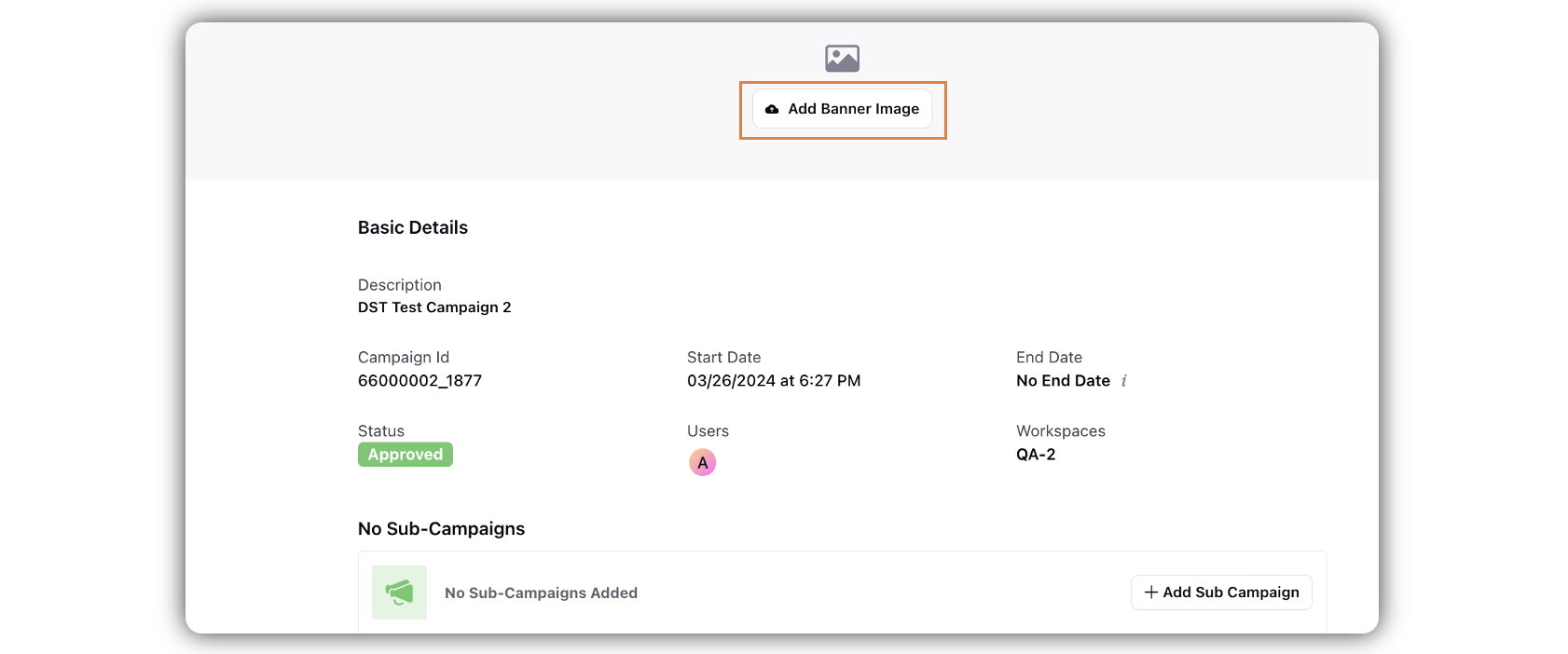
Click Add Banner Image to add a banner image, when there is no banner image attached already, select the image, and click Add.
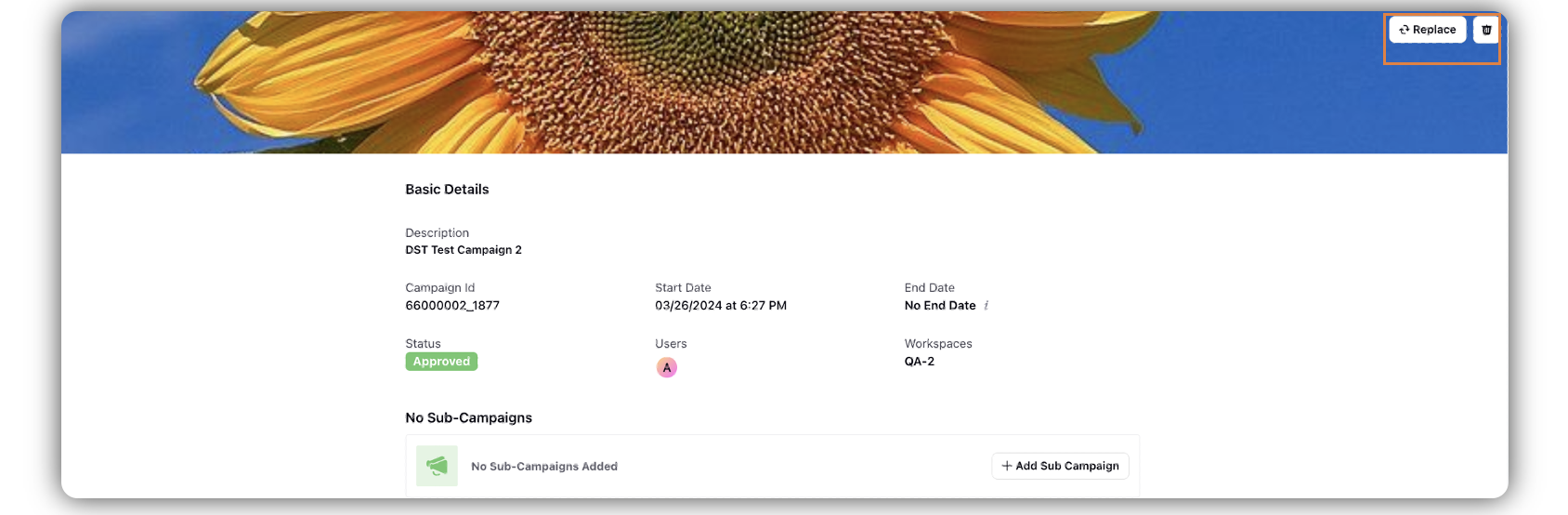
If a banner exists, click Replace or the Delete icon in the top right corner, based on your preference.