Set up external source to import data from FTP/SFTP/S3 server
Updated
Learn how to set up external sources to import data from FTP, SFTP, and S3 servers to Sprinklr.
Along with excel files from your local devices, Sprinklr also supports automatic data pickup from an external source: FTP, SFTP, and S3 servers. You can set up the external source by entering the details in the platform itself. This will allow a seamless automated transfer of files from your internal FTP/SFTP/S3 source to Sprinklr.
To import data from an external source
Click the New Tab icon. Under the Sprinklr Insights tab, click First Party Data Ingestion within Listen.


On the First Party Data Ingestion window, click Import From Excel in the top right corner.

In the pop-up window, select the excel data file from your computer/device manually and click Open.
In the First Party Data Ingestion window, fill in the Data Ingestion File Name and Data Ingestion File Tag.

For importing your file from an external source, it is mandatory to map your data accordingly. This mapping template will remain standard across subsequent uploads from the same external source. To learn how to map your file, refer to Creating a New Mapping Template using the Map Fields Option.
Wait for mapping to complete. Once the mapping is done, navigate to First Party Data Ingestion window and hover over the Options icon next to the Data Ingestion File and click Setup/Edit External Source.

On the External Source Setup window, fill in the required fields. For more information, see FTP/SFTP Setup or S3
.gif "external_source_setup (1).gif")
After filling in the required fields, click Save.
Once the external source has been set up, you will receive a success notification in the Sprinklr platform.
Note:
|
FTP/SFTP Setup — Fields & Description
Field | Description |
Name | Enter the name of the FTP/SFTP server. |
Host | Enter the host of the FTP/SFTP server. |
Port | Enter the FTP/SFTP port. The default FTP port is TCP 21. |
Path | Enter the FTP/SFTP path. FTP path is a location referenced internally using a URL-style path format. |
Username | Enter the username of your FTP/SFTP server. |
Password | Enter the password of your FTP/SFTP server. |
While filling out the information for FTP/SFTP setup, you might come across the below scenarios –
Incorrect FTP Port | Correct FTP Port |
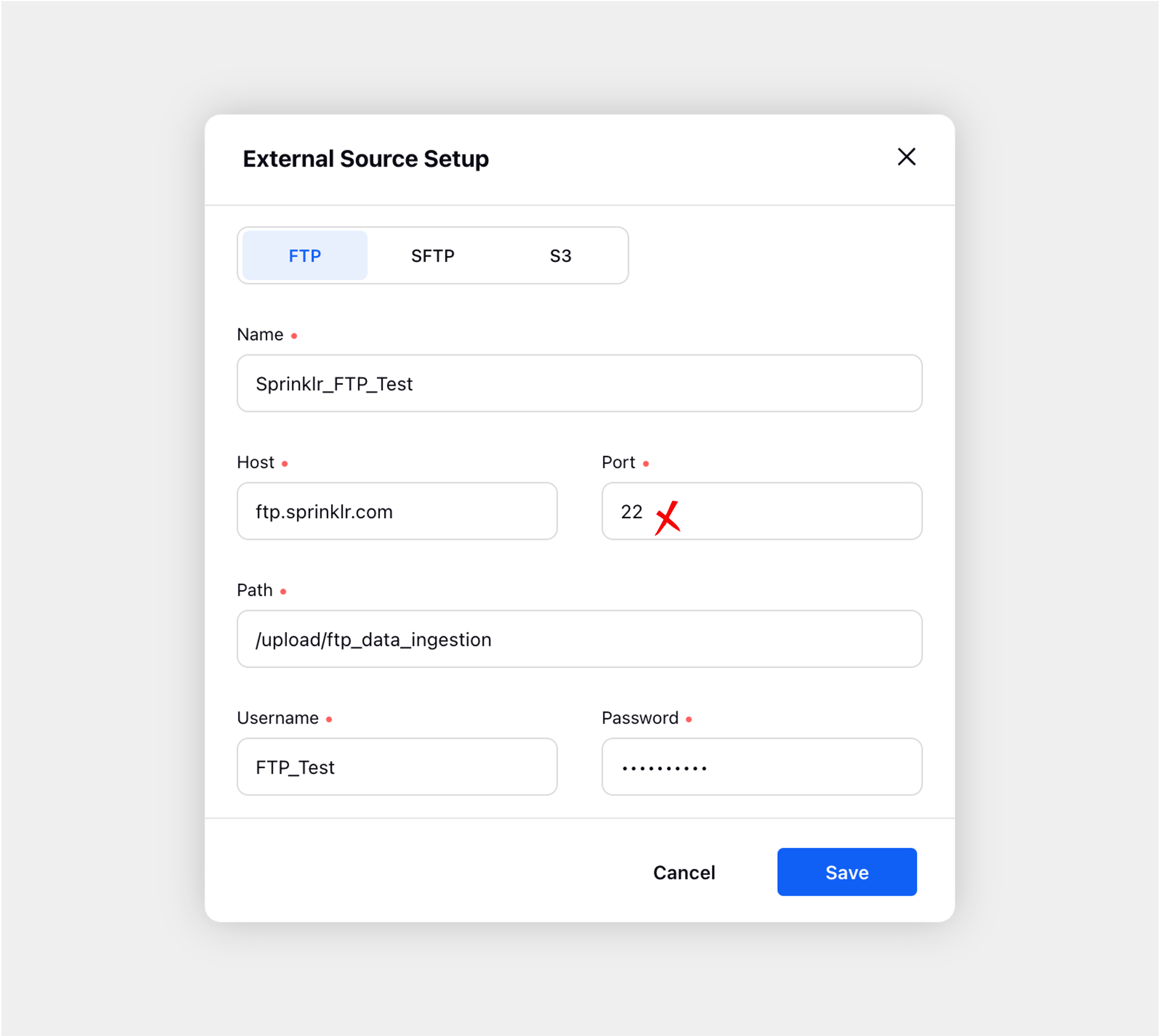 | 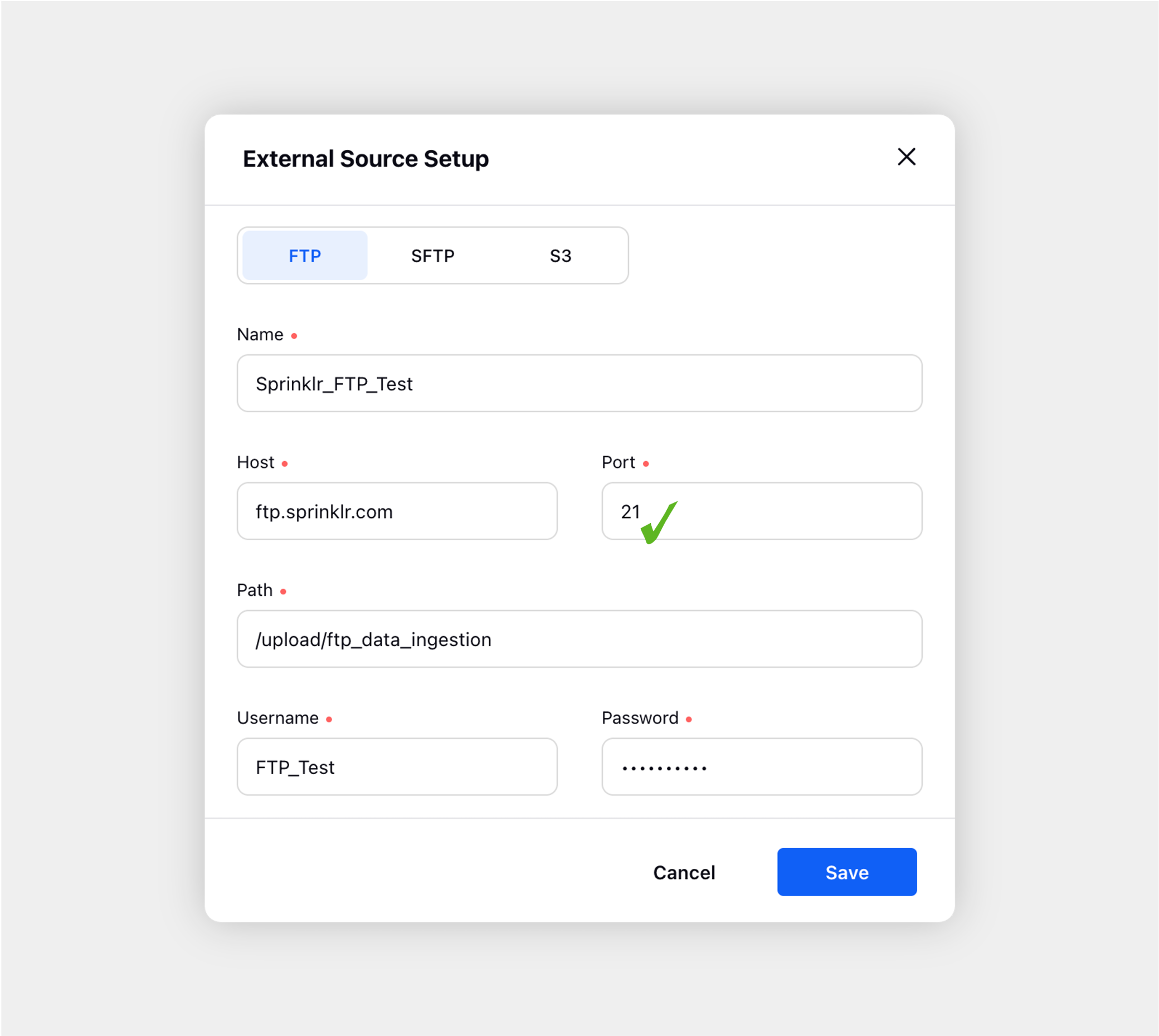 |
Incorrect FTP Host | Correct FTP Host |
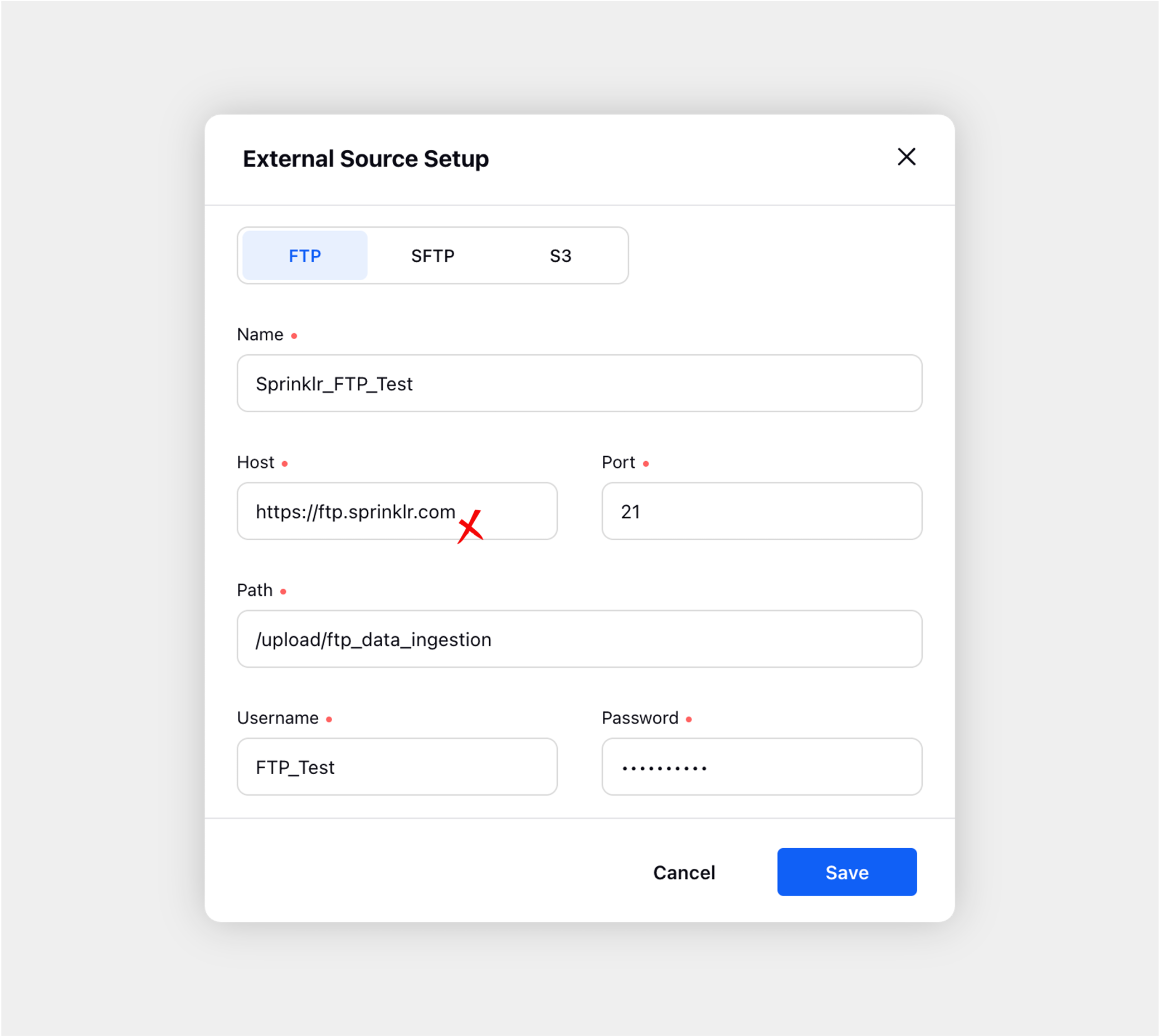 | 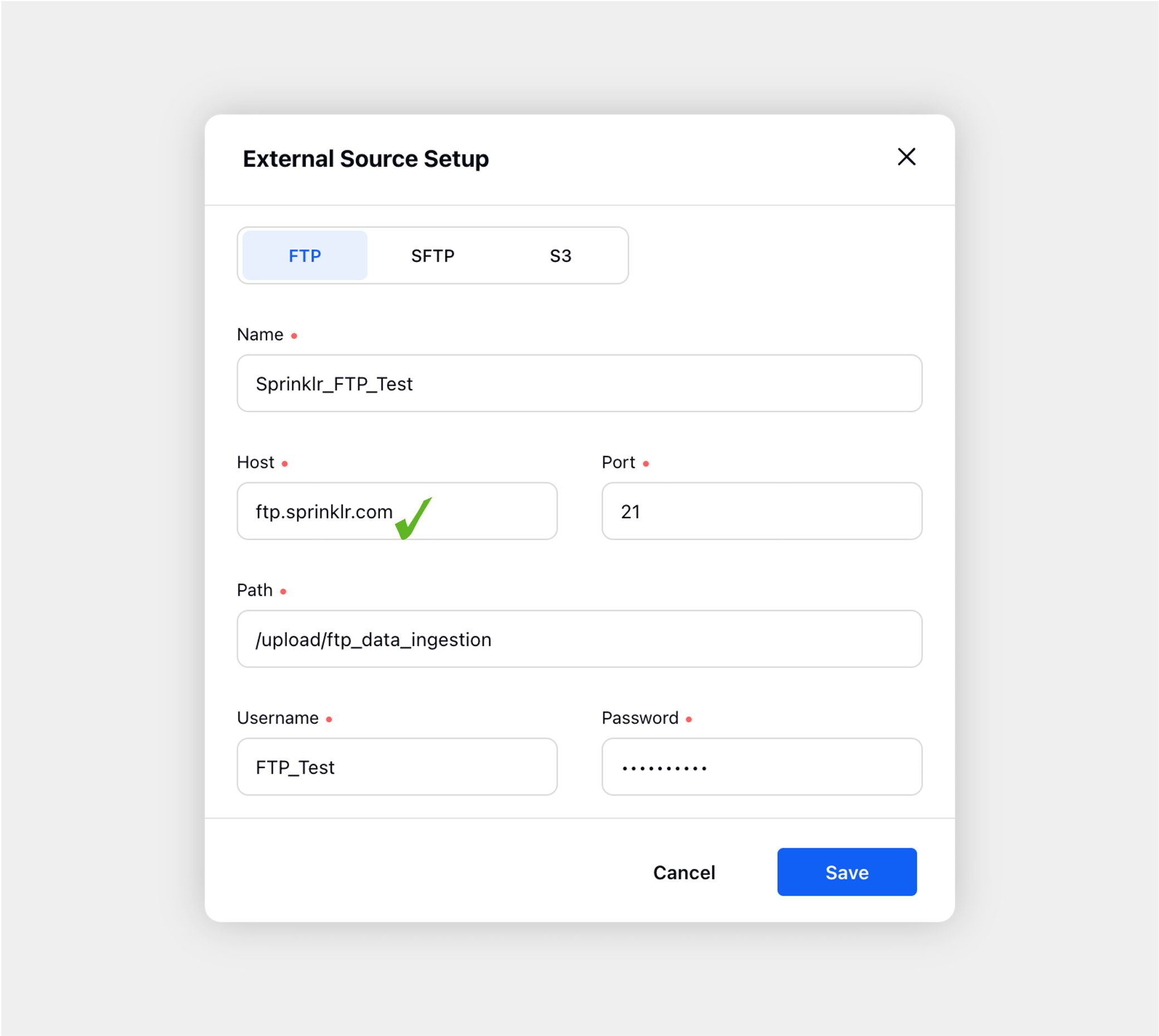 |
Incorrect SFTP Port | Correct SFTP Port |
 |  |
Incorrect SFTP Host | Correct SFTP Host |
 |  |
S3 Setup — Fields & Description
Field | Description |
Name | Enter the name of the S3 server. |
S3 Access Key | Enter your S3 access key. The S3 access key will look something like this – AMIAIOSFUD7EXAMPLE |
S3 Secret Key | Enter your S3 secret key. The S3 secret key will look something like this – wJalrXUtFEMI/K7MDELG/bPxRfiCYEXAMPLEKEY |
Bucket | Enter the bucket name of your S3 server. The bucket name is a part of the domain name in the URL. |
Path | Enter the location of your S3 bucket. |
While filling out the information for S3 setup, you might come across the below scenario –
Incorrect S3 Setup | Correct S3 Setup |
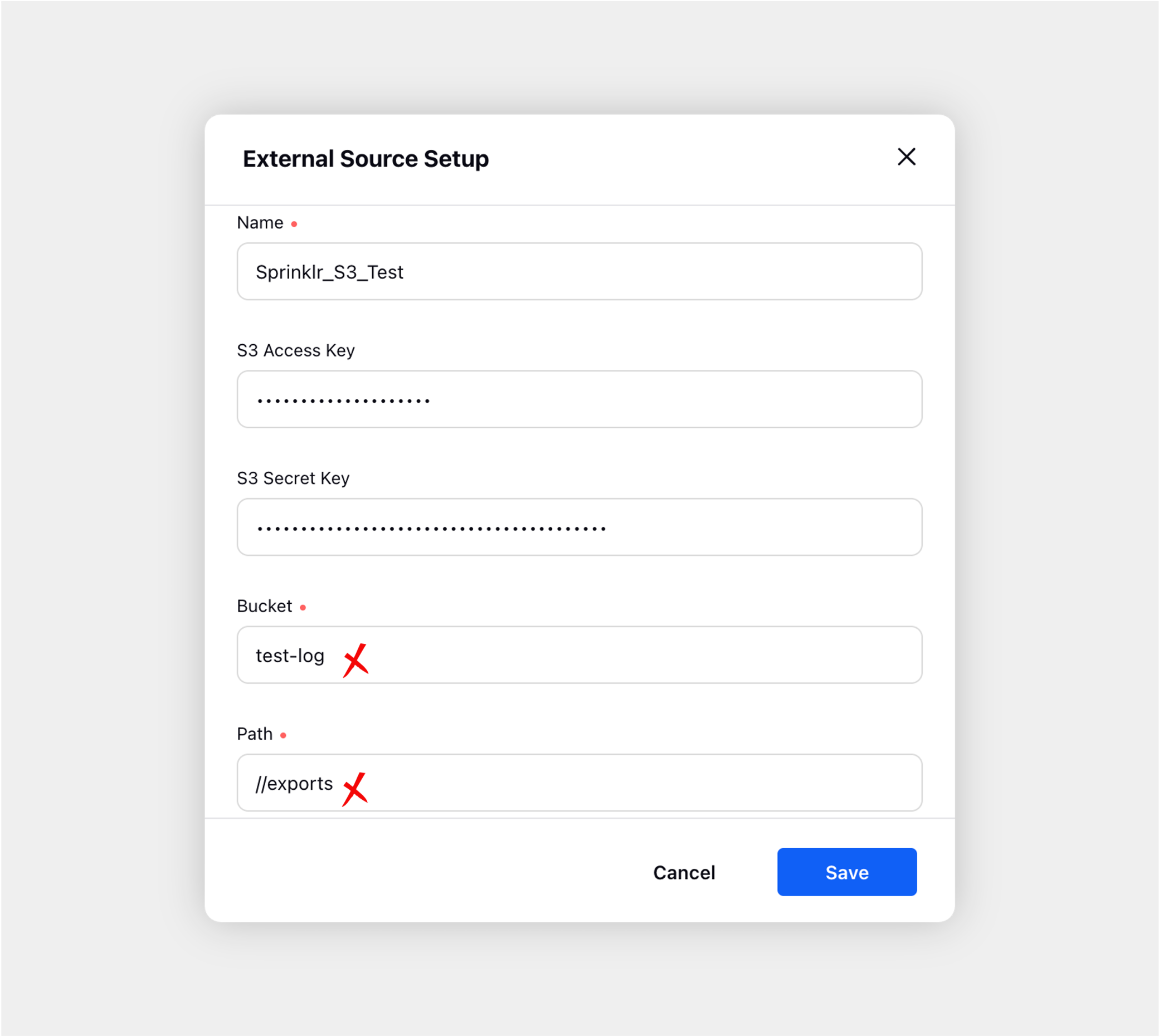 |  |
Enablement note:
|