Introducing Audience Conversation Insights
Updated
Deep dive on your audience’s evolving consumer preferences and capture direct product feedback via Audience Conversation Insights.
In today's data-driven world, businesses and organizations have access to an abundance of information. One of the most valuable sources of knowledge lies in the conversations that take place with their audience. Audience conversation insights provide invaluable information about customer preferences, opinions, and needs, enabling businesses to make informed decisions and tailor their strategies to better serve their target market.
Sprinklr’s Audience Insights can be used to generate insights on your target audience of interest. With the help of Sprinklr’s Audience Insights, you can create an Audience Conversation Insights report to understand your audience’s interests, affinities, top themes of conversations, and top influencers.
Business use cases
Identity top themes of conversation with the highest share of voice within your target audience group
Discover unknowns such as functional & emotional attributes around your products, moments of consumption, unmet needs & changing customer perceptions
Deep dive on your target audience by understanding detailed demographics, interests and brand affinities based on their social media activity
To create an Audience Conversation Insights report
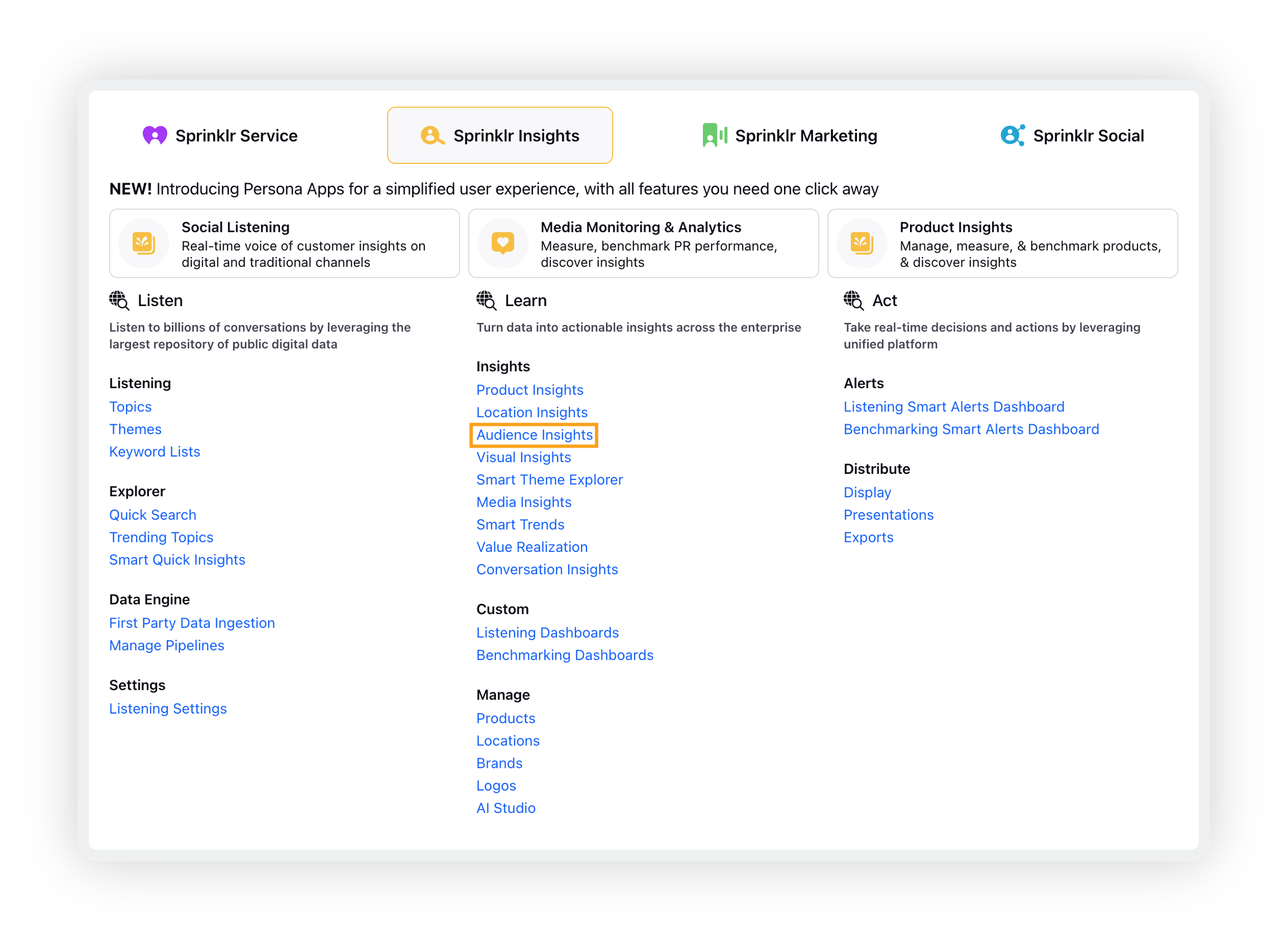
Click the New Tab icon. Under Sprinklr Insights, click Audience Insights within Learn.
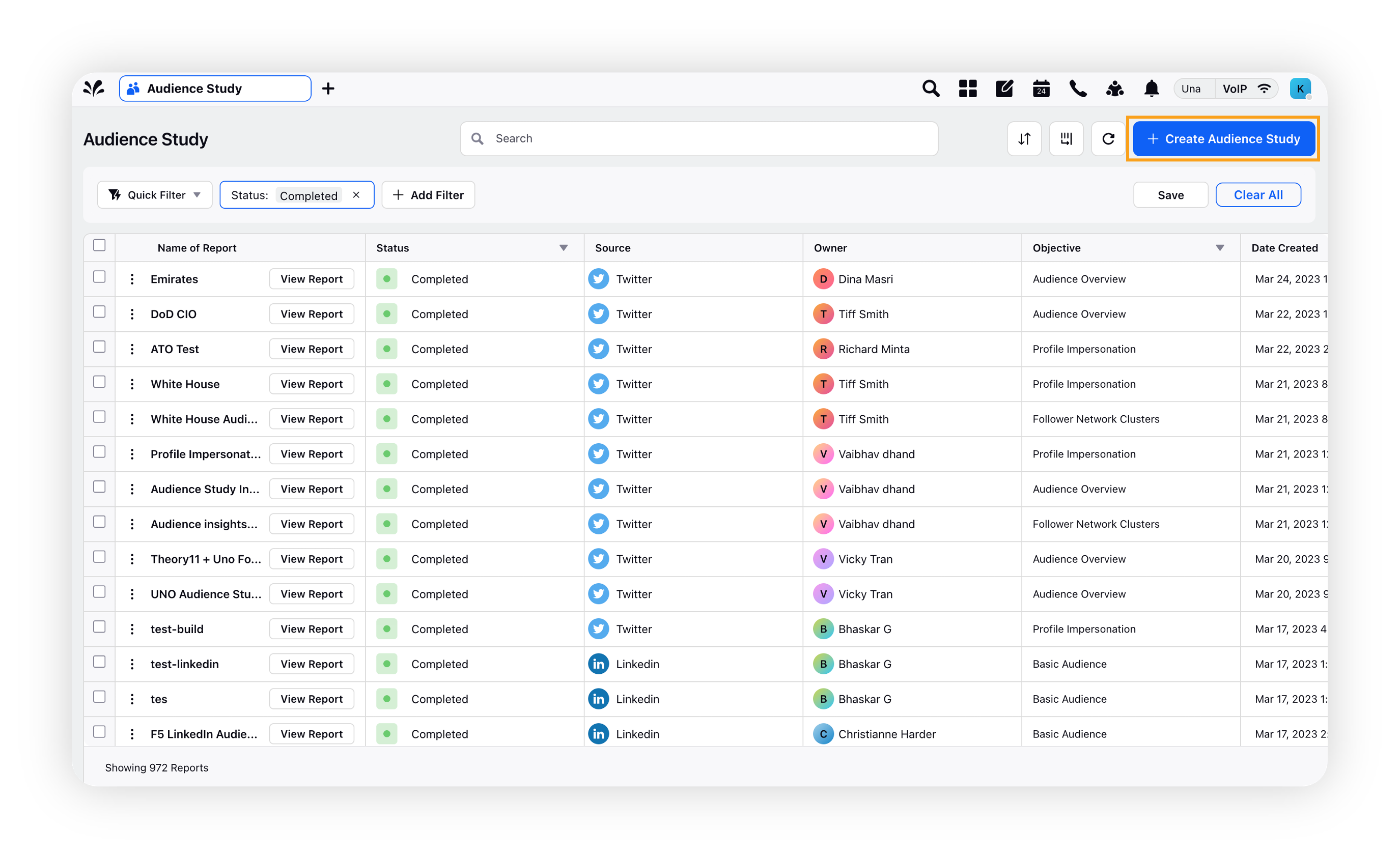
On the Audience Insights record manager, click Create Audience Study in the top right corner.
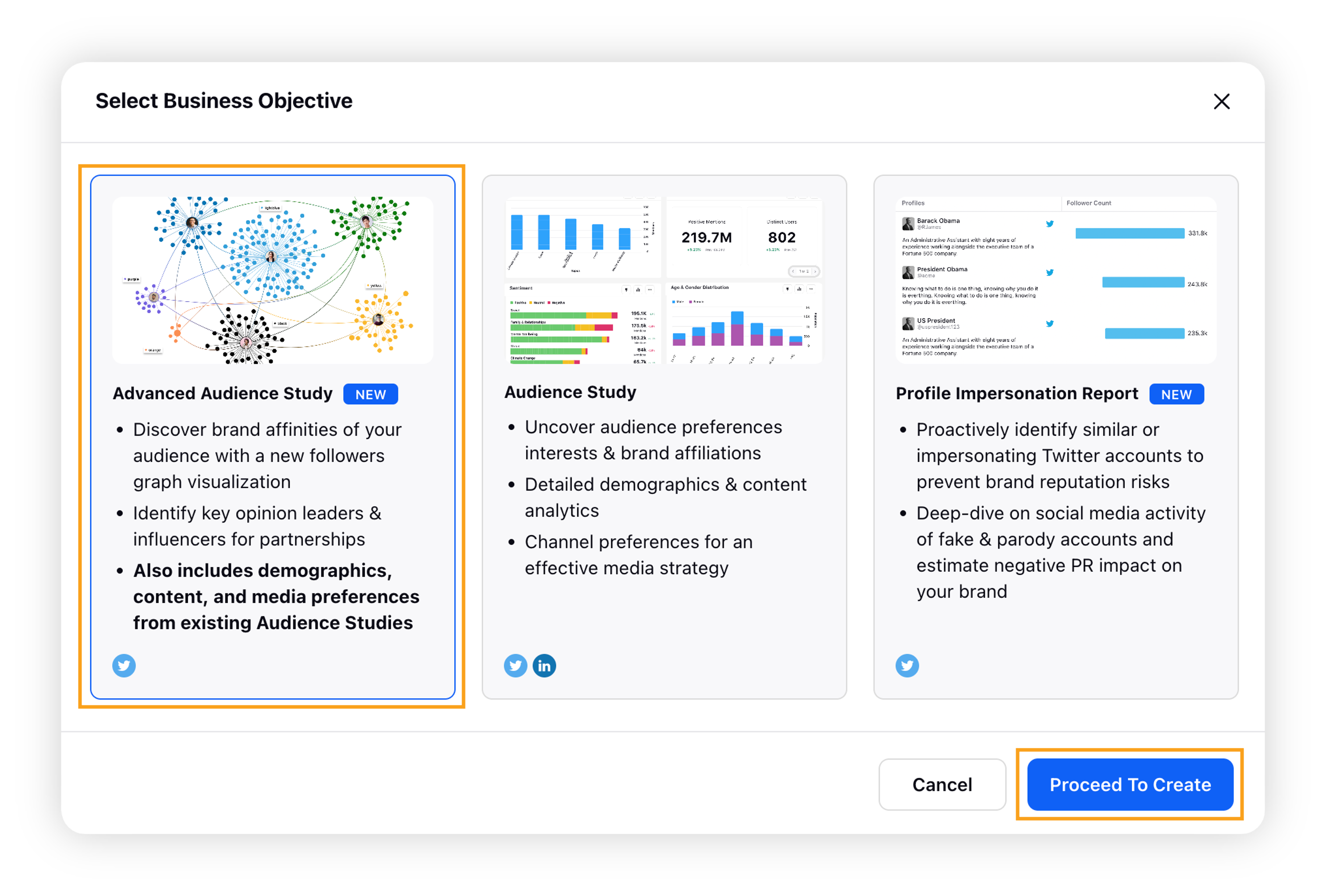
On the Select Business Objective popup window, select Advanced Audience Insights and click Proceed to Create.
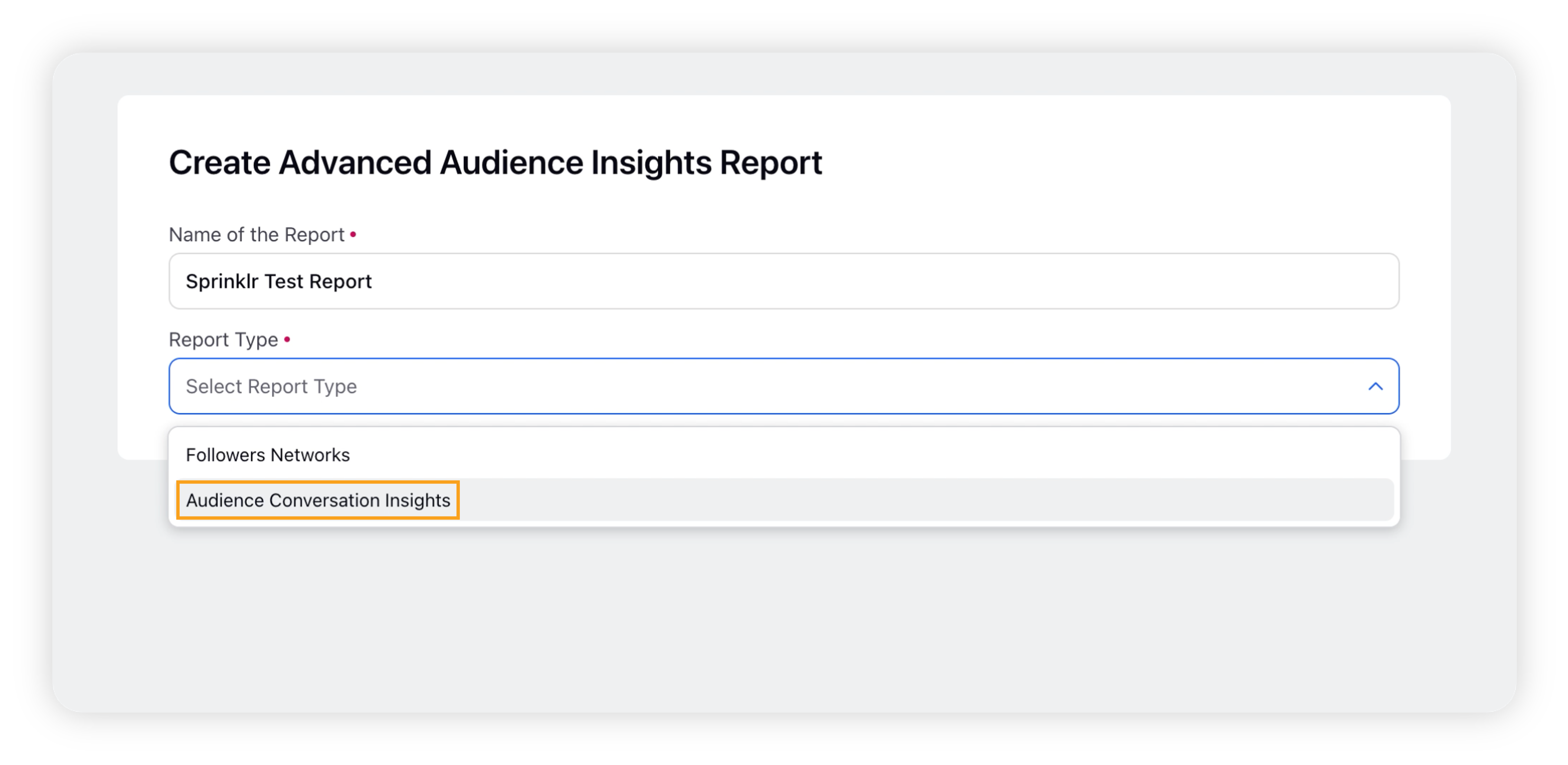
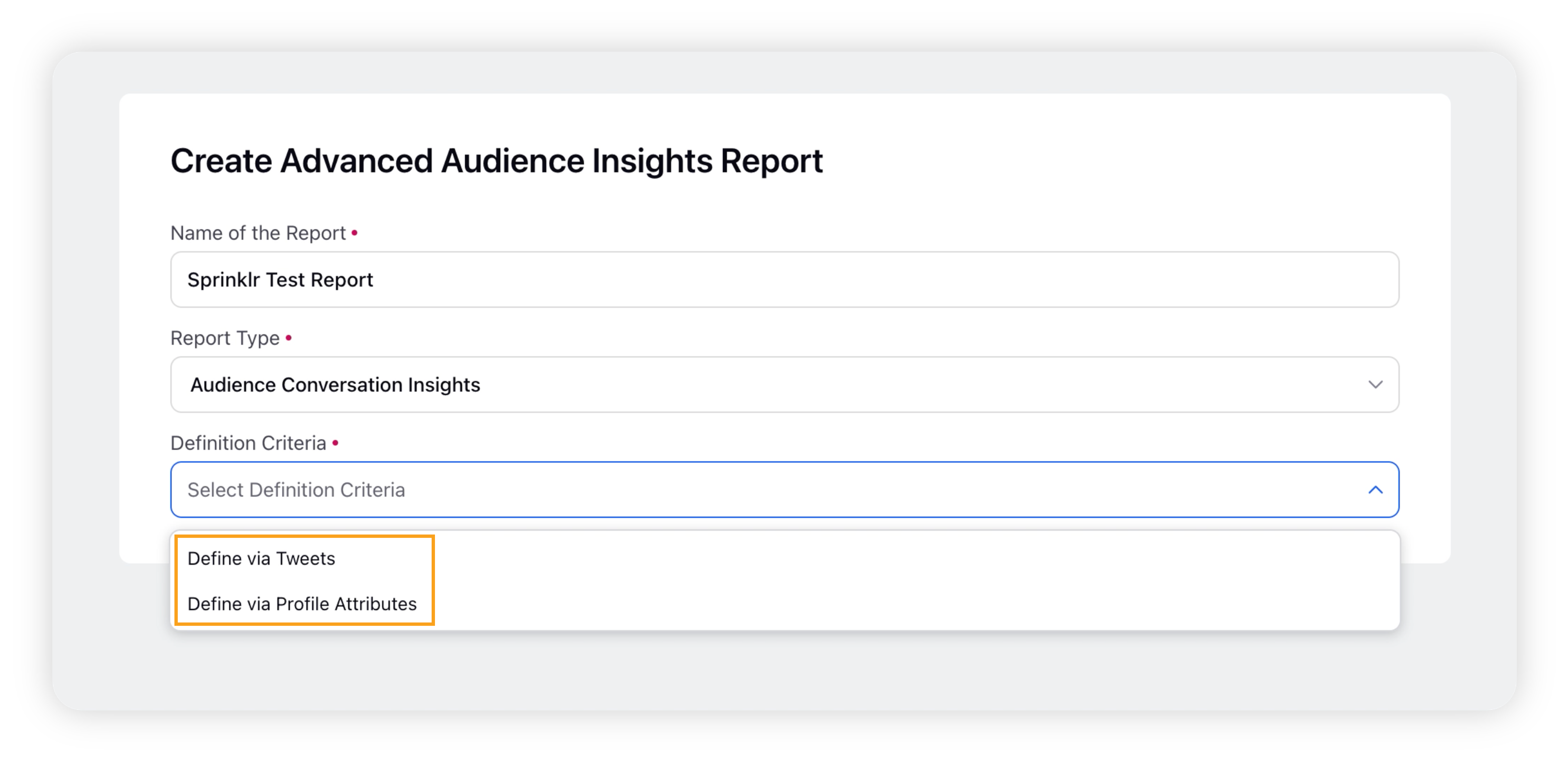
On the Advanced Audience Insights report creation form, enter the name of your report and select the report type – Audience Conversation Insights.
Upon selecting the report type, the Definition Criteria field will appear where you need to select the desired definition criteria – Define via Tweets and Define via Profile Attributes.
Provide the details as per the definition criteria you have selected.
Now scroll down to the Time Range for Conversation Insights section. Here you need to provide a time-range for which you want to fetch conversation of your audience.
 Note: This will not consume any listening mentions. We currently support a duration of up to 2 years.
 Click Create Report in the bottom right corner.
Once the report is ready, it will be listed in the main screen of the Audience Insights manager. You will also receive a push notification once the report is ready for use.
Note: On an average, it will take 45-60 minutes for the report to be ready once submitted, depending on the size of the audience input.
Definition Criteria
The Definition Criteria section allows you define your target audience for the audience conversation insights report. There are two options –
Define via Tweets
Define your target audience via authors of tweets by adding Topics or Keyword Queries. This will not consume any listening mentions.
First, select a time range to fetch authors via contents of their messages. Authors with messages in this time-range will be included as your audience input. We support a maximum time range of up to 2 years.
After defining the time range, you need to include conditions. Define conditions to include profiles in your target audience. At least one condition is mandatory for the report to be processed. You can add multiple condition groups and control their relationship using AND/OR operator.

Define via Profile Attributes
Define your target audience via profile or message attributes, such as user bio, accounts followed, tweet text and more. You can include and/or exclude conditions.
Field | Description |
Include Conditions | Create a condition using dimensions along with AND/OR operator that you want to include in the report. You can add one or multiple Condition Groups. |
Exclude Conditions | Create a condition using dimensions along with AND/OR operator that you want to exclude in the report. You can add one or multiple Condition Groups. |
Add Condition Group | You can add more condition groups with Include/Exclude Conditions options. |
You can use the middle operator drop-down to determine whether the filter should include or exclude any value by using Containing/Not containing. In this way you can freely create multiple inclusion and exclusion criteria for your filters.

More conditions can be added by selecting the + sign next to a condition added. You can also select the condition to be followed AND/OR between the conditions using the drop-down within the condition group.

Similarly, you can add multiple condition groups using the Add Condition Group option and define the relationship between each block using the drop-down selector at the top of all condition groups added.
Note: You can also use the Exclude Conditions group placed at the bottom to exclude profiles with specific dimensions directly.
Analyze Audience Conversation Insights report
After successfully creating an audience conversation insights report, it will move to in-progress status. On average, it will take 45-60 minutes for the report to be ready once submitted, depending on the size of the audience input. Once the report is successfully completed, you will receive a push notification, and you are ready to analyze your report.
To do that, go to Audience Insights record manager, and click the View Report button next to the report you want to analyze.

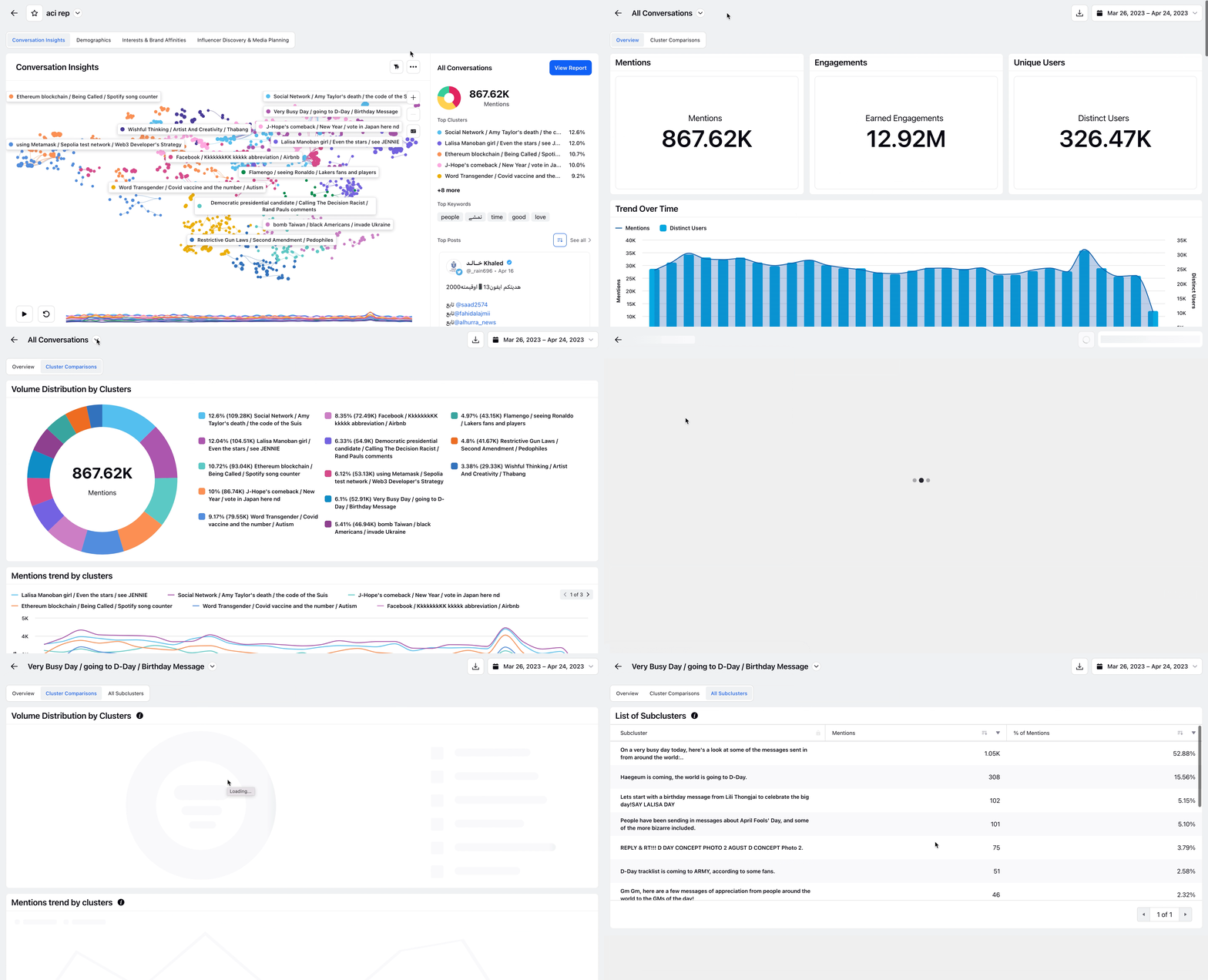
This will open the audience conversation insights report consisting of the conversation cluster map and a separate pane on the right side of the screen for quick insights.

The graph widget contains clusters of messages – denoted by the label names and their relationships with other clusters shown by the edges connecting them. The right-pane consists of top-level insights about the overall conversation, or the cluster selected – Top clusters/Top Sub-clusters, Top Keywords used in the conversation, and Top Posts.
Deep-dive insights dashboard
You can launch a deep-dive dashboard from the right pane for any individual cluster to get deeper insights on the conversation as well as the audience behind each cluster.
To launch the standard cluster deep-dive dashboard, click on the View Report button at the top right of the right-pane. Once in the dashboard, you can switch between clusters using the dashboard switcher (placed next to the title of the dashboard as shown).
You can view other tabs within the audience conversation insights report –
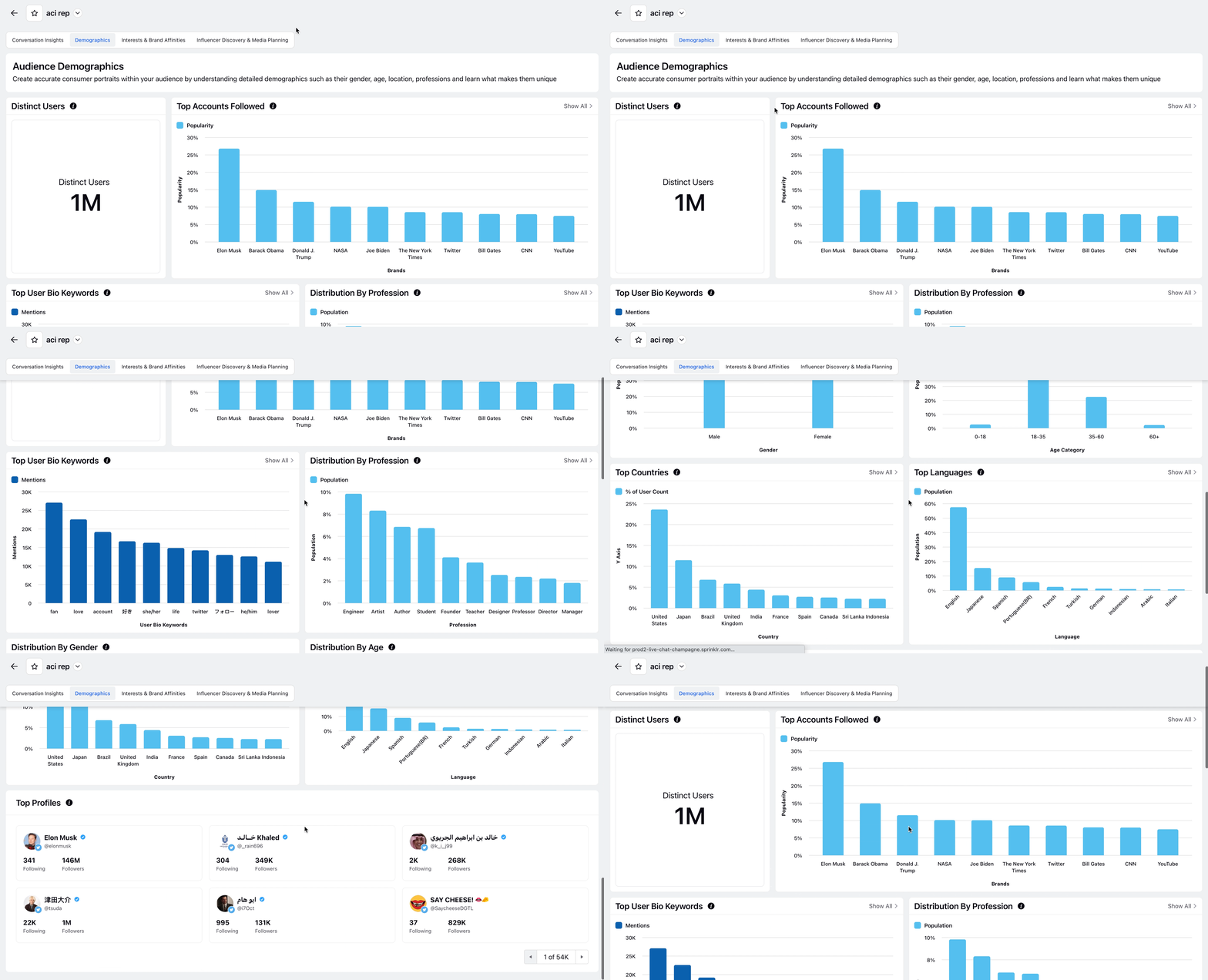
Demographics: Create accurate consumer portraits within your audience by understanding detailed demographics, such as their gender, age, location, professions and learn what makes them unique.
Interests & Brand Affinities: This tab will help you discover interests and brand affinities of your audience across major categories to understand their consumption patterns and lifestyle choices.
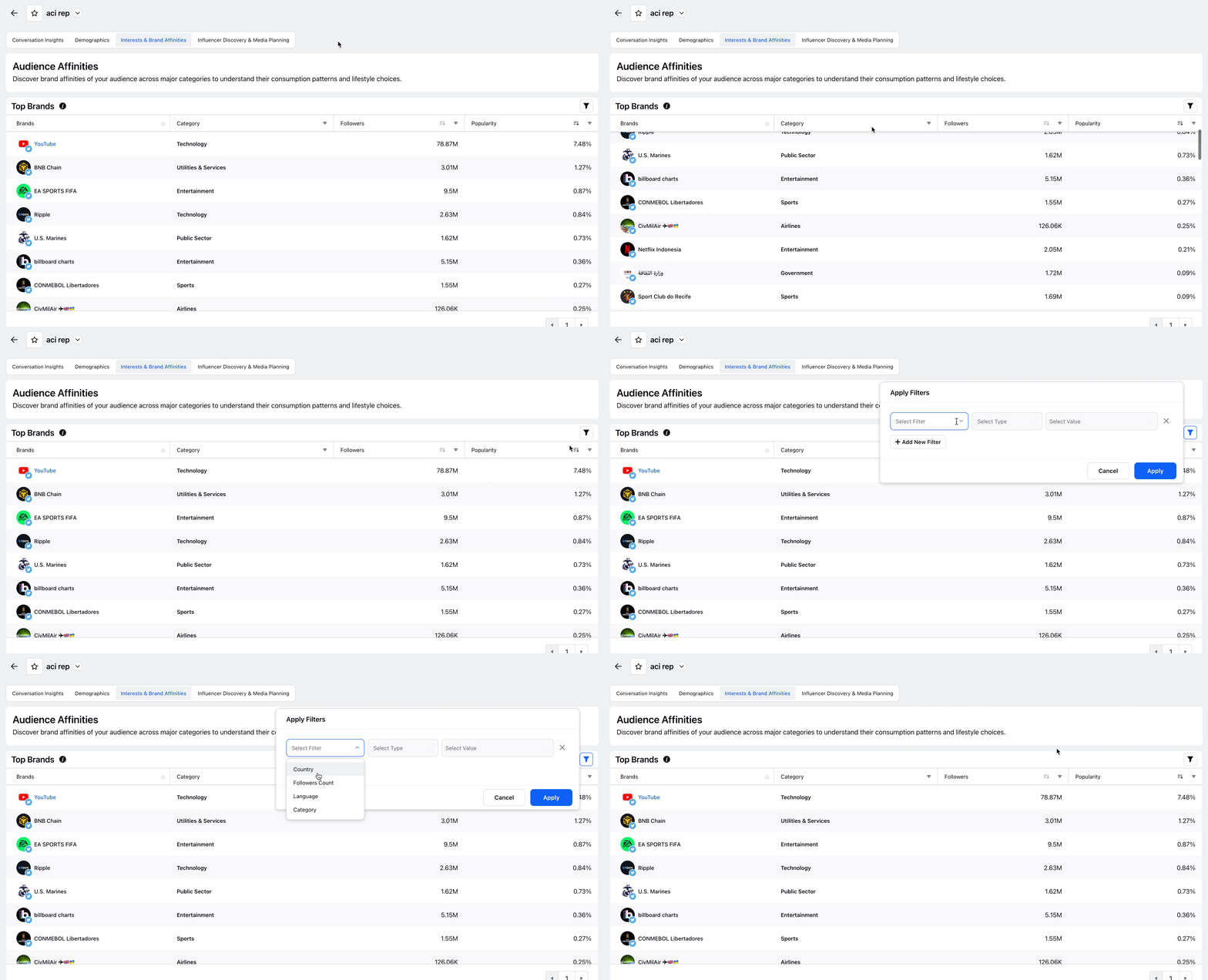 Note: Refine your interests and brand affinities search with the ability to filter by Country, Language, Followers, and/or Category.
 Influencer Discovery & Media Planning: Discover top influencers within your audience for effective brand partnerships and targeted advertising. You can search for relevant profiles by filtering on follower count, country, or language.
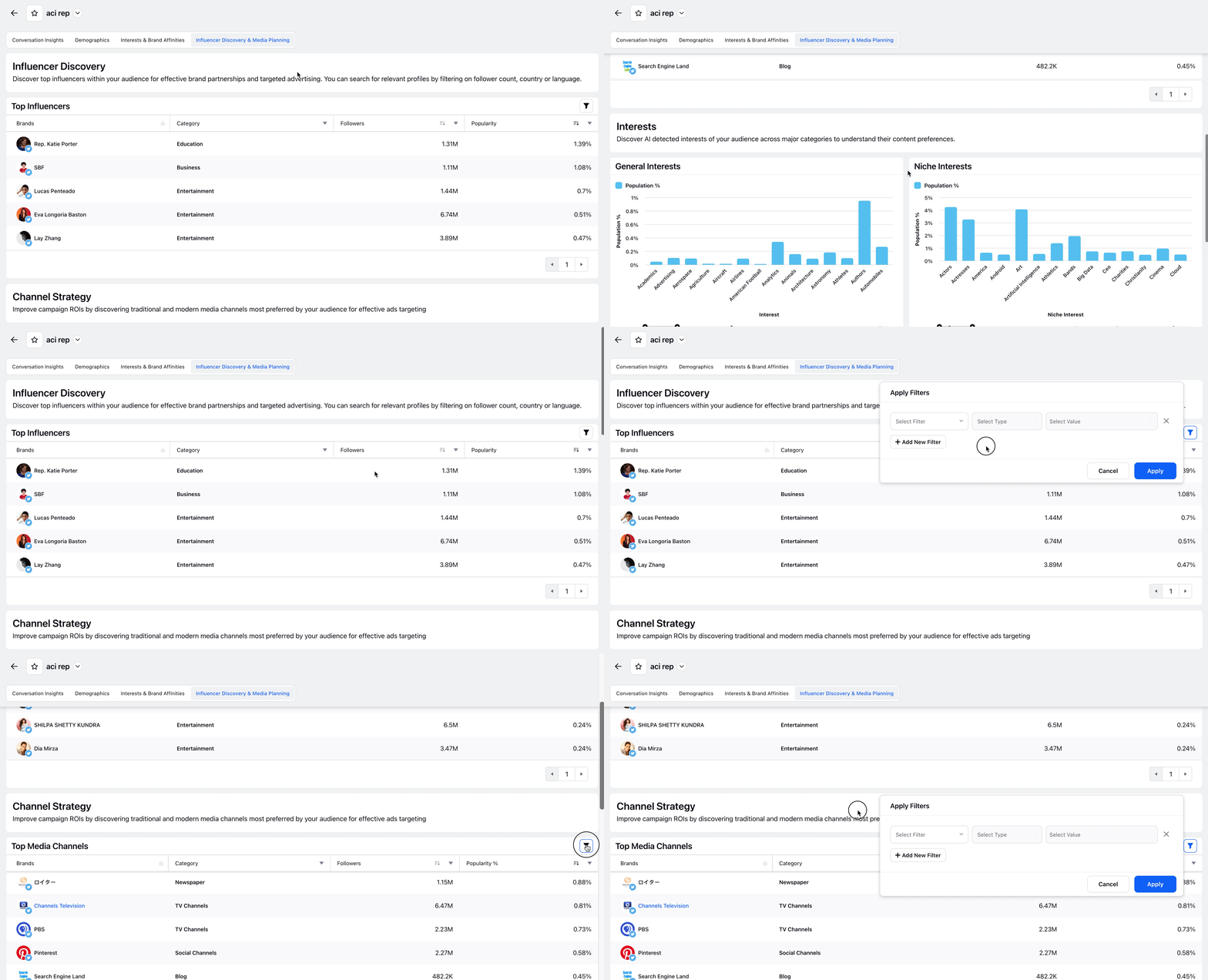 Note: Refine your influencer and media search with the ability to filter by Country, Language, Followers, and/or Category.