Guided Workflow Application Manager
Updated
For external guided workflows, you have the capability to integrate them into an application, providing a means to define and customize their styling. This allows you to tailor the appearance and visual elements of the guided workflows according to the specific branding or design requirements.
To Add Guided Workflow Application
Navigate to the Guided Workflow Applications tab from the left pane. Click Add Application in the top right corner.
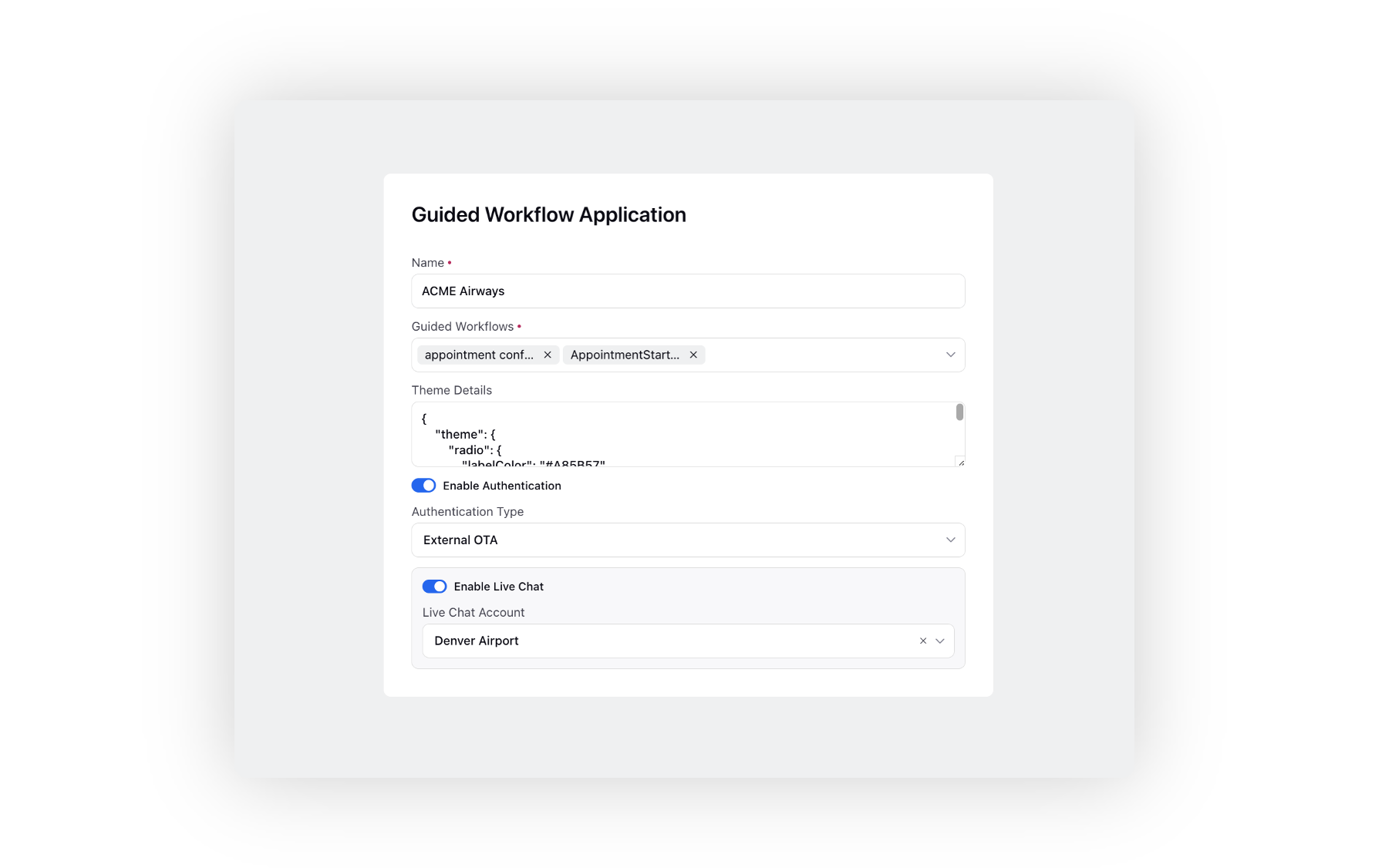
On the Guided Workflow Application window, configure the application settings by providing a name, selecting the desired guided workflows, and defining the theme to customize the visual aspects. Adding CSS in the Theme Details section allows you to apply specific styling, such as colors, fonts, and layout adjustments, to align the appearance of the guided workflow with your design preferences.
Sample CSS
Label Color of the Radio Buttons
{"theme": {"radio": {"labelColor": "#A85B57"}},"formFieldLabel": {"fontSize": "1.4rem"}}Consumption Entity: Select the business unit to associate with the Guided Workflow application. For customer-facing (external) Guided Workflows, page view metrics are attributed to the selected consumption entity, enabling organizations to track workflow consumption and generate usage reports at the business-unit level. This field is intended for organizations that manage multiple business units and require granular consumption tracking for external workflows.

 Note: The Consumption Entity field will be visible only if you have View permission within the Consumption Entity.
 Enable Authentication: When a guided workflow is linked with an application and made accessible externally, it becomes available to a broad audience on the internet. To mitigate potential misuse, it's crucial to implement an authentication layer to control access.
Live Chat OTA: This allows users to access guided workflows if the user has successfully authenticated through Live Chat for those guided workflows embedded in a live chat.
External OTA: This is enabled for guided workflows used in the Salesforce environment. Authentication is done by Salesforce, and they trigger the guided workflow with an OTA token. Sprinklr validates the OTA token if a valid guided workflow is triggered; otherwise, access to the guided workflow is forbidden.
Enable Live Chat:
- You can integrate Live Chat into a standalone webform guided workflow.
- Enable the toggle “Enable Live Chat,” and you will be presented with a list of available Live Chat applications.
- Select the appropriate Live Chat application from the drop-down menu.
After embedding the live chat app, it will be accessible on the external guided workflow link, appearing at the bottom right.

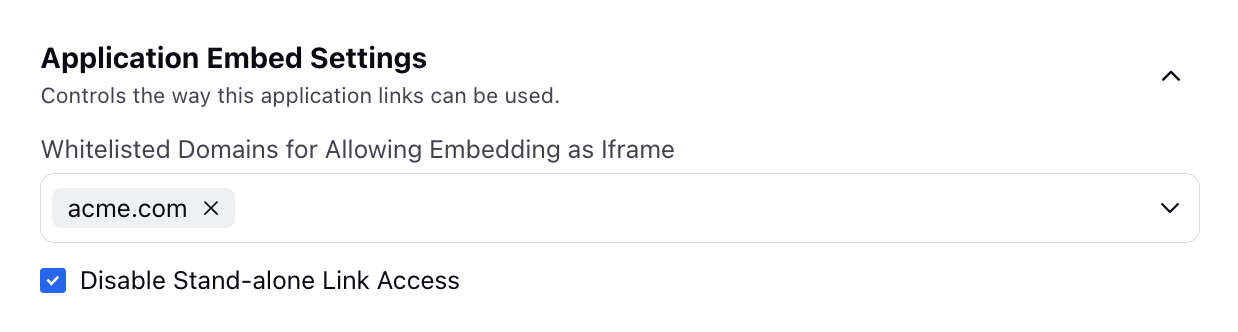
Whitelisted Domains for Allowing Embedding as Iframe: Within the Application Embed Settings, define the whitelisted domains to permit embedding the Guided Workflow via Iframe. Enhance security in customer-facing Guided Workflows by restricting external embedding to authorized websites, thereby mitigating the risk of unauthorized use on malicious platforms. Additionally, you have the option to configure specified webforms to exclusively operate within authorized domains, rather than functioning as standalone links.
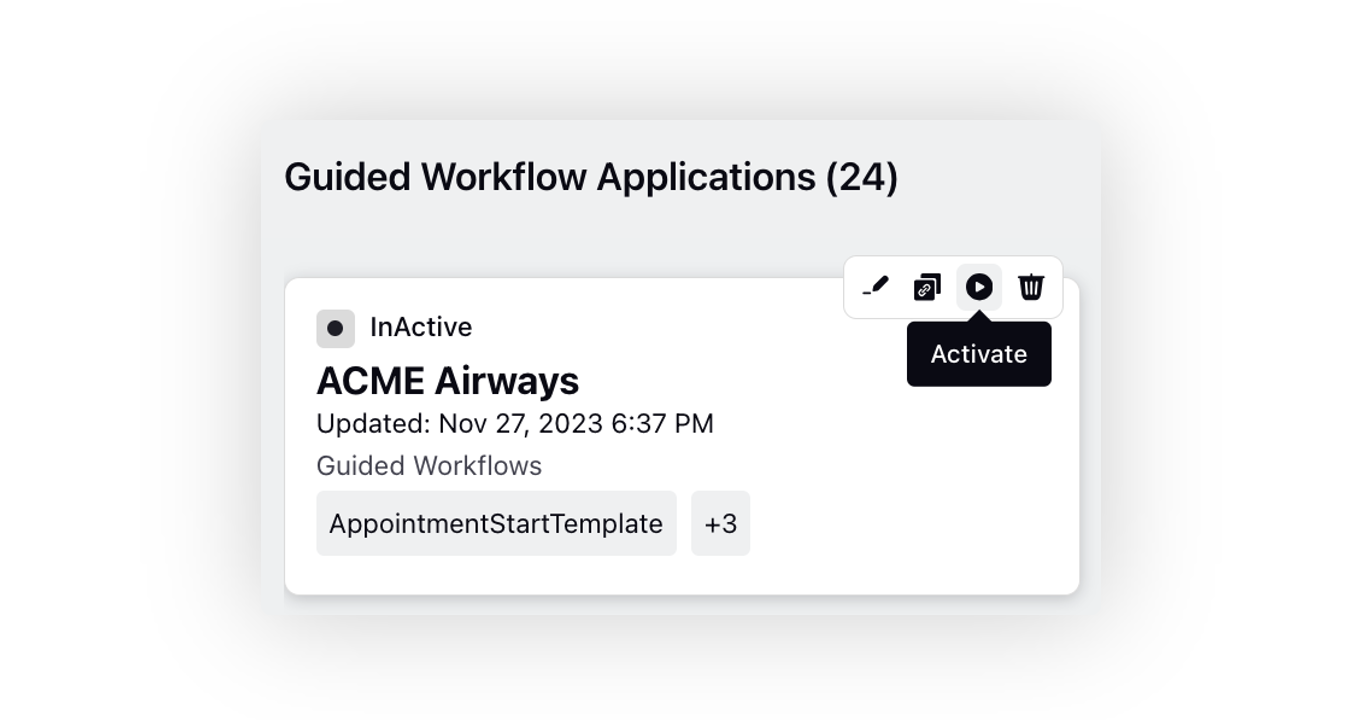
Once created, activate the application to genrate the link.
To Generate External Link
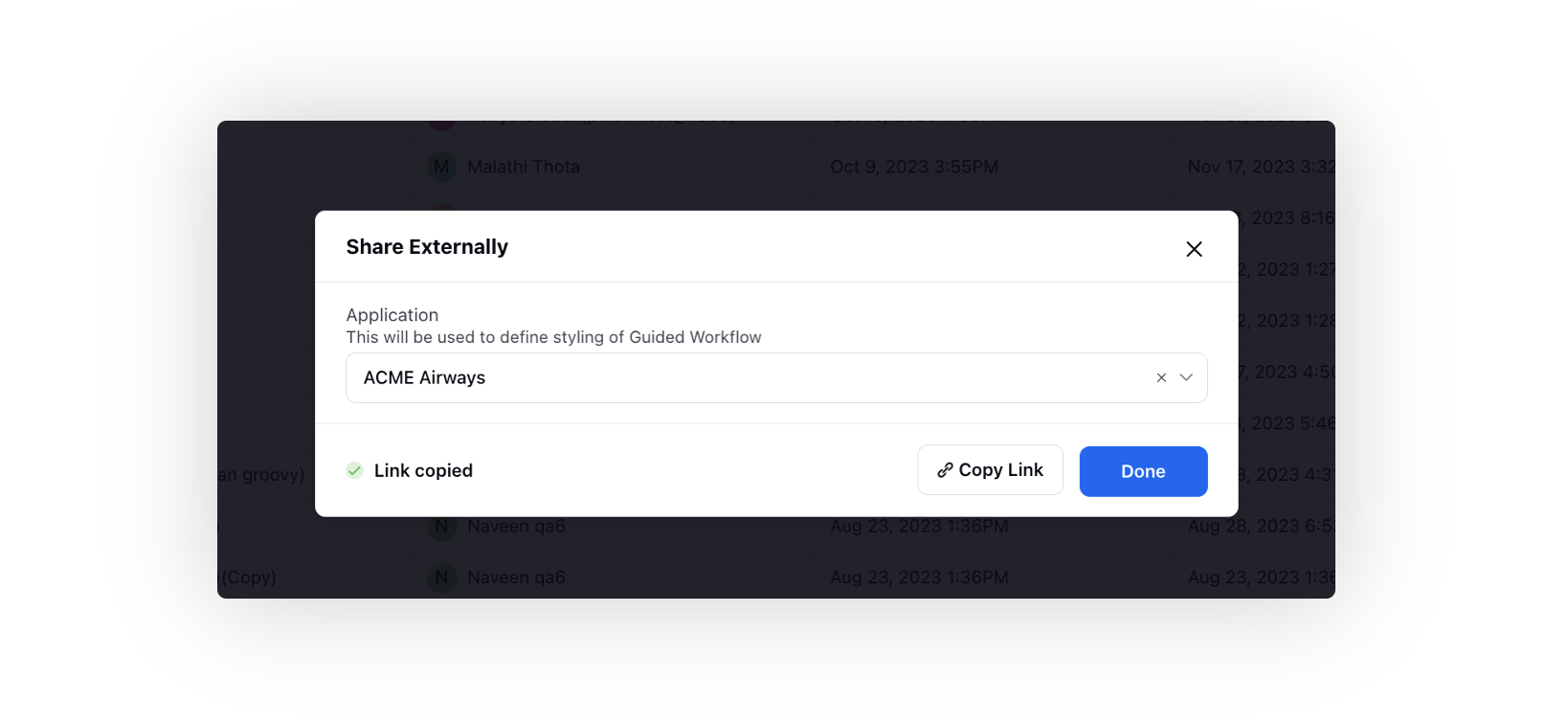
Hover over the Options icon alongside the guided workflow and select Generate External Link.
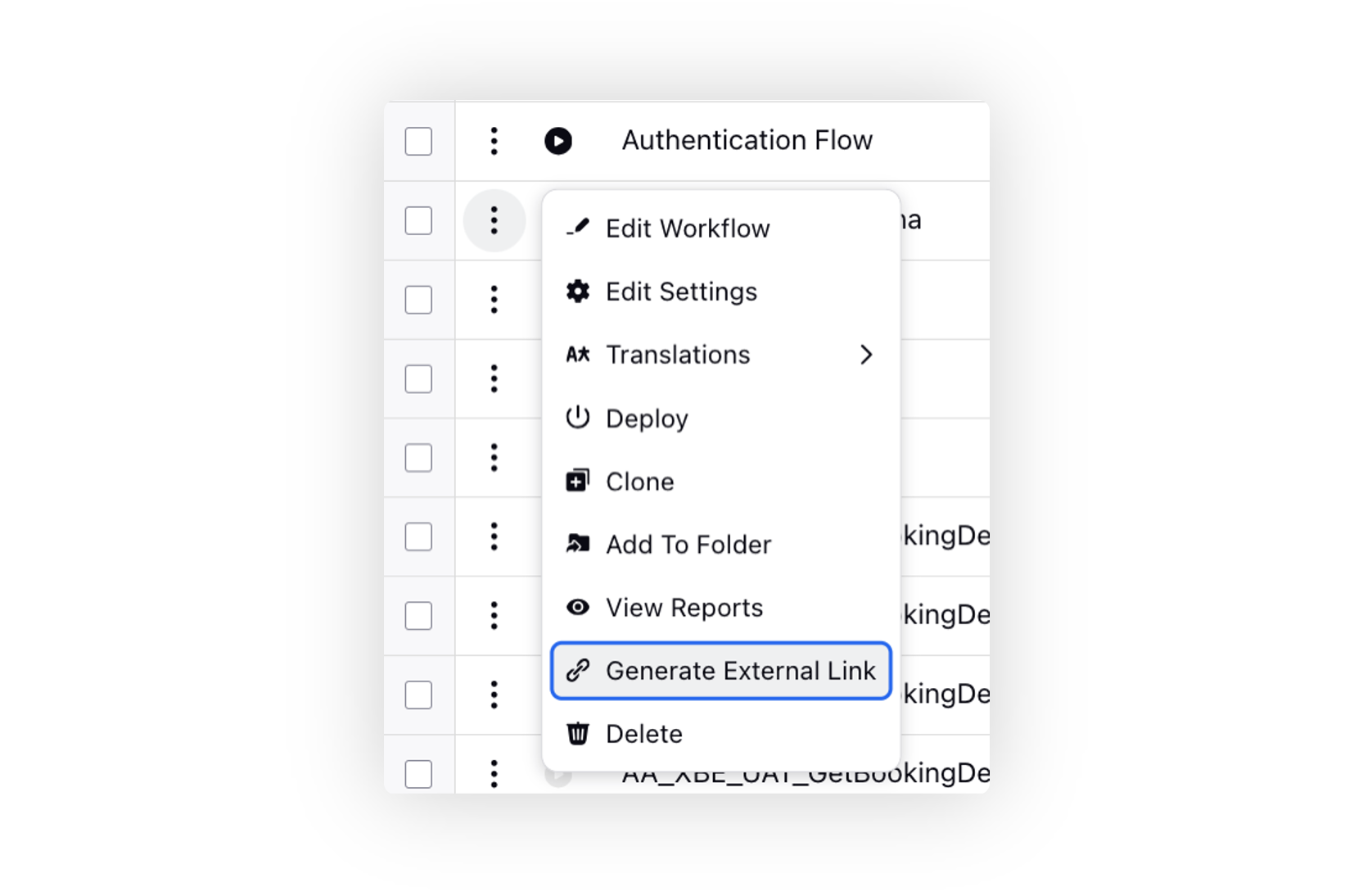
Choose the Application to define the styling of the guided workflow and utilize the Copy Link option to copy the URL to the clipboard. Only applications mapped with this guided workflow will be displayed in this selection.
You can use this link to embed the guided workflow on external platforms.