Exploring Quality Management Persona
Updated
Setting up Quality Management Persona
Hyperspace Mode
Under Profile, enable Hyperspace. Under Sprinklr Service in the launchpad, click on Quality Manager Persona App.
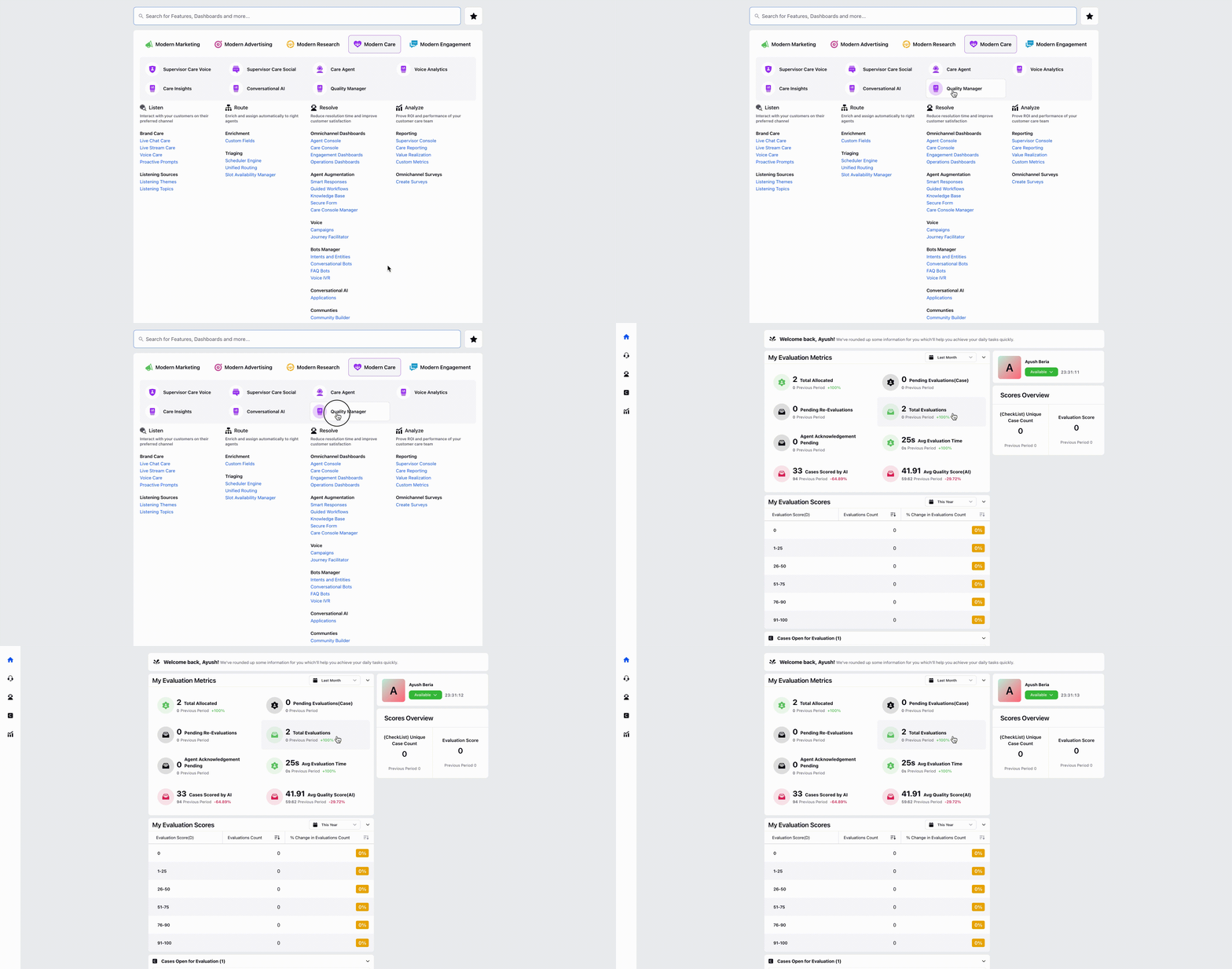
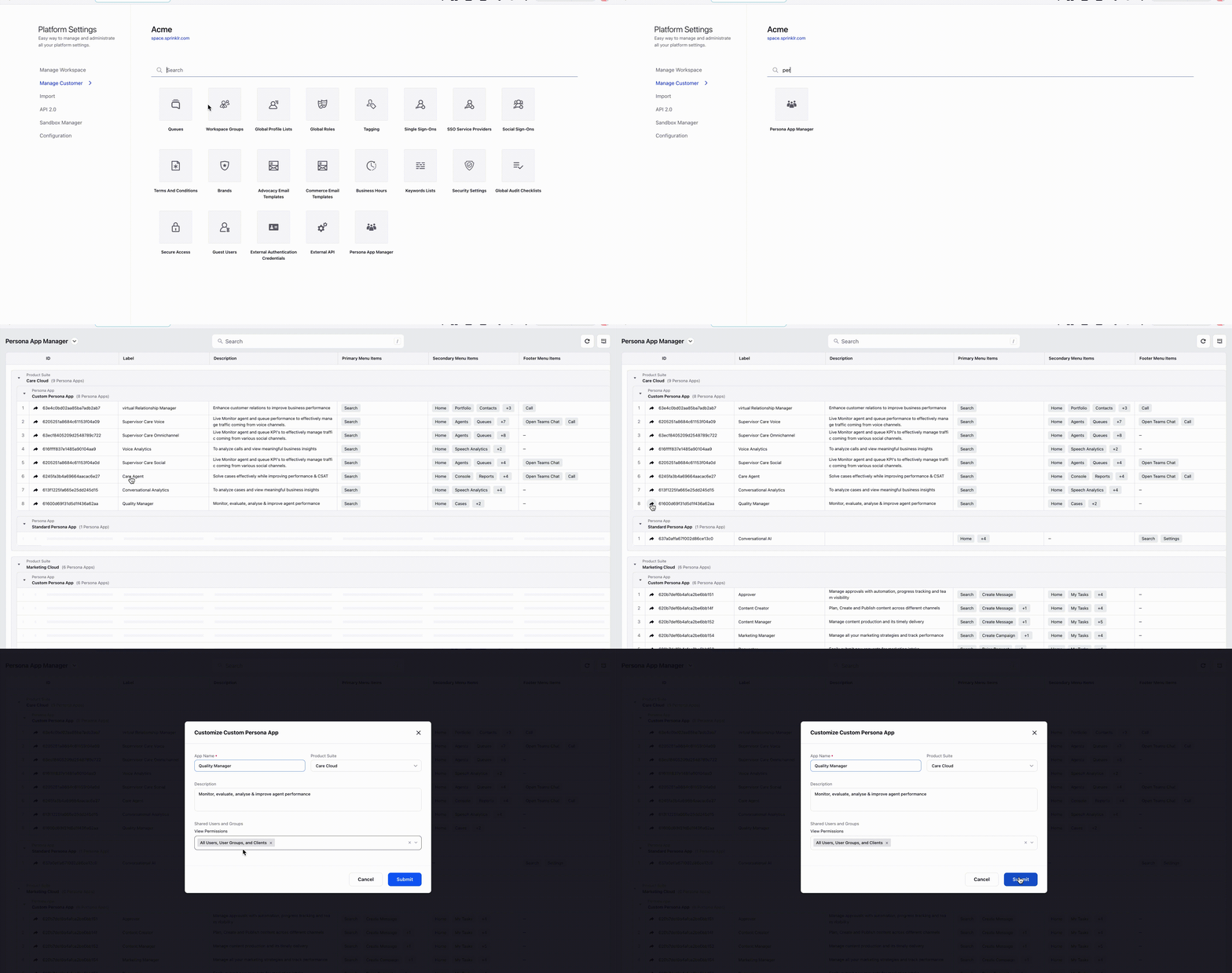
 Note: In case the Quality Manager app is inaccessible via the launchpad, Open All Settings, under Manage Customer -> Persona Apps Manager, search for Quality Manager App under Care Cloud Product Suite and share with the respective user/workspace.
Persona Mode
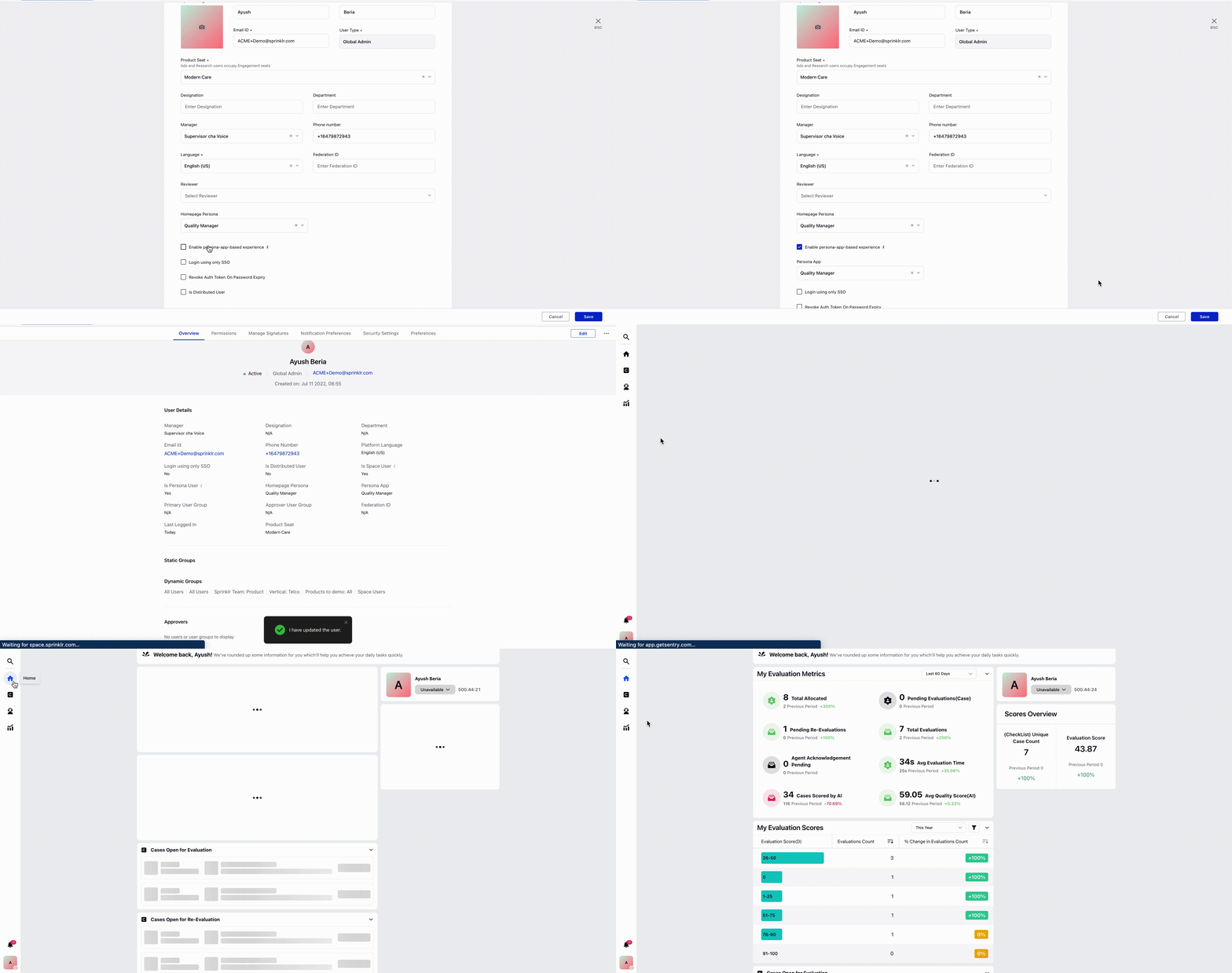
Follow the following steps to enable Persona Mode-
Edit Profile and select Enable persona-app-based experience.
Select Quality Manager under Persona App and Save.
Refresh the entire page or URL.
Note: Disable Enable persona-app-based experience in Profile to use Classic Space Mode.
Persona Based Configuration for All Cases and All Calls Tabs
You can configure columns, filters, and data visibility for All Cases and All Calls tabs directly from the Persona App Manager. Follow these steps to configure All Cases and All Calls tabs for the persona app:
Click the All Cases or All Calls record from the persona app screen.
Configure the following fields as per your requirement in the Configurator pane:

Configure Fields in All Cases or All Calls Tab
Field | Description | Behavior |
Label | Specifies the display name of the tab. | Appears in the Persona App navigation. |
Icon | Defines the icon used for the tab. | Helps users visually identify the tab. |
Allowed Columns | Defines which columns are available in the data table. | Users can only view selected columns. |
Allowed Filters | Specifies filters users can apply. | Restricts filter options to selected fields. Supports standard and custom fields. |
Filter Configurations
Field | Description | Behavior |
Favourite Filters | Defines default filters applied when the tab loads. Use the + Add Filter button to configure multiple favourite filters. | Users can edit or remove these filters. |
Locked Filters | Defines filters that are always applied. Use the + Add Filter button to configure multiple favourite filters. | Users cannot edit or remove these filters. Supports multiple enforced filters. Used for compliance or restricted data views. |
Eye Icon (Locked Filters) | The eye icon hides locked filters from the UI. | Filters remain active but are not visible to users. Improves UI simplicity while enforcing rules. |
Hide on Mobile: Controls visibility of the tab on mobile devices. When enabled, the tab is not shown on mobile.
Click the Update button to save configuration changes.
Click the Cancel button to discard the changes
Quality Management Persona
Home Page
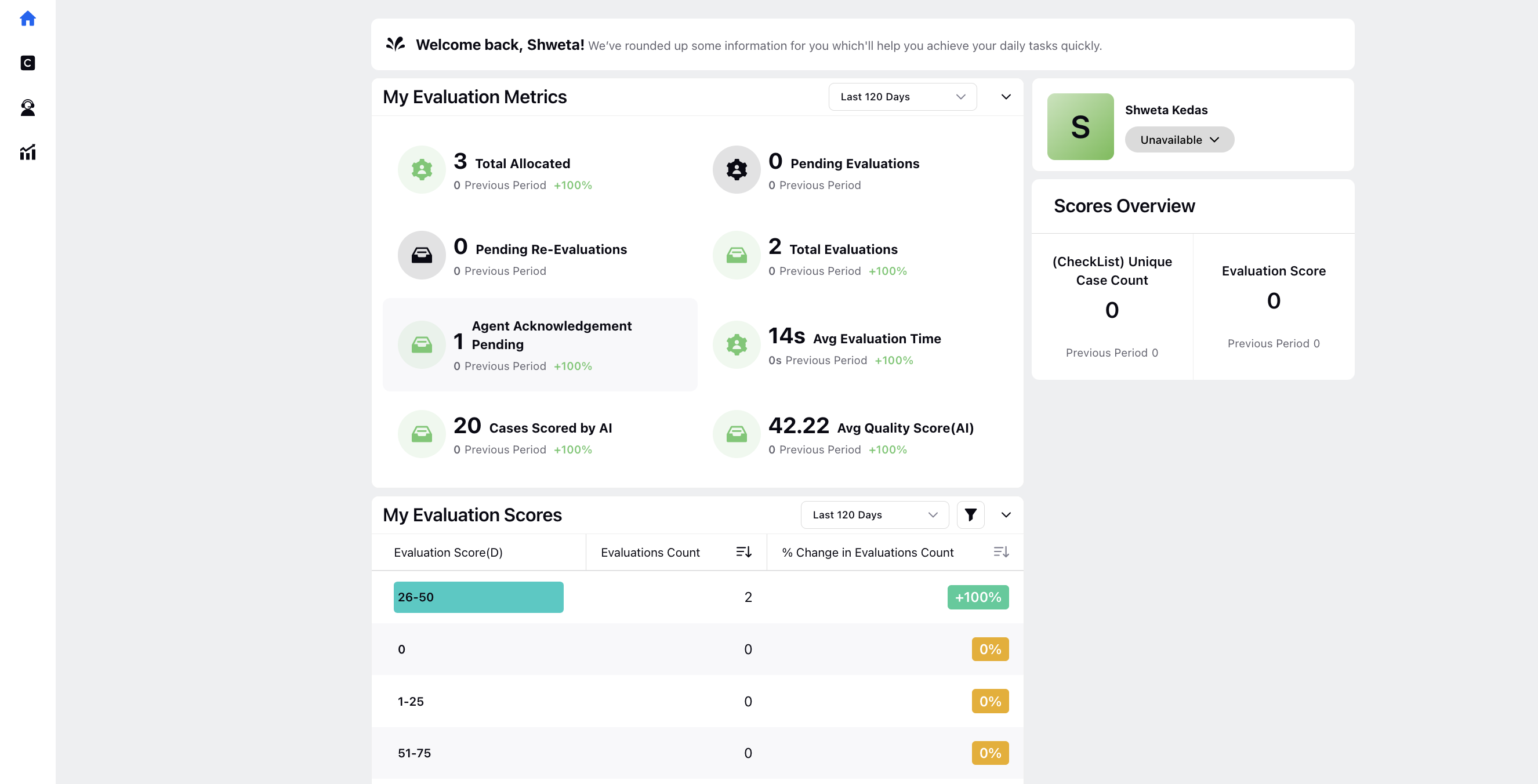
The home page is the first screen that is visible to the user after they log in. This is a standard homepage for the Quality Manager persona, which consists of widgets that give an overview of evaluation metrics.
Left Pane
The left pane provides navigation to the Home Page, Cases, Agent Insights, Reports and Settings Tab.

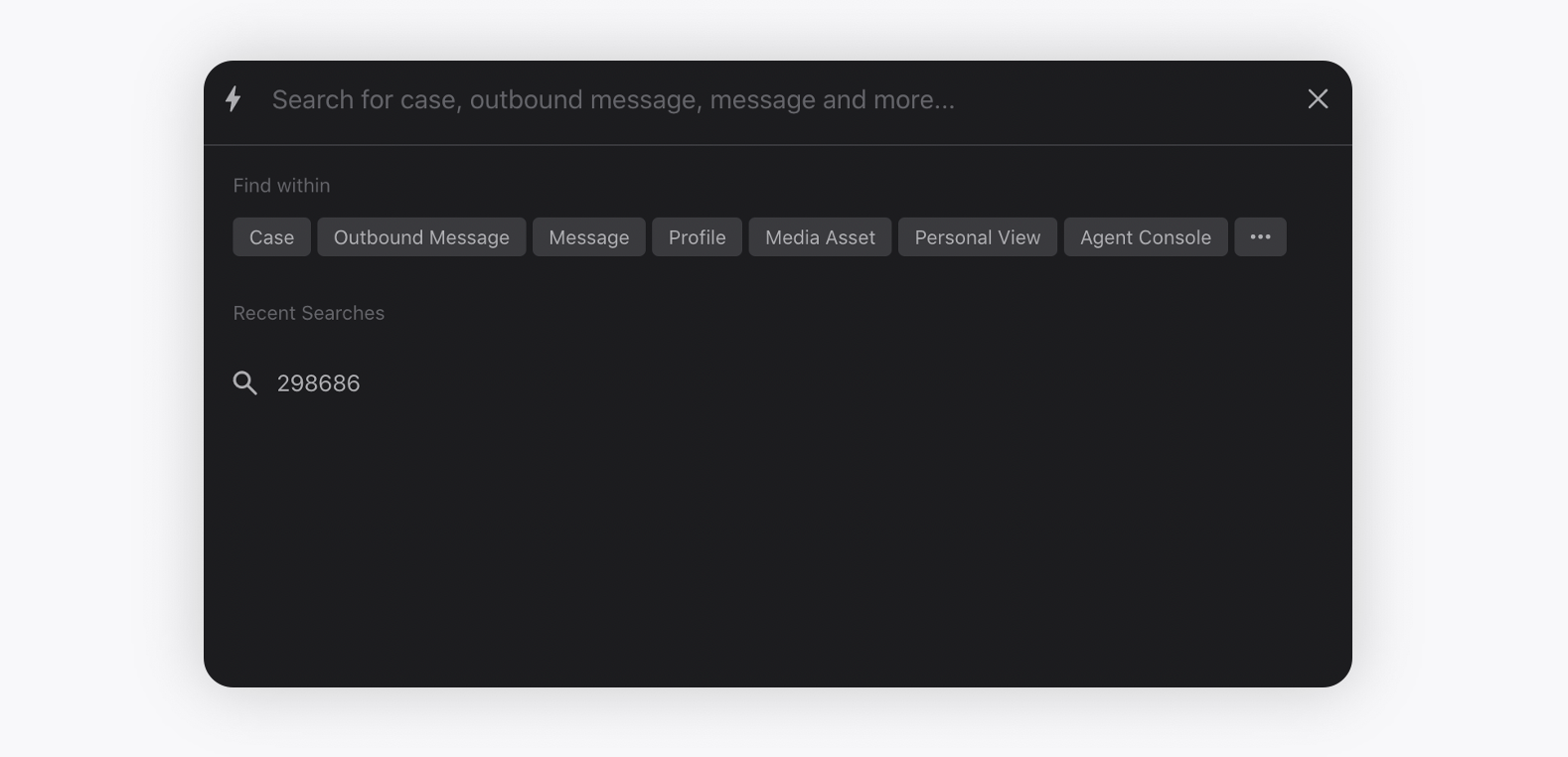
Search
This features allows the universal search for the desired case, message, dashboard, profile, etc. across platform data.
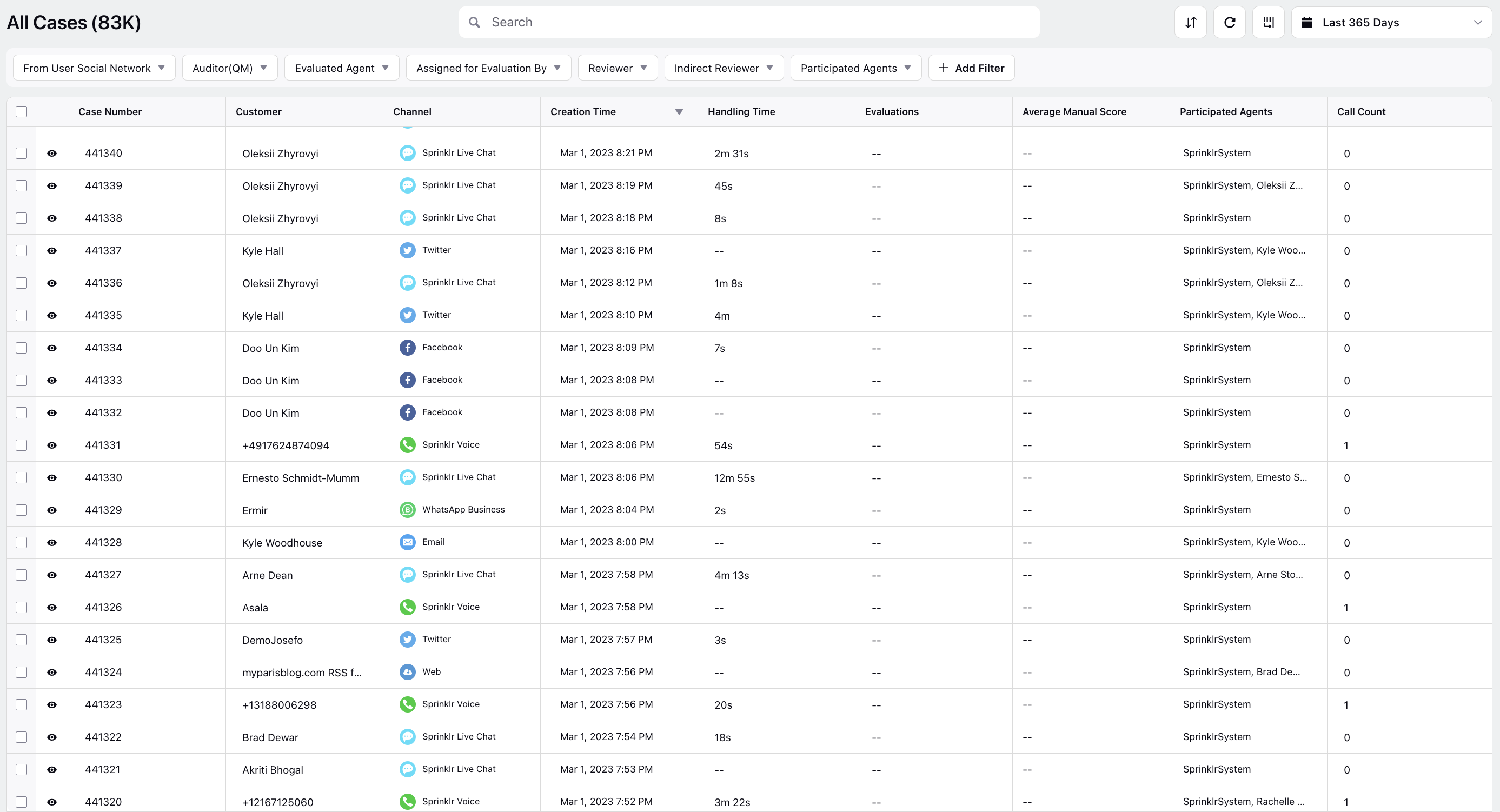
Cases
The Cases Tab displays all the cases present in the platform.
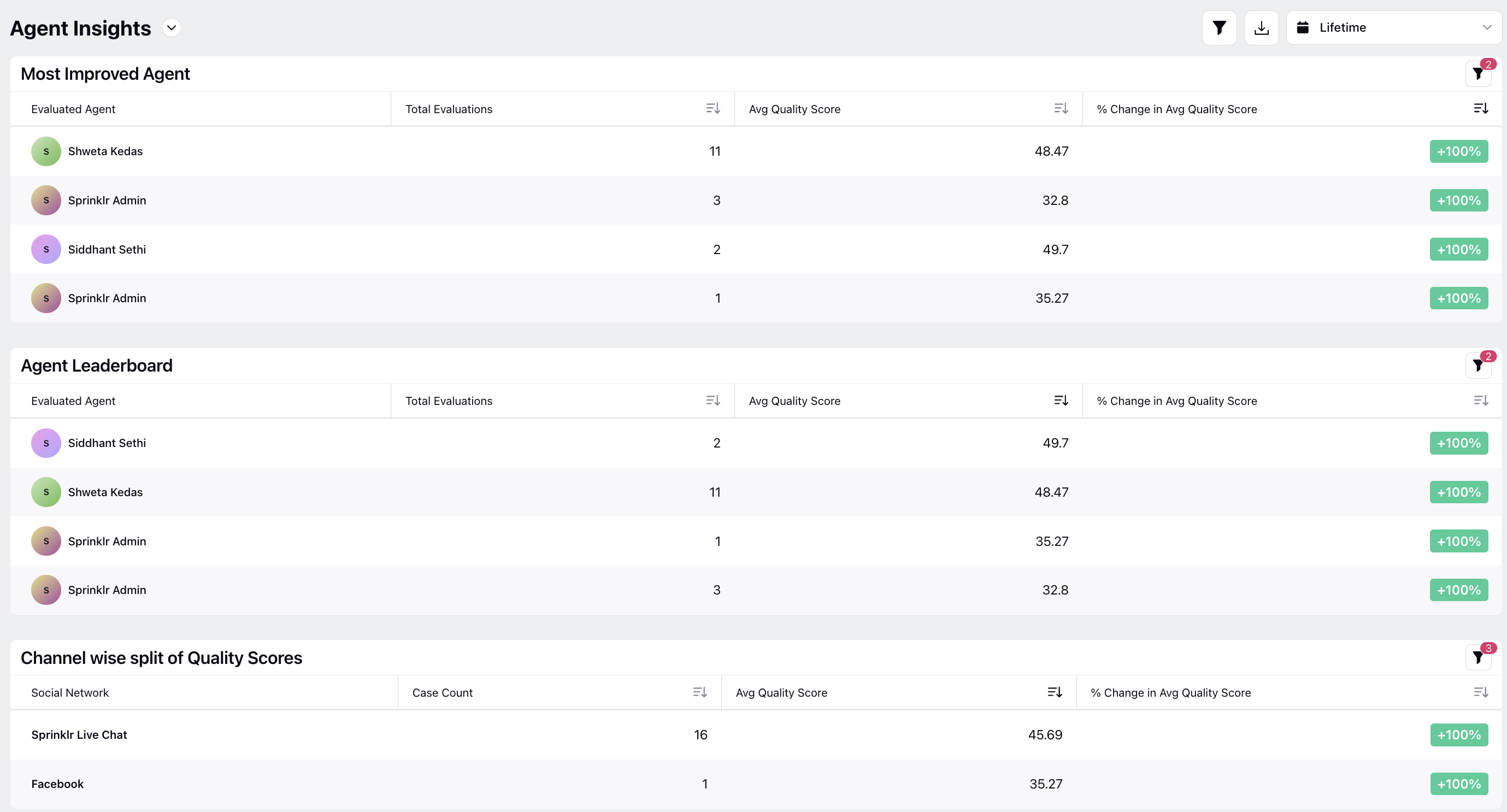
Agent Insights
The Agent Insights tab provides insights on agents performance across teams.
Reports
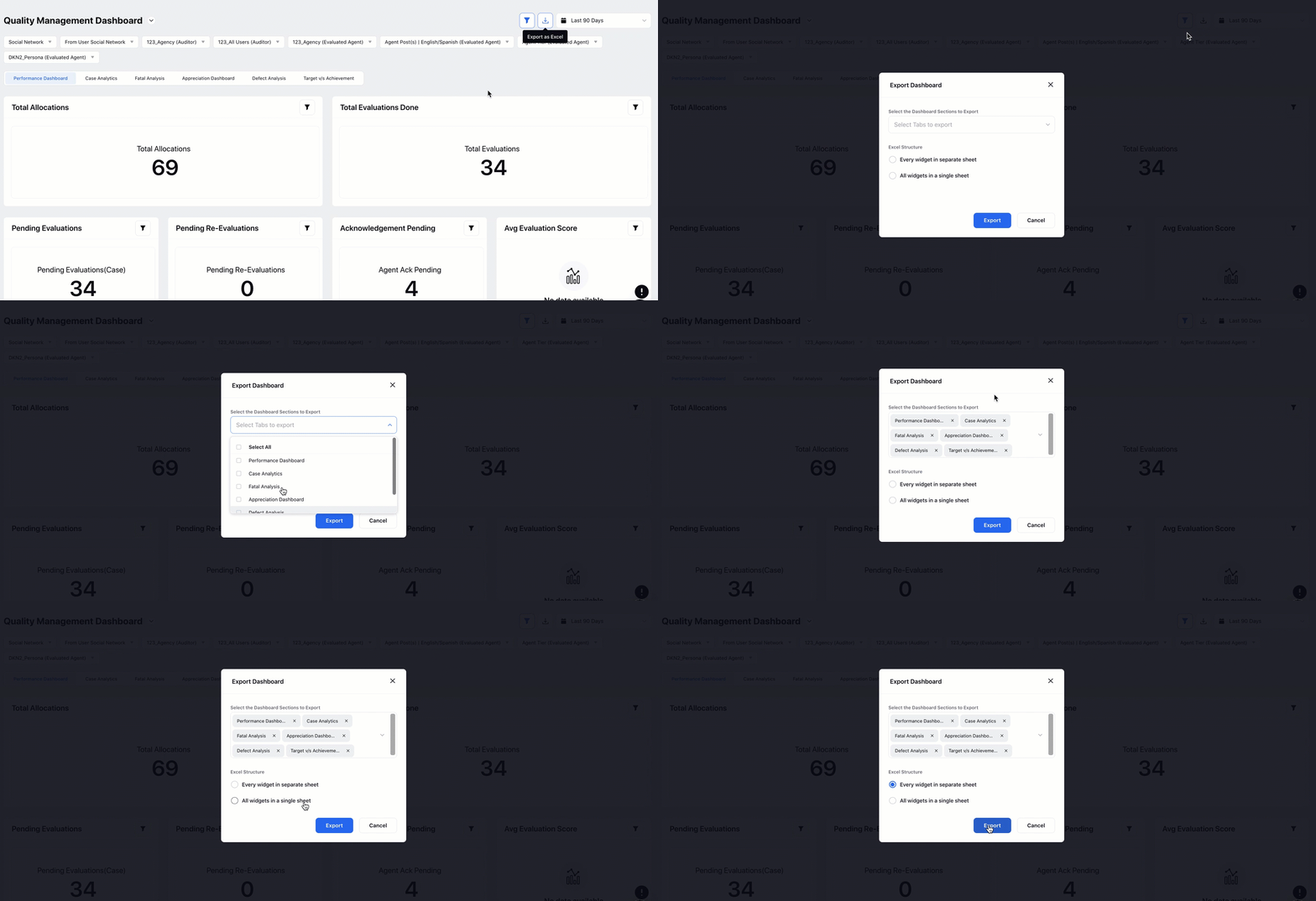
The reporting dashboards shared with the Quality Manager persona is viewed here. The widgets are customizable and can be modified. Drilldown feature is available for the widgets to get further details. Both dashboard and widget-level filters can be applied by clicking on the filter icons.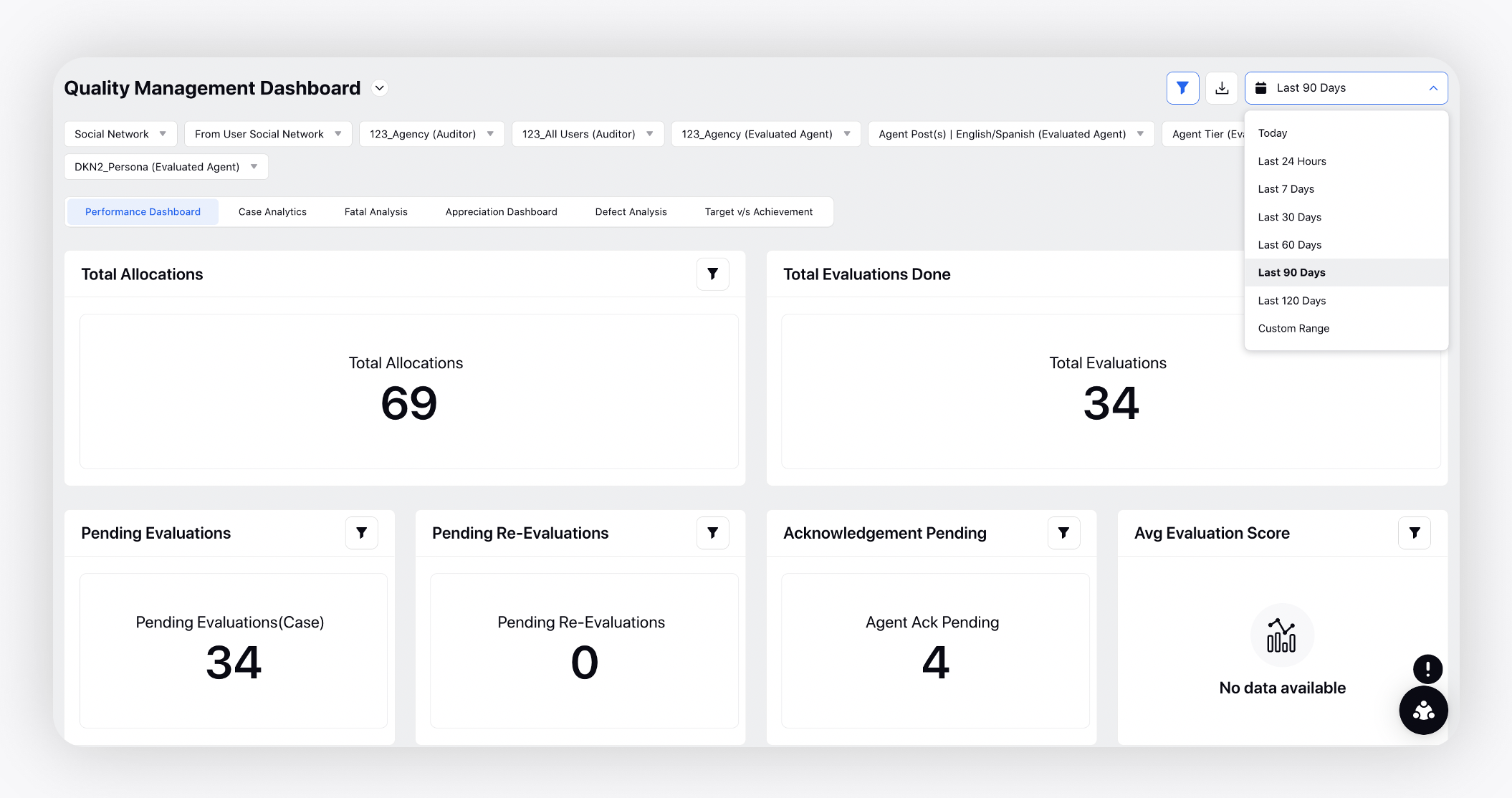
Select the Export as Excel option on the top to export the dashboard data.
Third Party Integrations
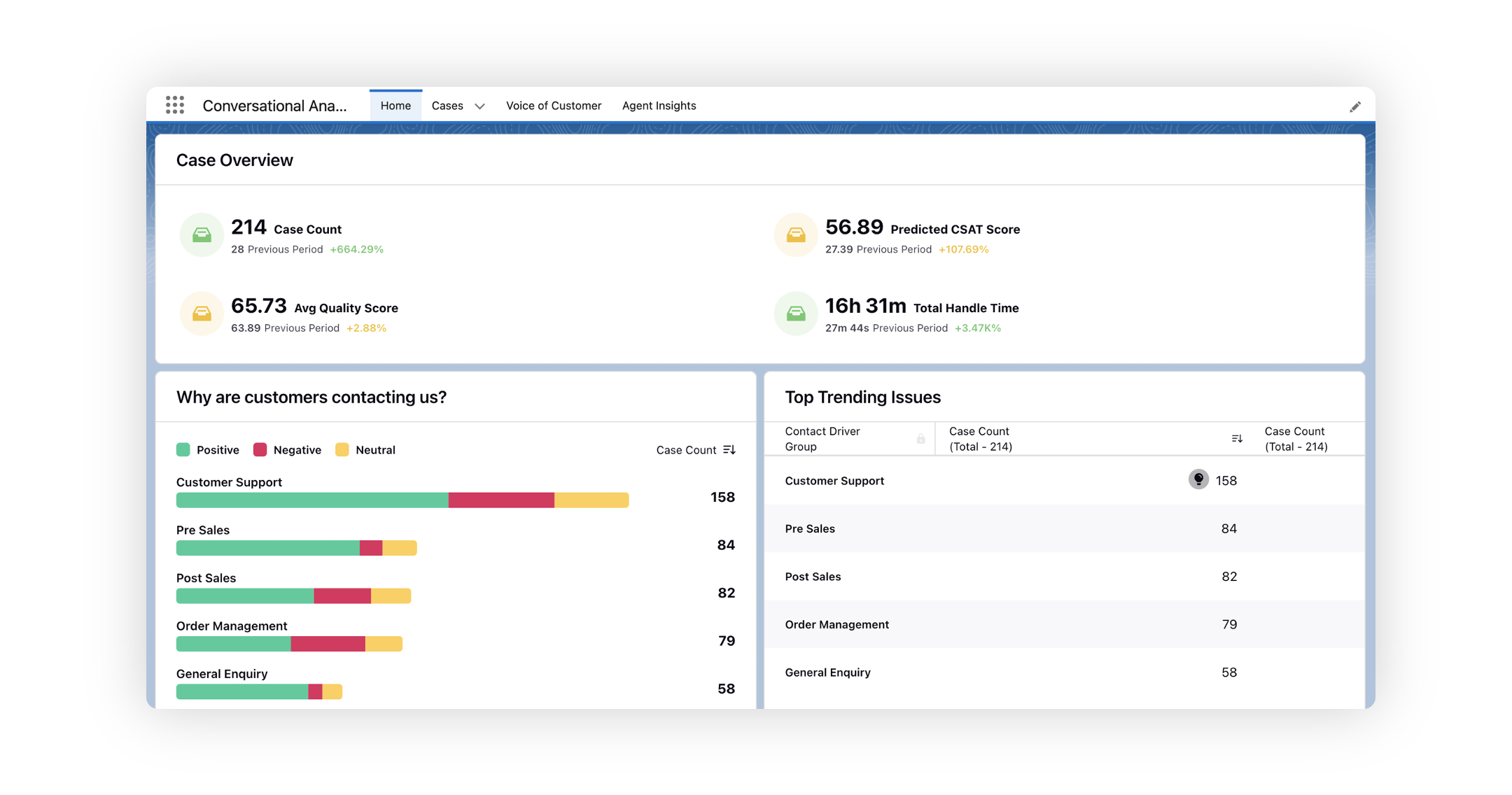
If you're utilizing an existing third-party application to store voice conversations and you are also importing that data into Sprinklr for analysis, you have the option to embed Quality Management dashboards using an iframe directly into your existing application interface. This integration makes it easier for you to analyze, manage, and act upon insights derived from voice conversations. This means you can seamlessly navigate between your application and Sprinklr's analytics dashboards without the need for separate logins or interfaces.
Settings
On clicking the Settings tab, the Governance screen is displayed. The tiles that are displayed on this screen depends on the user permissions.

If the logged-in user is not the Workspace Admin, they do not see the Workspace Checklist Tile in the Governance section. Only one Checklist tile is displayed based on the user type: Global Admins and the Global Users see the Global Audit Checklist, while Workspace Admins see the Workspace Audit Checklist.