ACW Reporting
Updated
After Call Work (ACW) refers to the process of documenting and tracking the tasks and activities that are performed by customer service representatives after a customer call is finished. This can include tasks such as entering notes about the call into a customer management system, updating customer information, and following up on any actions that were promised to the customer during the call. ACW reporting is an important part of the customer service process as it helps to ensure that all customer interactions are accurately recorded and that any issues or concerns are addressed in a timely manner. Additionally, it can help managers to evaluate the performance of customer service representatives and identify areas where additional training or support may be needed. Also, it helps the brand track the major issues being raised about their services or product.
ACW Statistics reporting
Often the brand requires reporting on statistics like at what time the ACWs were filled, on what date were the ACWs filled, how much time a particular agent took to fill the ACW, etc. These requirements can be fulfilled by creating the ACW statistics report.
To create the ACW statistics report, navigate to Care Reporting in the care console and create a dashboard. Within the dashboard create a widget. Within the widget click on add a dimension/metric. Here we can search for various ACW-related metrics and dimensions

We can plot these dimensions and metrics with the agent, case and conversation id dimensions to create a detailed report.
To create an ACW trends report a widget similar to one shown below can be created

Here the date, the number of calls taken, and the ACW has been mapped onto the widget to show how many ACWs were filled on a particular day. If the environment has multiple ACWs, there would be multiple lines on the line graph.
Disposition related reports
Disposition-related reports are generated upon the values filled by the agent in the disposition plan. There are three important widgets that can be created.
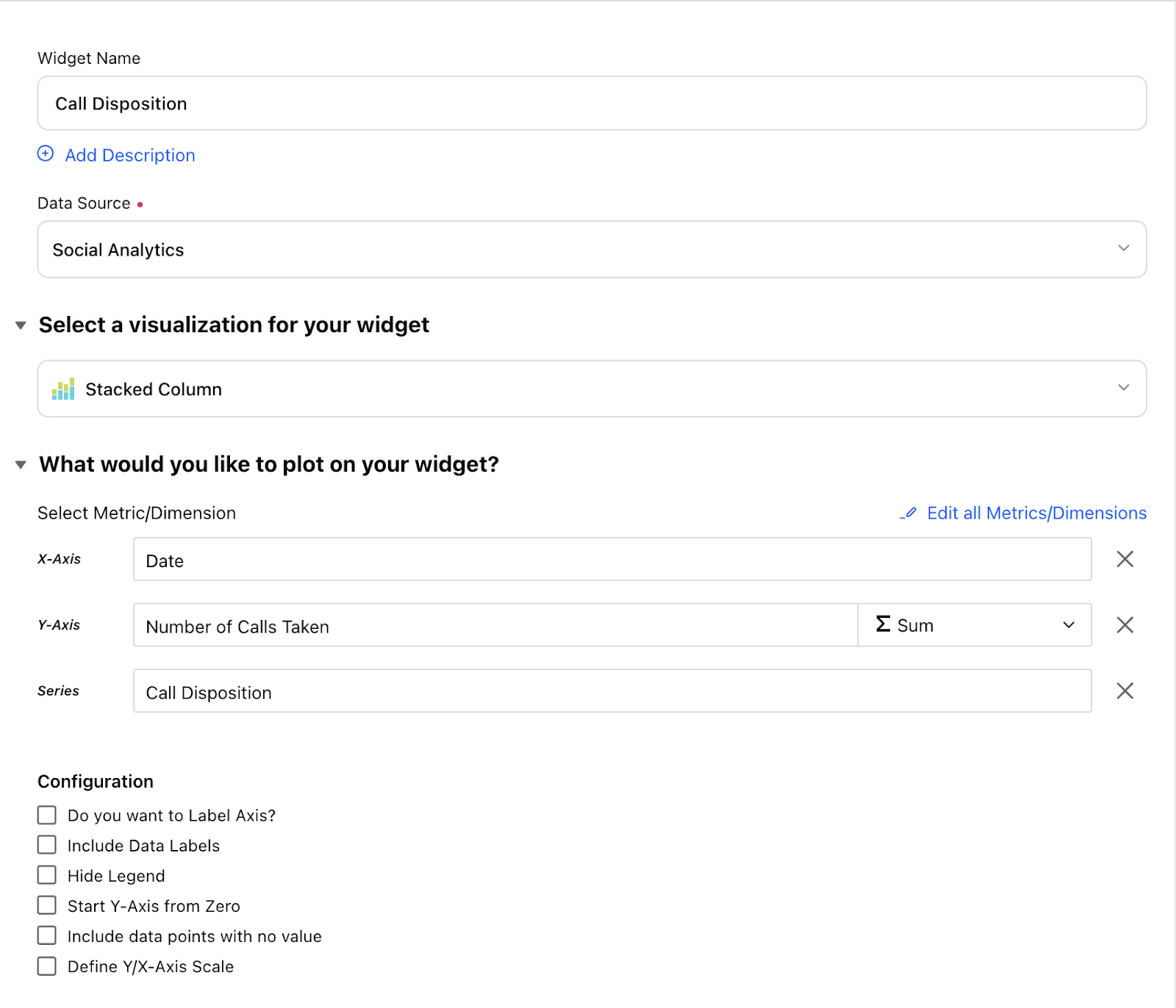
Call disposition vs date: This widget helps the brand analyze what dispositions the agent has filled in the ACW, i.e what was the primary outcome of calls on a particular day. To configure this we need to plot the date, the number of calls taken, and call disposition in the widget.
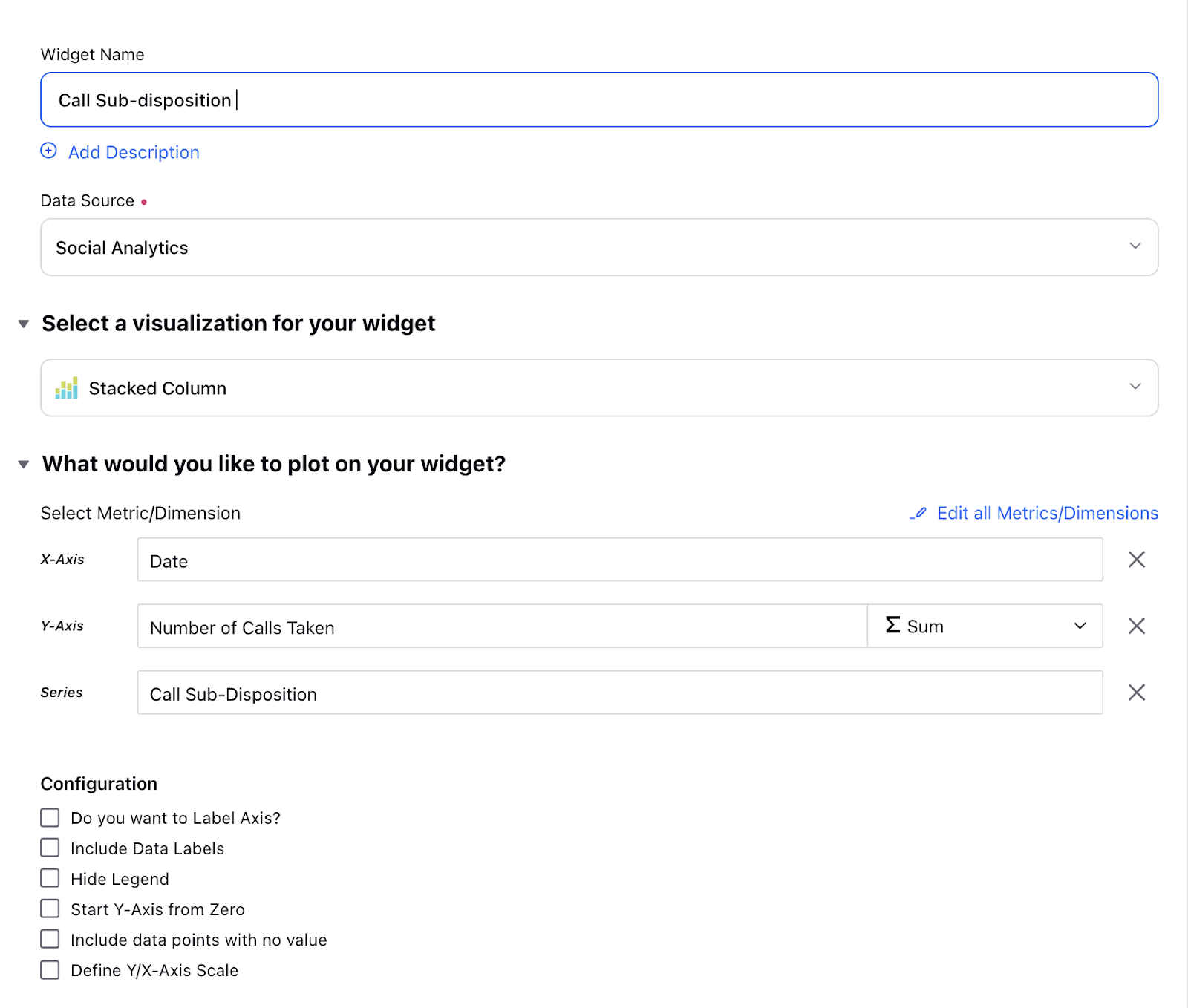
Call sub-disposition vs date: This widget helps the brand analyze what sub-dispositions the agent has filled. To configure this we need to plot the date, number of calls taken, and call sub-disposition in the widget.
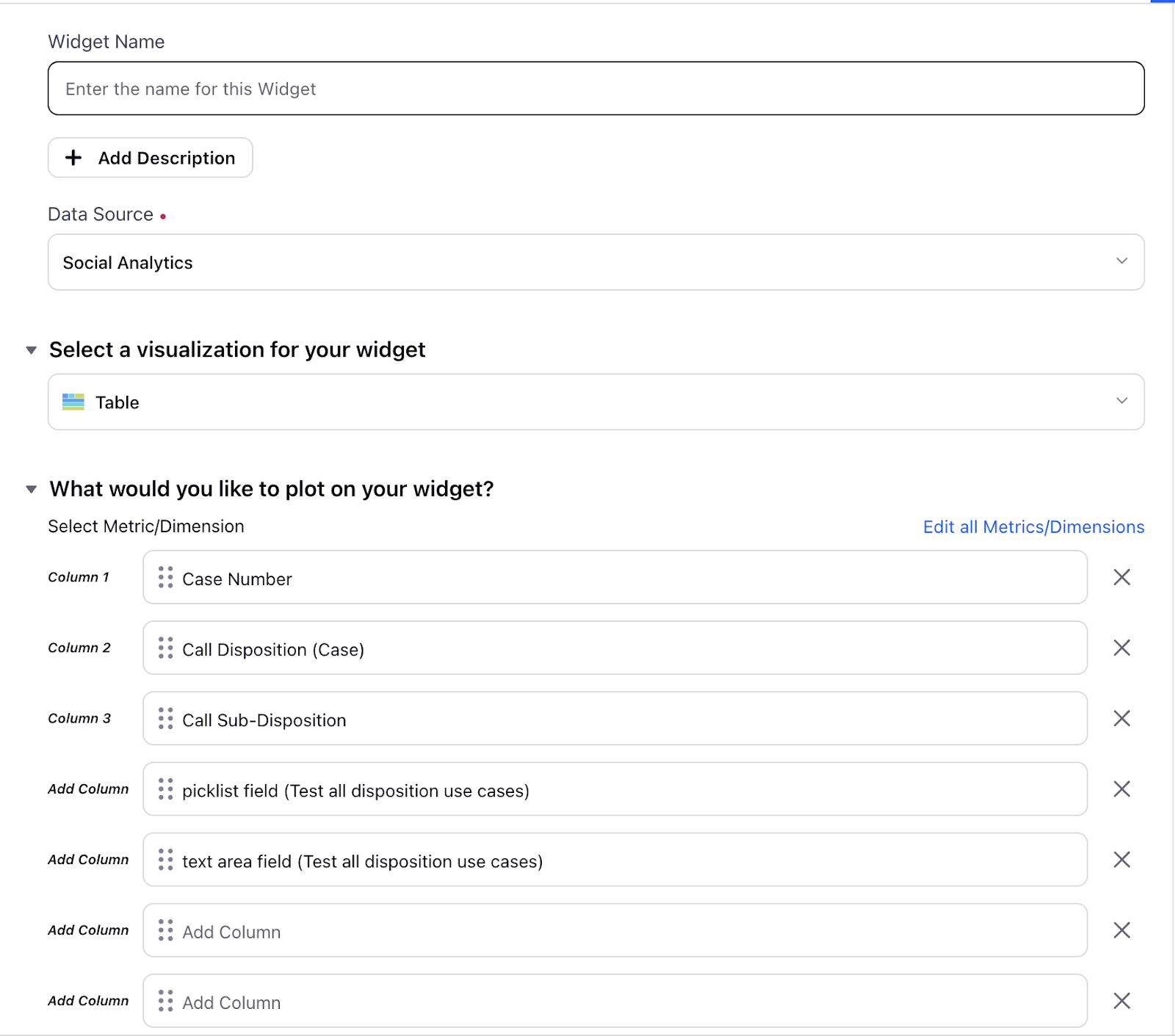
Case number vs disposition fields: This widget is a detailed report where the user can see exactly what the agent has filled in the ACW in every case. Here the user needs to plot the case, conversation id (If the case can have multiple calls), disposition, sub-disposition, and the disposition fields which can be found by searching the name of the disposition in the widget.
Social ACWs
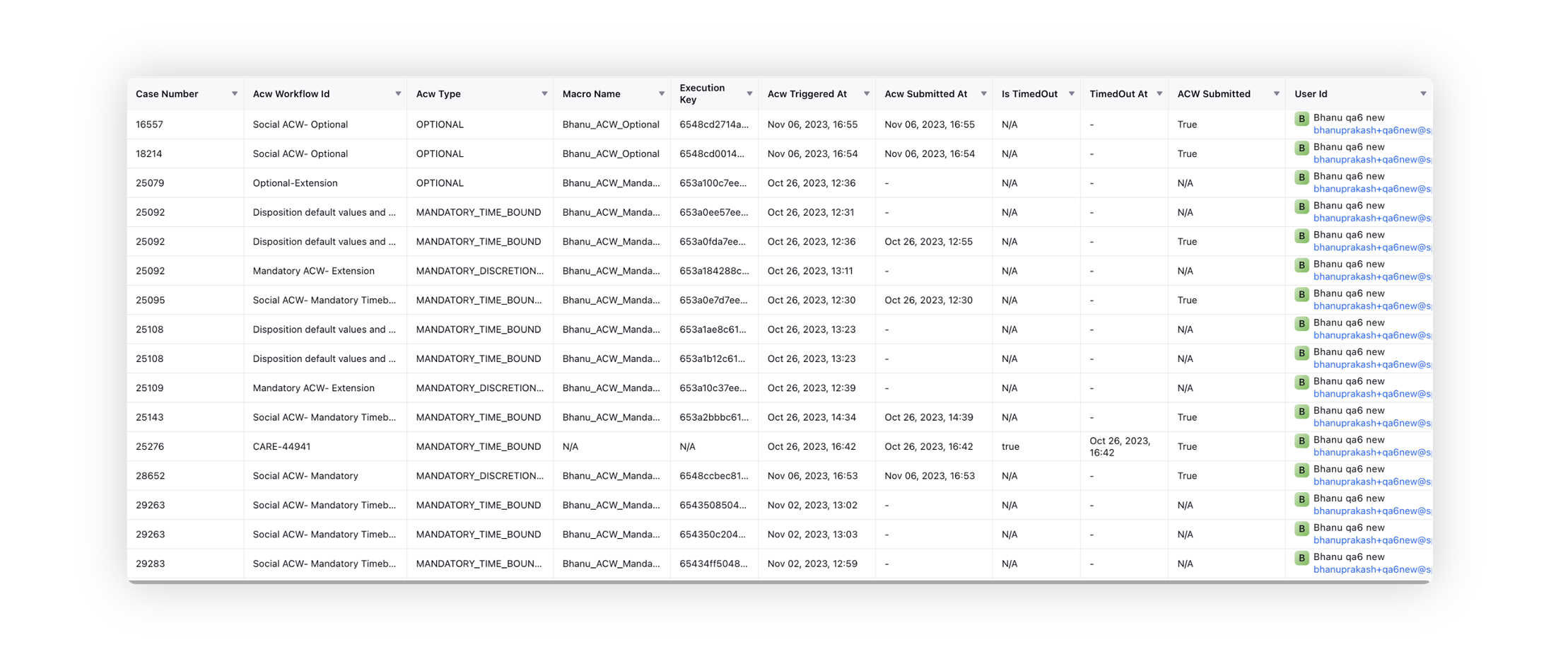
For Social After Call Work (ACWs), you can view the following details.
1. Agent ID
2. Case Number
3. Unique ID (execution id similar to voice conversation id in case of voice)
4. Time of execution
5. Time at which agent submitted
6. Time taken to fill ACW
7. Filled disposition plan, disposition, sub disposition and fields
8. Name of ACW executed
9. Name of macro executed
10. ACW submitted status
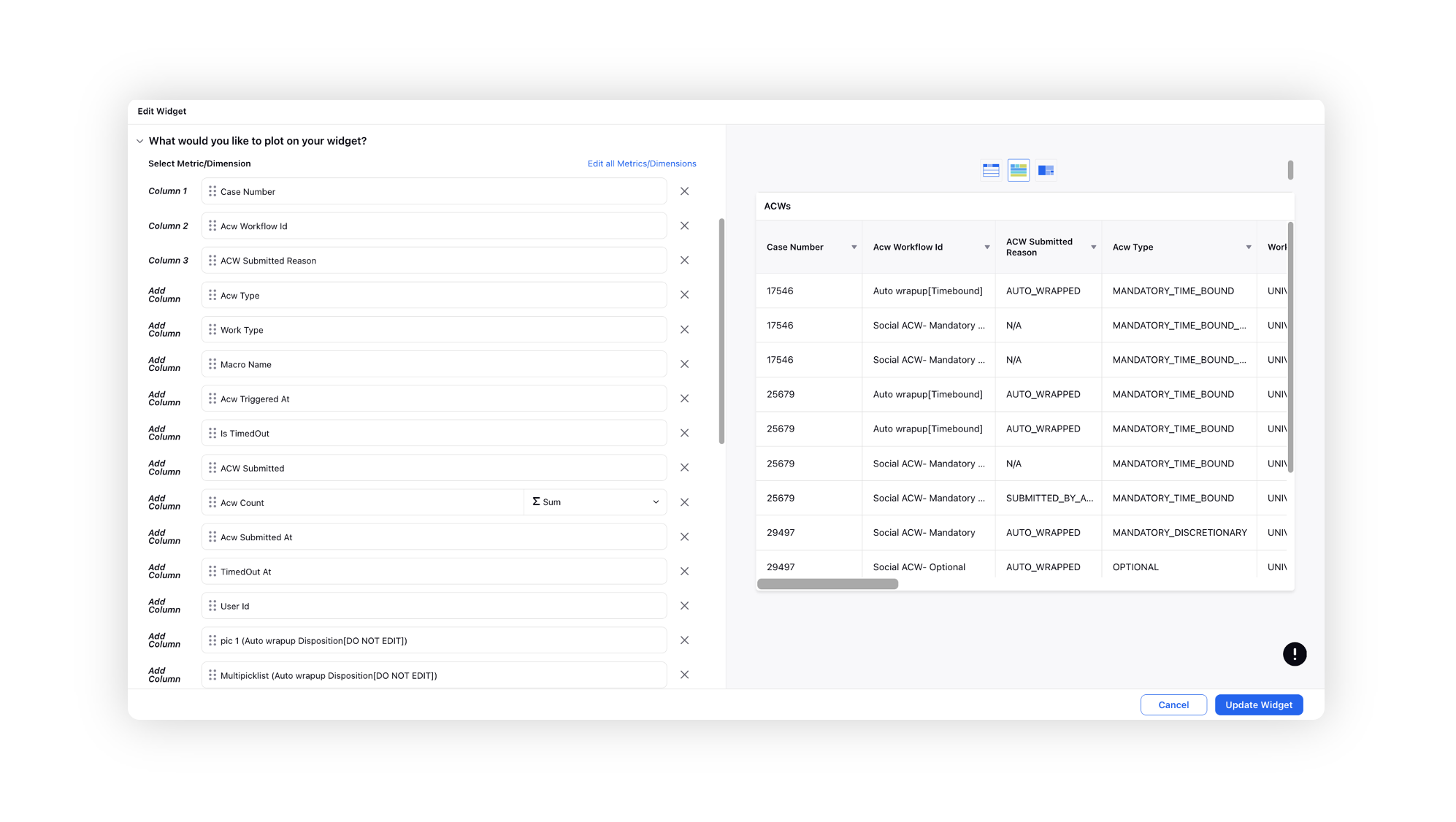
Omnichannel ACWs with Auto Wrap Up
You have visibility into Voice as well as Social ACWs that are automatically wrapped up, providing a more comprehensive view of interaction handling across various channels.
Reporting Metrics for AI-Powered ACW Pre-Fill Performance
There are four reporting metrics to track the performance of AI-generated content as compared to agent’s submission in AI-powered ACW process. The four reporting metrics are:
Comparison of AI-Generated Values against Final Agent Submissions: A Boolean (Y/N) against the AI_Agent_Match field confirms if the AI-generated values matched the agent’s final submission.
Tracking AI Failure to Suggest Values: A Boolean (Y/N) against the AI_Suggestion_Failure field confirms if the AI failed to generate values for any field during ACW.
Recording AI Pre-Fill Time: An integer value in milliseconds in the AI_Prefill_Time field denotes the time taken by the AI to pre-fill values in ACW process.
Number of Tokens: Displays the number of tokens consumed per AI request. Helps reviews usage trends, manage costs, and seek insights for optimizing operations.
ACW Redial in Reporting
When an agent initiates an ACW (After Call Work) Redial, Sprinklr determines the work queue shown in reports based on the original call that entered ACW and the agent who triggers the redial.
To ensure accurate queue‑level reporting:
- If the original call was routed through a work queue, reports show the last associated queue for the redialing agent.
- If the original call was not associated with any queue (for example, a manual outbound call or a direct agent‑created callback), reports show Dummy Workqueue.
- ACW redial does not create a new queue association.
- Reports display only a queue name or Dummy Workqueue for ACW redial.
This ensures ACW redial interactions are attributed to the correct queue context instead of a system placeholder.
 Note: Access to this feature is controlled by the dynamic property SHOW_LAST_ASSOC_Q_FOR_ACW_CALLBACKS.
To enable this feature in your environment, contact your Success Manager. Alternatively, you can submit a request at tickets@sprinklr.com.
ACW Redial Behavior
ACW redial reporting is based on the last associated queue for the redialing agent
Queue attribution reflects how the original call was routed
Dummy Workqueue appears only when no queue association exists
Different agents may see different queues for the same call in reports
Example: ACW Redial Queue Attribution
A call enters Queue 1 and is answered by Agent 1. The call is then warm‑transferred to Queue 2 and handled by Agent 2.
- If Agent 1 initiates an ACW redial, reports show Queue 1.
- If Agent 2 initiates an ACW redial, reports show Queue 2.
Each agent’s ACW redial reflects their own last associated queue.
Example: ACW Redial Reporting Before and After DP Enablement
The screenshots show how the Work Queue value for ACW callbacks changes after enabling the SHOW_LAST_ASSOC_Q_FOR_ACW_CALLBACKS dynamic property.
Scenario
An agent handles multiple customer interactions and initiates ACW redials after the calls end.
Before DP Enablement

All ACW redials display N/A in the Work Queue column, making it difficult to determine the queue context of the callback.
After DP Enablement

ACW redials now display:
- The agent's last associated queue (for example, Bhanu-1 or Bhanu_New2) when the original interaction was routed through a queue.
- Dummy Work Queue when no queue association exists.
Summary:
Before DP enablement, ACW callbacks appear with N/A queue attribution. After enablement, reports show the agent's last associated queue or Dummy Work Queue, providing accurate queue-level reporting for ACW redials.
Reports Impacted
The updated ACW redial queue attribution applies to the following reports:
- Agent Voice Performance Report
- Voice Report (Customer)
- Voice Queue Performance Report
- Omni‑Channel Queue Performance Report
- Agent Detailed Call Transfer Report
- Agent Occupancy
- Omni‑Channel Case Summary Report