Introduction to Care Console/Agent Desktop
Updated
Care Console is a centralized workspace designed for agents, bringing omnichannel interactions into a single platform. From one unified screen, agents can manage calls, emails, web chats, and social media conversations efficiently.
With its capabilities, Care Console provides a consolidated customer view, including previous case history across channels. Agents can reference past conversations instantly and deliver accurate, personalized replies.
 Note: To enable this capability in your environment, contact your Success Manager.
Key Features
Custom Home Page: Contains essential components like case stream, conversation pane, reply box, and case details.
Channel Switching: Unified Agent Desktop handles customer channel changes and allows agents to switch on demand.
Contact Insights: Displays previous interactions, service ticket history, trends, and CSAT data for actionable context.
AI Features: Smart Assist, Smart Response, and Predictive CSAT augment agent productivity.
Additional Tools: Includes translations, email care, canned responses, and media handling for efficient communication.
Key Benefits
Effective Communication: Agents deliver accurate, personalized replies with full customer context.
Customer Satisfaction: Timely, well‑informed resolutions improve CSAT scores and sentiment.
Agent Productivity: AI guidance and reusable responses reduce effort and speed up case handling.
Consistent Experience: Smooth channel transitions and standardized replies maintain brand consistency.
Flexibility: Unified desktop across devices supports efficient work from anywhere.
Care Console Components
Care Console provides agents with a unified workspace that brings together the essential tools required to manage customer interactions effectively. The platform is organized into core components such as the case stream, conversation pane, reply box, and case details.
Omni-Channel Interaction View
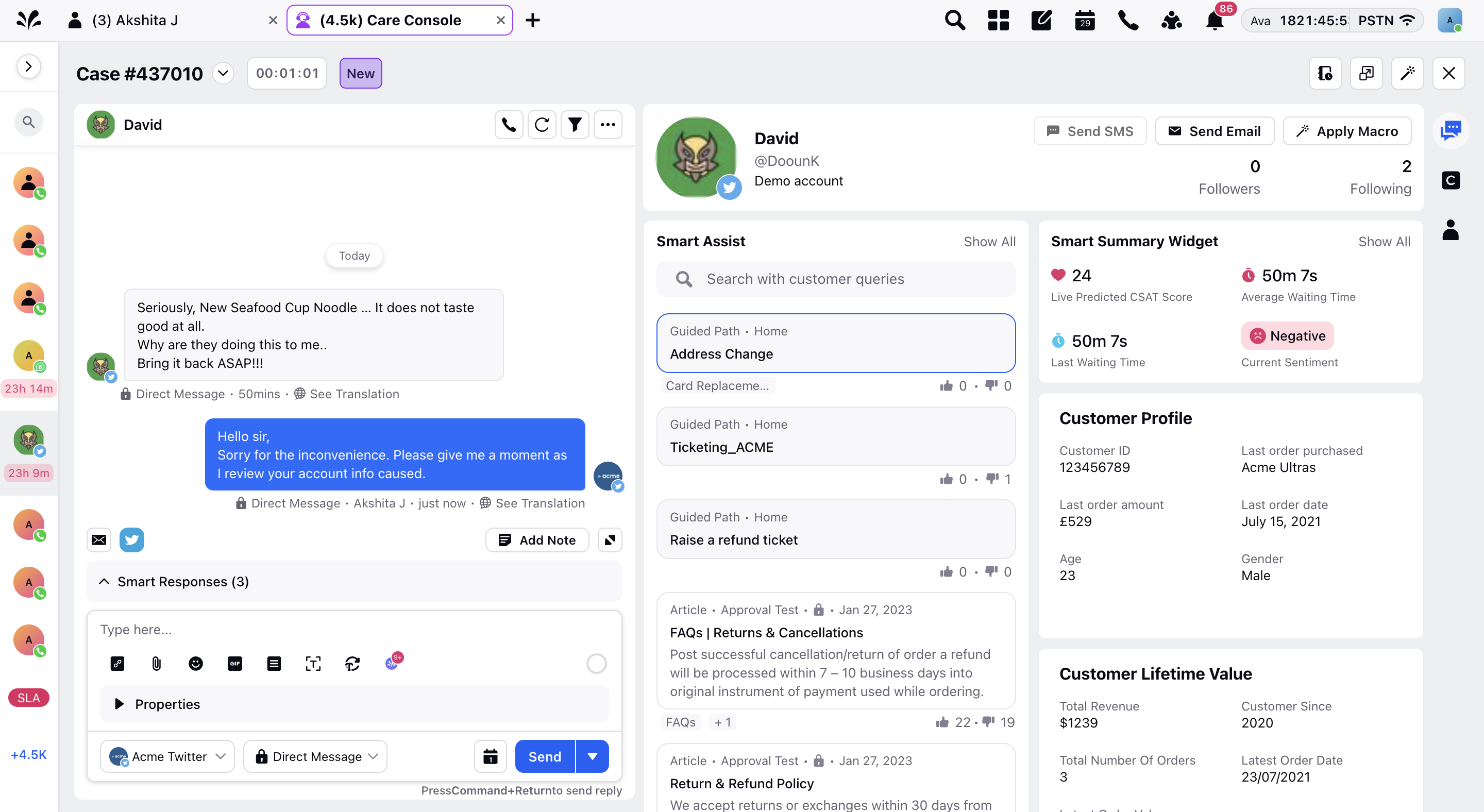
Omni‑Channel Interaction View provides a comprehensive workspace where agents can manage messages across multiple channels including Voice, Email, Live Chat, Video, Social, Messaging, In‑App, and SMS.
This view allows customers to begin their interaction in one channel and continue in another while maintaining context. Agents can manage multiple conversations efficiently, supported by platform capabilities that enable effective communication and consistent customer experiences.
Case Details View
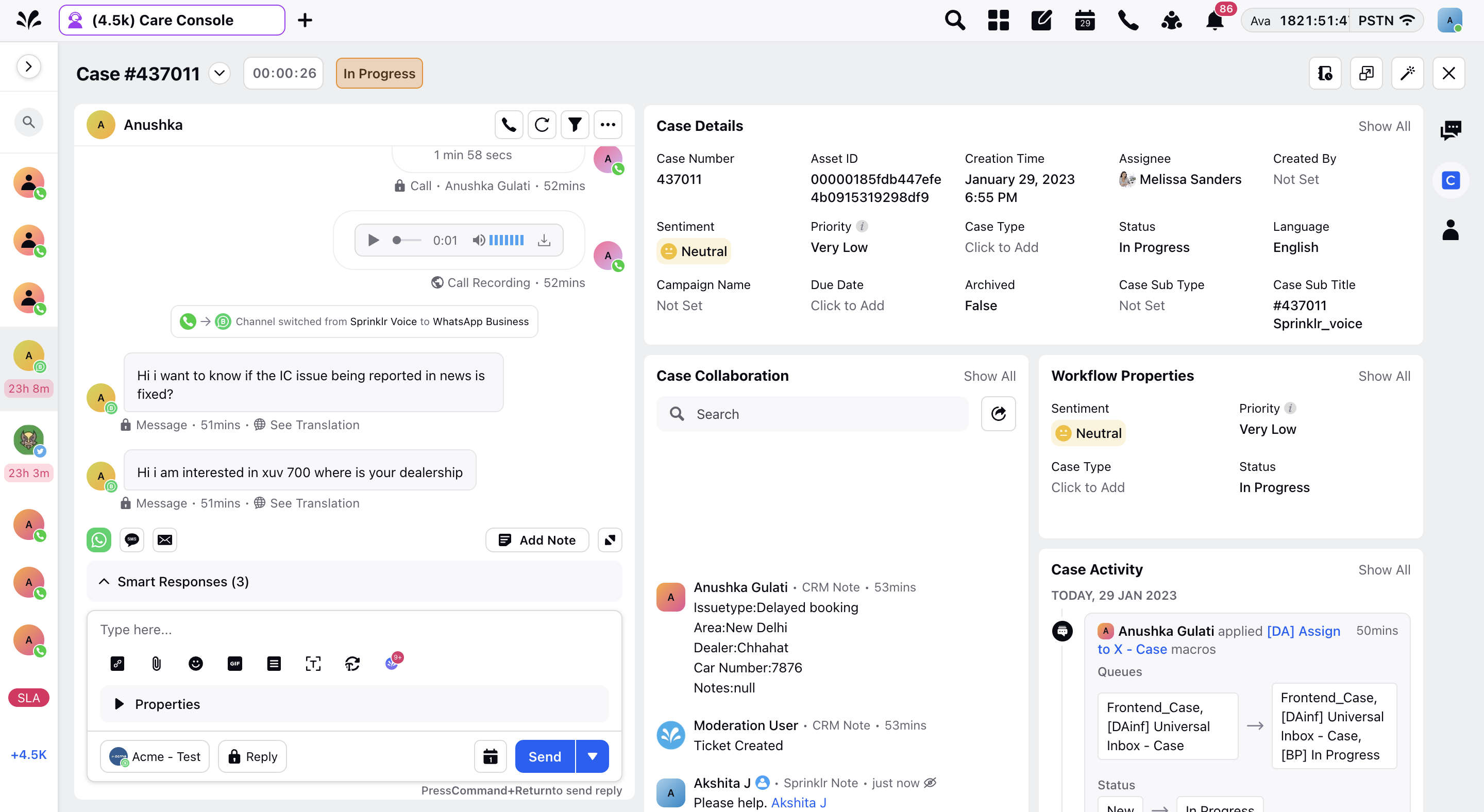
Case Details View is a highlight panel that provides quick access to the most important case information. It displays automatically tagged fields and custom properties such as sentiment, priority, and workflow attributes.
With this view, agents can easily access user account and contact information in just a few clicks, enabling faster updates and more effective case handling.
Customer 360 View
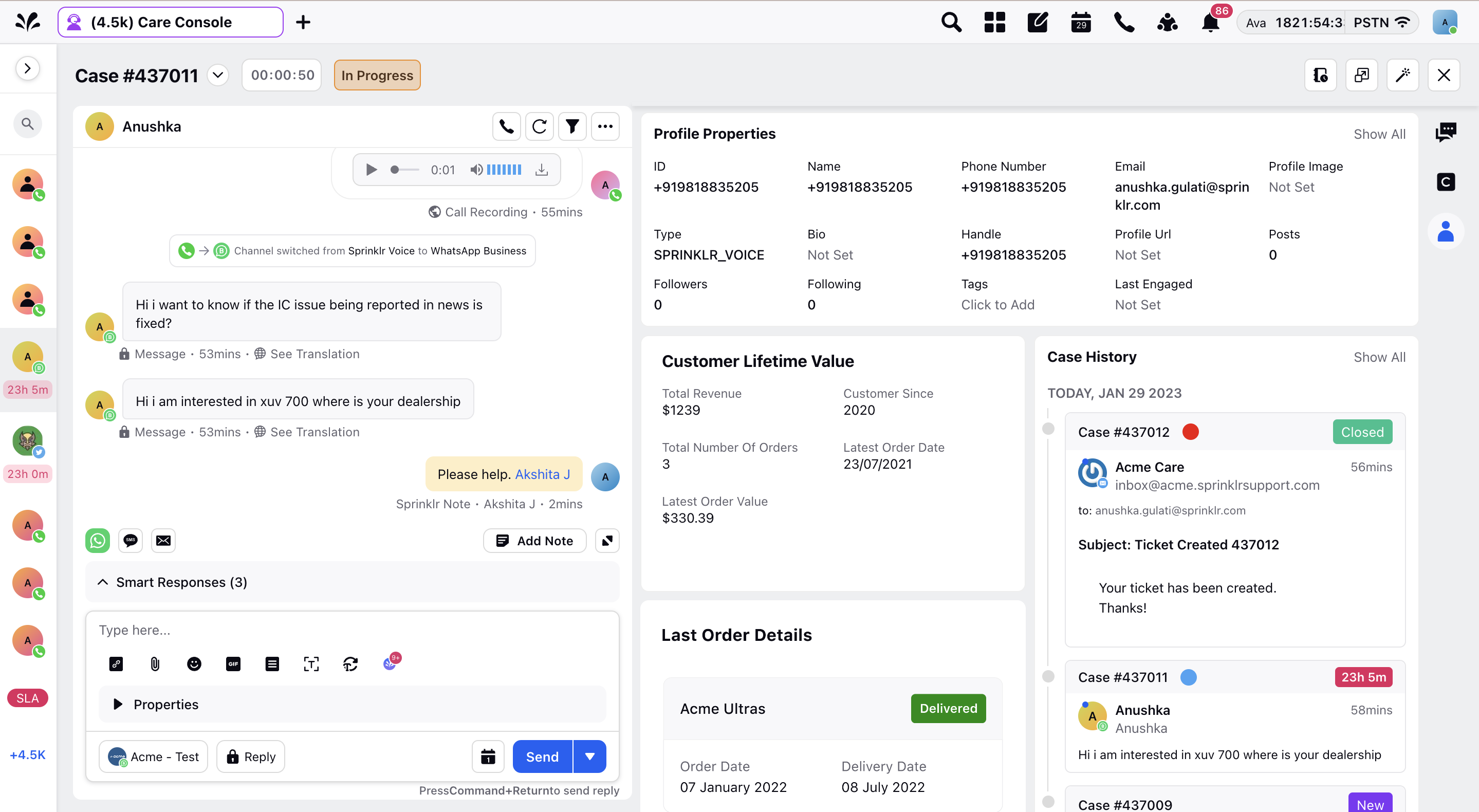
Customer 360 View provides a dedicated tab that consolidates customer details in one place. It includes case history, past activities, and purchasing data along with contact information.
This view gives agents a broader perspective of the customer relationship by capturing multiple touchpoints across service channels and social platforms. With this context, agents can engage more effectively and deliver personalized communication that strengthens customer trust.
Implementation and Setup Notes
Supported Channels
The following channels are supported in Care Console.
SMS, WhatsApp Business, Email, Sprinklr Live Chat, Facebook, Twitter, Line, Google, Google Business, Instagram, Viber, Pinterest, YouTube, Telegram, LinkedIn, Reddit, Apple Business Chat, Bazaarvoice, Lithium, gominga, Kakao, Nike App, WeChat, Community, Flickr, Tencent Weibo, Tumblr, User Feedback, VK, Wordpress, Sprinklr Chat, Sprinklr Commerce, Sprinklr Collaboration, Renren, Dailymotion, Nextdoor, Advocacy, Sprinklr Alert, WhatsApp, Pluck, Web, Yext, Discourse, Glassdoor, Power Reviews, Signal, Yammer, Sprinklr Voice, Facebook Workplace, Discord, CARFAX, Reclame Aqui and Stack Exchange
Sensitive Content Handling
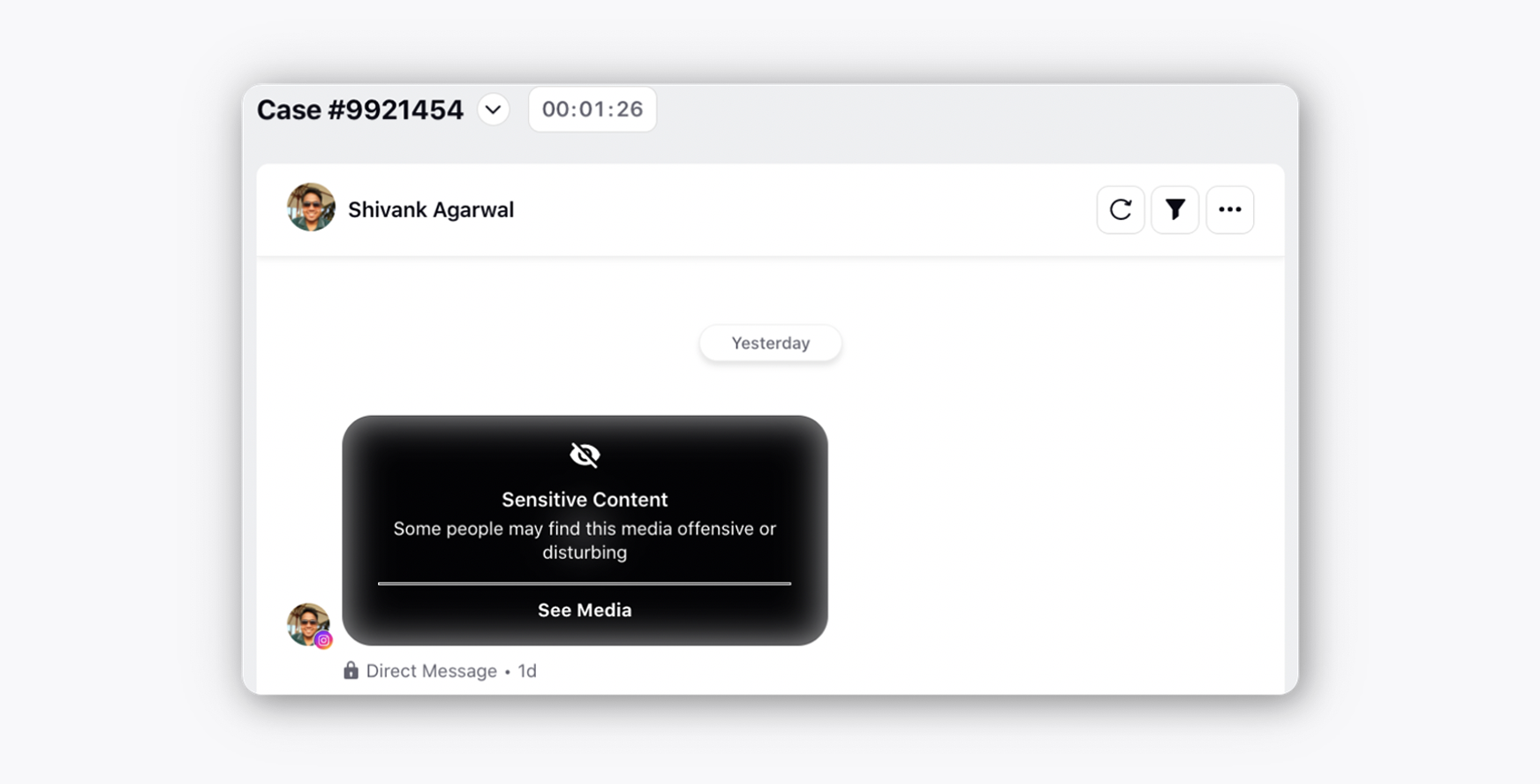
You can configure specific accounts so that any inbound image or video is automatically blurred and marked as NSFW (not safe for work). Once enabled, all such content for those accounts will display with a sensitive content disclaimer, requiring agents to click before viewing. To enable this capability, raise a support ticket at tickets@sprinklr.com with the list of accounts.
Care Console also includes an AI‑based detection model that identifies and blurs sensitive images across all channels. Sensitive content may include NSFW (not safe for work) material, certain activities, or scenes related to military and war. This configuration also requires a support ticket and, once enabled, applies universally across supported channels.
Case Access and Integrations
Agents can open cases using either a Case ID or a Case Number directly in the URL.
Example (Case ID): /care/console/c/2kj31h23k21j3hjkh2h3jhk213jh12kj3h
Example (Case Number): /care/console/c/300008
Care Console also supports iframe integrations, allowing you to embed your home page, website, or knowledge base within the console. This ensures agents do not need to switch tabs while interacting on cases.
To enable this capability, provide the required URL, whitelist the Sprinklr domain, and raise a support ticket at tickets@sprinklr.com.
Keyboard Shortcuts
Agents can perform a variety of actions using keyboard shortcuts. These include sending messages, navigating between cases, switching console tabs, and opening pickers such as Emoji, Giphy, Content Placeholder, and Canned Responses.
To enable the shortcut for sending a message in your environment, contact your Success Manager.
Privacy and Masking
You can mask the customers' phone numbers for agents in all the widgets in Care Console. To learn more about getting this capability enabled in your environment, please work with your Success Manager.
Closed Case Restrictions
Once a case is closed, agents cannot perform further actions on it. This includes replying to the case, changing custom field values, applying macros, or using options from the message actions menu.
For exceptions, administrators can grant the EDIT NON EDITABLE CASES permission to specific users, allowing them to edit closed cases when required.
To enable this capability in your environment, contact your Success Manager.