Create Shift Trade Requests
Updated
Shift Trades in a contact center allows you to exchange your scheduled shifts with another agent. This functionality provides the flexibility to manage personal commitments without disrupting service levels. In Sprinklr’s Workforce Management, you can raise full or partial, open or closed, and one-way or two-way Shift Trade requests, depending on the policy configuration.
Prerequisites for creating Shift Trade requests:
Workforce Management must be enabled for the environment.
Create permission under the Shift Trade section in the Workforce Management module.
Shift Trade Policy must be assigned.
You must have a shift assigned on the date for which you want to create a Shift Trade request.
Follow these steps to create a Shift Trade request:

Select My Requests from the Left Pane to open the My Request Dashboard page.
Click the down arrow button next to the Time Off Request button at the top right of the page to show the Request Shift Trade button.
Click the Request Shift Trade button to open the Request Trade page.
Fill in the required fields on the Request Trade page. Fields marked with a red dot are mandatory. Below are the descriptions of the fields on this page:

Trade Type: Choose if you want to trade your entire Shift for the day or trade some part of your Shift. (Required)
The following options are available (Only one option can be selected):
Full Shift Trade: This option allows you to trade your entire Shift.
Partial Shift Trade: This option allows you to trade a part of your Shift.
Trade Direction: Choose if you want to receive a Shift in return for a Shift Trade. (Required)
The following options are available (Only one option can be selected):
One Way: Allows you to offer your shift to another agent without receiving one in return.
Two-Way: Requires both agents to exchange their shifts with each other.
Trade Method: Choose whether the Shift Trade Request should be visible to all agents or sent to a specific agent. (Required)
The following options are available (Only one option can be selected):
Open Swap: Makes the Shift Trade Request visible to all agents eligible for the trade.
Direct Swap: Makes the Shift Trade Request visible only to the selected agent(s).
 Note: The options available in the Trade Type, Trade Direction, and Trade Method fields depend on the Shift Trade Policy configuration assigned to you.
Trade With: Select the agent you want to initiate the Shift Trade with. This field is visible only if the Direct Swap is selected in the Trade Method field. (Required)
Note: The Trade With field is visible only when Direct Swap is selected in the Trade Method field.Note: Only agents who share the same Shift Trade Policy as you will appear for selection in the Trade With field.Current Shift: Select the shift you are currently assigned and want to trade. The shifts available for selection depend on the Time Frame Limits defined in the Shift Trade Policy assigned to you. (Required)
Start Time: Specify the start time from which you want to trade your shift. (Required)
End Time: Specify the end time till which you want to trade your shift. (Required)
Requested Shift

Shift Date: Select the shift you want to take in exchange for your current shift. Click the "+Shift" button to add multiple shifts in an "OR" configuration, if eligible. If you select multiple shifts, you can receive any one of them in return. (Required)
Start Time: Specify the start time of the shift you want to receive in return. (Required)
End Time: Specify the end time of the shift you want to receive in return. (Required)
Note: The Start Time and End Time fields for Current Shift and Requested Shift will be accessible only if Partial Shift Trade is selected in the Trade Type field.Note: The Requested Shift section will appear only when Two-Way is selected in the Trade Direction field.Note: Mention any comment, conditions, and requirements for the Shift Trade request.
Click the Request button at the bottom right of the page to submit the Shift Trade request.
The Shift Trade request will be sent for approval or rejection. This completes the process of creating a Shift Trade request.
If the Shift Trade request cannot be created due to an error, an error notification will appear at the top of the page, explaining the issue. Errors may occur for various reasons, such as violations of the assigned Shift Trade Policy or overlaps with existing shifts, among others.

Manage Shift Trade Requests
This section explains how to view, and track your Shift Trade requests.
Follow these steps to manage already submitted Shift Trade requests:
Navigate to the My Requests dashboard.
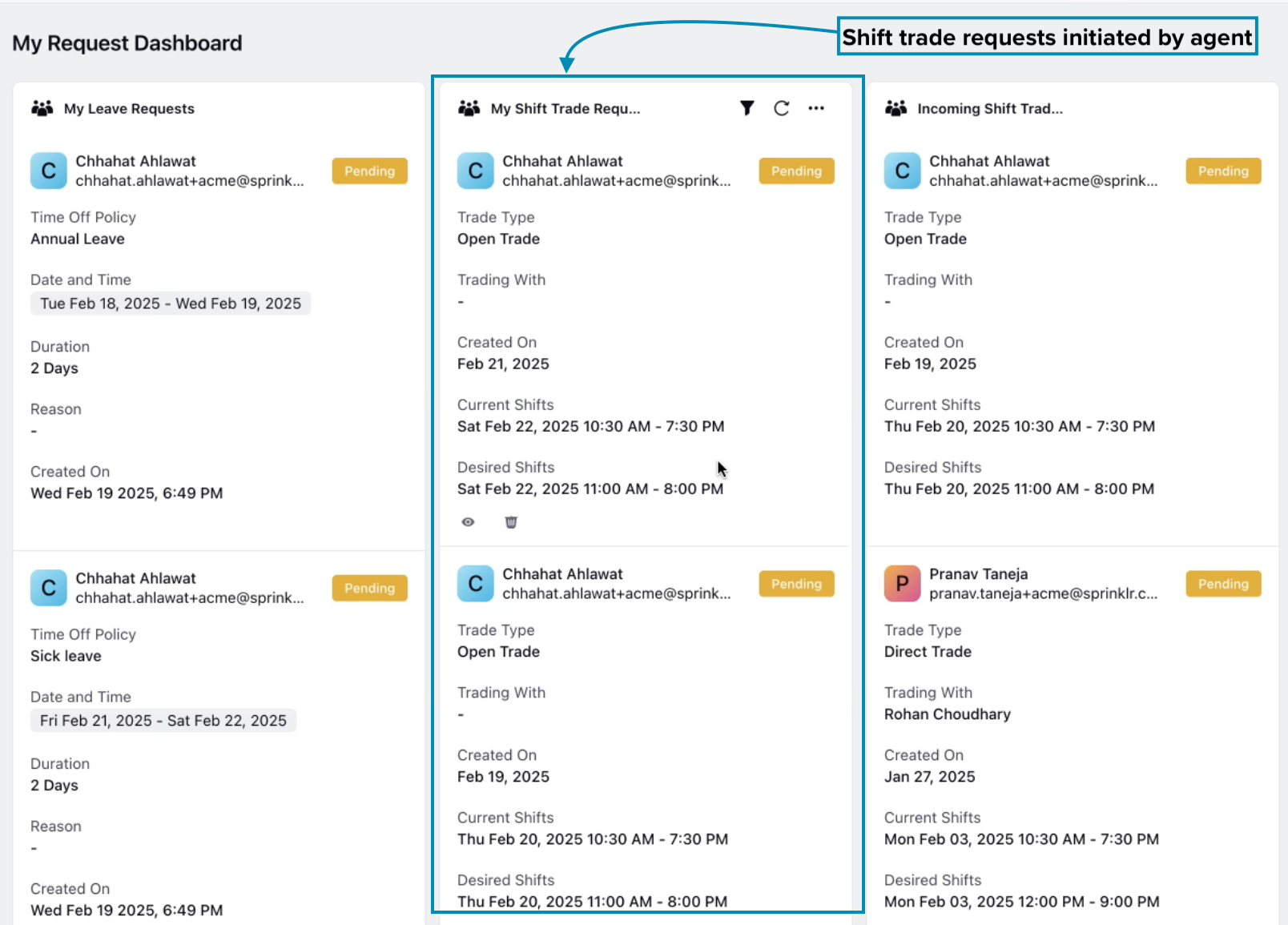
The Shift Trade Requests column will show all your Shift Trade requests.
Hover over the required Shift Trade request to show the management options. It has the following options:
Overview
Delete.
Overview
The Overview option opens a detailed view of the Shift Trade request from the Third Pane. It displays the following information:

Trade Type: Shows if full or partial Shift Trade request was raised.
Trade Direction: Shows if one-way or two-way Shift Trade request was raised.
Trade Method: Shows if direct or opwn Shift Trade request was raised.
Trading With: Shows the agent with whom the Shift Trade is being initiated.
Trade Requesting User's Manager: Shows the manager of the agent raising the Shift Trade request.
Trade Accepting User's Manager: Shows the manager of the agent with whom the Shift is being traded.
Created On: The date the request was submitted.
Reviewed By: The user who reviewed the request.
Reviewed At: The date and time when the request was reviewed.
Current Shift: Current Shift assigned to you.
Approval Path: Displays the approval workflow for the request. If the associated Shift Trade Policy requires Tiered Approval, all reviewers involved will be listed along with the current status of each approval stage. It displays the timestamp of approval or rejection, along with any comments provided by the reviewer.
Delete
The Delete Request option removes a submitted Shift Trade request from the system. This option is available only till the request has not be approved or rejected with whom the trade is being initiated.
Accept/Reject Shift Trade Request
Agents can navigate to the My Requests Dashboard to find a list of all the received requests organized in the incoming Shift Trade column. Within the dashboard, agents can review each request, view its details, and then proceed to either accept or reject it based on their availability and preferences.

Click the Review button corresponding to the Shift Trade request top open the Shift Trade review window. This window displays the trade details along with a preview of how your shift will look if the request is approved for that day.

If the approval is required by the administrator, the request will be sent to the administrator for review and approval. The administrator can access the request through their dashboard, review the details, and then approve or reject it based on the needs of the team and the organization.
An administrator (or other authorized user) who is not the direct manager of an agent can approve or reject leave requests or other types of requests on behalf of the direct manager and they will receive a notification as soon as someone takes action on requests from their reporting team.