Agent Schedule Management
Updated
Agents need to see their schedule page to stay organized and informed about their work commitments. With access to their schedule, agents can plan their personal and professional activities more effectively, ensuring they are always prepared for their shifts. The “My Schedule” page shows a detailed view of the agent’s upcoming and previous schedule. It helps agents stay updated on shifts or time off changes, reducing the risk of missed shifts or scheduling conflicts.
View Agent Schedule
Prerequisites for viewing the agent schedule:
Sprinklr WFM should be enabled for the environment.
View permission under the Agent Schedule section in the Workforce Management module.
Follow these steps to view the agent schedule:
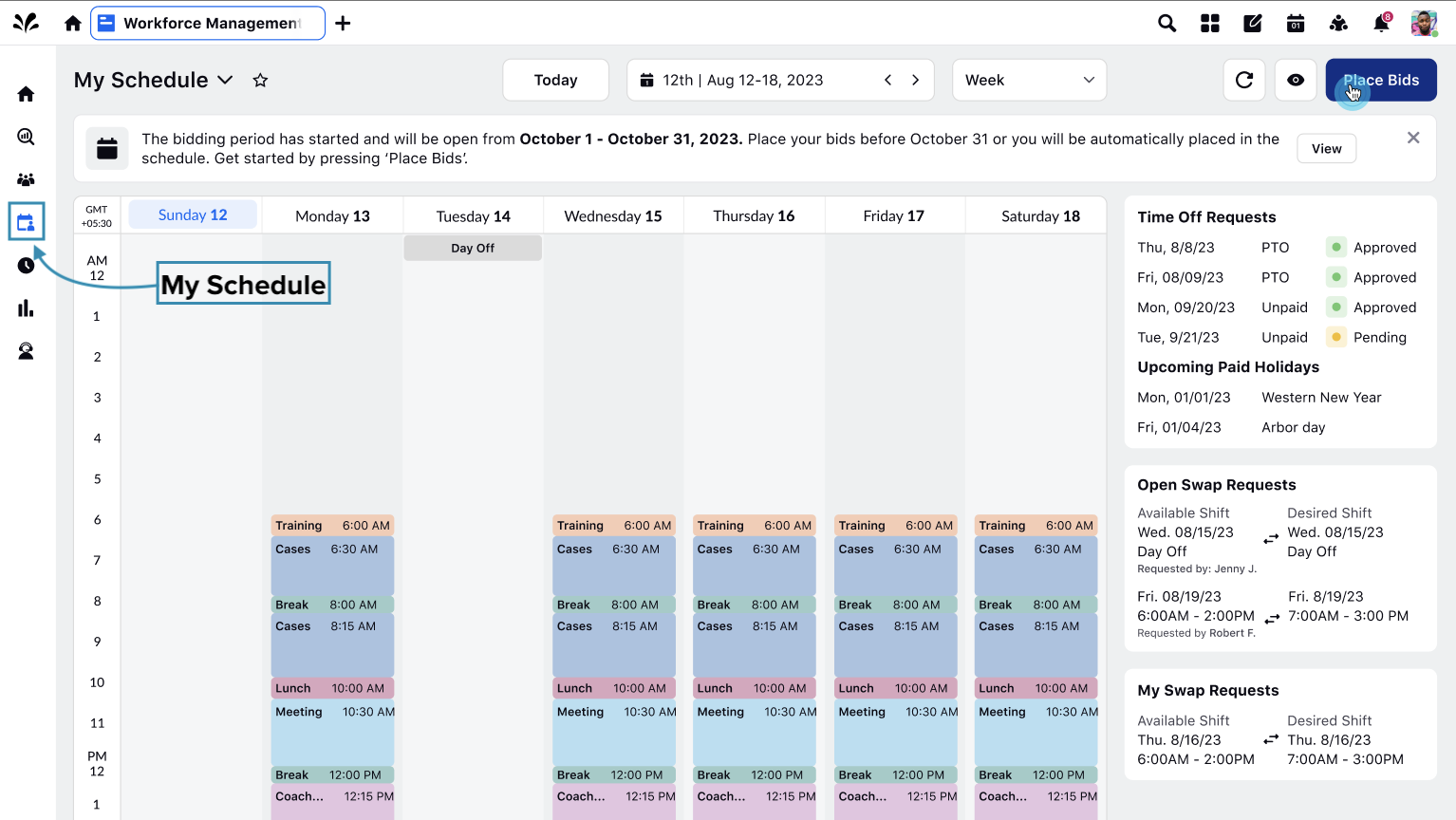
Select My Schedule from the Left Pane to open the My Schedule page.
The My Schedule page provides agents with a comprehensive overview of their work schedule in calendar view. It can be configured to show schedule details in Week View or Month View. By default, the schedule details are displayed in Week View, but you can choose to view the schedule for the entire month.
 Note: By default, the schedule is displayed in the system's time zone and cannot be changed.
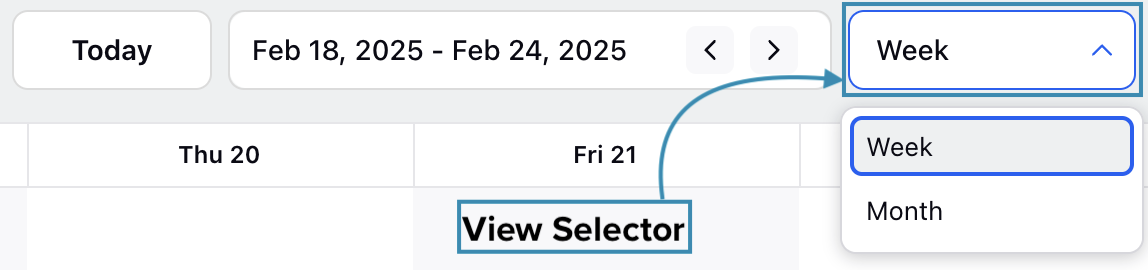
Click the view selector option at the top of the page to choose between Week View and Month View.
Week View
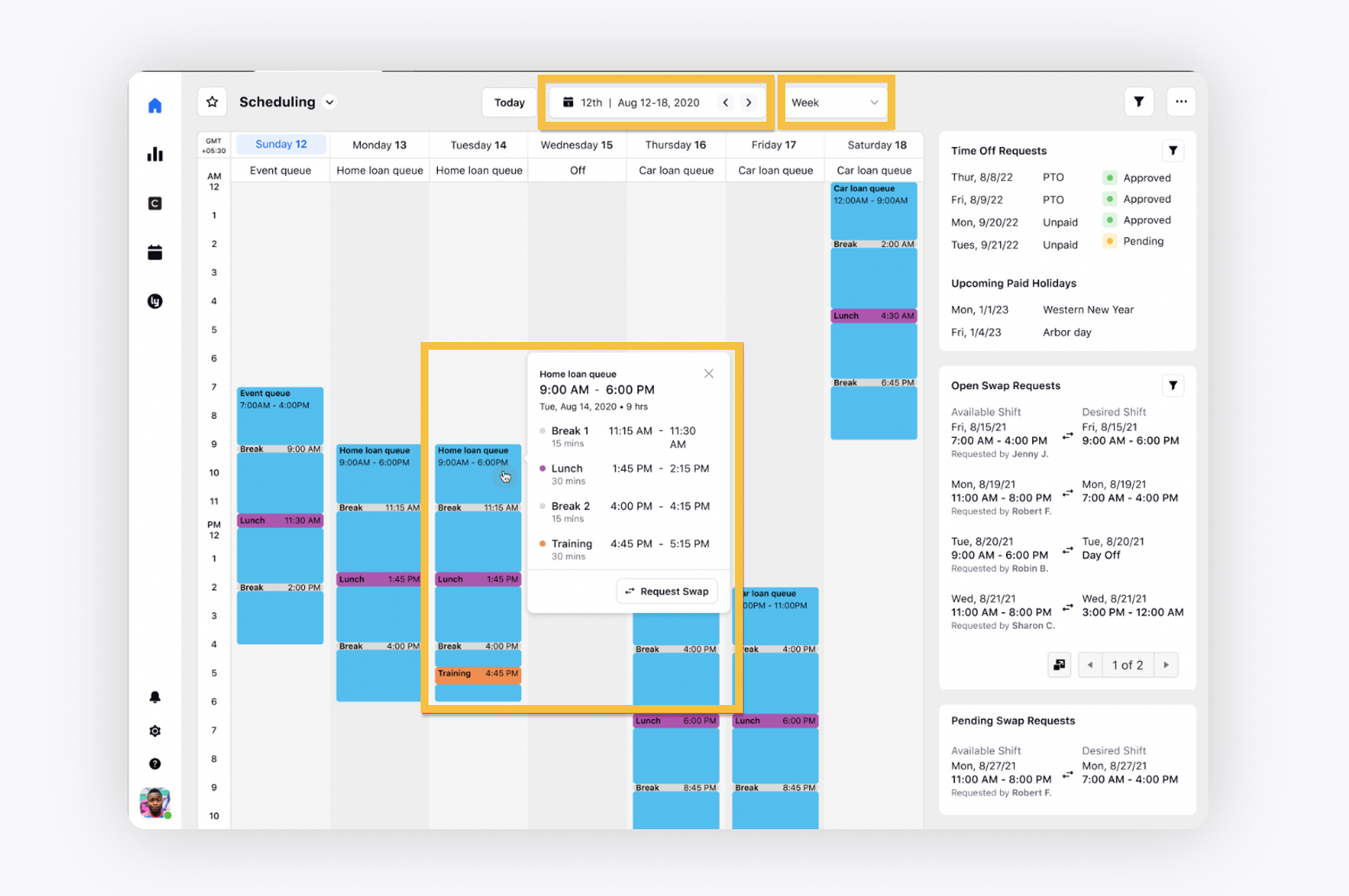
In Week View, the hourly schedule details for the next 7 days will be displayed. For example, if today is 18 February 2025 (Tuesday), it will show the data from 18 February to 24 February.

You can quickly view the next or the previous week’s schedule by clicking the Next or Prev button in the date range selector.
 Note: In Week View, the time is displayed in 24-hour format by default. To change it to the 12-hour format, please contact Sprinklr Support.
Month View
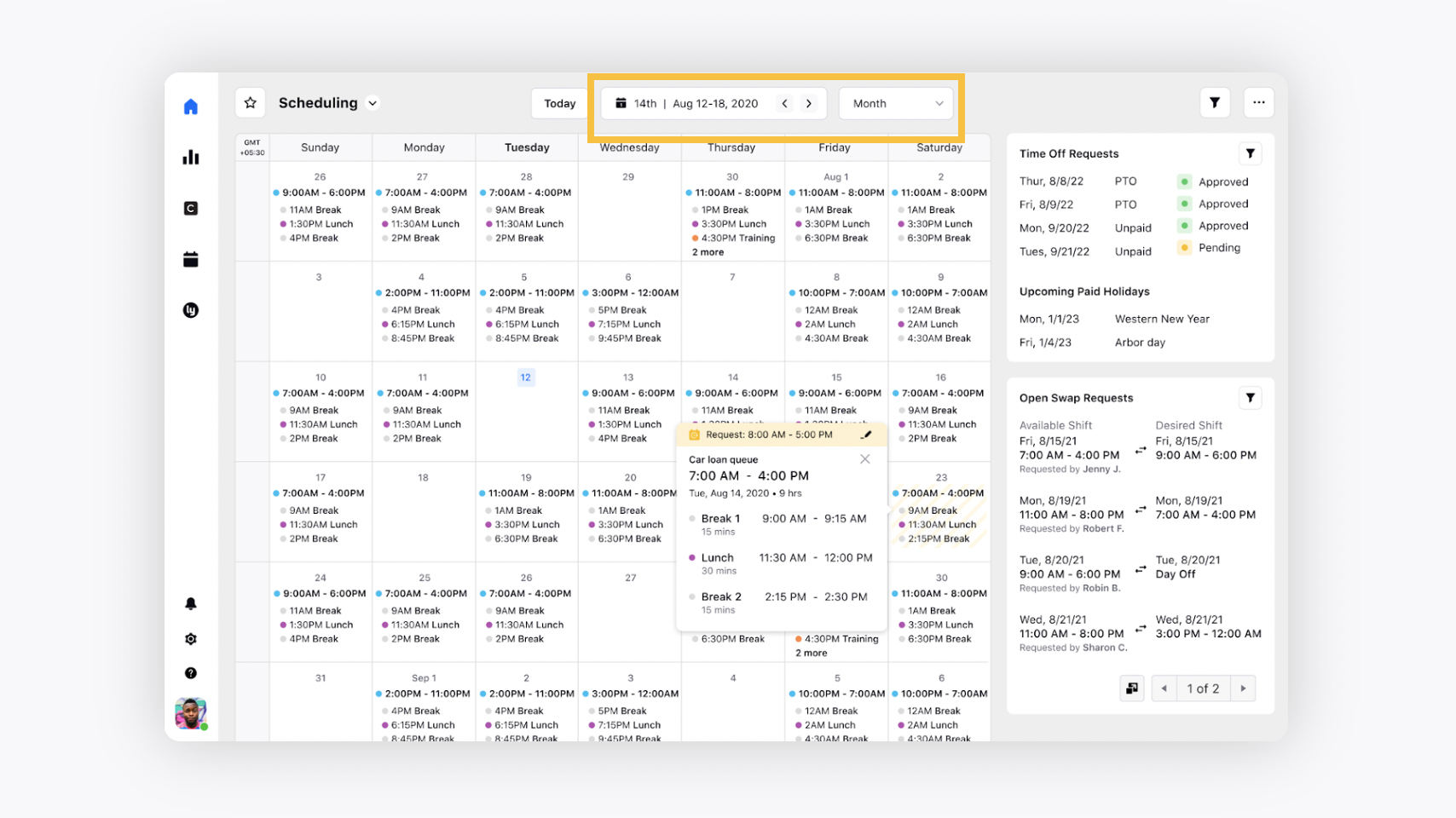
In Month View, the schedule details for each day of the entire ongoing calendar month are shown.

You can quickly view the next or the previous month’s schedule by clicking the Next or Prev button in the date range selector.
Adherence Timeline View
The Adherence Timeline View allows you to view your Real-Time Adherence (RTA) timeline directly within the My Schedule interface. This lets you monitor your adherence performance in real time and request corrections for unavoidable schedule deviations.
Hover over the shifts to show its details along with the Shift Trade request status (Pending, In Review, or Rejected).
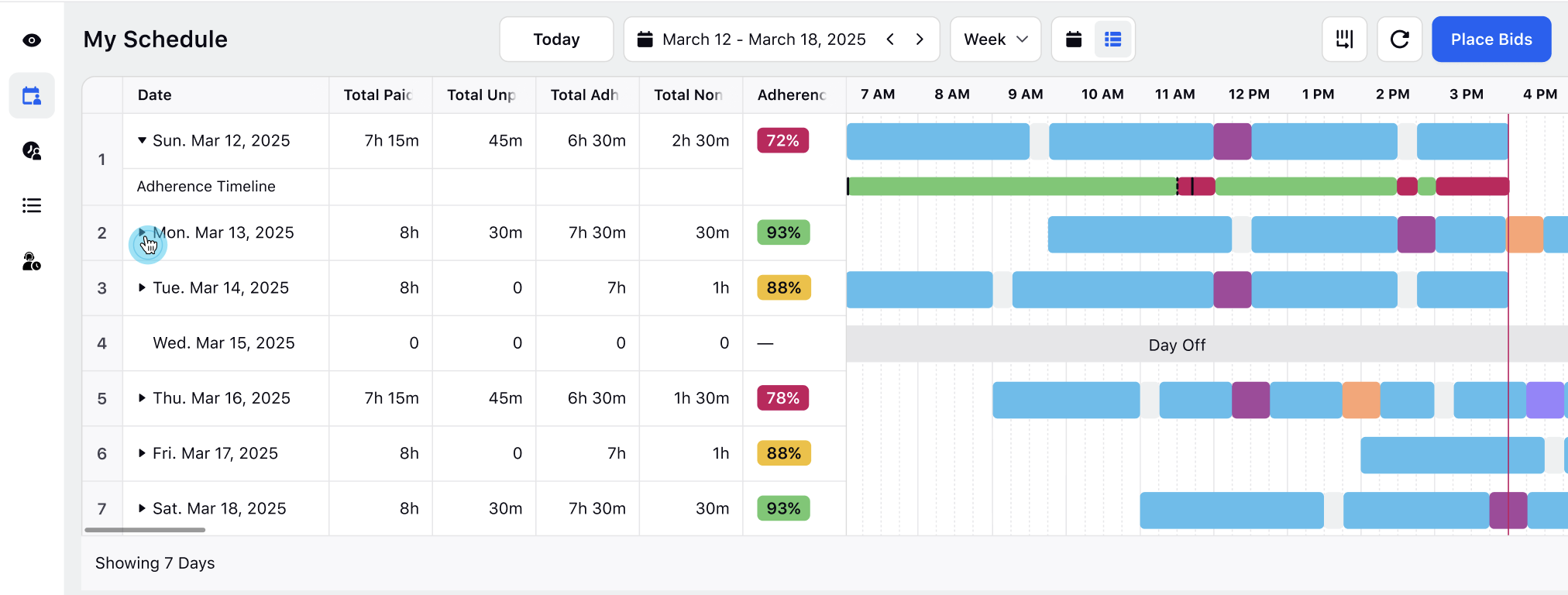
View Real-Time Adherence
You can view your Real-Time Adherence (RTA) directly from the My Schedule page. The Adherence Timeline is displayed alongside the daily schedule, allowing you to monitor performance and improve Adherence. In addition, key schedule-related metrics, such as Total Paid Time, Total Unpaid Time, Total Adherent Time, and Total Non-Adherent Time, are available to provide a comprehensive view of daily Adherence.
Prerequisites for viewing the Real-Time Adherence in My Schedule:
Workforce Management must be enabled for the environment.
View and View Adherence permissions under the Agent Schedule section in the Workforce Management module.
Follow these steps to view your Real-Time Adherence:
View your Schedule.

Select the Adherence Timeline View from the top of the page.
Click the Adherence Timeline button corresponding to each Shift to show the Adherence Timeline for that Shift.
This will show show your daily Adherence and the Adherence Timeline. Hover over a Shift to view its details, and hover over the Adherence Timeline to see Adherence information specific to that Shift. Adherence scores and deviations are visually represented with color-coded intervals (green for Adherent, red for Non-Adherent, gray for Neutral).
Share Schedule with External Calendars
You can share your daily schedules with external calendar apps like Google Calendar, Apple Calendar, and Microsoft Outlook. Using this functionality, you can generate and download an ICS file. After this, import the ICS file to the required calendar application.
Follow these steps to generate the ICS file:
Select My Schedule from the Left Pane to open the My Schedule page.

Click the Share Schedule button at the top right of the page to open the Calendar Sharing window.

Enable the Turn On Calendar Sharing switch, upon which the Share Link field will appear with the shareable URL for the ICS file.
Click the Copy Link button to copy the shareable link to your system’s clipboard. A success toast message will be displayed upon copying.
You now have a shareable URL for the ICS file, which can be used to share your schedule with external calendars.
Note: You can download the ICS file by pasting the URL into your browser and pressing Enter.
Note: Turning off the Turn On Calendar Sharing switch immediately invalidates the ICS file and stops synchronization across all connected calendars. Re-enabling the switch generates a new link.
Next, import the ICS file into the external calendar. This can be done in two ways, depending on the calendar's workflow:
Provide the ICS file URL directly to the calendar.
Download the ICS file to your system and then upload it to the external calendar.