Generating Trigger Based Personalized Links
Updated
Personalized Link Generation lets you automatically create unique survey links for each service case using Rule Engine automation.
These links are generated in real time based on case activity and stored within the case itself, so they’re easy to use across channels like email, WhatsApp, or SMS through the platform’s messaging capabilities.
This makes it simple to run a flexible, omnichannel feedback strategy while still taking full advantage of CFM’s survey builder and analytics. There are 2 ways in which personalized link can be generated:
Workflows (Trigger Survey Distribution node)
Trigger Source: Salesforce, Zendesk, Transaction Record, or Workflow API events
Storage: Workflow runtime variable
Best For: Event- or transaction-driven use cases, external vendor API integrations, and downstream status-based branching
Rule Engine (Case Update Rule)
Trigger Source: Case events (for example, case resolved)
Storage: Case custom field
Best For: Case-based, agent-led, or channel-template-driven use cases
Business Use Cases
External Channel Distribution via Workflows: If you use a third-party SMS provider that is not natively supported in Sprinklr, you can leverage the Workflows path to automate survey invitation delivery. When a transaction is ingested into CFM, the workflow generates a personalized survey link and passes it to the SMS provider through an API node. The vendor then sends the survey invitation to the customer. Invitation and response statuses can be returned to Sprinklr, enabling centralized reporting, response tracking, and workflow branching based on survey outcomes.
Omnichannel Feedback Collection through Case Context: Organizations handling customer interactions across multiple channels often face challenges in maintaining consistent survey distribution.
With Personalized Link Generation, a survey link can be automatically created when a specific case event occurs (such as case resolution) and stored within the case. This link can then be reused across different communication channels like email, WhatsApp, or SMS by embedding it into channel templates.
This approach ensures a single survey instance per case, enables consistent feedback collection across channels, and removes dependency on native distribution mechanisms.
This approach helps you create a single survey instance for each trigger, ensuring consistent feedback collection across channels while giving you the flexibility to use external delivery providers without relying on native CFM distribution capabilities.
This approach enables Channel-Agnostic Distribution using a unique survey link for every interaction, creating a Single Source of Truth for accurate response attribution. You can leverage a Flexible Delivery Mechanism by distributing surveys through native channels, campaigns, outbound notifications, or external vendor APIs, while maintaining Full Status Visibility for reporting and follow-up actions. It also ensures Seamless Integration with Existing Workflows, allowing you to extend survey distribution without disrupting your current communication infrastructure.
Prerequisites
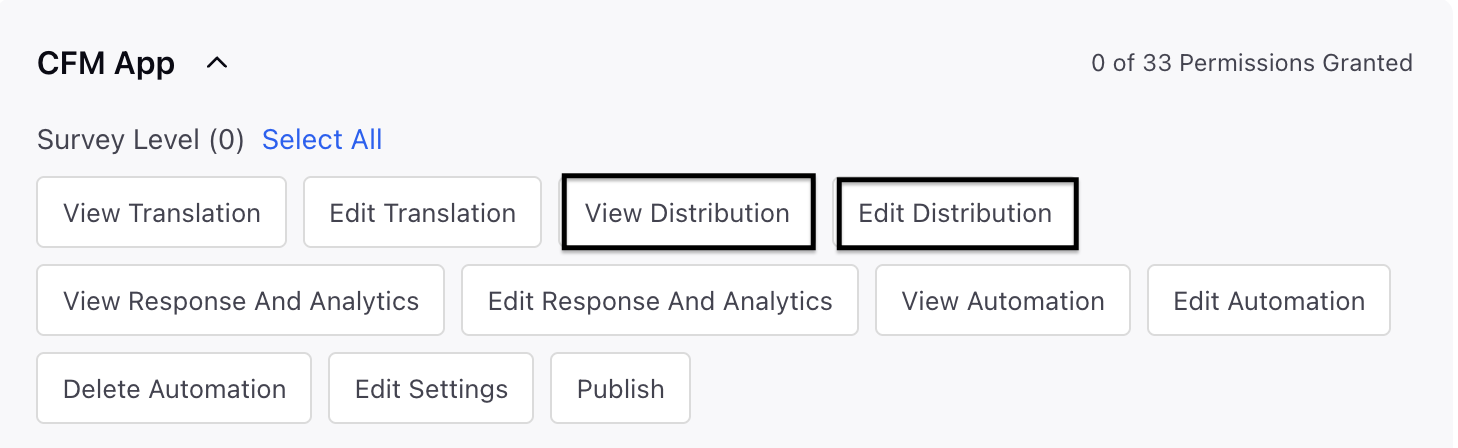
This feature is generally available as part of Customer Feedback Management. Access to the Personalized Links would need View Distribution and Edit Distribution permissions at the Survey Level.
Apart from distribution permissions you would also need Rule Engine Configuration Access, Case Custom Field Configuration access and Manage Workflow permissions.
Setting Up Trigger-Based Personalised Links using Workflows
Use this path when the trigger is a Salesforce Outbound Message, Zendesk event, Transaction Record event, or Workflow API event.
Create a Trigger-Based Personalized Link Distribution
Navigate to Customer Feedback Management Persona App and access a Survey and go to Distribution tab and click Create Distribution and go to Personalized Link and select Trigger Based.
Name: You can add a meaningful name to the Trigger Link.
Description: You can add a description to the Trigger Link.
Survey Selection: You can select between Standard Survey Distribution and Conversational Survey Distribution.
Configure link behaviour by navigating to Survey Link Settings and fill in the details:
Start Date and Time: You can add a start date and time. In the absence of a designated time, the survey will gather responses as soon as the distribution is set up. If no specific time is selected, the survey will collect response once the distribution is created.
Expiration Type: You can select the expiration type as Static or Dynamic. The expiration types are explained below:
Static: You have the option to establish a specific expiration date and time, beyond which the survey link will become inaccessible.
End Date and Time: Once you have selected static expiration type you need to add an end date and time.
Dynamic: You have the option to configure the survey's expiration relative to its send date, which guarantees an identical response period for every recipient.
Expires after: When the expiration type is set to dynamic, you must specify the number of days or hours after which the expiration will occur.
Limit Submissions per respondent: You can toggle on to limit the number of submissions per respondent.
Allowed Submissions: Select Allowed Submissions to provide a limit.
Reset Limit after time interval: By enabling this toggle, you can configure the limit to reset automatically after a defined period, which can be set in days, weeks, months, or years.
Go to Distribution Tagging section where you have the ability to set up custom tags for reporting associated with this distribution. You can select the custom field and its value. Each custom field you create will result in a new column appearing in the Responses Tab.
Build a Workflow
Create a new workflow for the relevant event: Salesforce, Zendesk, Transaction Record, or Workflow API.
Set up upstream nodes (e.g., Create Record for Salesforce/Zendesk to create the profile/transaction).
Add the Trigger Survey Distribution Node
Incorporate a Trigger Survey Distribution node at the preferred stage.
In the Channel section, choose Personalized Link.
Under Distribution, choose the Trigger-Based Personalized Link Distribution you created.
Under Output Variable Name, define a name for the runtime variable (e.g., survey_link). The generated link — shortened if configured, will be stored in this variable.
Configure an Opt-out Link Variable (e.g., optout_link) if you plan to include the unsubscribe URL separately in your delivery payload(Optional).
Use the Link Variable Downstream
The generated variable is available in the workflow resource selector for all subsequent nodes:
API Node: Insert {{survey_link}} into request body, headers, or query params to hit your external vendor. The system resolves the variable at runtime.

return message
Send Message / Native Channel Nodes: Embed as a placeholder.
Update Properties Node: Write the link to a case, profile, or transaction custom field (e.g., for agent-led interview flows).
Distribution Status Node: Branch the workflow based on invite/response status of this distribution.
Track & Branch
Incorporate a Survey Distribution Status Node further along to create reminder, escalation, or opt-out branches depending on the Invite Status (Success / Failed / Unsubscribed / Quarantined) or Response Status (all statuses are supported).
Each link creation is recorded in the Distribution Report, which includes the Profile ID, Transaction ID, Source Type, invitation status, and response status.
Setting Up Trigger-Based Personalised Links using Rule Engines
Below, the navigation steps are detailed:
Navigate to Customer Feedback Management Persona App and access a Survey and go to Distribution tab and click Create Distribution and go to Personalized Link and select Trigger Based.


Go to the Distribution Details section and fill in the details:

Name: You can add a meaningful name to the Trigger Link.
Description: You can add a description to the Trigger Link.
Survey Format: You can select between Standard Survey Distribution and Conversational Survey Distribution.
Navigate to Survey Link Settings and fill in the details:

Start Date and Time: You can add a start date and time. In the absence of a designated time, the survey will gather responses as soon as the distribution is set up. If no specific time is selected, the survey will collect response once the distribution is created.
Expiration Type: You can select the expiration type as Static or Dynamic. The expiration types are explained below:
Static: You have the option to establish a specific expiration date and time, beyond which the survey link will become inaccessible.
End Date and Time: Once you have selected static expiration type you need to add an end date and time.
Dynamic: You have the option to configure the survey's expiration relative to its send date, which guarantees an identical response period for every recipient.
Expires after: When the expiration type is set to dynamic, you must specify the number of days or hours after which the expiration will occur.
Limit Submissions per respondent: You can toggle on to limit the number of submissions per respondent.
Allowed Submissions: Select Allowed Submissions to provide a limit.
Reset Limit after time interval: By enabling this toggle, you can configure the limit to reset automatically after a defined period, which can be set in days, weeks, months, or years.
Go to Distribution Tagging section where you have the ability to set up custom tags for reporting associated with this distribution. You can select the custom field and its value. Each custom field you create will result in a new column appearing in the Responses Tab.

Click Save.
Upon saving, a pop-up window will appear, guiding you to the rule engine. You must select "Go to Rule Engine" because this specific distribution type can only be activated through case update rules. To achieve this, you will need to either create a new case update rule or modify an existing one, and then add a CFM Survey Action.

Setting Up Case Update Rule
Access the Rule Engine, then click on '+ Create New Rule'. Proceed to create a new Case Update Rule by selecting 'Case Update' as the content type. Define trigger conditions: Example: Case Status = Resolved
.png "+ Create New Rule (1).png")
.png "Rule Creation (1).png")
Survey Conditions
In the Rule Engine, you can set up CFM survey conditions. These conditions enable the triggering of specific survey actions (such as sending reminders or thank-you messages) based on the invite's status, the response's status, or the time elapsed since a survey invite was originally dispatched. To configure a CFM survey condition, follow these steps:
.png "Condition (1).png")
On the Rule Engine page, click the Add Element option and select Add Condition.
Go to Edit Condition in right pane and fill in the details:
Name: Provide a name to the Condition.
Navigate to Conditions Applies to CFM Surveys and select one of the following conditions:
CFM Survey Action
Once your survey conditions are established, you can set up Rule Engine actions to automatically send out survey invitations, reminders, or thank-you messages. These automated communications will be triggered by specific case events and evaluation logic. Below are the steps to configure a CFM Survey Action:
.png "Action (1).png")
On the Rule Engine page, click the Add Element option and select Add Action.
Go to Edit Action in right pane and fill in the details:
Name: Provide a name to the Action.
Navigate to Actions to CFM Survey and select one of the following action.
Use Link in Channel Templates
Navigate to Email Templates or WhatsApp Templates or SMS and insert the Case Custom Field as a placeholder
Example: Hi {{customer_name}}, We’d love your feedback. Please click here: {{survey_link_field}}
Key points to note
Communication channels need to be configured separately.
Rule Engine path: Link generation depends on correctly configured Rule Engine triggers; supports Case context only.