Group content in a Production Dashboard
Updated
Use Group By in a Production Dashboard to organize records into groups and create a nested view of your content. Grouping helps you review content distribution, identify scheduling gaps, and analyze content across campaigns, sub-campaigns, events, assets, and messages.
Group-By in the List View
You can group records by up to four dimensions in List View. Secondary dimensions are automatically nested under the top-level dimension.
From the Dashboard Bar of the Production Dashboards window, click the Group By icon.
On the Group By pop-up window, select the dimension you want to use for grouping. You can also reorder dimensions by dragging and dropping them.
If required, configure additional grouping options for the selected dimension.
Click Apply. The dashboard displays records grouped by the selected dimensions.
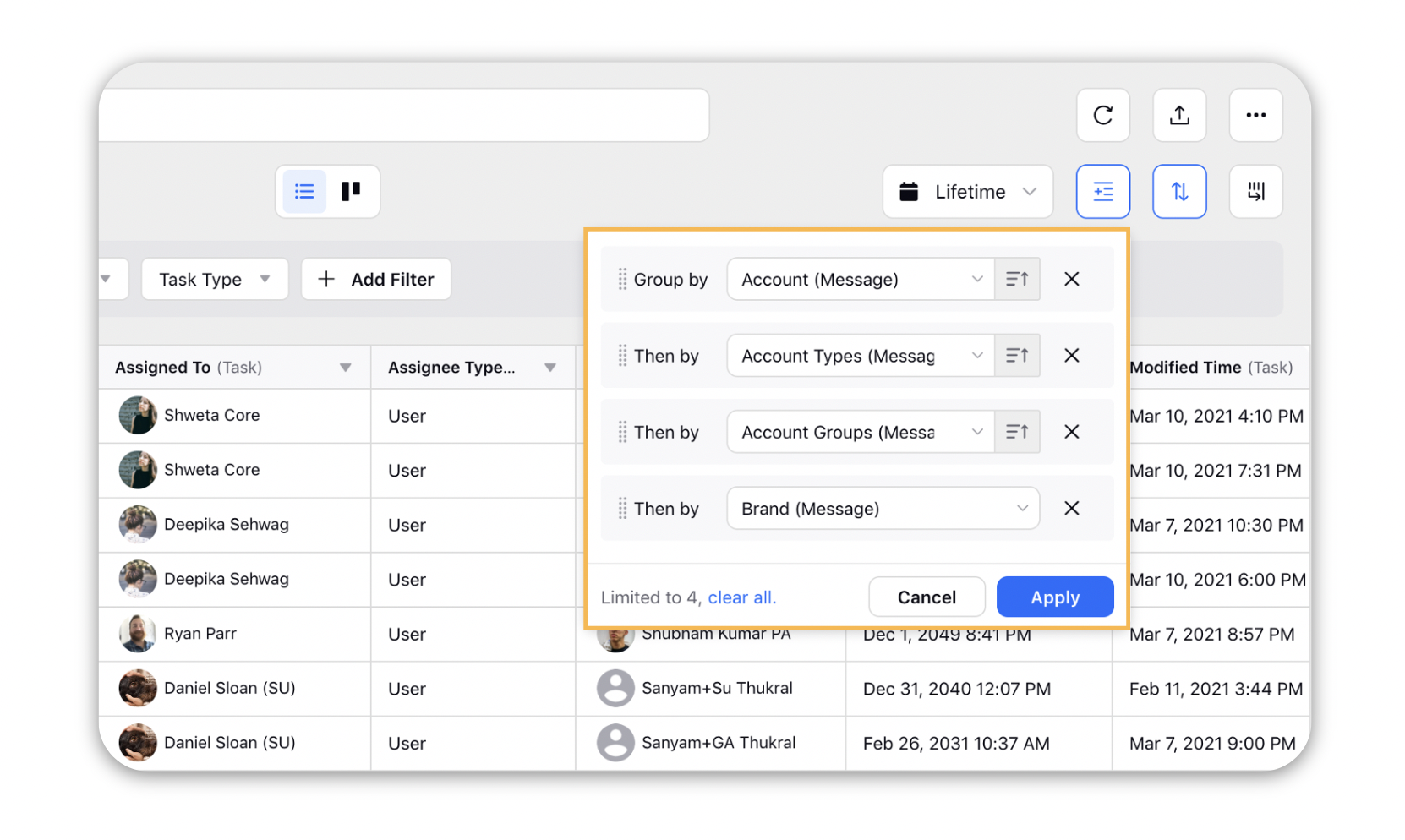
Group Content by Date
When you select a date field in Group By, Sprinklr can organize records into larger time periods instead of individual timestamps. This helps you review content distribution by year, month, week, or day.
Available Aggregations
Aggregation | Description |
Yearly | Groups records scheduled in the same year |
Monthly | Groups records scheduled in the same month |
Weekly | Groups records scheduled in the same week |
Daily | Groups records scheduled on the same day |
To apply date-based grouping, select a date field in the Group By window, choose the required aggregation level, and then click Apply. The dashboard groups records according to the selected time period.

Default Aggregation
Sprinklr automatically selects an aggregation level based on the active date range.
Date Range | Default Aggregation |
Up to 31 days | Daily |
More than 31 days and up to 60 days | Weekly |
More than 60 days | Monthly |
Lifetime | Yearly |
If you add another date-based grouping level, Sprinklr automatically selects the next lower aggregation level. For example, if the first grouping level uses Weekly, the next level defaults to Daily.
Show Empty Slots
Use Show Empty Slots to display date groups that do not contain records. This helps you identify content gaps and plan future posts.
When configuring Group By, select a date field, choose the required aggregation, enable Show Empty Slots, and then click Apply. The dashboard displays all date groups within the selected date range, including groups that do not contain records.

When Show Empty Slots is enabled:
Empty groups are visually distinguished from groups that contain records.
Collapsed empty groups display a (0 Messages) count.
Empty groups are included in exports.
You can create content directly from empty groups.
Availability
Show Empty Slots is available only when:
A date field is selected as a grouping dimension.
The dashboard uses a Custom date range.
The dashboard uses a supported Dynamic date range, such as Next X Days, Last X Days, This Month, Last Month, Next Week, or Last Week.
The same date field is used across all date-based grouping levels.
 Note: Show Empty Slots is not supported for the Lifetime date range or in Kanban View.
Create Content from Date Groups
When content is grouped by date, you can create a post directly from a populated or empty date group.
Hover over the required date group.
Click + Add Post.
Complete the post creation workflow. Sprinklr opens the post creation workflow from the selected date group.
Note: The + Add Post option is available only when you have permission to create outbound messages in the current context.
Navigate Between Date Ranges
For Custom and Dynamic date ranges, navigation controls let you move through equivalent time periods without manually updating the date filter.
Click the Previous or Next navigation arrow beside the date range selector.
Review the updated date range. The dashboard refreshes and displays records for the selected period.
Navigation behavior depends on the selected date range.
Date Range Type | Navigation Behavior |
Custom Range | Moves by the duration of the selected range |
Next 7 Days | Moves by seven days |
Next 30 Days | Moves by 30 days |
This Month | Moves to the previous or next month |
Last Month | Moves to the adjacent monthly period |
Next Week | Moves to the adjacent calendar week |
When you navigate from a Dynamic date range, Sprinklr converts it to an equivalent Custom date range based on the calculated dates.
Note: Navigation controls are available only for Custom and Dynamic date ranges.
Group By in the Kanban View
The group-by in the Kanban View governs what entities are visible in the dashboard as columns. To apply grouping here, you can follow the below steps:
Click on the Group By selector
Select the property you want to bucket the Campaigns, Sub-Campaigns and Messages into.
Click Apply.
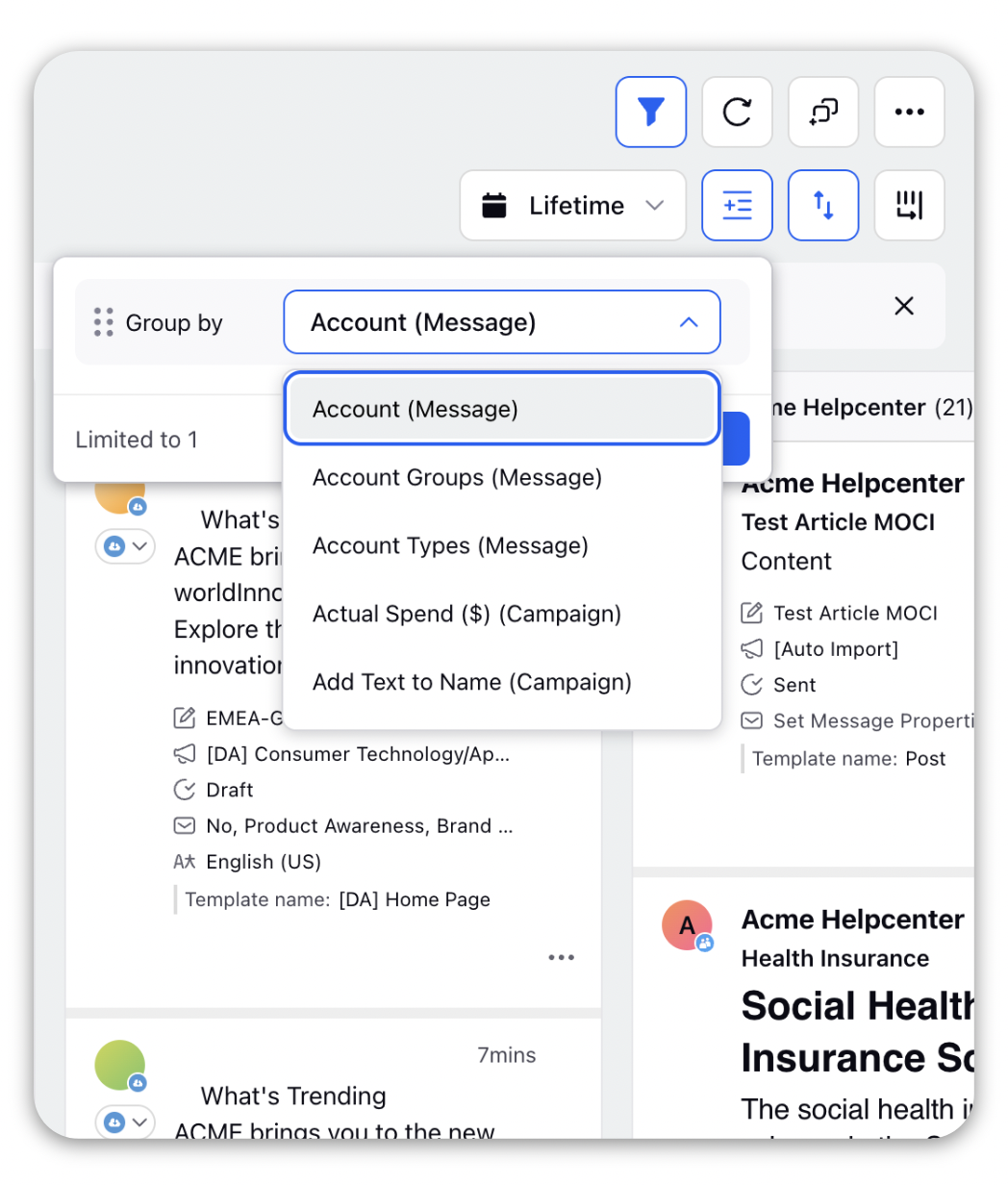
Default Grouping Order for Sprinklr Entities:
The default sorting of groups after applying Group By shows as per the following order:
1. The default order for the following System Fields will be A-Z:
Account
Account Type
Channel
Campaign
Template
Sub-Campaign
Status
Content Language
2. The default order for custom fields will be based on how they are defined in the Custom Field settings:
A-Z
Z-A
As displayed
3. Order for the Date custom fields will be oldest to the latest.