Scheduled Report configuration from the Record manager
Updated
To create a Scheduled Report
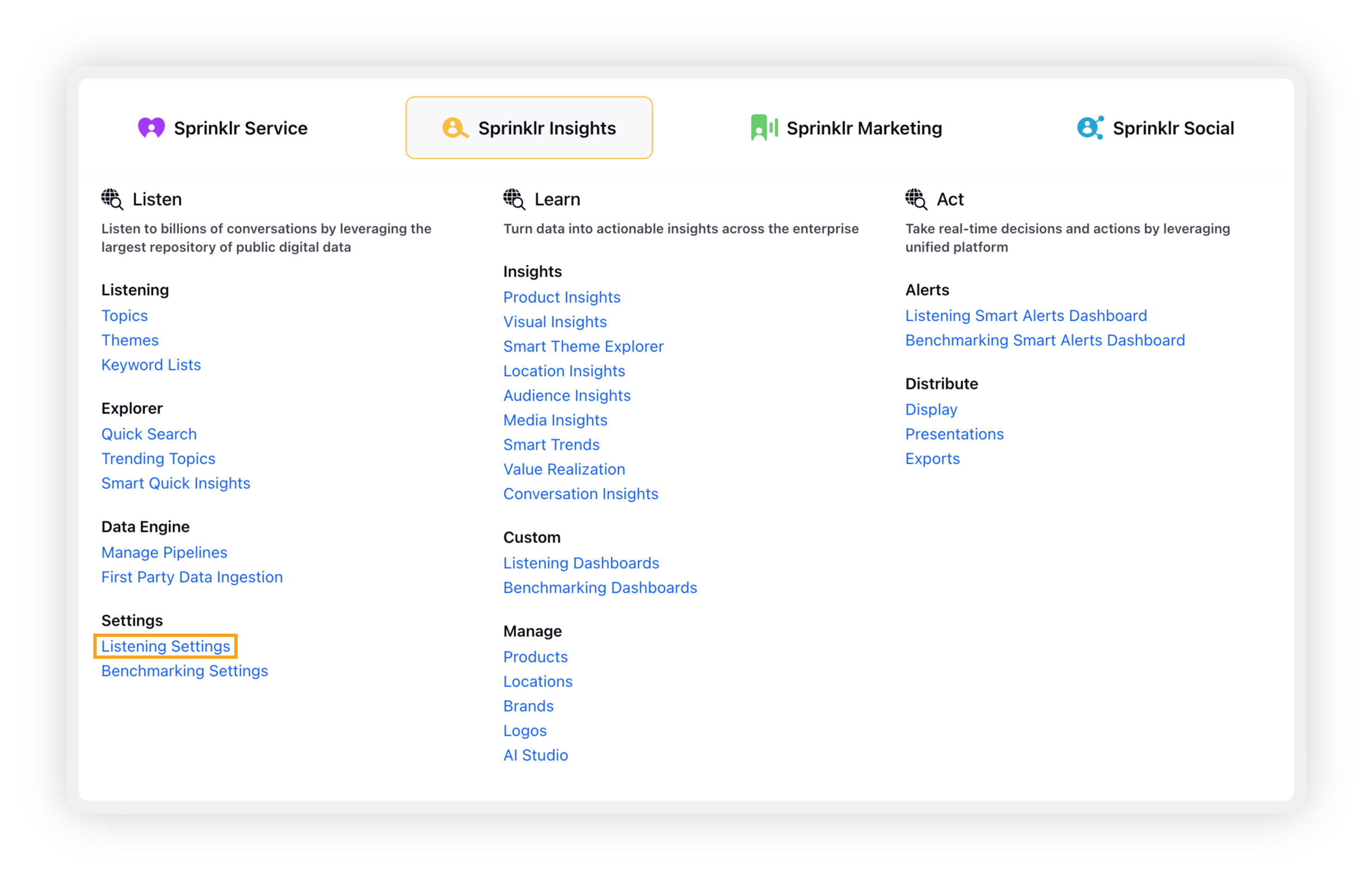
Click the New Tab icon. Under Sprinklr Insights, select Listening Settings within Listen.
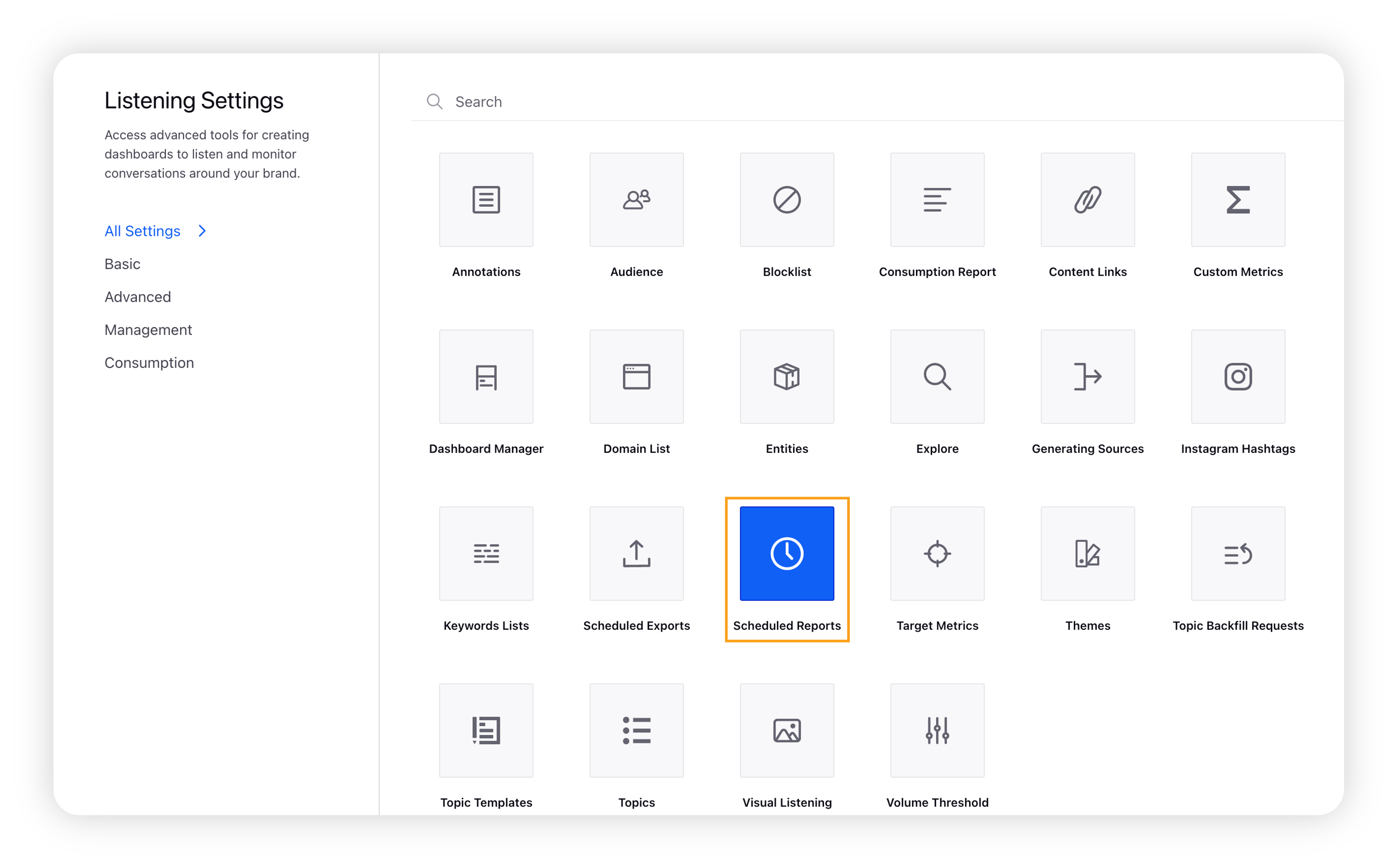
On the Listening Settings window, search for Scheduled Reports and click it.
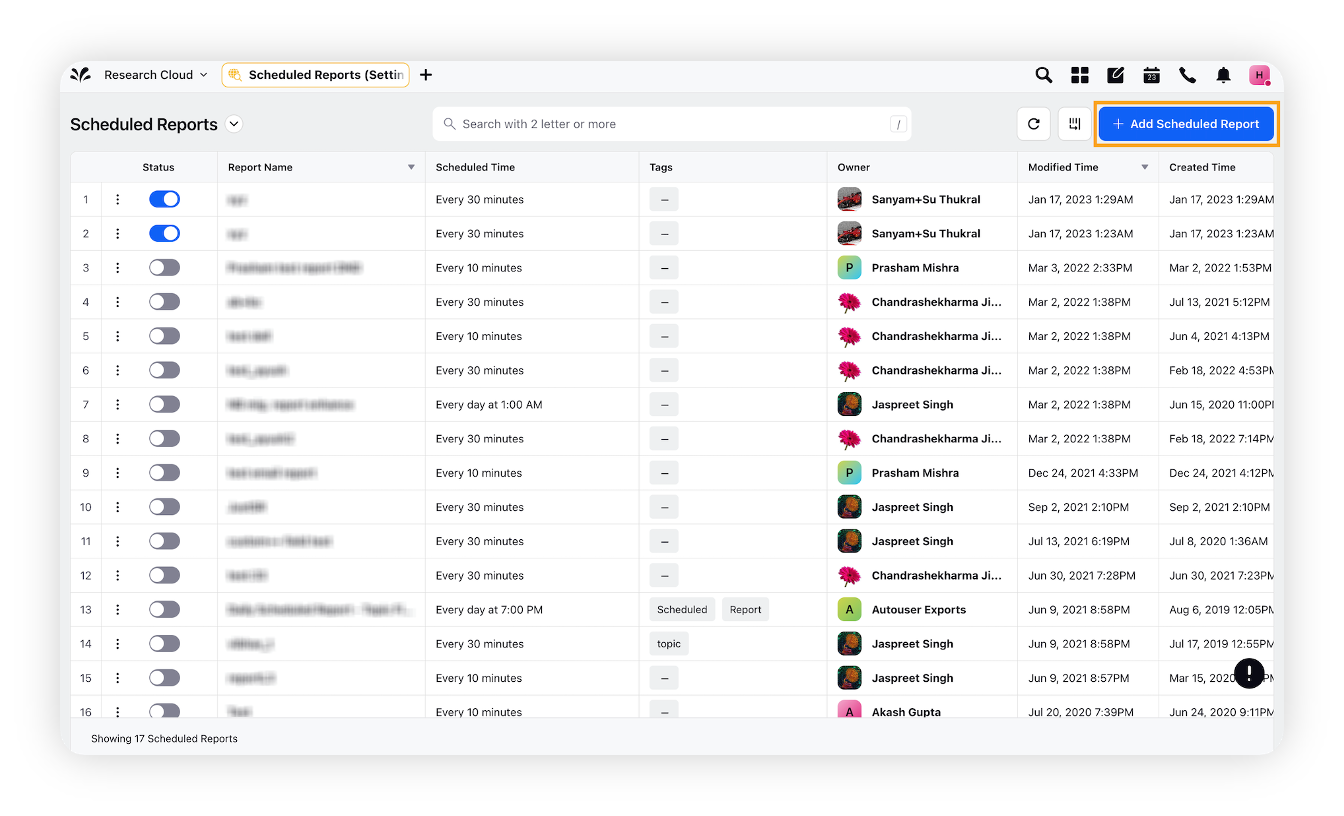
On the Scheduled Reports window, click the Add Scheduled Report button in the top right corner.
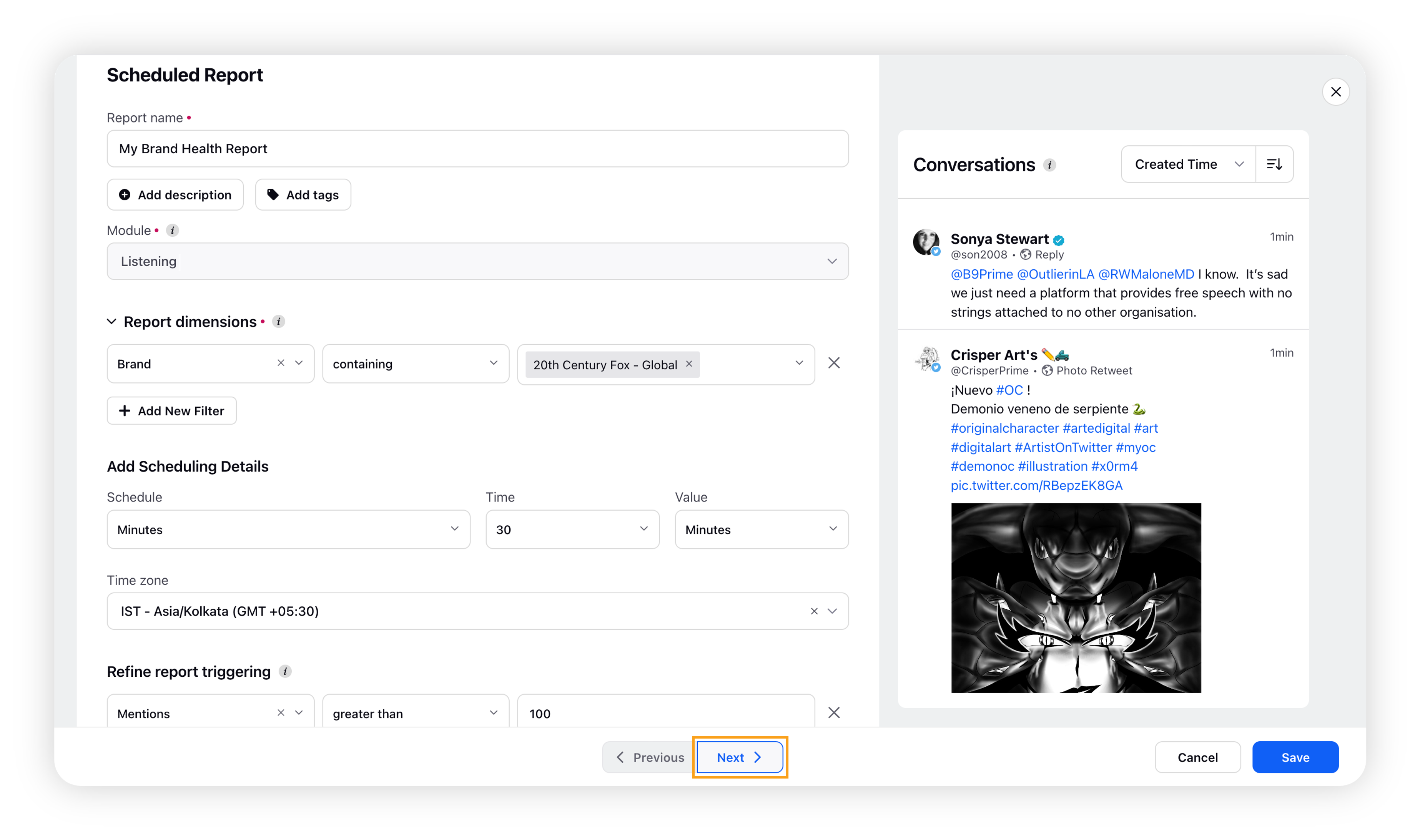
On the Create Scheduled Report window, enter the details for your scheduled report. Click Next to go to the Details tab.
On the Details screen, enter the delivery details. For more information, refer to Scheduled Report Delivery Details.
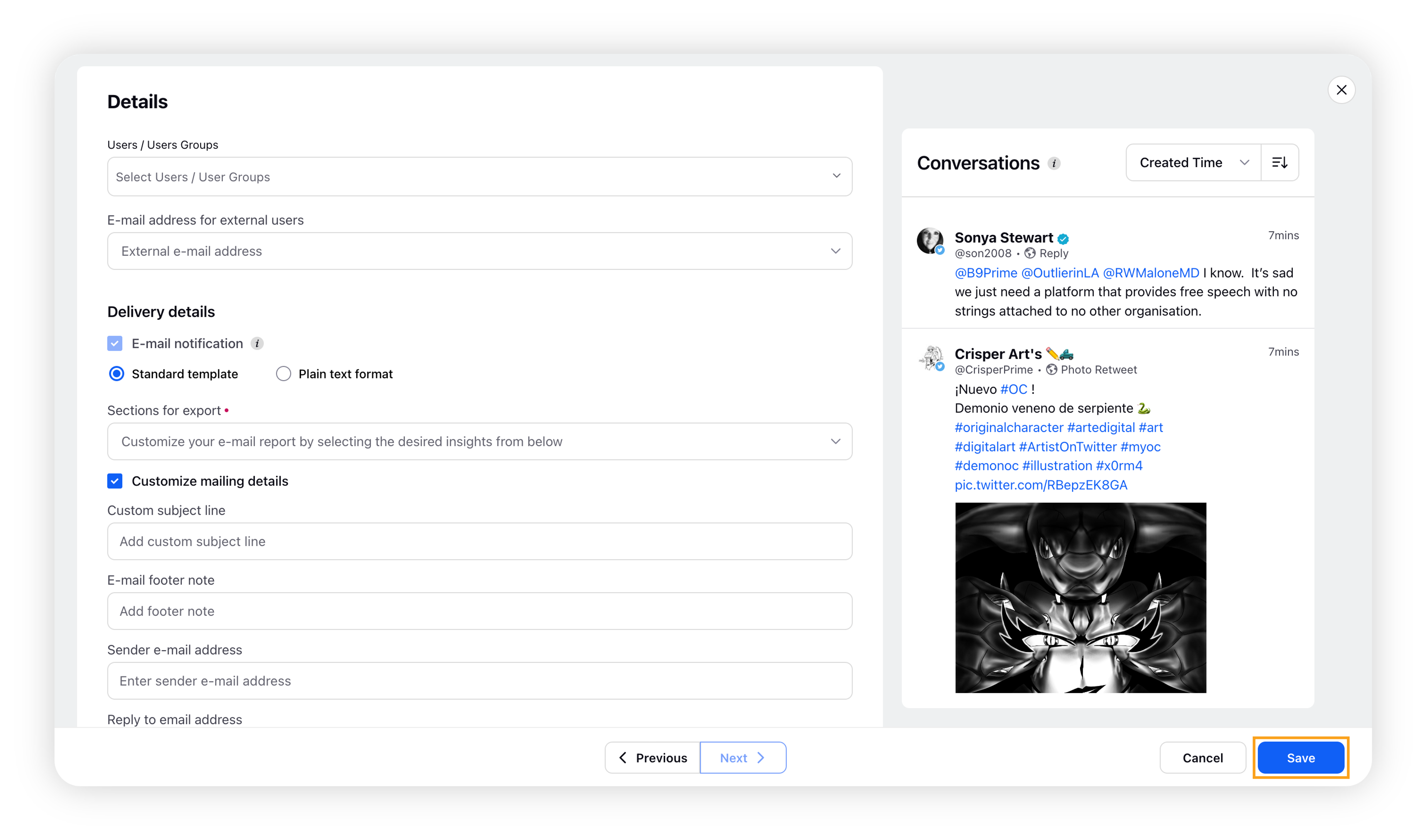
Click Save in the bottom right corner to complete the process