Activity Audit for Agents and User Groups
Updated
The Activity Audit feature enables tracking and reviewing modifications to agents and user groups. It generates a comprehensive log of changes, detailing both the source and nature of the adjustments. For user groups, you can monitor updates to priority order and assignment settings. Additionally, agents' assignment settings may be modified from various sources, including the Agents Page, Rules/Macros, and the User Profile. This feature enhances transparency, facilitates effective monitoring, and supports the maintenance of accurate configurations.
Checking Activity Audit
Perform the following steps to check the Activity Audit logs for Agents and User Groups.
Click the New Tab icon on the launchpad. Under Sprinklr Service, select Unified Routing within Route.
Click on Agents on the left panel.
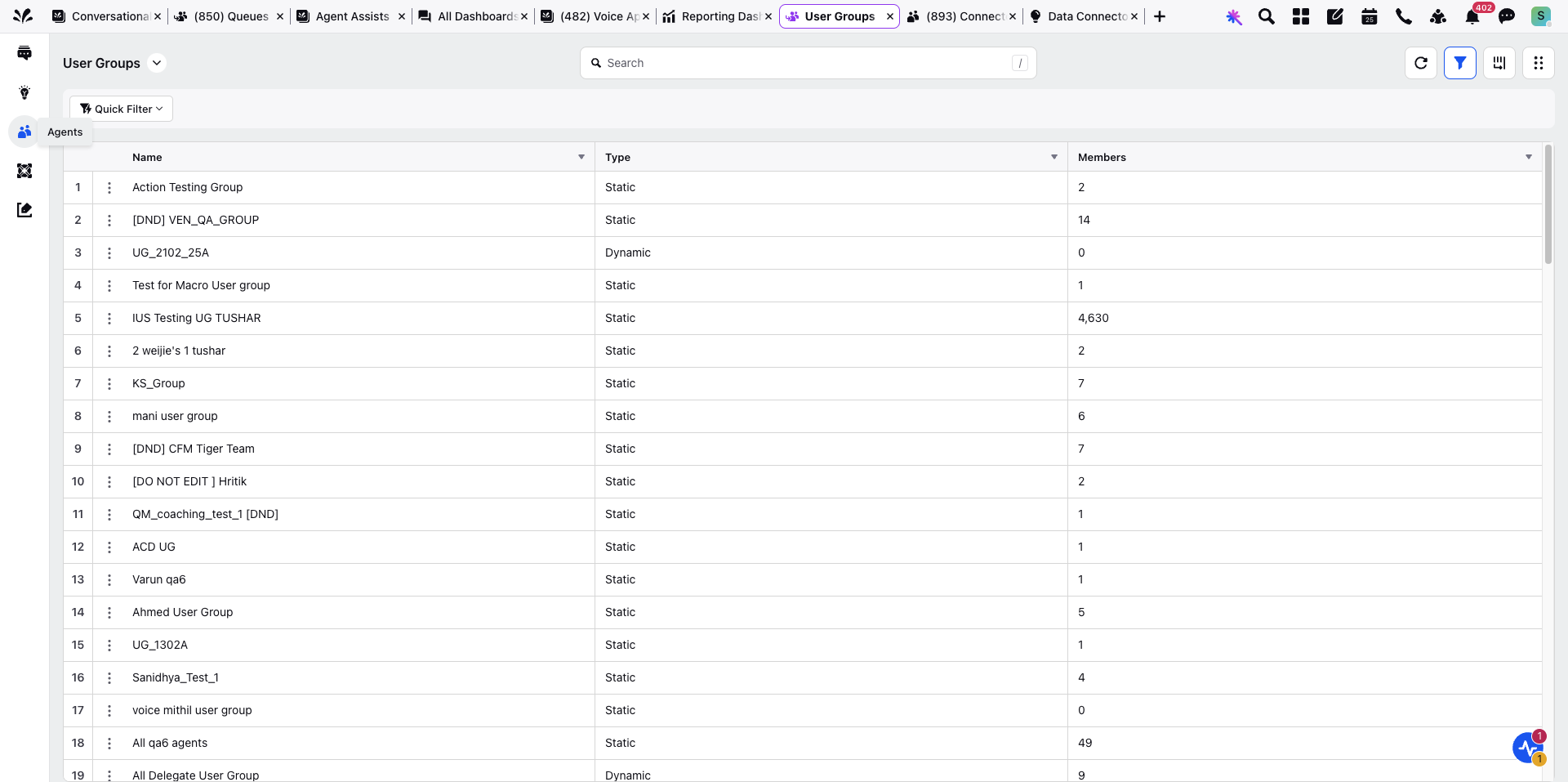
Select Agents from the drop down list appearing at the top most left panel.
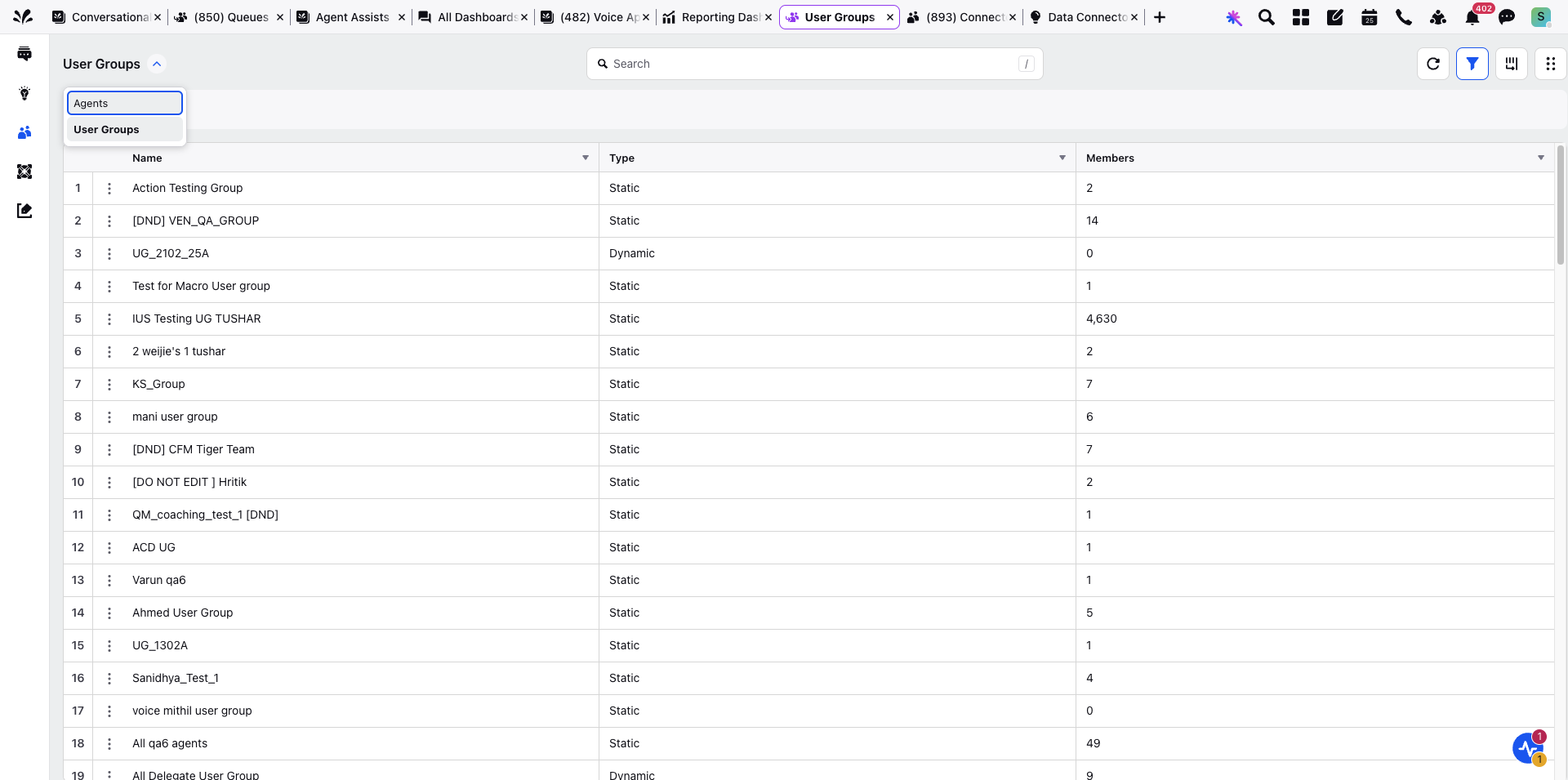
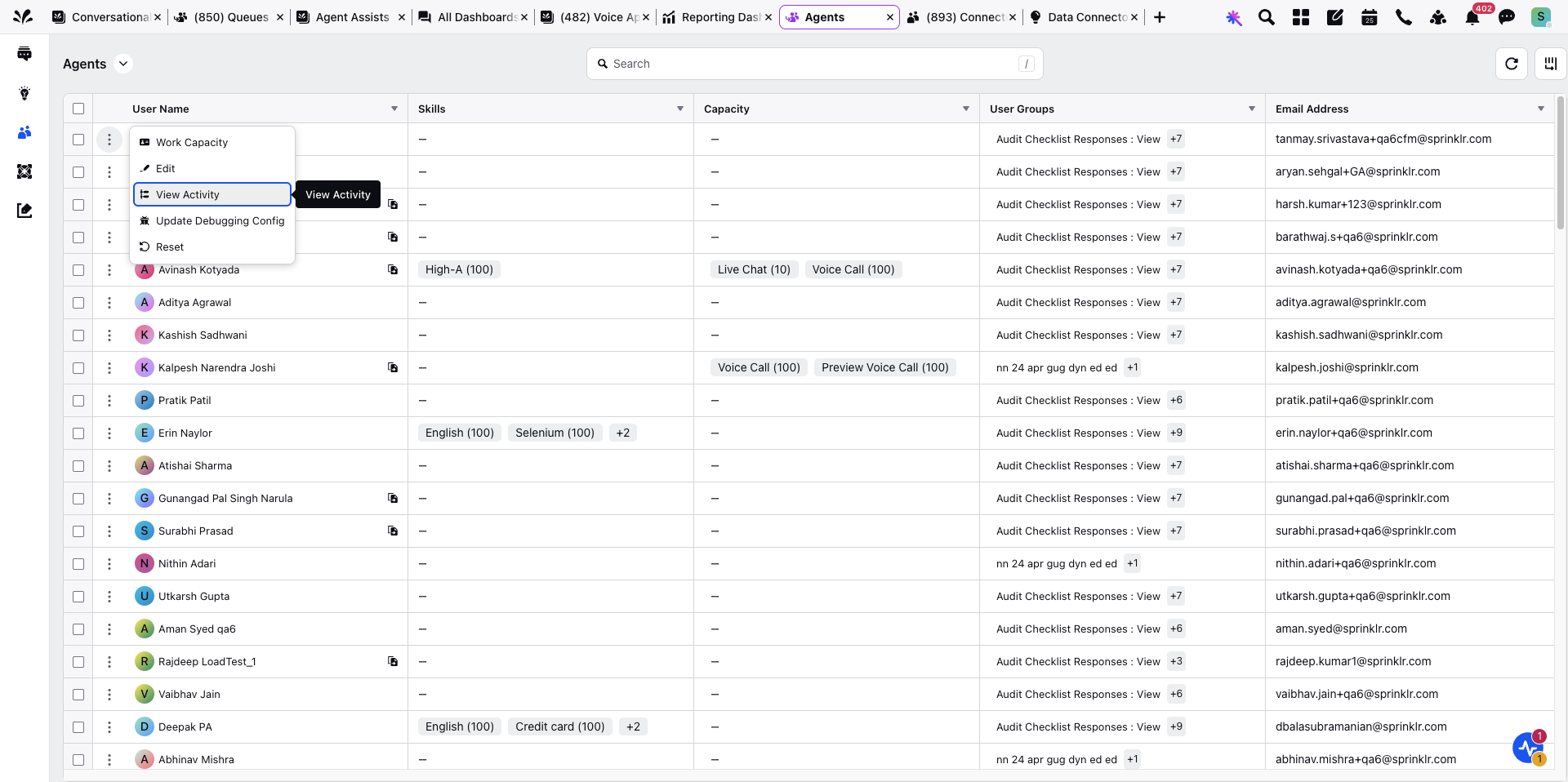
Hover over the three dots next to the agent whose activity you wish to view and click View Activity.
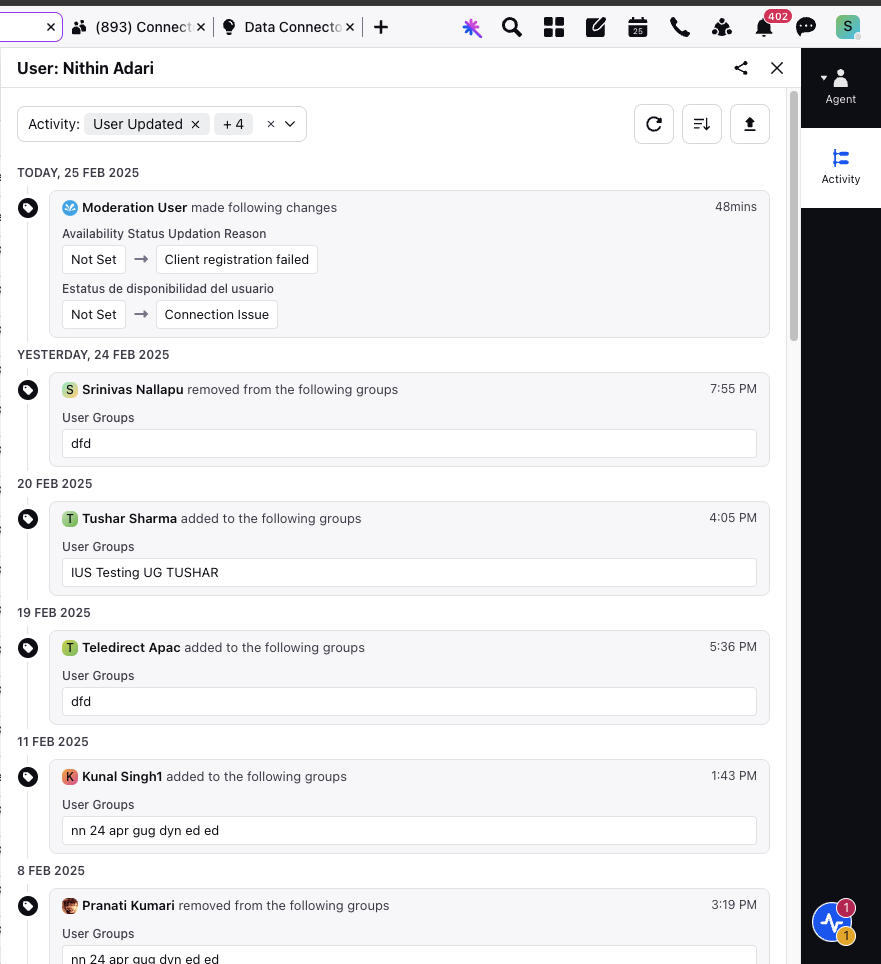
The Activity screen for Agents is displayed. Any changes to the user group priority that affect an agents settings are logged in the Agent Audit Log. When the priority order of user groups is modified, the log captures this update, providing enhanced tracking and transparency.
For example, the log will state:
X updated the priority order of Y User Group, which made the following changes.
Upcoming status changes are also recorded as part of Agent Activity to ensure visibility and traceability of agent status transitions. When an agent selects an upcoming status while handling a case, and the system later applies that status, corresponding audit records are generated. Each audit entry captures key details such as the selected upcoming status, the timestamp of the change, and the agent who initiated the action. These records are available in the User Audit logs and can also be monitored in real time from the Supervisor Screen, allowing supervisors to track agent status updates effectively.
Activity Logs on the Supervisor Screen
The Supervisor Screen displays the following activity logs related to upcoming status changes:
Agent set upcoming status to Available: Indicates that the agent has selected an upcoming status.
Agent removed Upcoming Status: Indicates that the agent has removed the previously selected upcoming status.
Upcoming status Available applied by the system: Indicates that the system has applied the selected upcoming status.
Activity Logs in Agent Audit (UR)
Within the agent’s audit records in UR, the following events are logged:
Upcoming Status Selected – Logged when the agent chooses an upcoming status.
Upcoming Status Removed – Logged when the agent cancels or removes the selected upcoming status.
Upcoming Status Applied – Logged when the system automatically applies the upcoming status.
You can also see entries under the Deactivated Work Queue section, showing when a Work Queue was activated or deactivated, who performed the change, and the corresponding timestamps.

The Activity screen has the following options for the user to perform for the Audit Logs:
Refresh - The refresh button updates the current view of the audit logs, retrieving the latest audit log. This ensures that users are seeing the most up-to-date audit log.
Sort - The sort button allows the users to arrange data in ascending or descending order as per the date of creation of the audit logs. This enable easier navigation and analysis of information.
Export - The Export button enables users to download the audit log file as per the Start Date and End Date.
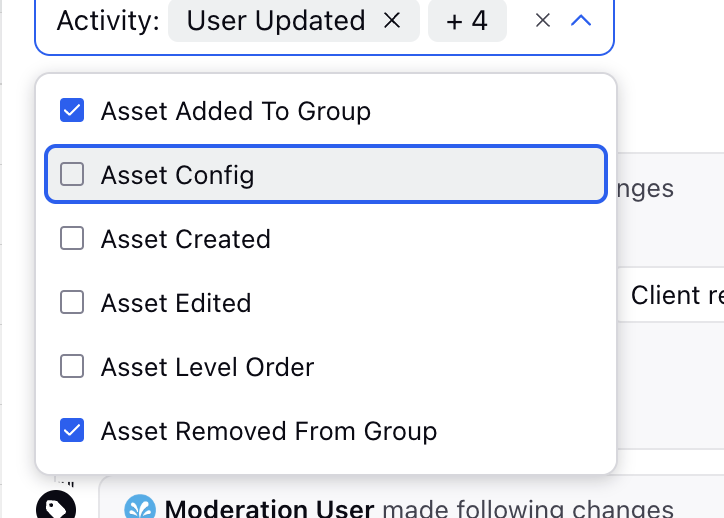
In the Activity Audit pane, five pre-applied filters appear:
Assest Added To Group
Assest Removed From Group
User Updated
User Voice Config Added
User Voice Config Updated
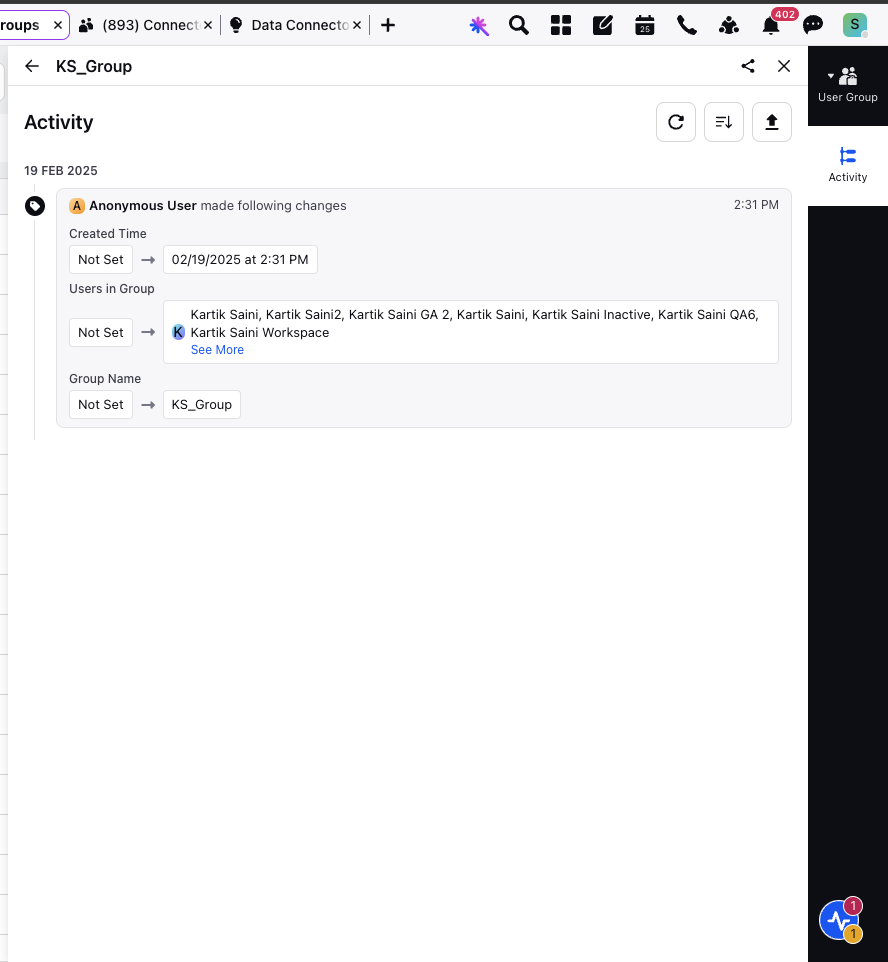
Similarly to check the Activity Audit for User Groups, select User Groups from the drop down list appearing at the top most left panel and hover over the three dots next to the user group whose activity you wish to view and click View Activity.
The Activity screen for User Groups is displayed.
The View Activity option when clicked opens further tabs:
Assignment
The Assignment tab provides a detailed view of case-level assignment activities within the selected queue. It enables users to understand how cases are assigned and monitor key assignment attributes over time.
At the top of the screen, users can filter assignment records using the following options:

Assignment Time – Select the date and time range to filter assignment activities. This helps in analysing assignments within a specific timeframe.
Status – Filter cases based on their assignment status. Available options include Pending and In Progress.
Add Filter – Allows users to apply additional filters to further refine the assignment activity view.
Filter Categories – Allows filtering based on parameters such as Skill and Channel.
Condition – Defines the filtering logic (for example, Containing and Not Containing).
Skill Selection – Enables users to select one or more skills to filter relevant cases/task/messages assigned or pending in the work queue.
Selected Count – Displays the number of selected filter values.
Add Advanced Filter – Allows users to define additional filtering criteria.
Apply / Cancel – Apply or discard the selected filter criteria.

Each assignment is displayed as a case entry containing the following details:
Case ID – Displays the unique identifier of the case.
Status Indicator – Shows the current status of the case (for example, New) along with a visual indicator.
Customer Details – Displays customer or entity-related information associated with the case. This information may be masked depending on configuration.
Custom Attributes – Displays additional case-specific attributes such as tags or custom fields (for example, grade).
Assigned To – Indicates the queue, user, or user group to which the case is currently assigned.
Channel – Displays the communication channel of the case, such as Live Chat.
Work Queue Assignment Time – Shows the timestamp when the case was assigned to the queue.
Skills – Displays the skills associated with the assignment, if configured.
Priority Rank – Indicates the priority assigned to the case within the queue.
Interaction Count – Displays the number of interactions or messages associated with the case.
Elapsed Time – Indicates the duration since the case was assigned or last updated.
The Assignment tab provides visibility into assignment-level activities and reflects changes made to assignment settings, including skills, capacity, and related configurations.
Assignees
The Assignees tab provides a view of all agents or user groups eligible to receive assignments for the selected queue. It helps users review assignment eligibility, availability, and configuration attributes.
At the top of the screen, users can perform the following actions:
.png "image (35).png")
Add Filter – Allows users to apply additional filters to further refine the assignees activity view.
Filter Categories – Allows filtering based on parameters such as Skill and Availability Status. Also, filters skill proficiency by clicking on add advanced filter button.
Add Advanced Filter – Allows users to define additional filtering criteria.
Condition – Defines the filtering logic (for example, Containing).
Skill Selection – Enables users to select one or more skills to filter relevant assignees.
Selected Count – Displays the number of selected filter values.
Apply / Cancel – Apply or discard the selected filter criteria.

Search – Enables users to search for specific assignees using name or attributes.
Refresh – Updates the assignee list to display the latest configuration and availability details.
The assignee list displays the following details:
Assignees – Displays the name of the agent or user group.
Availability Status – Shows the current availability of the assignee, which determines eligibility for assignment.
Consumed Capacity – Indicates the portion of the assignee’s capacity that is currently utilised. Also sorting capabilities are added to this consumed capacity column.
Skills – Displays the skills mapped to the assignee.