Editorial Calendar List View
Updated
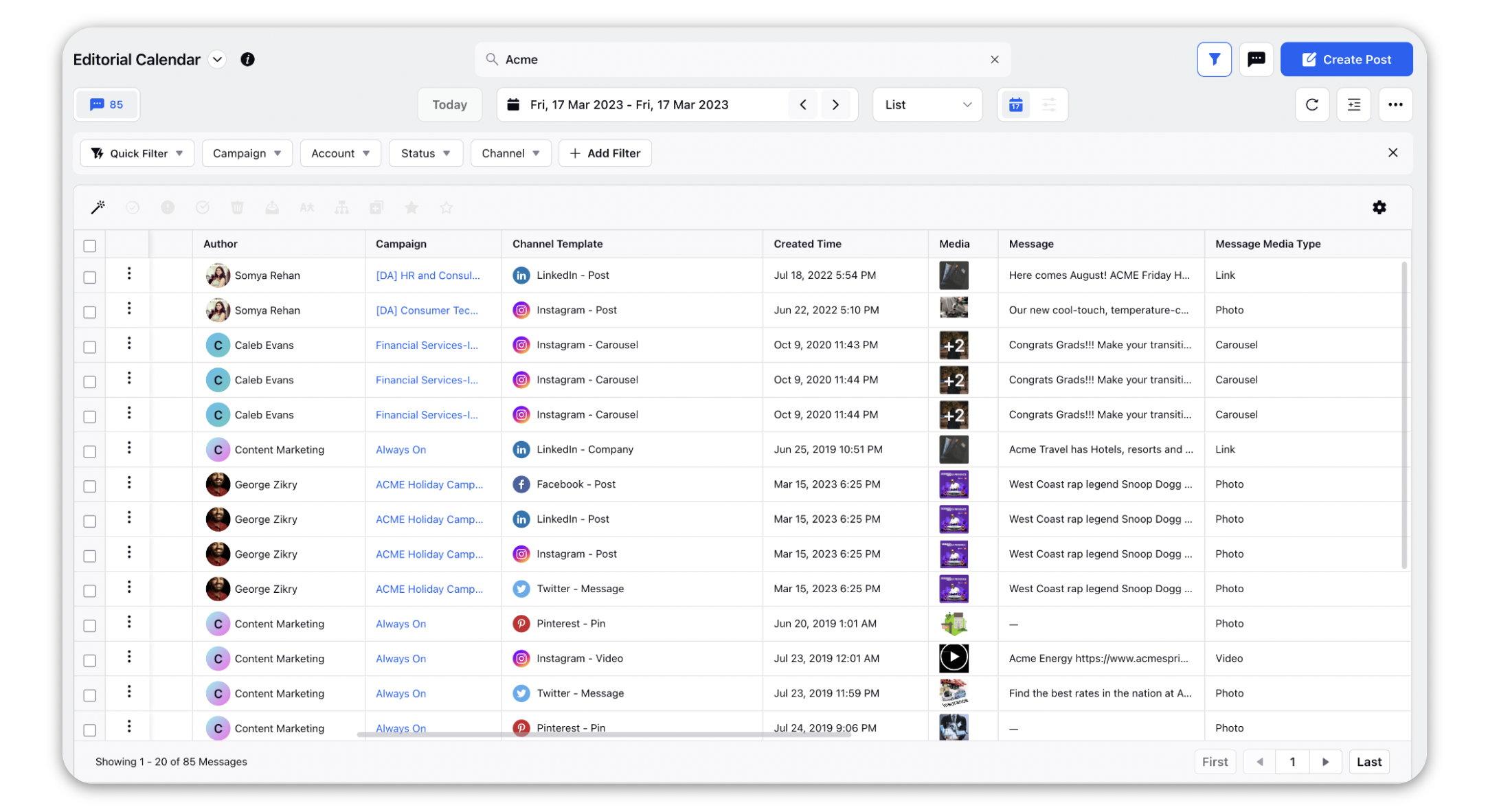
When you select List View, you will see messages from the current month displayed in a list of rows. You can view previous or future months using the previous and next icons alongside the currently displayed month at the top of the Editorial Calendar, or set a custom date range by selecting the drop-down icon and selecting a start and end date to display.
In List view, only Messages are displayed in rows, with message details in columns. By default, List View includes the following columns:
Message published time
Channel associated with the message
Account from which the message originated
Message content preview
Associated Campaign
Approval status of the message
Message status
Actions in the List view
Select one or more messages to display the action bar at the bottom of the page. From here, you can perform actions such as Macro, Favorite, and Lock. Available actions may vary based on the message status and your permissions.

To perform actions on an individual message, click the Options (three-dot) icon next to the message. From the menu, you can access actions such as Macro, Create Localized Copies, Preview, and Schedule Action. Select More options to view additional actions, including Boost Post, Export Message, Share, Lock, and Open Details.

Configure Columns in List View
Click the More Options (three-dot) icon in the upper-right corner of the Editorial Calendar and select Manage Columns.
In the Manage Columns panel:
Use the toggles to move columns between Active Columns and Inactive Columns.
Drag and drop columns to change their order in List View.
Use the search bar to find a specific column.
Click Apply to save your changes.
