View Variants in the Timeline View
Updated
In the Editorial Calendar Timeline view, you can choose whether to display message variants individually or hide them under their parent message. This allows you to switch between a detailed view of all message variations and a simplified view that focuses on parent messages. By default, Show Variants is enabled.
For information on creating message variants, see Create Variant of a Message.

Identify Parent Messages
Parent messages use a stacked message card design in the Timeline view. Each parent message also displays the number of associated variants. For example, if a parent message contains three variants, the message card displays 3 more messages at the bottom.
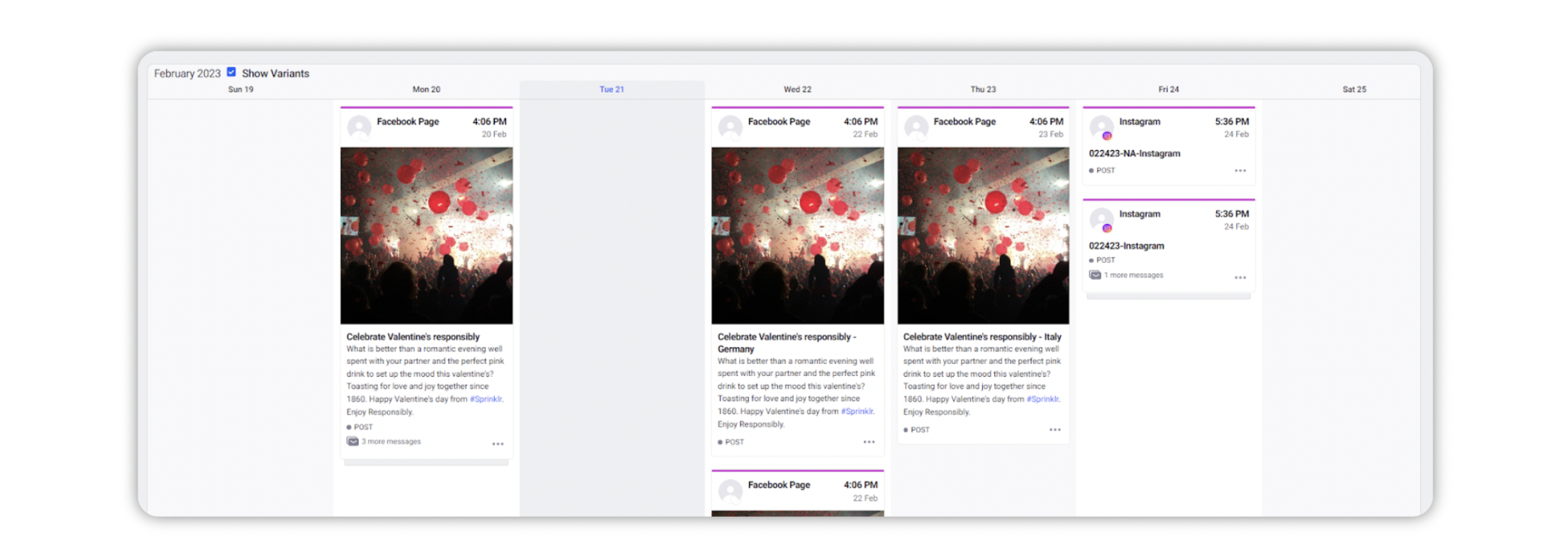
View Variants in the Timeline View
Use the Show Variants option to control how variants appear in the Timeline view:
Show Variants enabled: Parent messages and their variants appear as separate message cards in the Timeline view.

Show Variants disabled: Only parent messages appear in the Timeline view, and associated variants remain hidden.
