Add and Manage TikTok Ad Accounts
Updated
TikTok is a video-sharing social networking service with over 1 billion active users worldwide. Being one of the most downloaded apps in the world and having an extensive user base, TikTok offers a unique opportunity for brands to engage at the forefront of trends.
Before You Begin
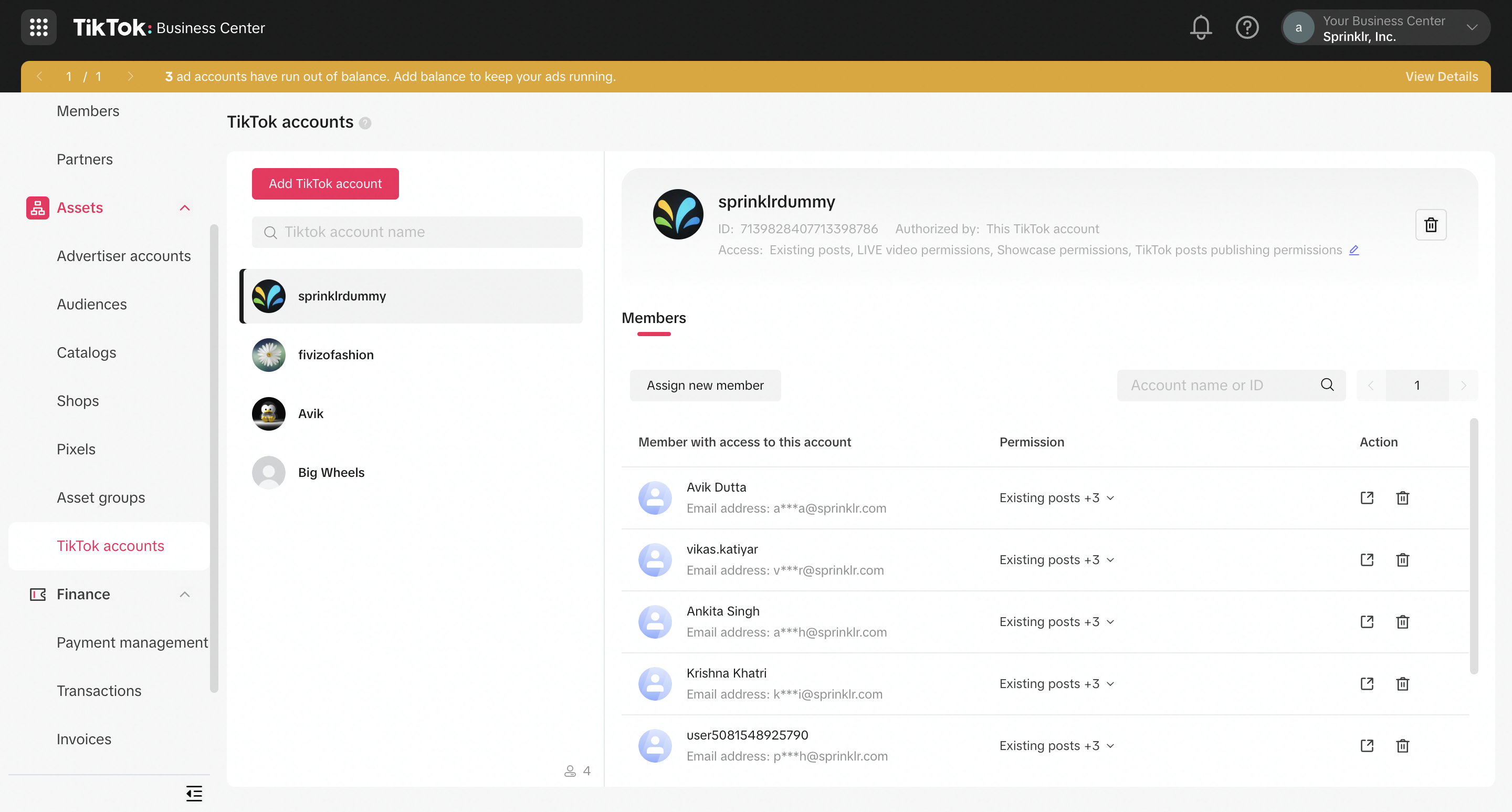
If you are not a TikTok user and do not have an account, you will need to set up a TikTok account to advertise on TikTok. For more information, see Create a TikTok Ads Account.
Note
|
To Add a TikTok Ad Account
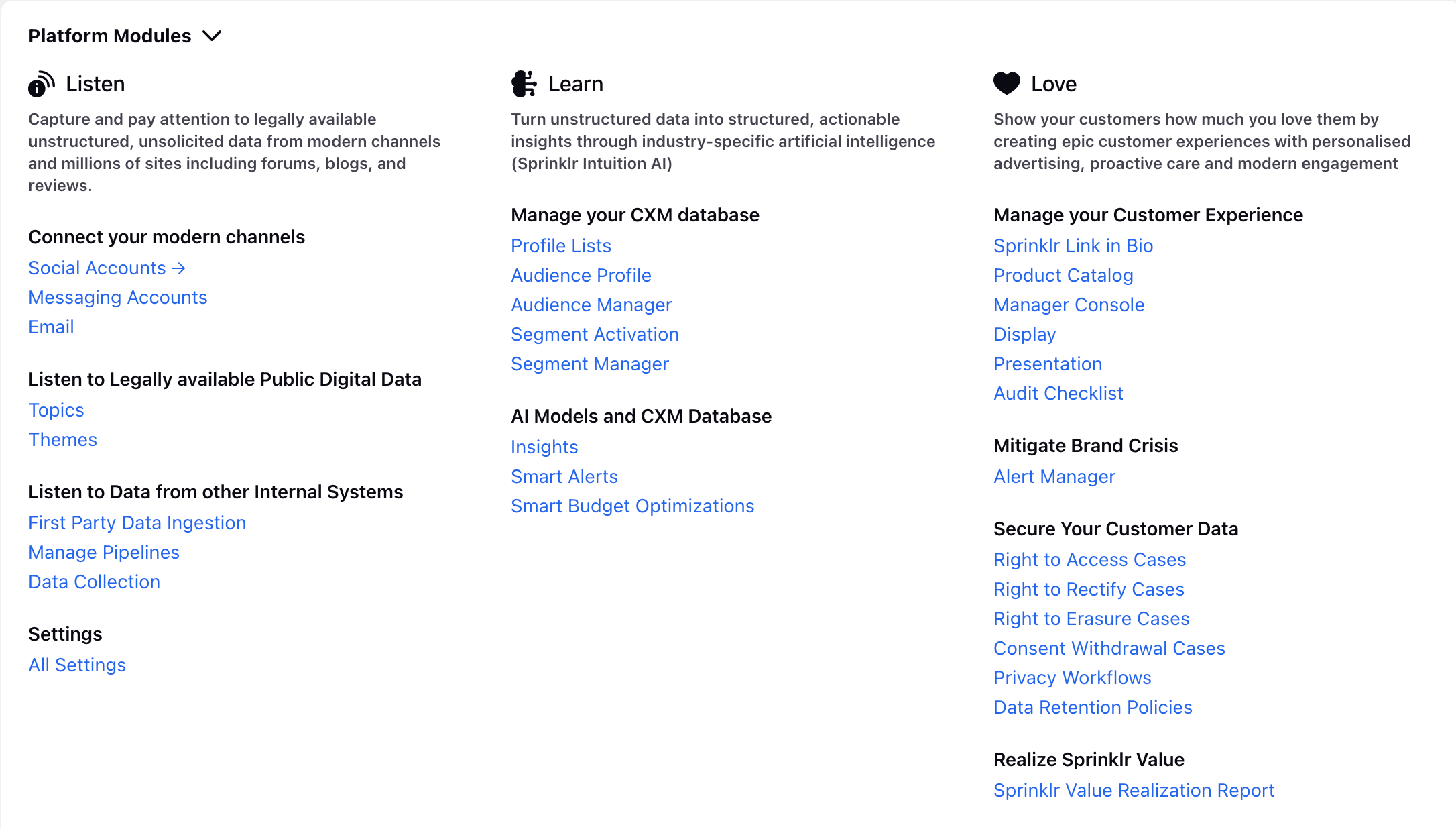
Click the New Tab icon. Under the Governance Console tab, click All Settings within Listen.
On the Platform Settings window, select Social Accounts within Platform Modules.
On the Accounts window, click Add Account in the top right corner.
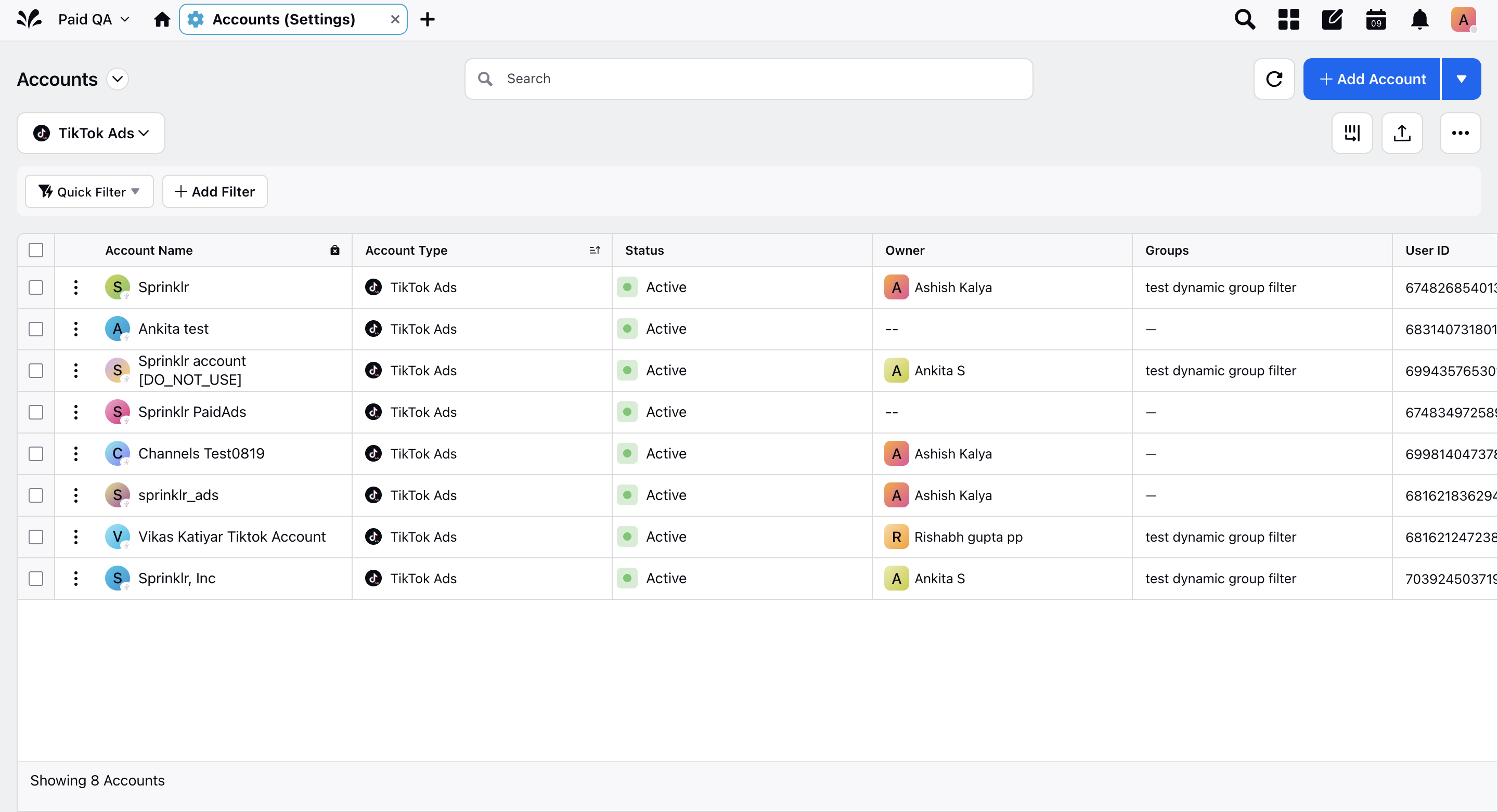
On the Add Account window, select TikTok Ads from the given options. You will be redirected to the TikTok for Business Authorization window.
On the TikTok for Business Authorization authorization window, you can view and edit all the permissions associated with the ad account. You can also click Switch Account to login and authorize a different ad account.
 Note: Ad Account Management and Ads Management are necessary permissions needed to publish from Sprinklr.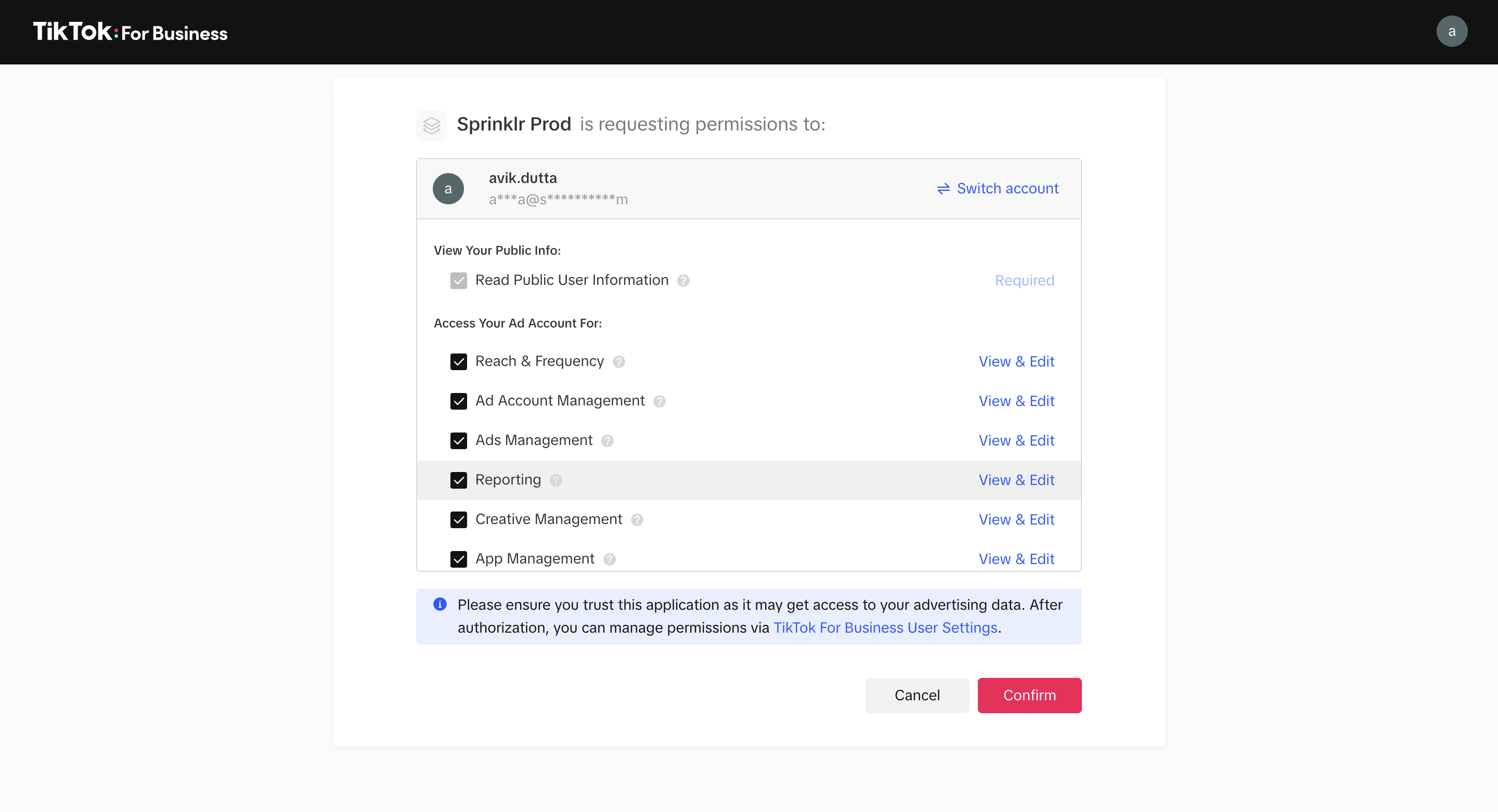
You can update the permissions as per your business use case by clicking View and Edit against each permission.
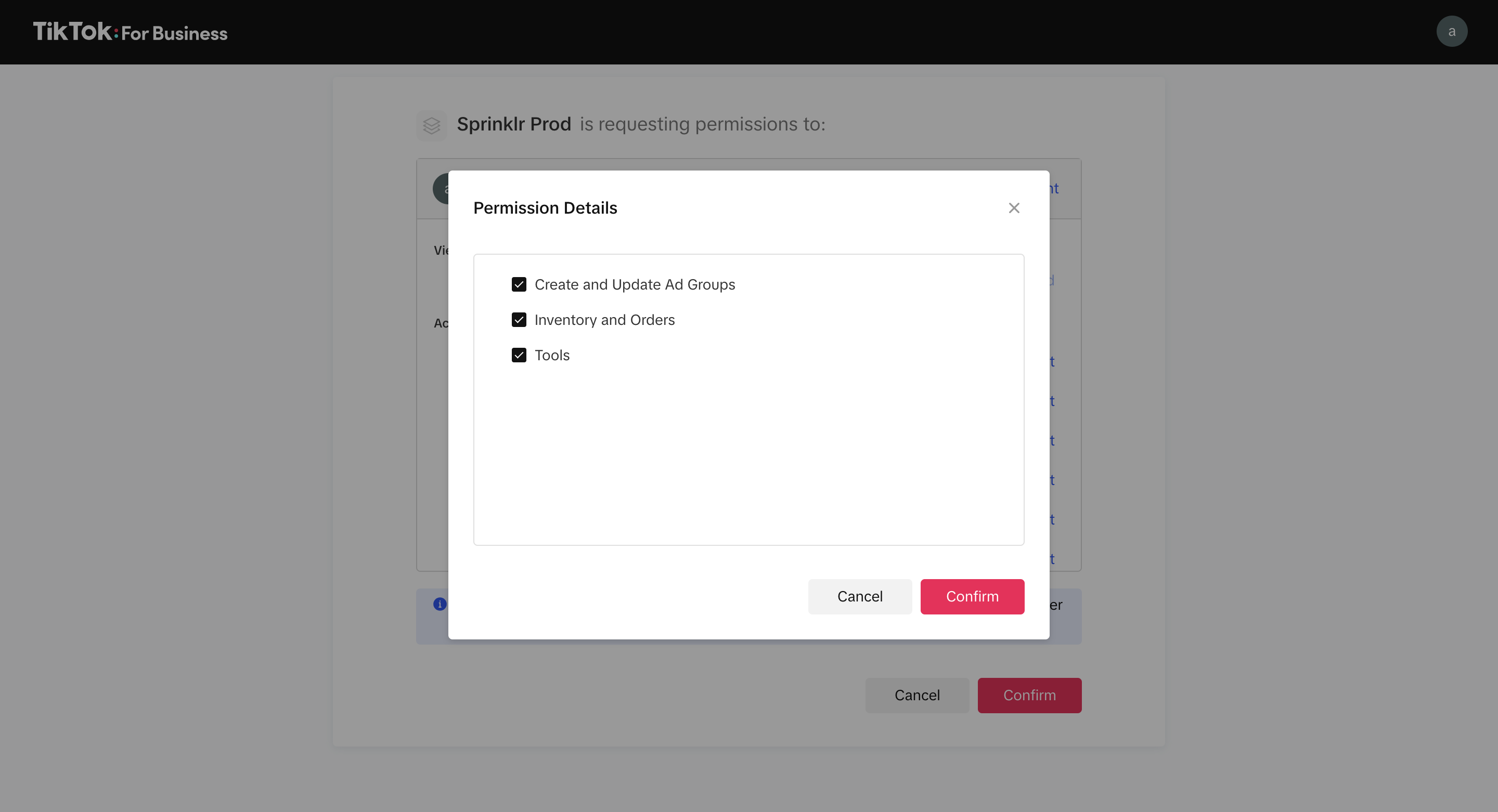
Click Confirm once you are satisfied with the level of permissions you want to provide within Sprinklr.
You will be redirected to the Update Account Details window where you can edit/add information details to your TikTok Ads account.
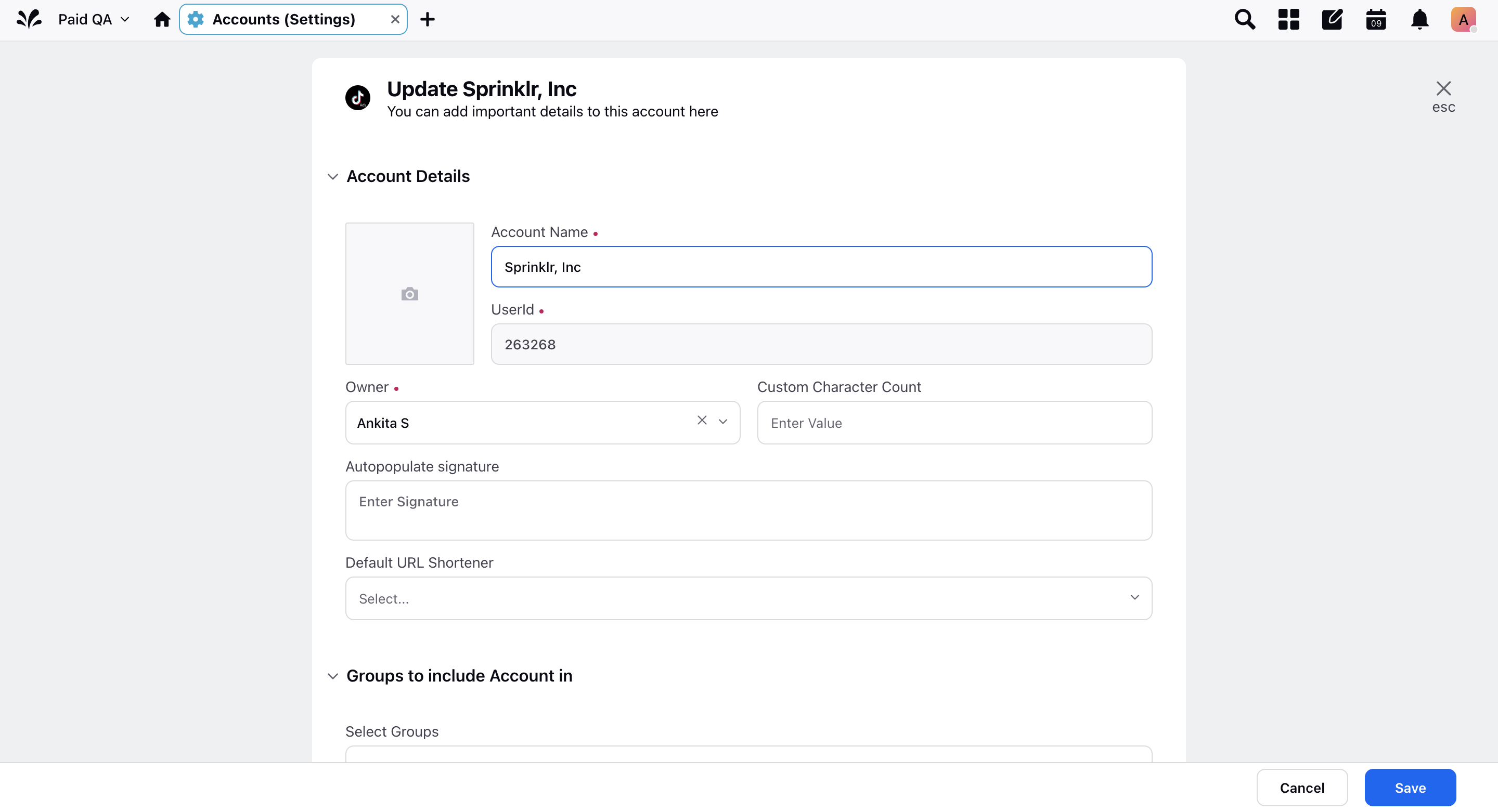
Once done, click Save in the bottom-right corner.
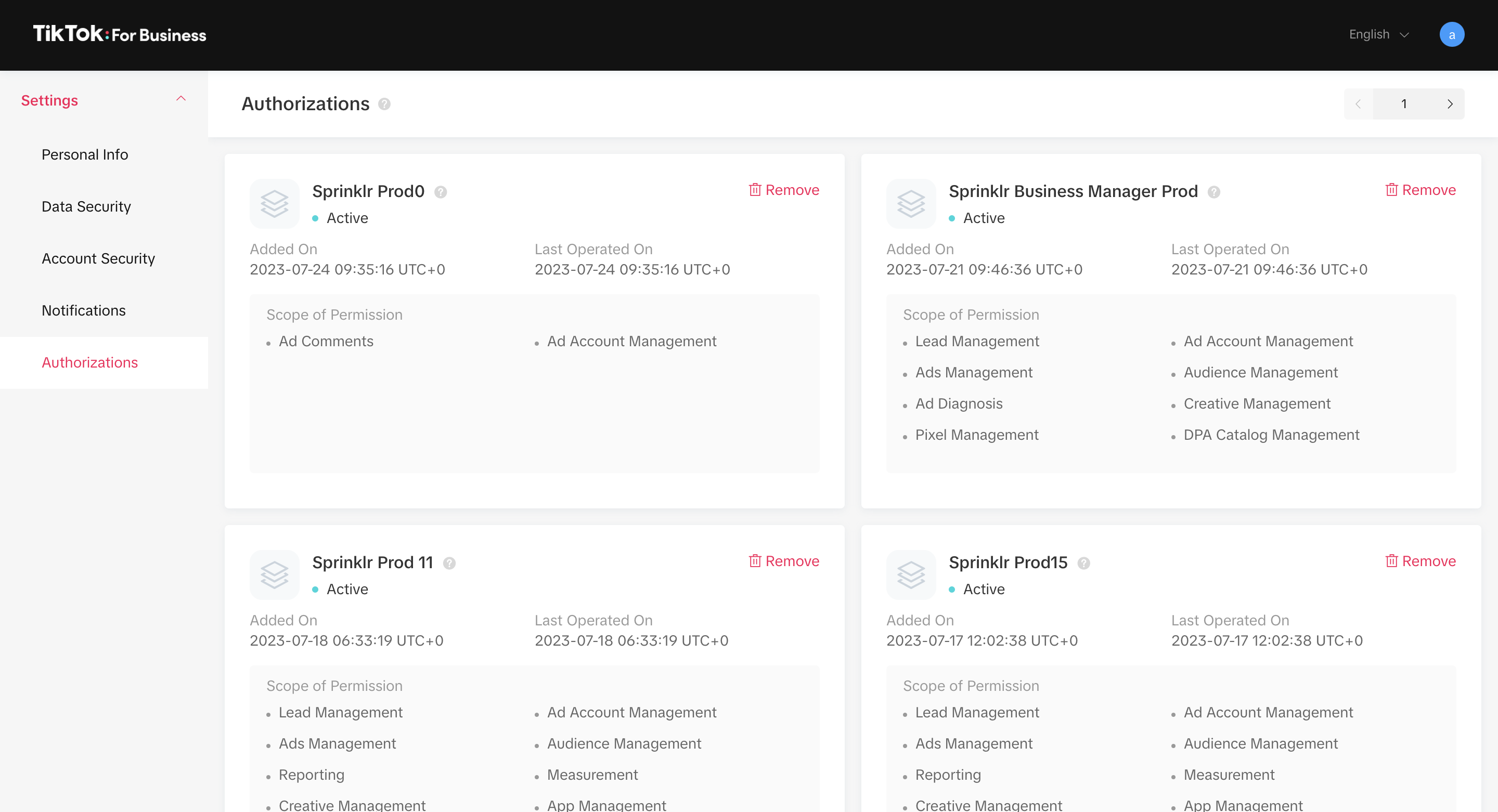
After authorization, you can manage your permissions via TikTok For Business User Settings. Here you can remove the apps you have authorized your ad account into.
Manage TikTok Ad Accounts
After you add a TikTok Ad Account, you can manage and update it from the Accounts screen. Follow these steps to access and manage your account settings.
Go to the Accounts screen.
Search for the TikTok Ad Account you want to update.
Click the vertical ellipsis (⋮) next to the account to view the available options -
Details: View account information such as the account owner, permissions, properties, and more. From the Details pane, click Account Controls (refer to image below) to view and configure Brand Safety Settings.

Edit: Update account details, including the account name, permissions, properties, and other settings.
Web Analytics: Configure a web analytics profile for the account.
Authenticate Tokens: Authorize tokens for the account.
Archiver: Archive the account.
Activity: View a log of all changes made to the account.
Deactivate: Temporarily deactivate the account. Deactivation pauses publishing, engagement, and reporting until you reactivate the account.
Remove Account: Permanently delete the account and all associated data, including messages, tags, custom fields, and audit history. This action is irreversible.