Setting Up a Response Event Workflow
Updated
The Survey Response Event enables organizations to automate actions based on survey responses. Businesses can trigger follow-up actions by setting conditions based on answers like sending emails, creating cases, or updating customer profiles. This event streamlines the process of responding to survey data, helping teams act quickly on feedback and ensuring no follow-up actions are overlooked.
Business Use Cases
Automatically Address Customer Complaints: A workflow is set up to handle negative survey responses automatically. When a customer provides poor feedback, the system triggers actions such as creating a case, assigning it to a team member, and sending a follow-up message to the customer for further assistance. This automated process ensures timely resolution of issues and helps improve customer satisfaction.
Salesforce Integration for Post-Service Feedback: An automated workflow is created to gather customer feedback after service interactions. When a case is marked as resolved in the system, the workflow triggers the distribution of a personalized survey to the customer. Once the survey is completed, the system automatically updates the case with the feedback, ensuring a smooth and efficient process without manual intervention.
Re-engagement Survey for Inactive Customers: A workflow is created to re-engage inactive customers. When a customer gives positive feedback in a survey, they automatically receive a coupon code to encourage a purchase. A case is created if the feedback is negative, and customer service follows up to resolve the issue. This helps manage customer interactions efficiently.
Send Follow-Up WhatsApp for Negative Feedback: A workflow is created to manage negative feedback. If a customer rates their experience poorly in a survey, an automatic WhatsApp message is sent, apologizing for the dissatisfaction and offering help to resolve the issue. This proactive response ensures customers feel valued and encourages quick issue resolution, ultimately enhancing customer satisfaction.
Reward Program Follow-Up for Survey Completion: A workflow is set up to enhance customer loyalty by rewarding survey participants. When a customer completes a survey, an automated message is sent, thanking them and offering loyalty points or a discount code as a reward. This encourages more participation, increases customer satisfaction, and strengthens loyalty to the brand.
Upsell Opportunity After Positive Feedback: A company leverages survey responses to boost sales by targeting satisfied customers. When a customer provides positive feedback about their purchase, an automated workflow sends personalized upsell offers, suggesting related products or exclusive deals. This approach drives additional sales and strengthens customer relationships by offering relevant recommendations.
Upsell Opportunity After Positive Feedback: Survey feedbacks are used to drive sales by targeting customers who leave positive reviews. When a customer rates their purchase highly, an automated workflow sends them personalized offers for related products or exclusive deals. This strategy not only increases sales but also enhances customer satisfaction by providing tailored recommendations.
Upsell Opportunity After Positive Feedback: The Survey Response Event triggers an automated workflow that sends personalized upsell offers to customers who rate their experience highly. This approach boosts sales by recommending complementary products or exclusive deals to satisfied customers, effectively targeting those who leave positive feedback about their purchases.
Support managers can automate responses to negative feedback and instantly create cases to drive faster resolution and improve customer satisfaction. Project managers can streamline post‑service survey automation, integrating with platforms like Salesforce to gather real‑time insights for continuous improvement. Customer retention specialists can boost loyalty by automating follow‑up actions based on survey outcomes, offering incentives for positive feedback and addressing issues highlighted in negative responses. Loyalty program managers can deliver personalized follow‑ups, such as thank‑you messages or tailored support after negative feedback, building stronger trust. Sales managers can transform positive feedback into upsell opportunities by sending targeted offers to satisfied customers, while marketing managers can automatically reward survey completions with personalized incentives, increasing participation and engagement.
Prerequisites
This feature is available as part of CFM and doesn't require any special permissions to access Workflows.
Steps to Access Response Event Workflow
The Survey Response Event allows users to automatically respond to survey data. This workflow is triggered when a response is received for the survey within which you are creating the workflow. With this functionality, users can easily trigger a variety of actions, such as sending follow-up emails, creating cases, or updating customer profiles—based on survey answers, all from a single workflow. This event simplifies workflow automation, enabling businesses to efficiently act on customer feedback and ensure timely responses without the need for complex setups or navigating multiple modules.
When creating a workflow inside a project for the first time, you'll encounter an empty state like the one shown below. If you’ve previously created workflows, you will see a record manager displaying all your existing workflows. For guidance on managing workflows, please refer to the linked article.
 Note: Survey response workflows are triggered for both completed (submitted) and partially completed responses.
A response is marked partially completed when an in-progress survey crosses the Partial Response threshold or reaches its expiry timeline, whichever comes first.

Once a response is marked as partially completed, the same attempt cannot be resumed or altered. This ensures that the data remains actionable and final. If the survey allows multiple responses (via the Limit Responses setting), any new attempt is treated as a new and unique response.
In summary, a workflow can be triggered in two ways:
When a user submits the survey.
When a survey is left incomplete but qualifies as partially completed.
The steps to access configuration are listed below:
Go to + New Page > Sprinklr Insights > Customer Feedback Management.
Click Create Survey or open an existing survey and navigate to Automation.
To get started, simply click on "+ Automation" and Select ‘Workflow' to begin.


After clicking Next, you’ll be redirected to the event selection screen, where you’ll find all three supported events available for CFM workflows. Each event will be accompanied by a description, use cases, and instructions on how to apply the event to your workflow.
For this workflow, we’ll choose the Survey Response event.
Note: The chosen event dictates the actions and conditions that can be applied within the workflow, and are triggered based on the event's occurrence.

Go to Workflow Details section and fill in the details:

Workflow Name: Enter a meaningful name for the workflow.
Description: Provide a brief description.
Start Workflow From: Specify the start date.
Run Workflow Until: Specify the end date.
Select Trigger this workflow on: You can select the trigger workflow from the drop-down. You can select between live responses or imported resposes.
Click Next to proceed, and you will be directed to an empty canvas where you can set up your workflow with actions and conditions.
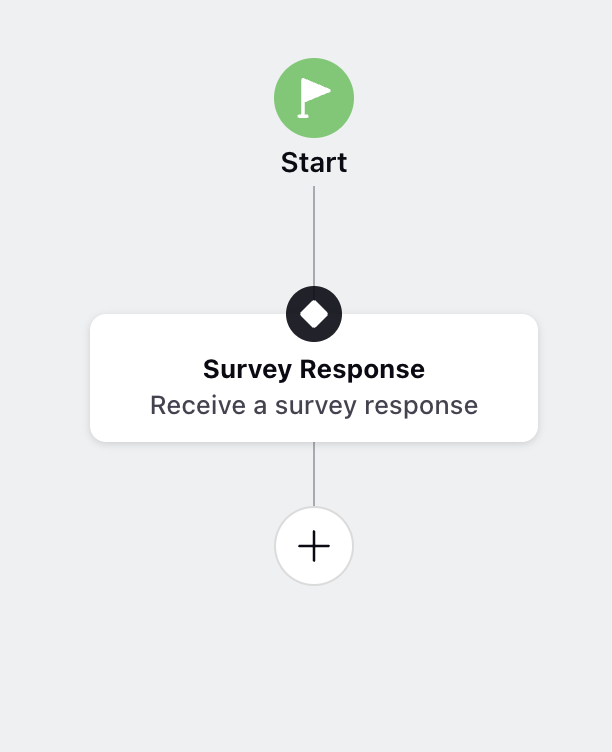
Click Add Element, to add actions and conditions, which will define the journey and flow within the workflow. Click on the plus button, and you will see a list of all the supported actions and conditions available.
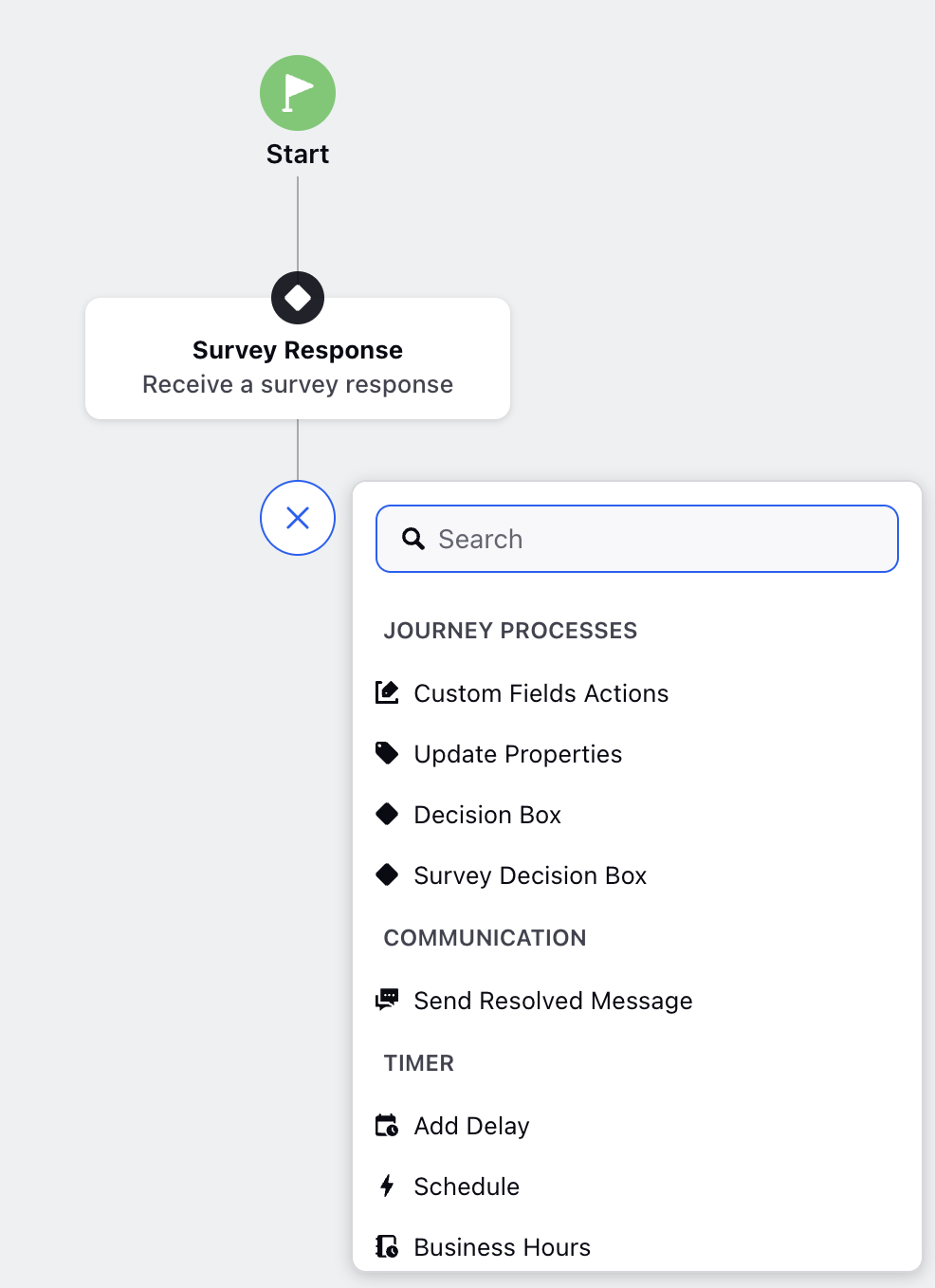
For the Survey Response Event, the primary condition is the Survey Decision box. This allows you to create branches in the workflow based on specific answers from the survey responses.
Once the conditions are set, you can add actions by clicking the plus icon. These actions are triggered based on the conditions defined earlier, allowing you to automate responses accordingly.
The conditions and actions are listed below:
Bucket | Elements | Description |
Journey Processes | Custom Field Actions | Set case or profile custom fields directly or copy them from workflow variables. |
Update Properties | Updates supported custom properties, attributes, or metadata available from workflow variables. | |
Decision Box | Adds a decision point in the workflow to branch based on specific conditions. Supported assets include cases and others. | |
Survey Decision Box | Creates branches in the workflow based on responses to survey questions. | |
Communication | Send Resolved Message | Sends follow-up messages such as emails, SMS, or WhatsApp. The message can be customized using workflow variables. |
Records | Get Records | Retrieves data from records in Sprinklr entities to use in subsequent actions or conditions. |
Utility | Go to Node | Directs the flow to a specific node in the workflow, allowing for custom paths. |
Actions | End Event | Marks the end of the workflow, signaling that no further actions are required. |
Create Case | Automatically creates a case for follow-up or issue resolution. You can also add case title, assignee, custom properties, and status. | |
Update Case, Queues, and Status | Updates case details, assigns cases to specific queues, or modifies case status. | |
Create Record | Creates a new record based on information in the workflow. | |
Update Record | Modifies an existing record based on workflow triggers or conditions. | |
Salesforce Sync | Syncs data to Salesforce, allowing for updates or creating records in Salesforce. |
How to use it?
Create Your Workflow:
Set up a workflow in Sprinklr based on survey responses. You can use the Survey Response Event to trigger actions when a survey response is received.
Define specific conditions based on the survey answers (e.g., a positive response triggers a follow-up email, while a negative response may trigger a case creation).
Set Up Survey Triggers:
Configure your survey distribution using pre-configured survey triggers based on conditions such as customer status, feedback, or other interactions.
When a survey response is received, the corresponding actions (e.g., sending emails, creating cases, updating profiles) will be triggered automatically.
Create Actions Based on Responses:
For each condition within the survey responses (e.g., a specific rating or comment), define corresponding actions such as sending follow-up surveys, creating customer cases, or updating customer records.
This allows businesses to act quickly on feedback and personalize responses based on the customer’s experience.
Automate Customer Engagement:
Automate the entire post-survey process, from responses to follow-up actions, without needing manual intervention.
Use the workflow editor to map out different customer journeys based on survey feedback, ensuring relevant actions are triggered.
Workflow Execution Timing
The execution time of a Survey Response Event workflow depends on whether it references AI-enriched fields, such as Sentiment or L1/L2 Categories, in its conditions or actions. Workflows that use these AI-generated fields may run only after the enrichment process is complete, while workflows that do not rely on AI-enriched data can be triggered immediately when a survey response is received.
AI-enriched fields that can delay a workflow
Field | Applies To |
L1 Category | Text questions |
L2 Category | Text questions |
Sentiment | Text questions |
Note: Response Quality is also AI-enriched, but it's calculated before the workflow starts. Using Response Quality in conditions or actions doesn't delay the workflow.
Execution Behaviour
Workflow Configuration | Execution Behavior |
No AI-enriched fields in any condition or action | Runs as soon as the response is received, with no delay. |
Uses AI-enriched fields (alone or mixed with other fields) | Runs as soon as AI enrichment is finished for that response, with a maximum delay of 10 minutes. |
How does it work?
System checks each workflow automatically. There's no setting to turn on or configure.
The timing for each response is determined individually, so a delayed enrichment for one response does not affect the other responses within the same workflow.
If the enrichment process does not succeed or is incomplete after 10 minutes, the workflow will still proceed, ensuring that no response is overlooked.
Simple workflows that don't need AI data now run in real time. Examples include creating cases, sending alerts, syncing to Salesforce and sending follow-up emails.
Note: When a workflow uses AI-enriched fields, this info tip appears on the workflow:"AI-enriched fields are used in this workflow's conditions or actions, so execution may be delayed by up to 10 minutes while enrichments are computed." The tip only shows in Survey Response Event workflows.
Existing Behavior
Existing active workflows keep running with no changes needed.
Workflows that don't use AI-enriched fields no longer wait 10 minutes. They now run as soon as the response is received.
Workflows that use AI-enriched fields still wait for enrichment, up to 10 minutes. In most cases they'll run sooner than before.
Timing works the same way in Sandbox and Production, including after a sandbox migration.
Note: To test a workflow quickly, build it without AI-enriched fields at first. It will run as soon as you submit a test response. Add the AI-based conditions once the rest of the flow works.
Steps to test and validate the feature:
Ensure Proper Configuration: Set up the workflow with the desired actions and conditions based on survey responses.
Complete the Survey: Manually fill out the survey by using test customer data.
Monitor Workflow Trigger: Ensure the workflow is triggered correctly when a response is submitted.
Verify Actions: Check if the designated actions (e.g., sending follow-up emails, updating profiles) are carried out properly. You can verify this by checking customer profiles, case updates, or survey emails.
Check Conditional Logic: Test different survey responses to confirm that the right actions occur based on the conditions (e.g., different messages for positive vs. negative feedback).
Key points to note:
No limitations have been identified at this time. This article will be updated as any new limitations are discovered.
Best Practices
Test with a variety of survey responses to ensure all possible conditions are handled.
Use a test program to keep your test data separate.