Sprinklr Co-pilot for Benchmarking Dashboard
Updated
The Benchmarking Assistant is designed to address the relevant questions across standard use cases for your outbound content, helping you formulate marketing strategies compared to competitors.
With the Benchmarking Assistant, you can leverage Sprinklr’s generative AI to obtain answers to the most pertinent questions, utilizing competitive intelligence across X, Facebook, Instagram, over 400K social accounts, 40K+ brand profiles, and data spanning 45+ industries.
Addressing Key Pain Points with Benchmarking Assistant
Benchmarking Assistant Purpose: Contains multiple widgets with various metrics and dimensions, offering a broad range of data.
Challenges: The large volume of data and numerous widgets can make it hard to extract meaningful insights efficiently.
Solution: The Benchmarking Assistant simplifies data interpretation, highlights key insights, and supports more effective decision-making.
 Note: Benchmarking Assistant is applicable for Standard and Custom Benchmarking Dashboards.
Getting Access
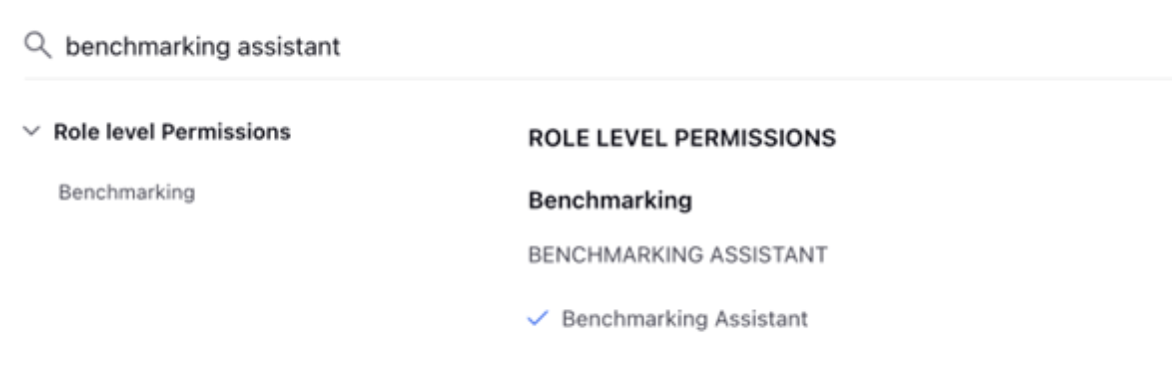
To get access to Sprinklr Copilot for Benchmarking Dashboards, the following permissions will be required:
Permission Category | Permission Type | Permission | Description |
Benchmarking | Benchmarking Assistant | Benchmarking Assistant | Allows users to access Copilot in Benchmarking Dashboards. |
Navigating to Sprinklr Co-pilot for Benchmarking Dashboard
Follow these steps to access Benchmarking Assistant:

Go to Benchmarking Dashboards in the Learn column on the Launchpad. This will open the Benchmarking Dashboards Record Manager.
Open the required Dashboard on the Record Manager. If the Dashboard is inside a folder, open the folder and then open the Dashboard.

Click the Sprinklr Copilot for dashboards button towards the top right of the Dashboard. This will open Sprinklr Copilot for dashboard in the sidebar.

Configure Benchmarking Assistant
Once the Benchmarking Assistant sidebar is opened, you must configure the following filters to ensure optimal functionality.
Brand Filter: Select your brand from the 'Brand' filter to focus the analysis on your specific brand.
Note: While the ‘Brand’ filter allows for the selection of multiple brands, please select only one brand for the Benchmarking Assistant to function properly.
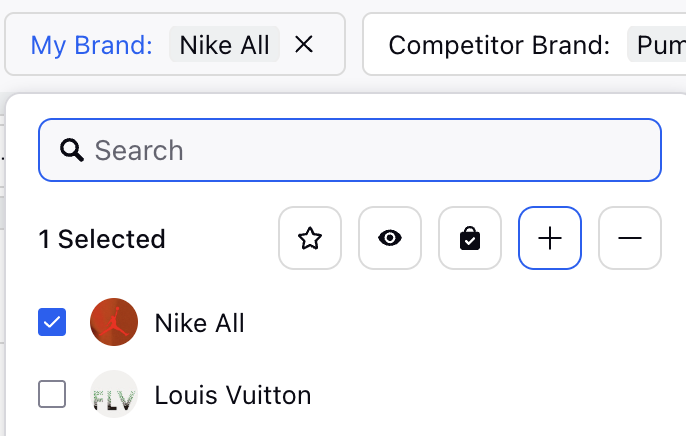
Competitor Brand Filter: Choose the competitor brands in the 'Competitor Brand' filter to compare your brand's performance against these competitors.
Note: While the 'Competitor Brand' filter allows for the selection of multiple brands, please select up to three competitor brands for the Benchmarking Assistant to function properly.
Brand filters are also available, allowing you to choose any combination of brands without having to manually label them as My Brand or Competitor Brand.

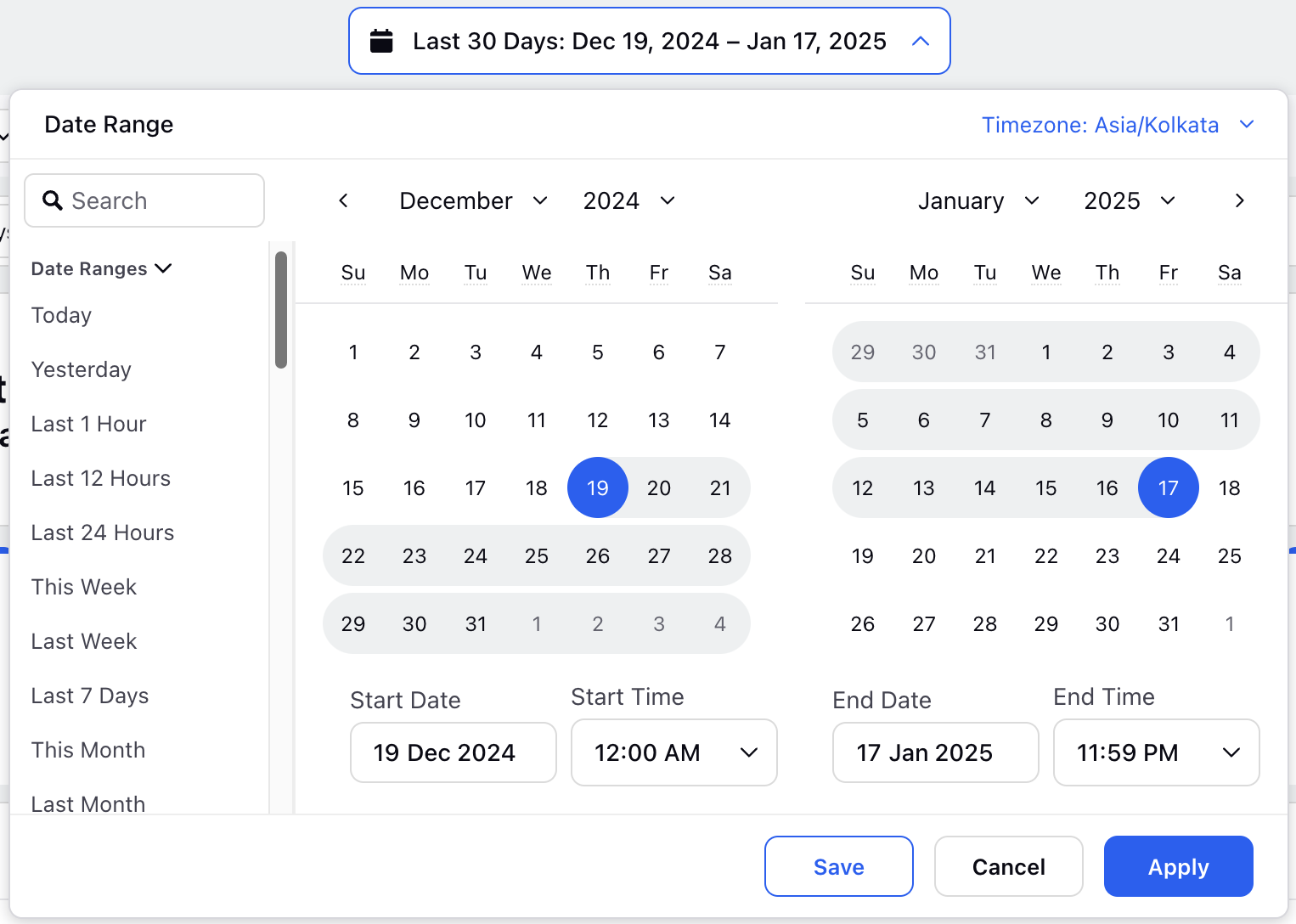
Date Range Filter: Specify the date range for which you want the comparison to be conducted, ensuring the analysis covers the relevant time period. Benchmarking Assistant operates on a 60-day date range, covering the 60 days preceding the end date specified in the date range filter.
By setting these filters, you can tailor the Benchmarking Assistant to provide the most accurate and relevant insights for your needs.
Questions Supported by the Benchmarking Assistant
Click the Search relevant questions via keywords field at the bottom of the Benchmarking Assistant sidebar to show a list of pre-defined questions for the selected Benchmarking Dashboard. These questions have been developed through comprehensive research and various use cases, incorporating a blend of internal observations and customer feedback.


The pre-defined questions displayed will depend on the Benchmarking Dashboard you have opened. Clicking the 'Search relevant questions via keywords' field within Standard Dashboards will show pre-selected relevant questions specific to that dashboard. In Custom Dashboards, clicking the 'Search relevant questions through keywords' field will display the entire list of available questions for selection.
Apart from the predefined questions there is also support provided for open chat. The Benchmarking Assistant has been enhanced to answer open-ended questions by identifying brands from your queries, providing more flexible and interactive insights through the Open Chat feature. This allows you to engage in dynamic conversations and receive a wider range of insights based on your specific questions.
Note: Cloning a Standard Dashboard will create a Custom Dashboard. As a Custom Dashboard, it will provide access to all questions across various use cases.
Below are the questions that will be available for selection depending on the Standard Dashboard you have opened:
Select the desired question from the available questions in the Benchmarking Assistant sidebar to receive the corresponding response.

The generated response can be copied by clicking the Copy button at the bottom of the summary. Additionally, you can provide feedback on the quality of the generated summary by clicking the Helpful or Not helpful button, depending on whether the summary is helpful or not.

When you click the Not helpful button, a form will open where you can provide additional feedback on what you did not like about the generated Dashboard summary. This feedback will help Sprinklr Copilot for dashboard improve the quality of future summaries.

Click the Get external URL button at the top of the Sprinklr Copilot for dashboard sidebar to generate an externally shareable URL for the conversation. This button is accessible only if a prompt has been provided to the Sprinklr Copilot for dashboards.

Click the New Chat button at the top of the Sprinklr Copilot sidebar to start a new conversation with the Sprinklr Copilot for dashboards.
Manage Benchmarking Assistant Conversations
Click the New Chat button at the top of the Sprinklr Copilot for dashboard sidebar to start a new conversation with the Sprinklr Copilot for dashboard.
View Chat History
You can view the chat history of your Benchmarking Assistant sessions to keep track of your interactions and easily reference past conversations. Whether you are looking to review past decisions or want to recall a specific detail, the chat history provides a convenient way to access your conversation records.

Click the Chat History button at the top of the Benchmarking Assistant sidebar to view previous conversations. The chat history will only display conversations related to that specific Dashboard.
You can rename previous conversations from the chat history tab, share them with other Sprinklr users/user groups, archive them, and delete them. Hover over any previous conversation to show a toolbar above that conversation.

Click the Edit Chat option to rename the conversation for easy identification.

Click the External Link button to generate an externally shareable URL for the conversation.
Click the Share button to share the conversation with any User(s)/User Group(s) in the Workspace. Select the User(s) or User Group(s) in the subsequent dialog box and click the Share button.

Click the Delete Chat button to delete the conversation.
 Note: There is a daily limit on the number of Copilot responses a single user can generate.
Additional Features
Widget Builder in Dashboard Copilot
You can build a widget directly through Dashboard Copilot and add them to the same dashboard without switching contexts. You can create, customize and save widget. The navigation steps are mentioned below:
You need to access the Benchmarking Dashboard, select a dashboard, and click Sprinklr Copilot.

Provide a prompt for creating a widget. The Copilot will render the widget inline in the Copilot response.


You can click Add to Dashboard (+)button to save the widget to the dashboard.

Note: The Copilot takes into consideration all those data points that are available on the dashboard, and based on those, it generates a widget.
Access Copilot through Drilldown
Copilot can be accessed directly from a drilldown, with context automatically limited to the specific section being explored; when a section is selected and a question is asked, only that section’s data is used, allowing details such as what the post was and who posted it to be retrieved without involving the full dashboard, and once the first question is asked, the context is fixed to prevent loss and edge‑case errors, resulting in a smoother, more targeted analysis experience.
The data point drill-down can be accessed using the following steps:
Navigate to Benchmarking Dashboard and access a Dashboard of your choice.
Go to a Widget in the dashboard and click on a Data Point.

Access the pop-up window and choose 'Ask Copilot'. A Copilot chat window will then open, allowing you to submit your questions. Copilot exclusively uses data from that specific section, which means you can quickly inquire about details such as the post's content, its author, and other section-specific information without needing to load the entire dashboard. After your initial question, the context remains fixed, preventing context loss, and edge-case errors, and providing a more streamlined and focused analysis experience.


Brand Selection Scenarios
Let us have a look at the brand selection scenarios for Benchmarking Assistant and their behavior on selecting the mode:
Selection Scenarios | Selection Mode | Behavior |
My Brand + Competitor Brand | Either through Filters or Brand dropdown. |
|
Only My Brand | Either through Filters or Brand dropdown. |
|
Only Competitor Brand(s) | Either through Filters or Brand dropdown. |
|
Influencer Brand selected | Only through Brand dropdown. |
|