Tiered Approval Workflow for Knowledge Base Articles
Updated
Creating structured approval workflows is essential for maintaining a reliable and high‑quality Knowledge Base. Tiered Approval workflows enable designated knowledge experts to review and validate articles before publication, ensuring accuracy and consistency. By defining multiple levels of approval, you can enforce specific review requirements based on content type, sensitivity, or organizational policies. This approach gives you greater control over both the content and the approval process, helping ensure that only verified and trusted information is published.
Note: Users must have the Approve/Reject/Hold permission under Knowledge Base to approve an article on the builder.
To learn more about getting this capability enabled in your environment, please work with your Success Manager.
Create Tiered Approval for Knowledge Base Articles
Prerequisites for creating Tiered Approvals:
View and Create permissions under the Tiered Approval section of the Setup module.
Follow these steps to create a Tiered Approval:
Go to Tiered Approvals under the Collaborate column on the Launchpad. Alternatively, go to All Settings under the Listen column on Launchpad, then go to Tiered Approvals under the Manage Workspace section. This will open the Tiered Approvals Record Manager.
Click the Create Tiered Approval button at the top right of the Record Manager to open the Create Tiered Approval page.
Fill in the required fields on the Create Tiered Approval page. Fields marked with a red dot are mandatory. Below are the descriptions of the fields on this page:
Basic Information
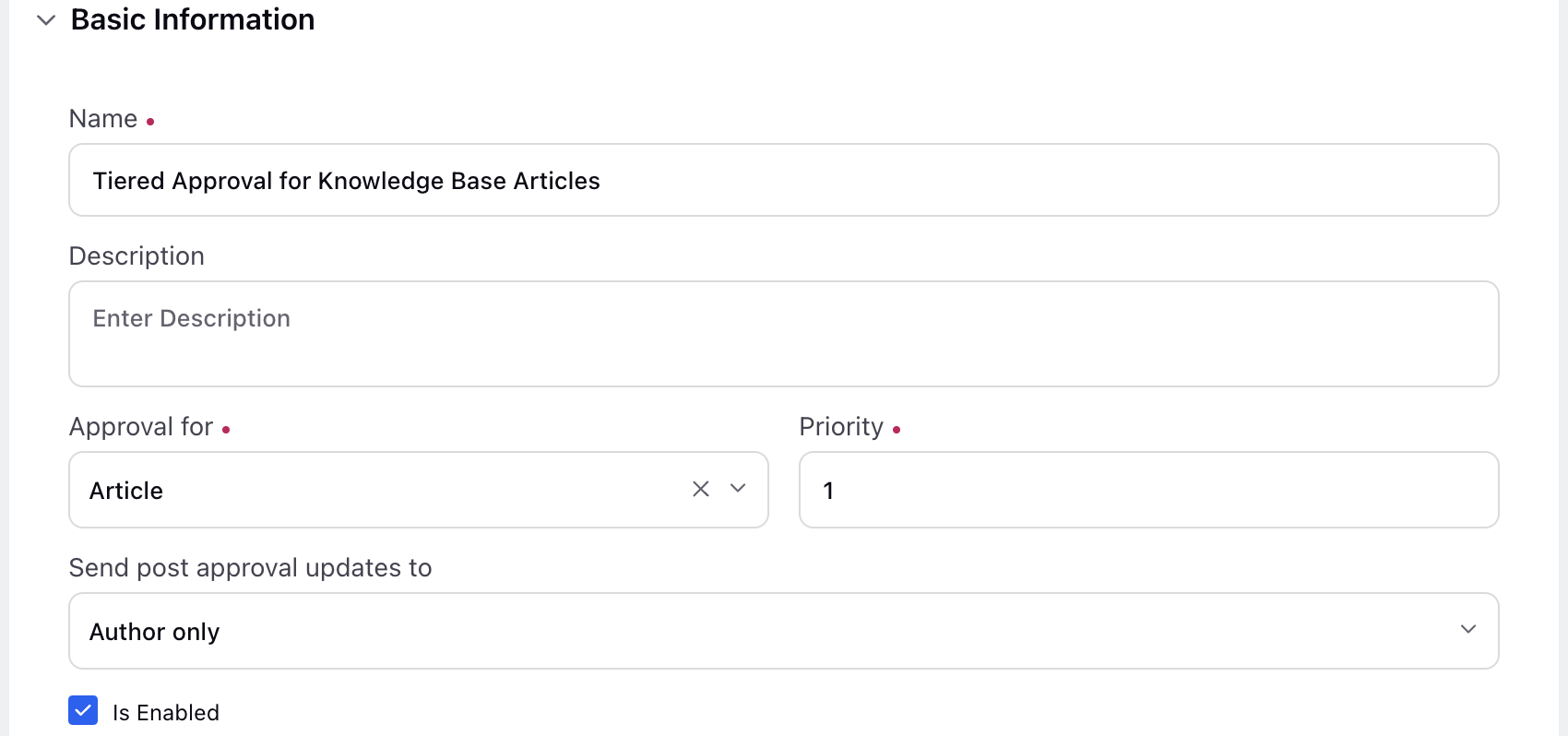
Name: Enter the name of the Tiered Approval. (Required)
Description: Provide a brief description of the Tiered Approval for easy identification.
Approval for: Select Article. (Required)
Priority: Set the priority of the Tiered Approval. The lower the value, the higher the priority. 1 is high, 100 is low. (Required)
Send post approval updates to: Choose who should receive notifications when a request is reviewed in the Tiered Approval process. Following are the available options:
Author Only: Only the request creator (agent) receives notifications. Selected by default.
Author and Approvers: Both the request creator (agent) and approvers will receive notifications.
Is Enabled: Select this checkbox to activate the Tiered Approval.
Set Entry Criteria
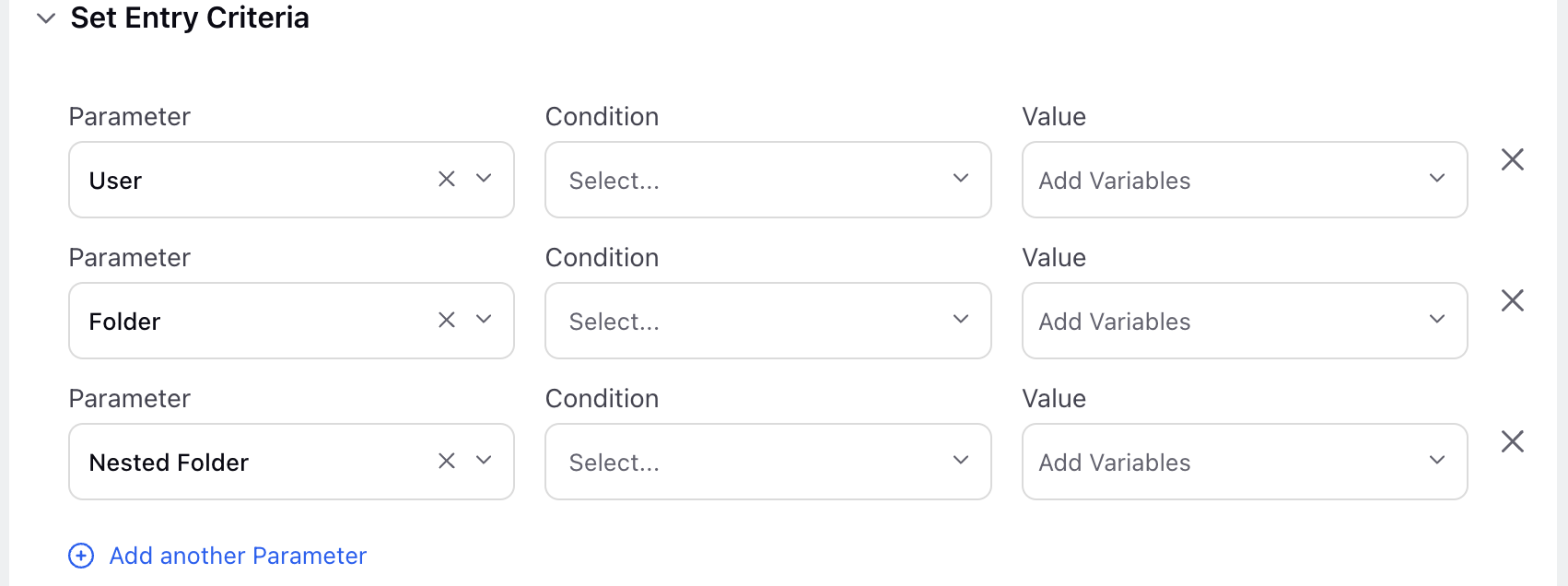
Parameter: Select where the Tiered Approval will be available for selection. The following are the available options:
User: Select the user(s) who can select the Tiered Approval for article approval.
Folder: Select the Knowledge Base Categories for which this Tiered Approval should be available when creating an article.
Nested Folder: Select the Knowledge Base Categories and any available sub-categories for which this Tiered Approval should be available when creating an article.
Condition: Select In or Not In, according to your preference.
In: Use this condition to include records where the field value matches any value from a specified list.
Not In: Use this condition to exclude records where the field value matches any value from a specified list.
Value: Select the values depending on the selected parameter.
You can also create a chain of approvals when multiple approvers need to approve a task.
For more information, see Create a Tiered Approval.
Initiate Approval Workflow for Knowledge Base Articles
After you configure a Tiered Approval workflow for Knowledge Base articles, authors can use it to review and validate articles before publication.
Prerequisites for initiating an approval workflow for Knowledge Base articles:
Open the article in Edit mode.
Ensure the article is in the Draft state.
Ensire there are no unsaved changes. If needed, select Save as Draft before submitting for approval.
Follow these steps to initiate an approval workflow for Knowledge Base articles:
Open the articles in Edit mode.

Select Send for Approval from the bottom right of the article editor to open the Send for Approval dialog box.

Fill in the required fields on the Send for Approval dialog box. Fields marked with a red star are mandatory. Below are the descriptions of the fields on this dialog box:
Approval Path: Select the approval workflow that the article will follow. The selected Tiered Approval determines the reviewers, approval levels, and sequence required before the article can be published. Only one path can be selected. (Required)
Status on Approval: Select the status that will be applied to the article after it completes the approval workflow. (Required)
Available options include:
Ready to Publish: Sets the article to a state where it can be published after approval.
Approved: Marks the article as approved without requiring an additional publish step.
 Note: The following fields are shown only when Ready to Publish is selected in the Status on Approval field.

Schedule Publish Date: Enable this toggle to configure scheduled publishing and unpublishing of the article after it completes the approval workflow. By default, this toggle is disabled.
Timezone: Select the time zone for the scheduled publishing and unpublishing actions. All selected dates and times are applied based on this time zone. (Required)
Publish Date: Select the date and time when the article should be published. (Required)
Note: If the article does not complete the approval workflow before the scheduled publish date, the publishing schedule is automatically cancelled.Unpublish Date: Select the date and time when the article should be unpublished. This field becomes configurable only after you set the Publish Date.
Click the Submit button to send the article into the selected approval workflow with the configured status.
This completes the process of initiating the approval workflow for a Knowledge Base article. The article transitions to the Approval state, and follows the defined approval path, and relevant users in the selected tiered approval workflow receive a system notification informing them of the submission.
Filter Articles by Review and Approval Status
You can filter Knowledge Base articles based on their review outcome and approval workflow status to quickly find and manage relevant content.
Use review status filters to identify whether an article has been:
Approval
Approved
Rejected
Ready to Publish.

In addition, you can filter articles by their current position in the approval workflow, such as:
Sent for Approval
Approval Required.

These filters help you streamline review processes, track article progress, and take timely action on articles that require attention.
Review Knowledge Base Articles in the Approval Workflow
Reviewing Knowledge Base articles in the approval workflow allows you to assess, validate, and take action on articles that have been submitted for approval. As a reviewer, you can examine the content, ensure it meets quality and compliance standards, and either approve it or request changes based on your organization’s requirements. This process helps maintain content accuracy, consistency, and reliability.
You can review the article using either of the following options:

From the Overview section in the article's Third Pane view.

Within the article editor in Edit mode.
You can perform the following actions:
Approve: Approve the article and move it to the next stage in the approval workflow, or mark it as complete if it is the final approval step. Based on the workflow configuration, the article status changes to Approved or Ready to Publish.
Reject: Reject the article and return it to the author for revisions. You can provide feedback or comments to guide the required changes. This will change the article's status to Rejected and cancels any remaining steps in the approval workflow.
Edit and Approve: Make the necessary updates to the article and approve it in a single step. This allows you to correct minor issues without sending the article back to the author.
Authors receive in‑platform and email notifications, along with a push notification on the Sprinklr mobile application (if configured) when the article is approved or rejected.
Approval Status and Reviewer's Comments
In the article's Third Pane view, under the Overview tab, authors can access the approval flow details for an article. This includes visibility into all levels of the approval process, indicating where the article currently stands within the multiple levels of approval. Authors can see which level the article has been approved at, which level it's currently assigned to, and any pending approval levels. This provides authors with a comprehensive overview of the approval status and progression of their article.

Additionally, you can view reviewer comments in the Collaborate tab from the article’s Third Pane.

Sprinklr Mobile App Notifications
In the Sprinklr Mobile App, you can receive push notifications about actions taken or required on Knowledge Base articles. These notifications ensure smooth functionality across relevant event types in the Knowledge Base. Below are the push notifications available on the Sprinklr Mobile App and the scenarios in which they will be received:
Scenario | Label |
When you receive a request to approve an article. | Title: "Article Pending Approval" Body: "You have a new article for approval. Approve now!” |
When an article is approved. | Title: "Article Approved ✨" Body:“Your article has been approved!” |
When an article is rejected. | Title: "Article Rejected" Body: “Your article has been rejected. Please review!” |