Raise Time Off Requests on Agents' Behalf
Updated
Supervisors can submit Time Off Requests on behalf of agents. This is helpful in situations where agents may not have system access due to network issues, technical problems, sudden emergencies, or when they are on vacation.
Prerequisites for raising Time Off Requests on agents’ behalf:
Workforce Management should be enabled for the environment.
You must have access to the Workforce Manager Persona App.
Submit Request For Agent permission under the Time Off Request section of the Workforce Management module.
Existing Time Off Policy assigned to the agents.
Follow these steps to raising a Time Off Request on an agent’s behalf:

Go to the Workforce Manager Persona App on the Launchpad.
Select Agents from the Left Pane and then Real Time Adherence from the left drawer.

Click the vertical ellipsis (⋮) icon corresponding to the agent you want to raise a Time Off Request for. This will show a list of options.
Select Raise Time Off Request. This will open the page to create a Time Off Request for the selected agent only.
Fill in the required fields on the Time Off Request page. Fields marked with a red dot are mandatory. Below are the descriptions of the fields on this page:
Time Off Activity: Select the Time Off you want to apply from the list, such as casual leaves, earned leaves, sick leaves, and more. This determines the details of the Time Off, such as whether it is paid or unpaid. (Required)
 Note: The options shown in the Time Off Activity list are determined by the Time Off Policies assigned to you.
Time Off Length: Choose whether the Time Off is for a Full Day or a Partial Day. (Required)
Time Off Duration: Specify the duration for which you are requesting the Time Off. (Required)
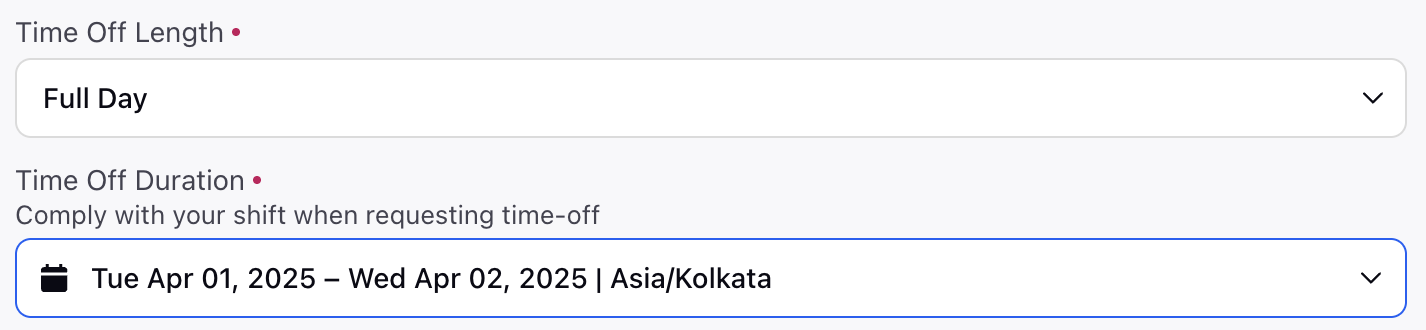
Full Day: If "Full Day" is selected in the Time Off Length field, choose the day(s) for the Time Off request.
Note: For Full Day Time Offs, the amount deducted from your balance will match your scheduled daily working hours. For example, if your standard shift is 8 hours, then 8 hours will be deducted from your Time Off balance.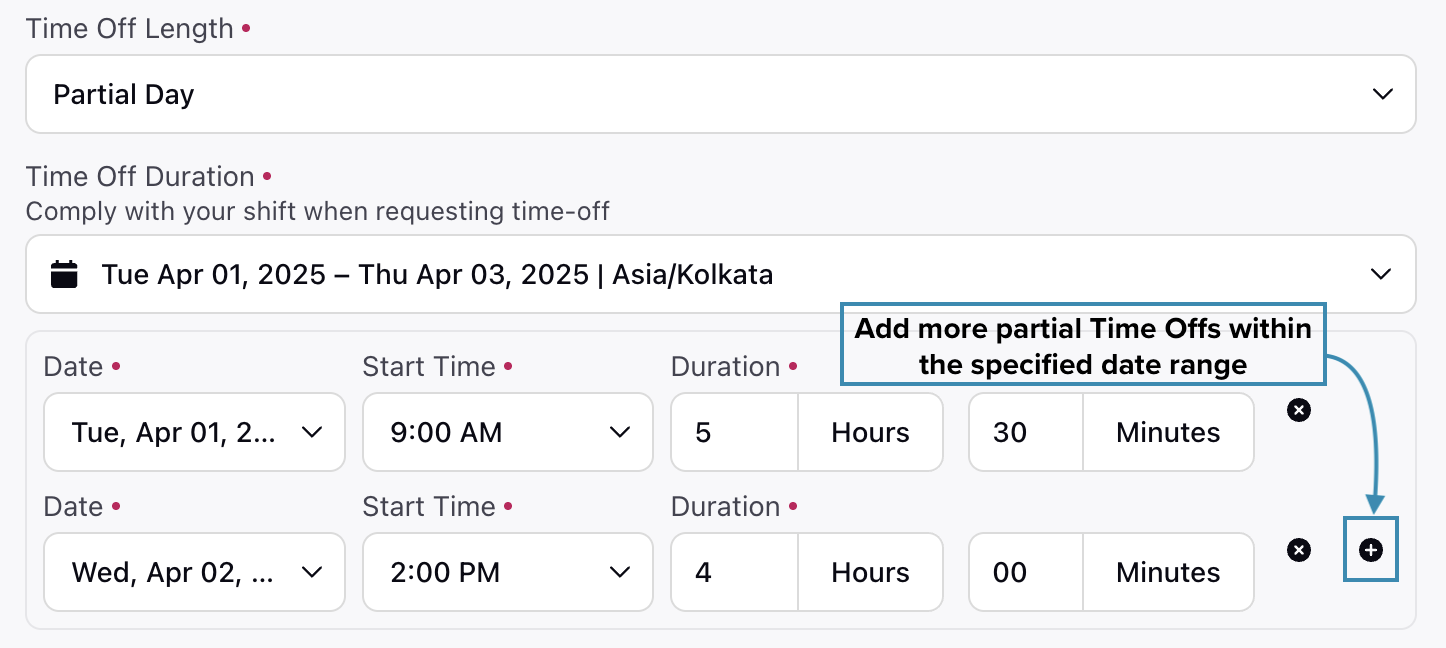
Partial Day: If "Partial Day" is selected in the Time Off Length field, choose the day(s) for the Time Off request. Then, enter the start time in the Start Time field and specify the duration in the Duration field.
If multiple days are selected, click the "Add Value" button to apply for multiple partial Time Offs with varying or identical start times and durations.
Reason: Mention the reason for the Time Off.
Supporting Documents: Upload the necessary documents for your Time Off request. This field is mandatory if the selected Time Off Activity requires documentation. PDF, JPEG, and PNG files are supported.
Click the Request button at the bottom right of the page to submit the Time Off request(s).
The Time Off Request created by the supervisor will follow the configured approval workflow and will appear on the agent's My Request page.
Note: Supervisors can raise Time Off Requests for one agent at a time.
Note: Supervisors can submit Time Off Requests only for days the agent hasn’t already requested.
Drag-and-Drop Time Off Activity in Schedule Scenario
You can drag and drop Activities from the Activity catalog into an agent’s schedule while viewing a Schedule Scenario in the Intraday View. This also allows you to assign Time Off activities directly within the scenario.
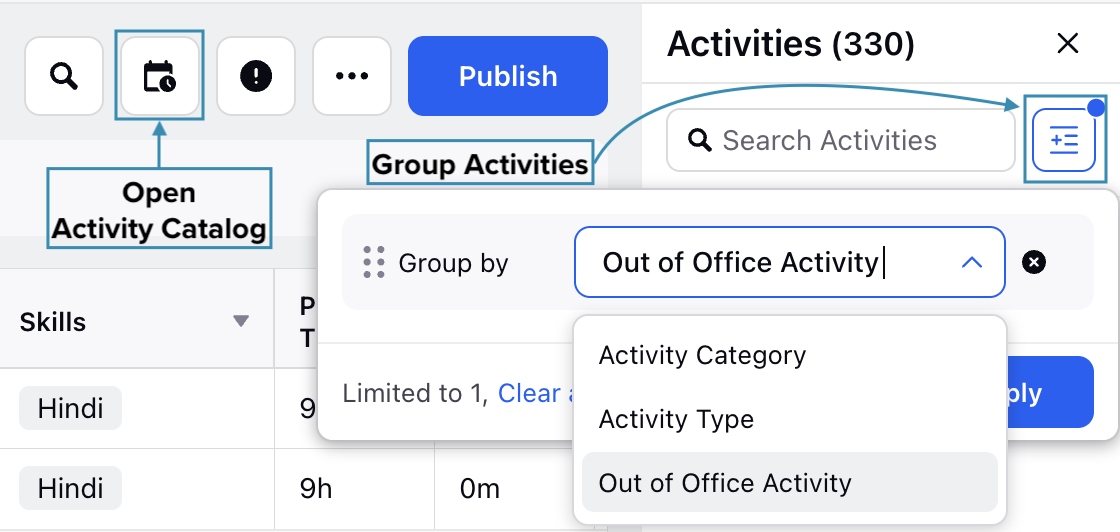
Click the Add Activities icon at the top, then select the required Time Off activity from the Out of Office group in the catalog on the right. When dragging and dropping an Out-of-Office activity from the Activity Catalog, click the arrow next to the activity and enable the Apply to Entire Shift toggle to assign it to the entire Shift.

Note: Assigning a Time Off activity will override any existing activity scheduled for that date.