Configure Deployments
Updated
This guide provides an overview of configuring Deployments for various use cases in AI+ Studio using Pipelines.
In the "Deploy Your Use Cases" section, you can manage and monitor the deployment of all AI-driven use cases across Sprinklr. This centralized hub enables you to configure, test, and optimize AI workflows tailored to your specific requirements.
Pipelines is an intuitive, free-flowing canvas designed for creating and managing AI workflows. It supports both simple single-step tasks and complex multi-step processes, offering the flexibility and efficiency needed for seamless workflow design.
Prerequisites
Ensure that the appropriate permissions are configured before attempting to access or modify any deployment.
Access to modules within each product suite is determined by specific permissions granted for each module. Below are the permissions and their corresponding actions:
Permission Name | Granted | Not Granted |
View | Can view the deployments for all use cases in the module. Cannot create, edit, or delete deployments. This permission enables the module to be visible on the Launchpad. | Cannot view the module on the Launchpad. |
Edit | Can view, create, and edit deployments. Visibility of global CTAs for creating and editing custom deployments is enabled by this permission. | Can only view deployments for all use cases but cannot create, edit, or modify them. |
Delete | Can delete deployments. Visibility of delete actions for custom deployments is enabled by this permission. | Cannot delete deployments. |
Access Deployments
Follow these steps to access the Deployments in AI+ Studio:

Open the AI+ Studio module in the Sprinklr Launchpad.
Select the 'AI Use cases' card. Refer to Supported List of Use Cases for more details.
Choose the use case for which you want to create a deployment.
 Note: For each AI use case, Sprinklr provides a default deployment that you can use as-is. Alternatively, if you require personalized settings for your use case, you have the option to configure a Custom Deployment tailored to your specific needs.
Create Custom Deployment
Click the + Add Deployment button in the top-right corner to create custom deployment. Enter the details in the Basic Details window about your deployment.
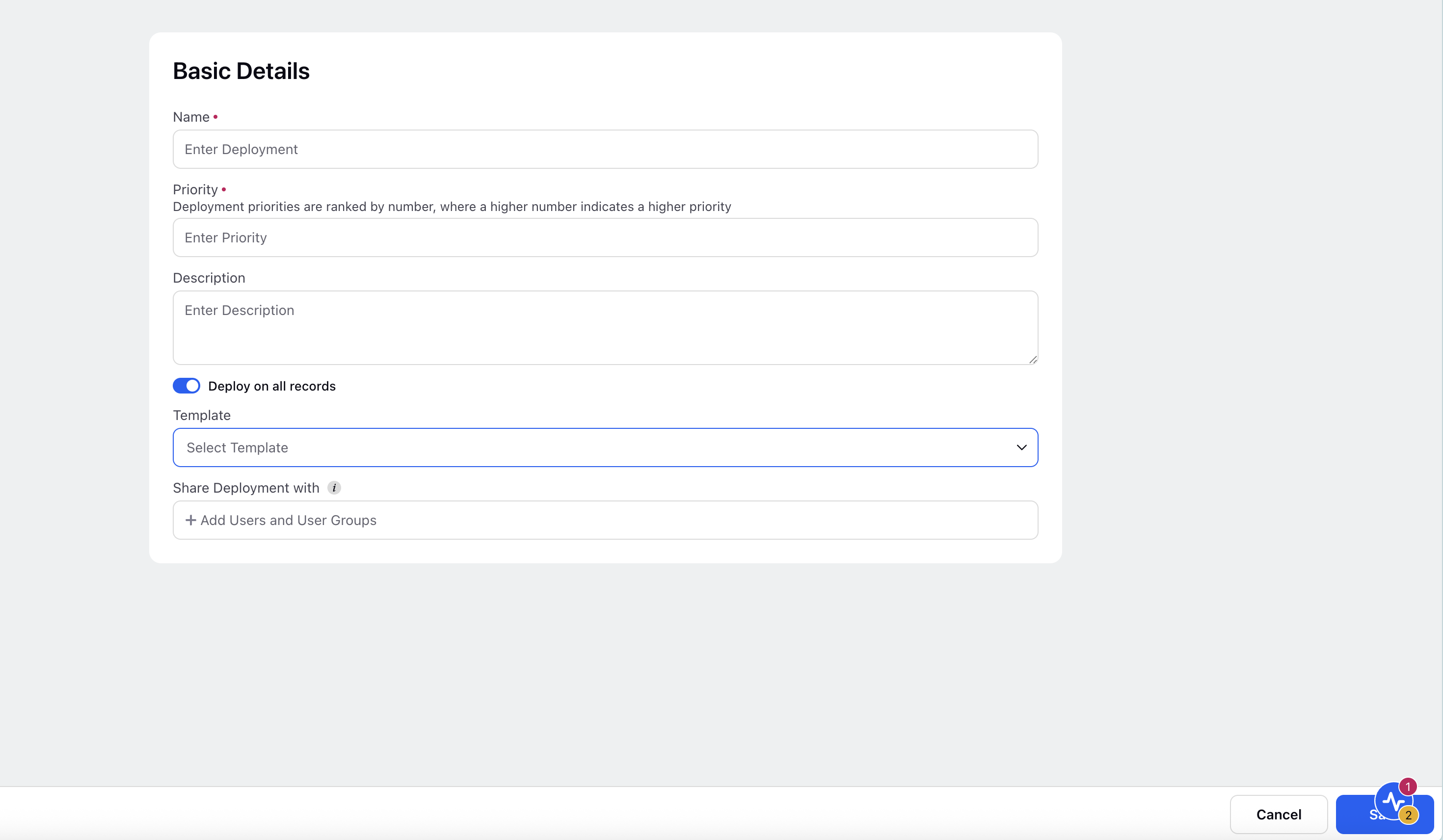
The following table describes the input fields of Basic Details screen:
Input Field | Description |
Name (Required) | Assign a clear and meaningful name to your deployment to ensure it is easily identifiable. |
Priority (Required) | Specify the priority level for this deployment. If multiple deployments are applicable to the same record, the deployment with the highest priority will take precedence. |
Description (Optional) | Include a detailed description outlining the purpose and intended persona for this deployment. |
Deploy on all Records | Switch the toggle to deploy it on all records. |
Template (Optional) | Select a preconfigured template for your deployment. |
Share Deployment with (Optional) | Specify which users or user groups can access and use this deployment. This setting enables collaboration and centralized governance. |
Click the Save button to save the basic details. This action will navigate you to the Pipelines screen, where you can configure your AI workflow using the available nodes.
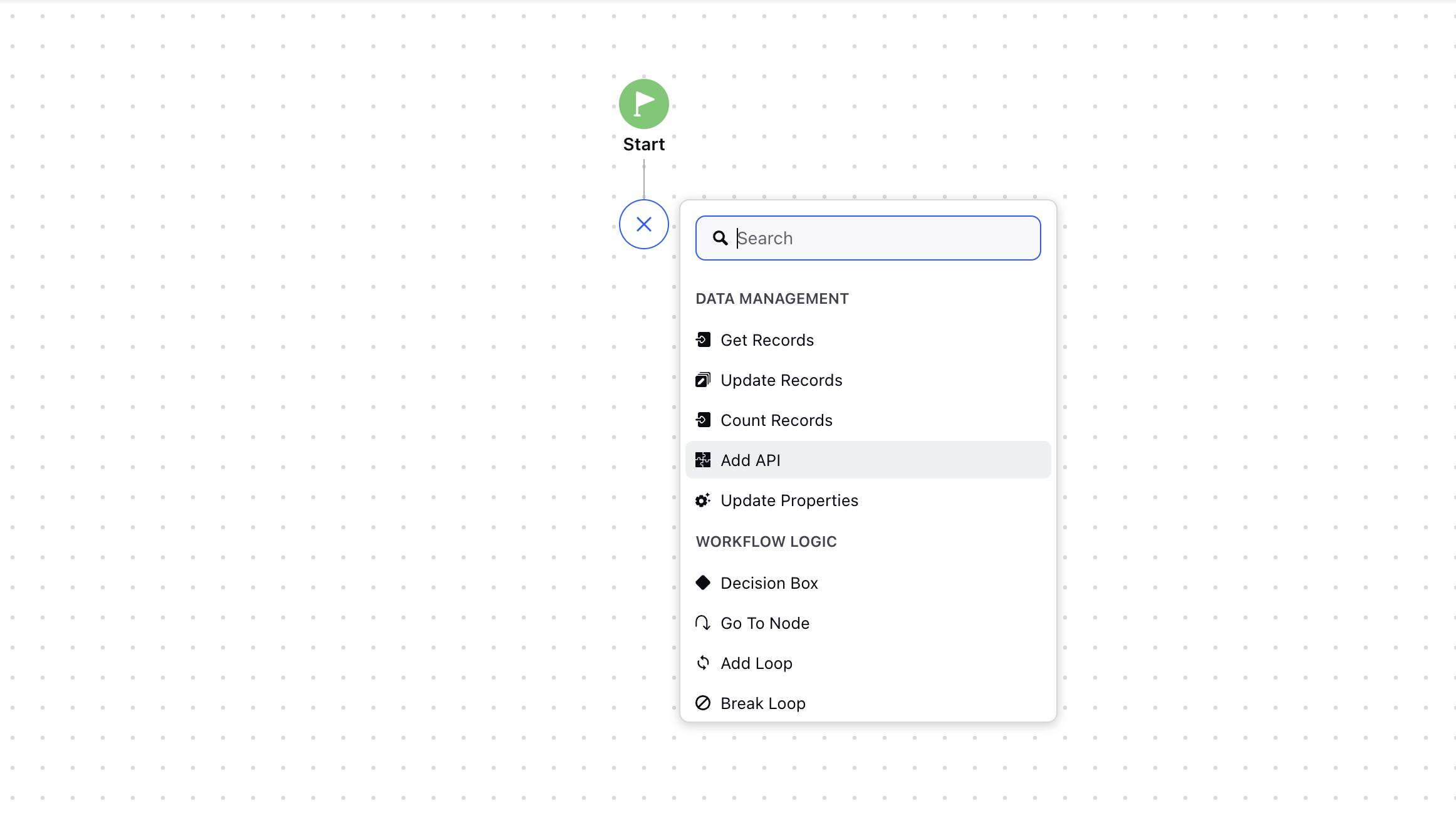
Available Nodes in Pipelines
The following nodes are available in the Pipelines to configure your AI workflows.
Data Management Nodes | |
Get Records | Retrieves data from Sprinklr’s database by applying filters and saves the results into a variable. |
Update Records | Updates one or more entries for a specific entity type by specifying conditions. Refer to managing records through guided workflows for more details. |
Count Records | Counts the records of a specific entity type by applying filters. |
Add API | Connects with external systems to fetch data or perform actions on those systems. Refer to making external API calls through guided workflows for more details. |
Update Properties | Defines variables to store information, which can be manipulated using Groovy scripts. |
File Operations Node | The File Operations Node enables you to manage files within AI+ Studio pipelines. Refer to File Operations Node guide for more deatils. |
Workflow Logic Nodes | |
Decision Box | Creates if-then logic within guided workflows. |
Go To Node | Enables navigation to specific parts of the workflow. |
Add Loop | Creates a loop structure for iterative operations. |
Break Loop | Stops the current loop execution. |
Sprinklr AI Nodes | |
Prompt | Configures AI prompts for processing specific inputs. Refer to Configure Prompt Node in AI Deployment Pipelines for more details. |
Flow Actions Nodes | |
Final Output | Marks the end of the process flow and specifies the variable used to pass the final output of the deployment. |
Abort | The Abort node is a Flow Action node in AI+ Studio deployment pipelines that stops workflow execution and returns a custom message to the user. Refer to Abort node guide for more details. |
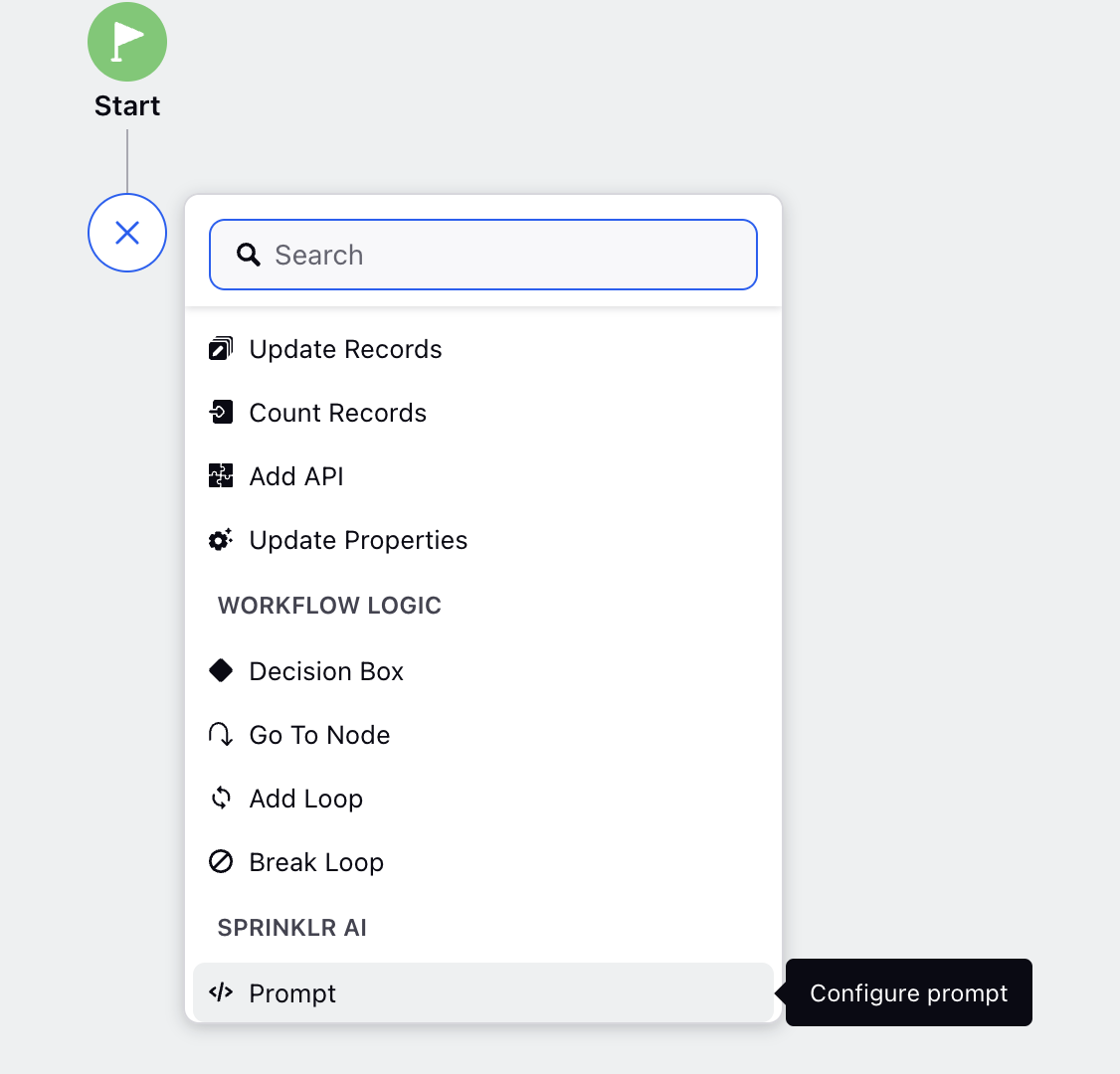
Adding a Final Output Node
After configuring the depolyment pipeline:
Add the Final Output element to your workflow.
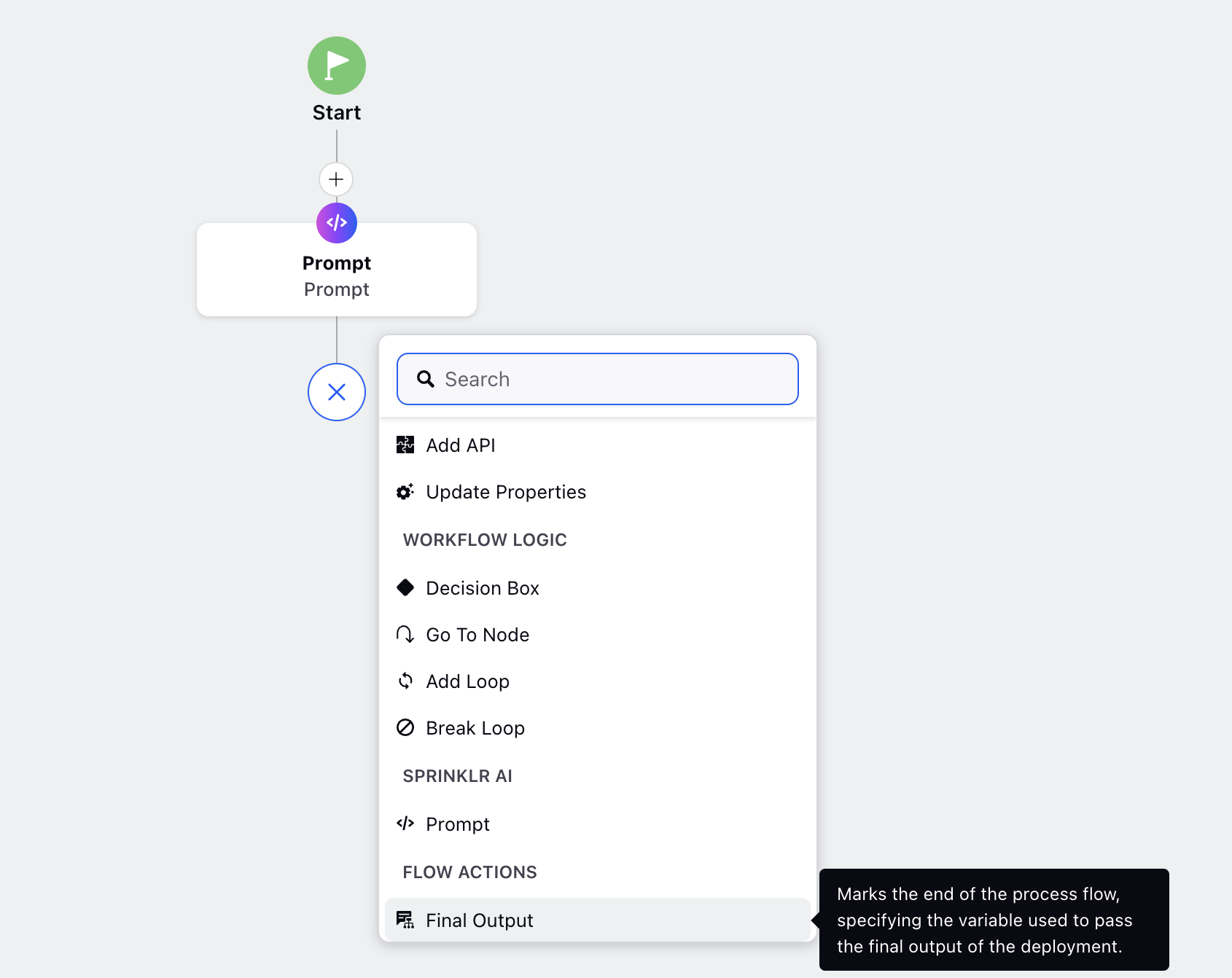
Select the output variable from the dropdown.
Click Save to save your final output configuration.
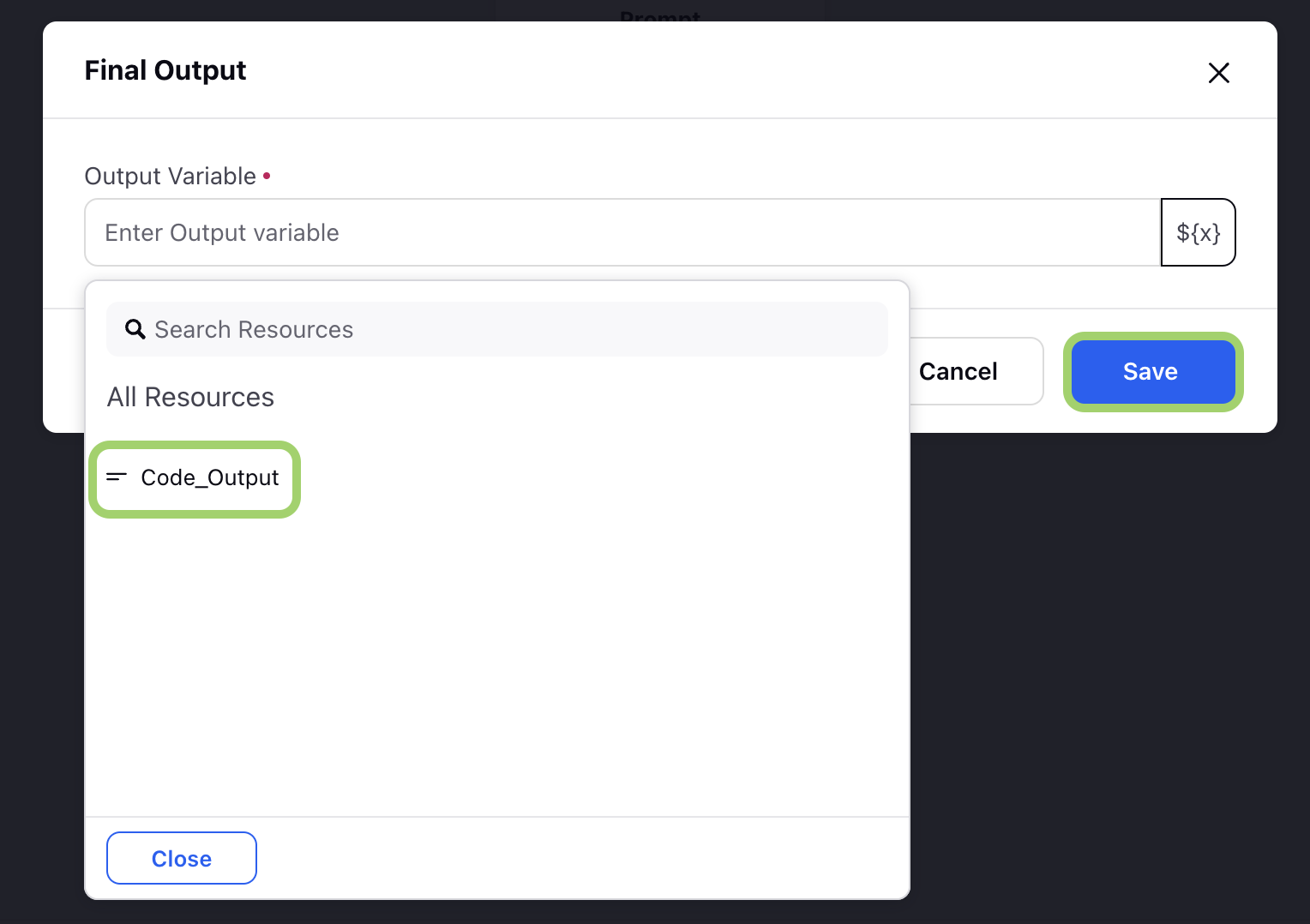
Note: Ensure that the Final Output node is positioned after the Prompt node in the workflow sequence.
Once the Final Output node is configured. Click ‘Save and Deploy’ button to deploy your use case.
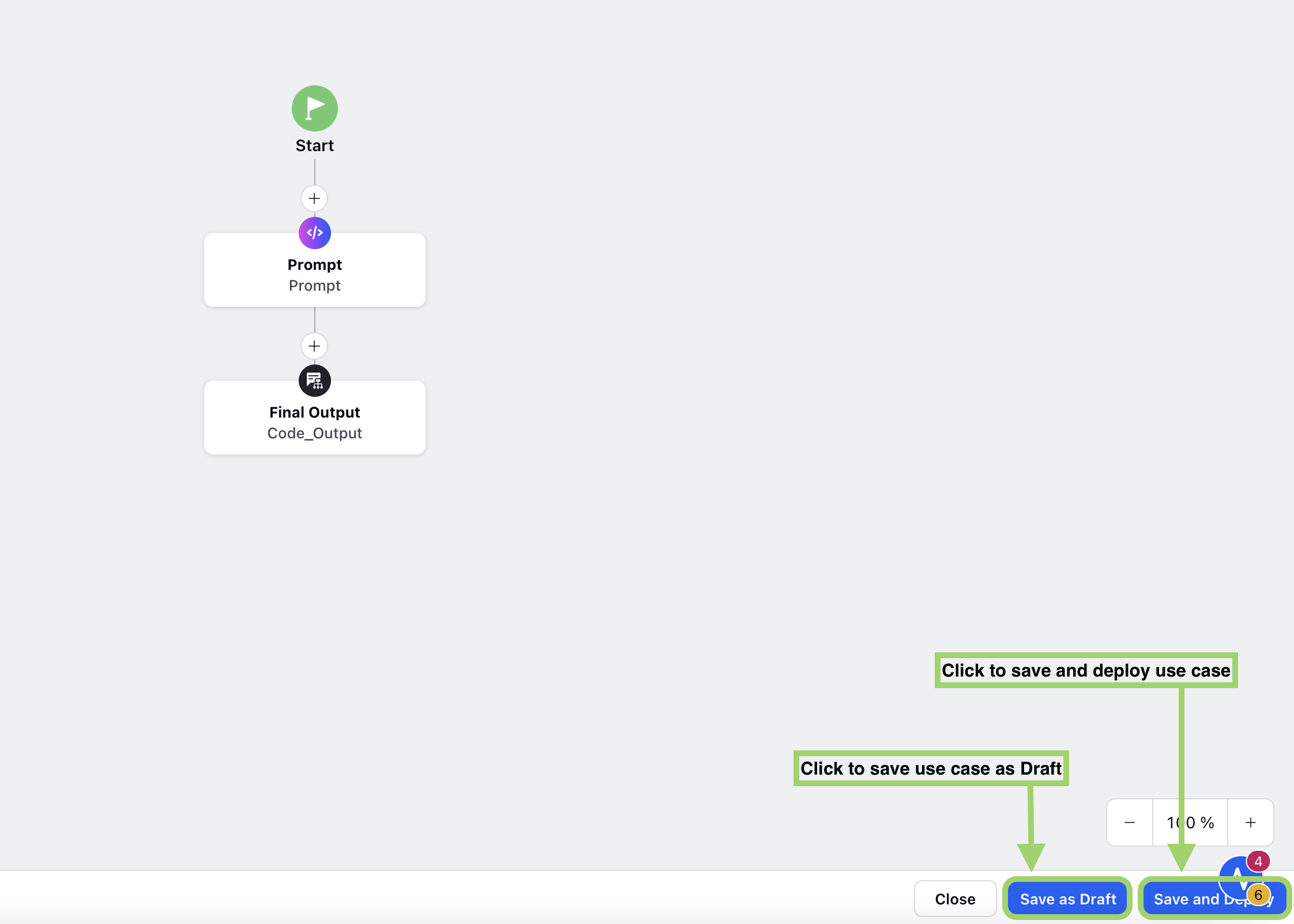
By following these steps, you can effectively build and deploy AI workflows using the Pipelines in AI+ Studio.
Configuring deployments in AI+ Studio using the Pipeline enables you to design and manage AI workflows tailored to a wide range of use cases. With features like customizable deployment settings, audit trails, and debugging capabilities, you can ensure that your AI pipelines are both efficient and transparent.
Refer to Manage Deployments for more details.