Configure Prompt Node in AI Deployment Pipelines
Updated
The Prompt Node is used to define how the AI model processes input and generates output within a deployment pipeline. It combines model configuration, prompt instructions, and runtime settings to control how the Large Language Model (LLM) behaves.
Each Prompt node includes three main areas:
Hyperparameters (model and runtime configuration)
Input (prompt definition)
Output (request and response preview)
Well-configured prompts improve the accuracy, consistency, and reliability of AI outputs.
Steps to Add Prompt Node
Follow these steps to add the Prompt node to your pipeline:
Navigate to your AI Use Case Deployment Pipeline.
Either open an existing pipeline or create a new one.
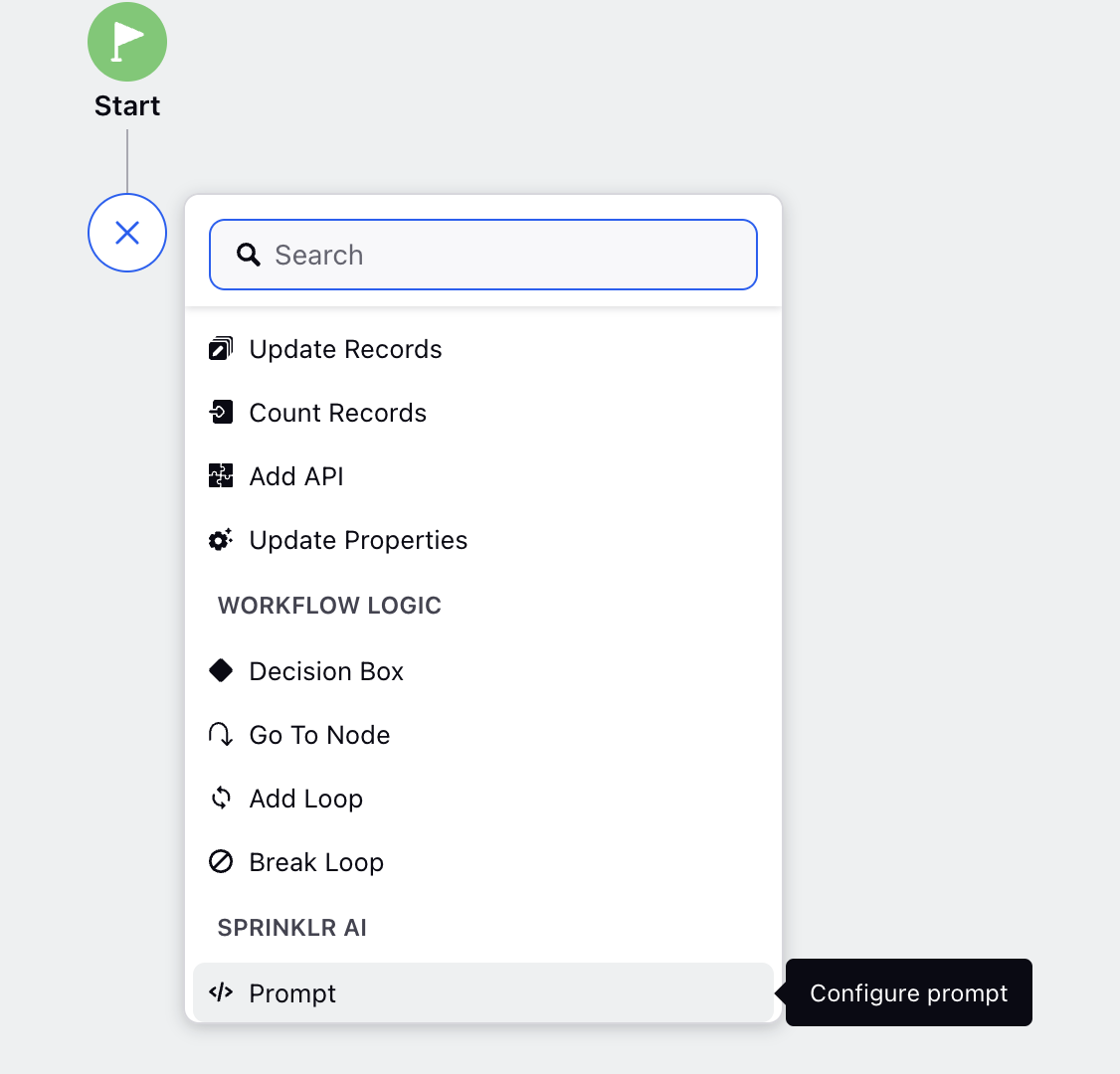
Click the ‘+’ button on the pipeline canvas.
Select Prompt under Sprinklr AI.
The node configuration screen will appear.
Prompt Node Configuration
The Prompt node configuration screen is divided into three panes:
i) Hyperparameters: This pane allows you to configure the Provider, Model, and other related parameters required for the prompt.
ii) Input: In this pane, you can define the System Prompt and Base Prompt that serve as inputs for the prompt model. Additionally, you can test your input prompt using the Test button.
iii) Output: This pane displays the submitted Request and the corresponding Response from the prompt model, helping you review the results.

Hyperparameters
The Hyperparameters section defines how the model is selected and how it behaves during execution.
Provider: Specifies the AI provider used for this node. The Provider determines the infrastructure and supported models available for execution
Model: Specifies the model used to process the prompt. The selected model affects output quality, latency, and cost.
Additional Settings: Toggle the Additional Settings switch to configure additional hyper-parameters. The following additional parameters can be configured using this option:
Field Name | Description |
Temperature | Temperature controls the randomness or creativity of the AI model's responses. A higher temperature (e.g., 0.8) makes the model more creative and diverse in its outputs, while a lower temperature (e.g., 0.2) makes the responses more focused and deterministic. |
Frequency Penalty | Frequency penalty reduces the likelihood of the AI repeating words or phrases. It discourages repetition by assigning a penalty to tokens that have already appeared in the output. |
Stop Sequence | Stop sequence is a predefined token or set of tokens that signal the AI model to stop generating text. When the model encounters this sequence, it ceases further output. |
Top P | Top P (or nucleus sampling) is a method that restricts the model's token selection to the smallest set of tokens whose cumulative probability exceeds a specified threshold (e.g., 0.9). The model then samples from this subset, rather than the entire vocabulary, to ensure both diversity and coherence in its output. Use this parameter to balance randomness and reliability in generated outputs. A lower Top P (e.g., 0.5) will make responses more focused, while a higher Top P will increase diversity. |
Top K | Top K limits the model's choices to the top K most probable tokens at each generation step. For example, if K=10, the model will consider only the 10 most likely next tokens and discard the rest. Use this parameter to control output quality and coherence. A smaller K value restricts the model to safer, more deterministic choices, while a larger K increases randomness. |
Presence Penalty | Presence penalty reduces the likelihood of the AI model generating words or phrases that have already appeared in the output. Unlike frequency penalty, which focuses on how often a token appears, presence penalty applies even if the token has appeared only once. Use this parameter to encourage variety and creativity in the model's responses by discouraging repetition of previously used tokens. |
 Note: The additional settings parameters varies for each AI Provider.
PII Masking Template: Select a PII masking template from the dropdown if you want to to hide sensitive details. For more details refer to PII Masking in AI+ Studio.
Guardrails: Add one or more Guardrails from the dropdown if you want to enforce responsible AI usage by restricting the generation or processing of harmful, inappropriate, or policy-violating content. For more details, refer to Configure Guardrails in AI+ Studio.

Continue Pipeline post Error: This toggle controls pipeline behavior when one or more guardrail is detected.
- Enabled: Pipeline continues execution even if a Gaurdrail is detected in input or output.
- Disabled: Pipeline stops on error.
Error Variable: Enter the variable that stores error details when execution fails. It is useful for debugging and downstream handling. This field is only visible when Continue Pipeline post Error toggle is enabled.
Output Variable: Enter the output variable that stores the generated output.
Configure Fallback Models for External Providers
You can configure fallback models in the Prompt node to ensure uninterrupted execution when the primary model fails. A fallback model is a backup provider–model combination that is used automatically when the selected model cannot process a request. This helps maintain reliability and continuity in AI workflows.
Fallback models are executed in a defined priority order. If the primary model fails due to specific errors, the system switches to the next configured fallback model.

Follow these steps to configure fallback models:
Click the fallback configuration icon next to the Model field.
In the Fallback Models screen, configure the following fields:

Error Categories
Select the error conditions from the dropdown menu that should trigger fallback execution.
For example, fallback can be triggered when:
- The request exceeds context limits
- The request is blocked due to policy or authorization issues
- Other model-level or provider-level failures occur
Only the selected error categories will trigger fallback.
Fallback Models
Defines the provider–model combinations to use when fallback is triggered.
Each entry consists of:
- Provider: The AI provider to use as fallback
- Model: The model under the selected provider
You can configure multiple fallback models. These are executed in priority order.
Add or remove fallback models
Use the following controls to manage fallback configurations:
- Set Fallback Models: Add a new provider–model pair
- Remove icon (×): Remove a configured fallback model
- Drag handle: Reorder fallback models to define execution priority
Behavior
- If the primary model fails, the system automatically evaluates fallback models in sequence.
- Fallback execution occurs only for configured error categories.
- If all fallback models fail, the request fails and is logged in the deployment’s debug output.
When to use fallback models
Configure fallback models when:
- You use external providers that may have rate limits or availability issues
- Your workflow requires high reliability and minimal downtime
- You want to handle edge cases such as context length or safety restrictions gracefully
Input Pane
Set the System Prompt which establishes the overarching behavior, tone, or rules for the AI throughout a session.
Set the Base Prompt which represents the fundamental instructions provided by the user or application to achieve specific outcomes.
You can also attach media inputs—such as audio, images, or documents—to the base prompt by selecting the Attach Media button. This button is visible only if the selected AI model supports multimodal input.

Use placeholders ("@") to add variables. This will open the Manage Resources popup containing all available variables:
- Asset Class Variables: Variables received from the context of the use case.
- Custom Variables: Variables added through Update Properties in the Pipelines before the current prompt node.
Test the Prompt
Click the Test button located in the top-right corner of the Input pane to evaluate your prompts.
Upon clicking Test, a modal will appear, displaying fields corresponding to the use case in which you are deploying your prompt. Select your input from the dropdown for Placeholder parameters and write your input in the Input cell.

Note: Each deployment use case is linked to specific asset classes, which are automatically passed to the Pipelines. These asset classes are represented as placeholder variables and can be utilized within the test node to validate your prompts effectively.
Output Pane
The output pane displays the detailed Request and Response generated through the Test.

Click the Save button in the top-right corner to save your prompt configuration.
Adding a Final Output Node
After configuring the Prompt node:
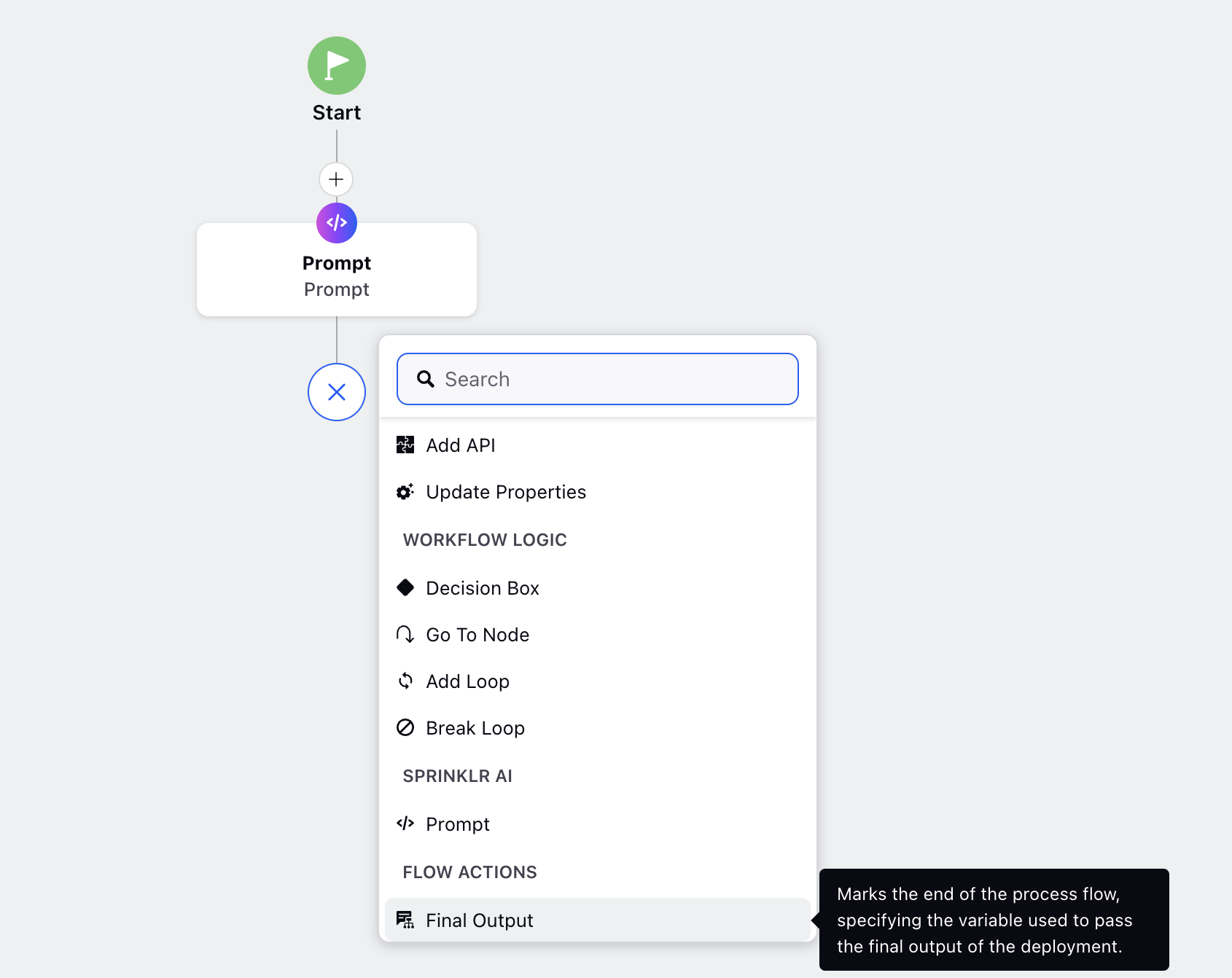
Add the Final Output element to your workflow.
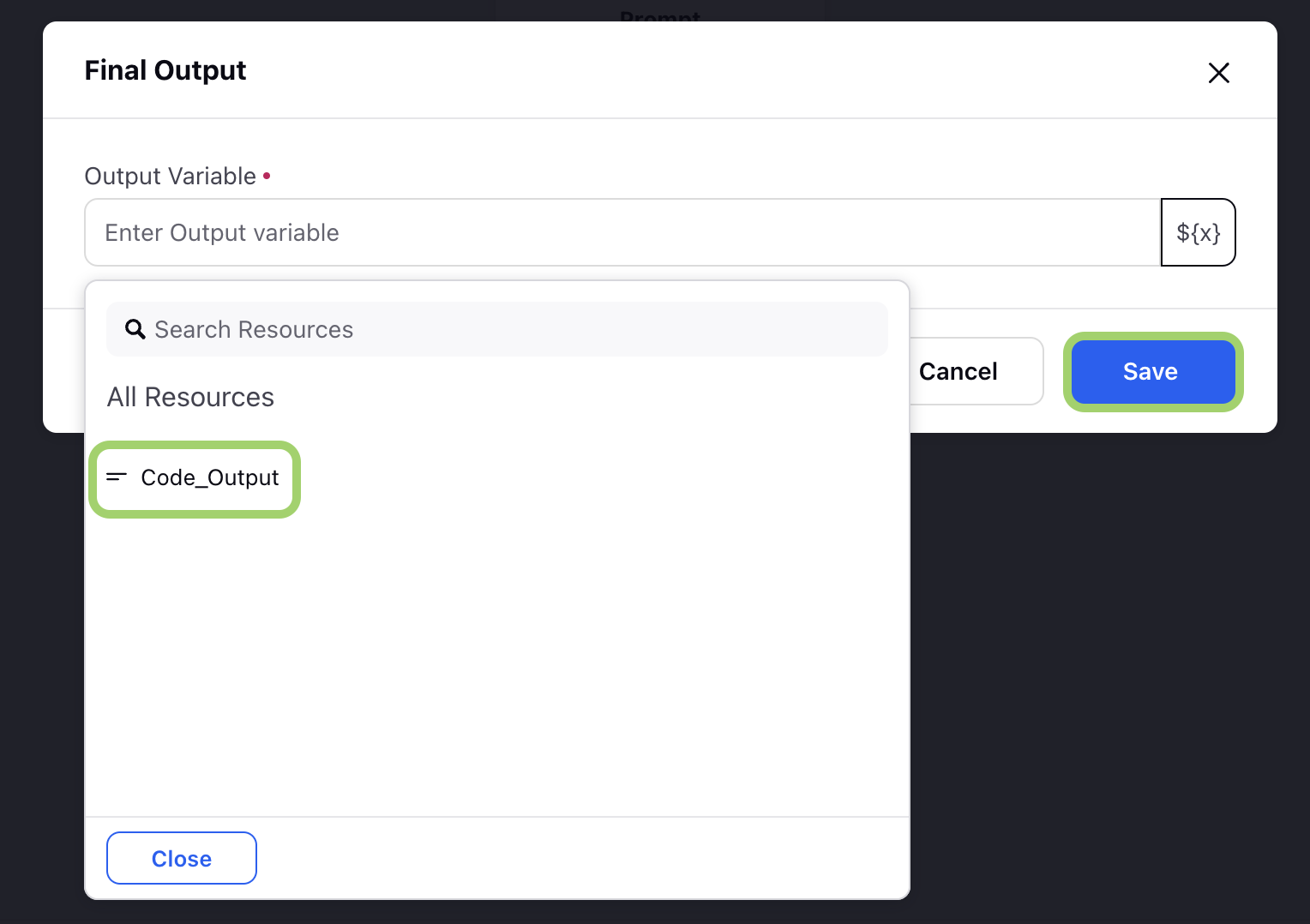
Select the output variable from the dropdown.
Click Save to save your final output configuration.
Note: Ensure that the Final Output node is positioned after the Prompt node in the workflow sequence.
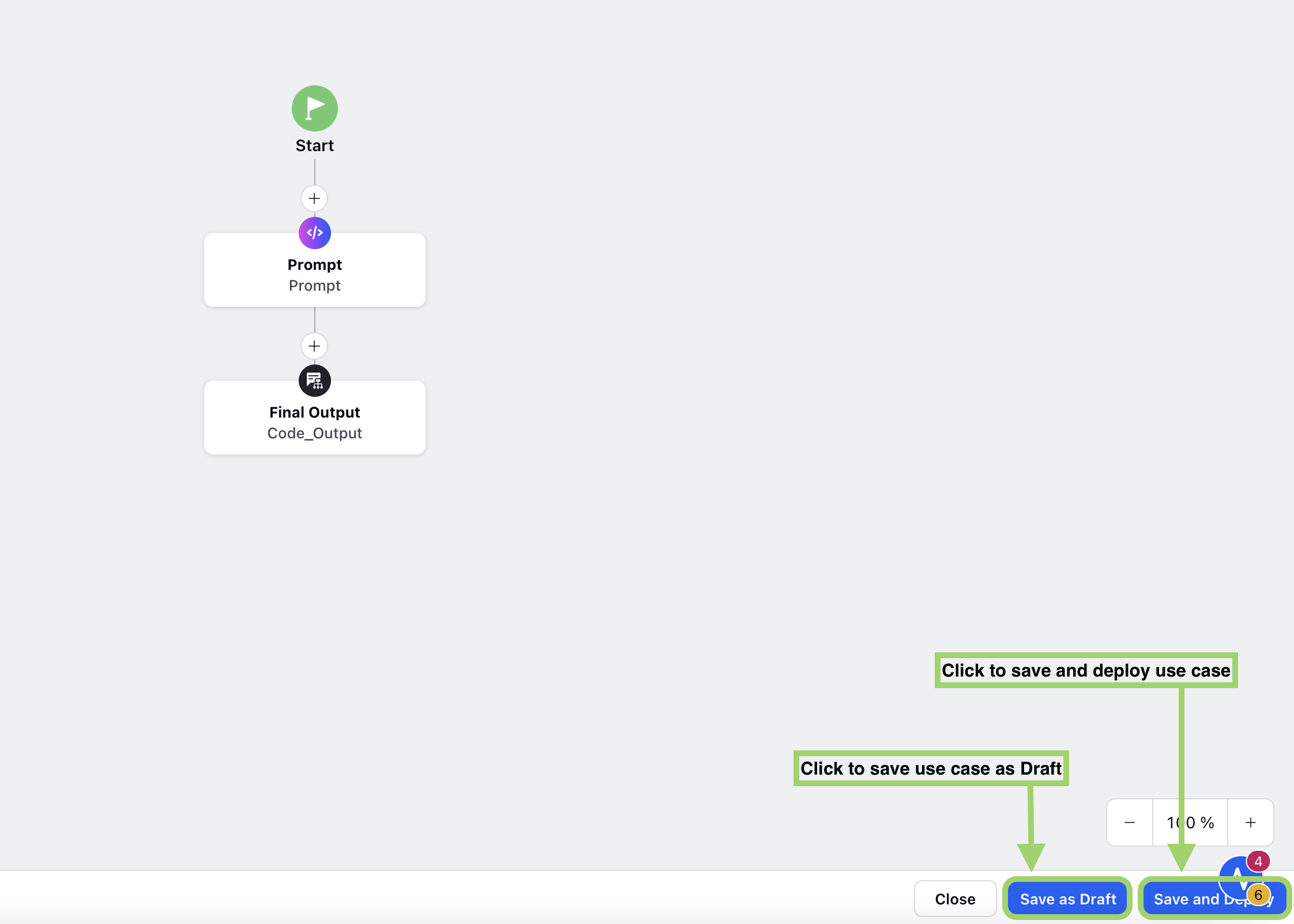
Once the Final Output node is configured. Click ‘Save and Deploy’ button to deploy your use case.