Adding embedded code within website
Updated
Website Distribution enables companies to obtain immediate feedback from their website visitors by integrating surveys on selected web pages. This feature assists in collecting information about user experience, preferences, and behaviors, allowing for data-informed decisions to enhance website usability and performance. By thoughtfully positioning surveys, businesses can effectively target pertinent feedback while monitoring essential metrics such as engagement and completion rates.
After creating a website distribution, you can copy the embed code from the Vertical Ellipsis menu and paste it into your website’s HTML to start triggering surveys for your visitors. You can refer to the article on website distribution for more details on use cases and value additions.
Prerequisites
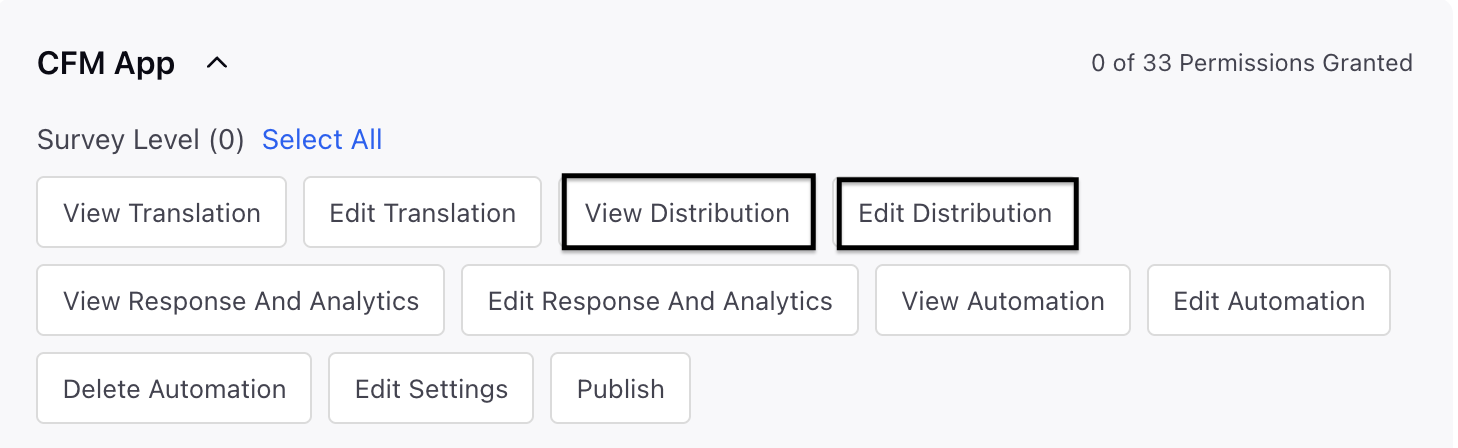
In order to access the Website Distribution, you must have the following View and Edit Distribution permissions at the Survey Level.
Accessing Embedded Code
After creating a website distribution, click the Vertical Ellipsis (3 dots) and copy the embed code.
Paste the embed code in the HTML of your website to start triggering surveys.
How to implement on a website?
This document details the implementation of the Sprinklr Website Survey or Live Chat widget across diverse web platforms. The provided JavaScript code loads the widget asynchronously and dynamically, ensuring no adverse effect on page performance.
The website survey embed code is a JavaScript snippet that loads the Sprinklr survey widget asynchronously. A customer can add it to their site directly or through a tag manager (TMS). We support integrations with majority of the tag managers like Google Tag Manager (GTM), Adobe Experience Platform Tags, Tealium iQ, Matomo Tag Manager etc.
Google Tag Manager Steps

Log in to your Google Tag Manager account: https://tagmanager.google.com.
Create a new tag by clicking Tags in the left-side menu, then click New.
Name your tag.
Click Tag Configuration and select Custom HTML.
Paste the Sprinklr Live Chat code in the Custom HTML section.
Click Triggering.
Select your trigger. To show chat on all pages, choose All Pages.
Click Save.
Click Submit.
After adding the required version details, click Publish.
Validate the implementation in preview mode before publishing broadly.
CMS Platforms

Use header/footer injection plugins or theme settings.
Avoid editing core theme files directly.
Test after theme updates.
Static Websites (HTML / PHP)
Add the full script before the closing tag on all pages.
Deploy through staging environment first.
Validate using browser developer tools (Network & Console tabs).
Examples
_1.png "Static Websites (HTML : PHP) 1.png")
Single Page Application
Add the script inside public/index.html or the root layout file.
Ensure the script loads only once during application bootstrap.
Avoid re-initializing on route changes.
This guide explains how to implement the Sprinklr Website Survey / Live Chat widget across different types of websites. The provided JavaScript snippet dynamically loads the widget asynchronously without impacting page performance.
CMS Platforms (WordPress, Drupal, Joomla)
Use header/footer injection plugins or theme settings.
Avoid editing core theme files directly.
Test after theme updates.

Static Website


Security & Performance Consideration
Ensure Content Security Policy (CSP) allows Sprinklr domain.
Widget loads over HTTPS and asynchronously.
Trigger survey only after consent where required (GDPR/CCPA).
Post-Deployment Validation Checklist
Script visible in page source.
Network call to Sprinklr handshake URL is successful.
No console errors.
Widget loads and displays correctly