Create an Announcement in Advocacy
Updated
Announcement posts are used to convey some piece of information to the users upfront with a pop-up. Whenever an announcement is live on the site, it shows up as a pop-up as soon as the user logs on to the site.
How to Use Announcements
Apart from the most common use case of Announcement being the method of presenting some important information to users, announcements can also be used to fulfill some other specific use cases as well.
They can be used to gather consent on some policies like the Social Media Usage Policy or even used to share links to surveys or other external links.
 Note: Access to this feature is controlled by a dynamic property (DP: ADVOCACY_ANNOUNCEMENT_CF_TARGETING_ENABLED - GenericConfigParam). To enable this feature in your environment, reach out to your Success Manager. Alternatively, you can submit a request at tickets@sprinklr.com.
Steps to Create an Announcement
Click the New Tab icon
. Under the Sprinklr Social tab, click Quick Publish within Engage. You can also publish through the publishing option available directly on Advocacy sites.
On the Create Post window, search and select the required Advocacy account(s) in the Accounts field. You can also use Advanced Search to narrow your searches by a series of different filters.
Select Announcement as the Type of Message.
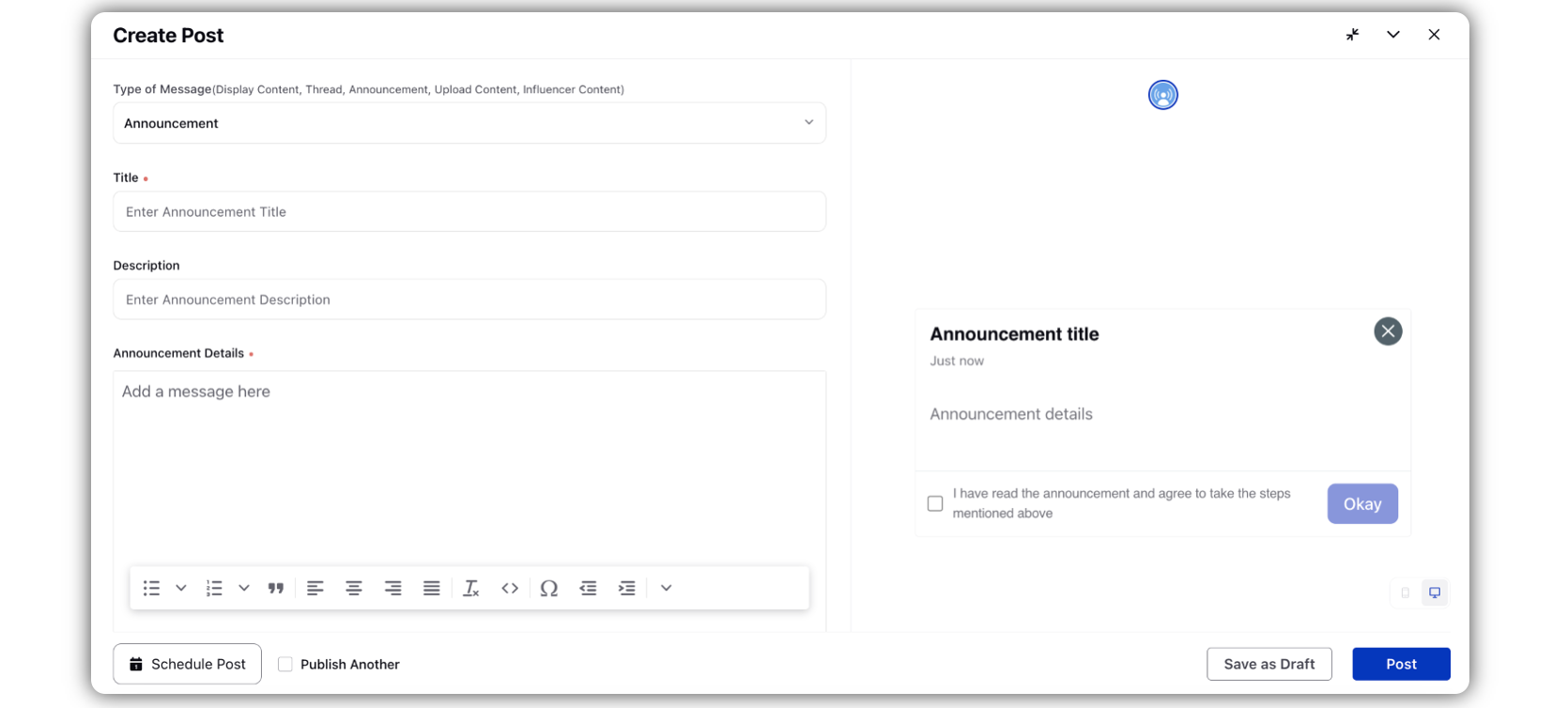
Add the Title and Announcement Details of the announcement in their respective fields.
Add any banner image if required. You can also add GIFs in this.
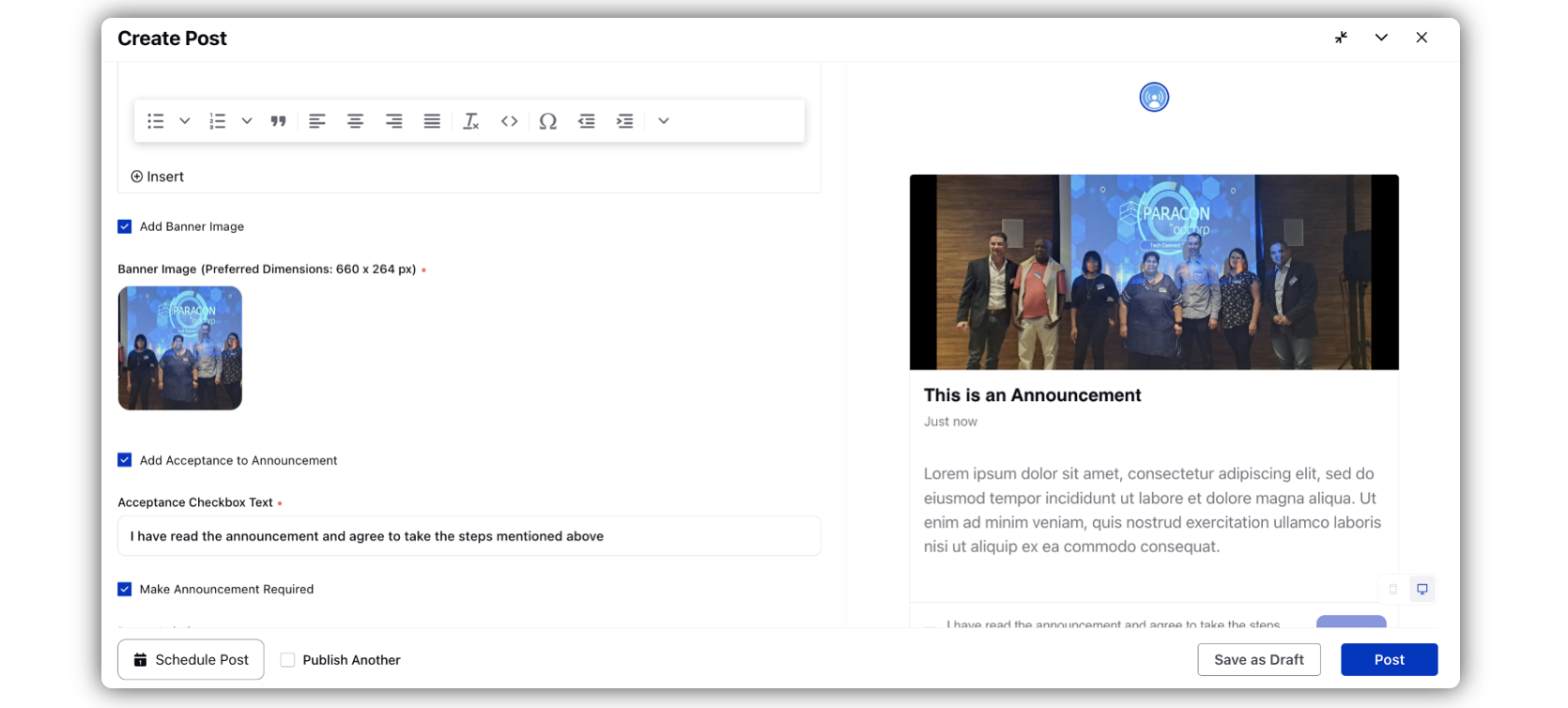
Click Add Acceptance to Announcement to keep showing the announcement to users until they accept the Acceptance Checkbox Text.
You can also select Make Announcement Required so that it is mandatory for users to accept the announcement before they can continue using the site.
Add any necessary targeting related information to the post by selecting a Target Audience.
You can target announcements to specific advocate audiences using custom-field based audience targeting, similar to Advocacy posts. Instead of displaying the announcement to all advocates, select the relevant target audience criteria to deliver the announcement only to advocates whose profile attributes match the selected values.
Custom field targeting can be used to send announcements to specific groups of advocates, such as particular departments, locations, business units, or other custom audience segments configured in Advocacy.
Publish the post directly by clicking Post or Schedule it for later. You can also save it as a draft to continue to publish later on.
Note: Audience targeting for announcements uses the same custom-field based targeting framework available for Advocacy posts. Administrators can configure announcement visibility by selecting one or more custom field values while creating the announcement. Only advocates matching the selected criteria will receive the announcement.