How to create a column in engagement dashboard for Sina Weibo
Updated
In this article we will cover the steps for create engagement column for Sina weibo in Spinklr.
 Note: Due to changes in privacy laws in China, some Sina Weibo capabilities in Sprinklr will be impacted effective July 9. Users may experience delayed or missing inbox messages, publishing failures with a “Not Published” status, and reporting metrics that may be lower than those shown natively on Sina Weibo.
Steps to create a column for Sina weibo
Click the New Tab icon. Under the Sprinklr Social tab, click Engagement Dashboards within Engage.
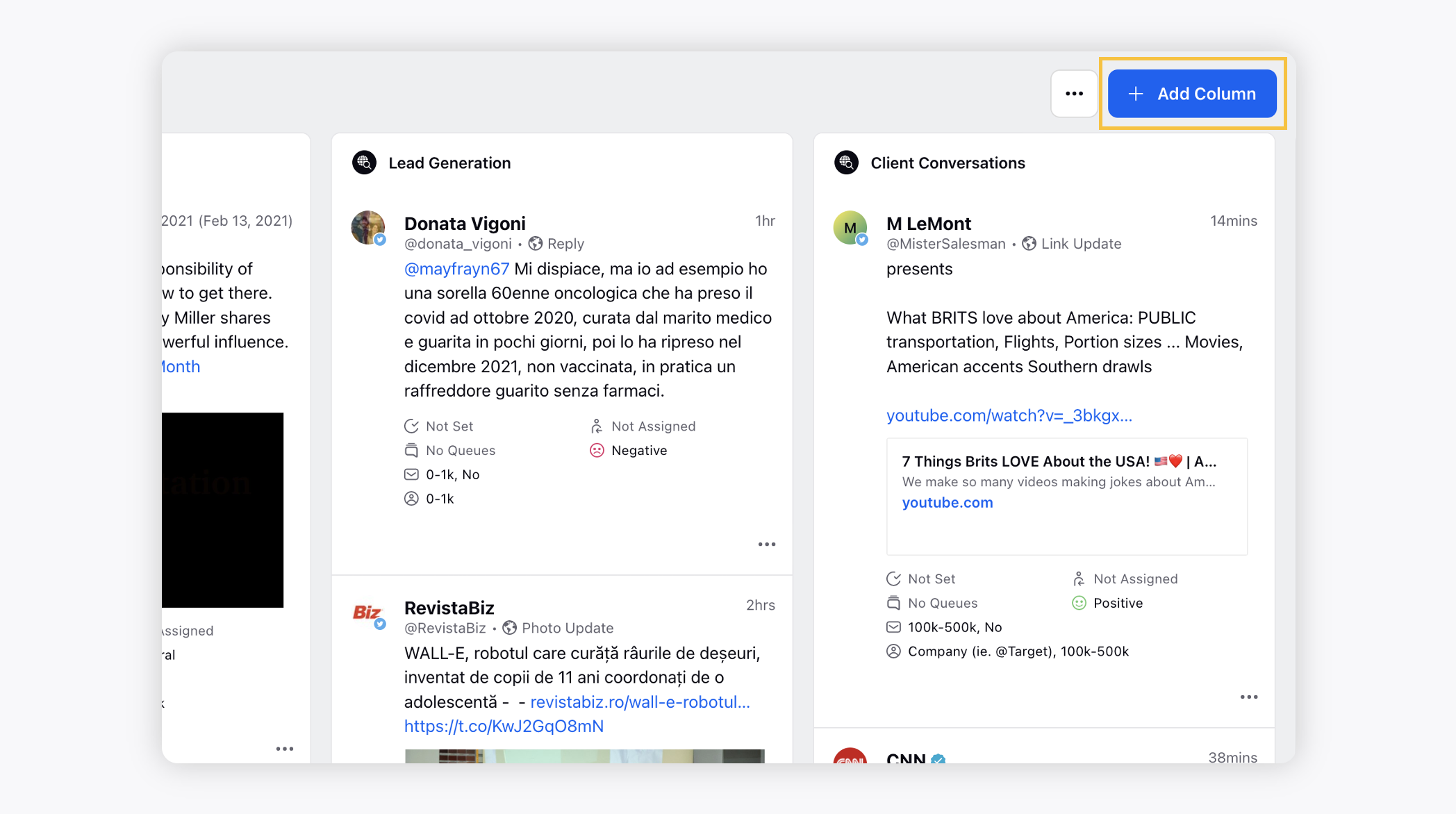
In the top right corner of the Engagement Dashboard window, click Add Column.
On the Add New Column window, search and select Sina weibo as a source for adding a new column.

On the Add New Sinaweibo Column window, select Comments or Replies as the column type.

After selecting the type of column you want to create, enter a Name, Description, and add Accounts per your needs. Provide other Basic Information for your column. Preview of the column will render on the right side of the window.

Enter Workflow Properties as desired. Workflow properties refer to the properties applied in Sprinklr, either automatically or manually, that determine the message's workflow status, user assignment, priority, spam designation, and sentiment.
Provide Custom Properties as desired. Configuring additional properties, you can specify messages to include or exclude based on the properties that have been applied to the message.
After you have provided all the details for your column, click Create Column in the bottom right corner to create the new column. Upon creation, your column will be available in the current dashboard.