Dialer Overview
Updated
Dialers
Dialer is basically an automated system that dials a phone number to different customers in order to get them connected with the users or agents. In simpler terms these are phone systems integrated within the software to make outbound calls to potential customers or to connect the customer by landing inbound calls to the agents.
Aim
Nowadays dialers are integrated with all kinds of business processes. When a consumer requests a call-back through a website, it’s likely that the call-back is processed by a dialer integrated with CRM, the company websites and other systems.
The main aim of these dialers is to help a business make more phone calls in the same amount of time as one person could traditionally do, saving time and money. It also allows them to find prospects that might not have been available before due to the lack of a landline or the high cost of cell phone minutes.
Moreover there are many types of dialers some of which are integrated with even Artificial Intelligence algorithms thus changing the amount of calls based upon different parameters
Different types of Dialers in Sprinklr
There are different types of dialers and dialing modes that an outbound call center can use, based on its goals. For example, one business might need a dialer for heavy outbound calling for sales and marketing purposes, while the other needs it to review customer information through a CRM or customer experience management platform.
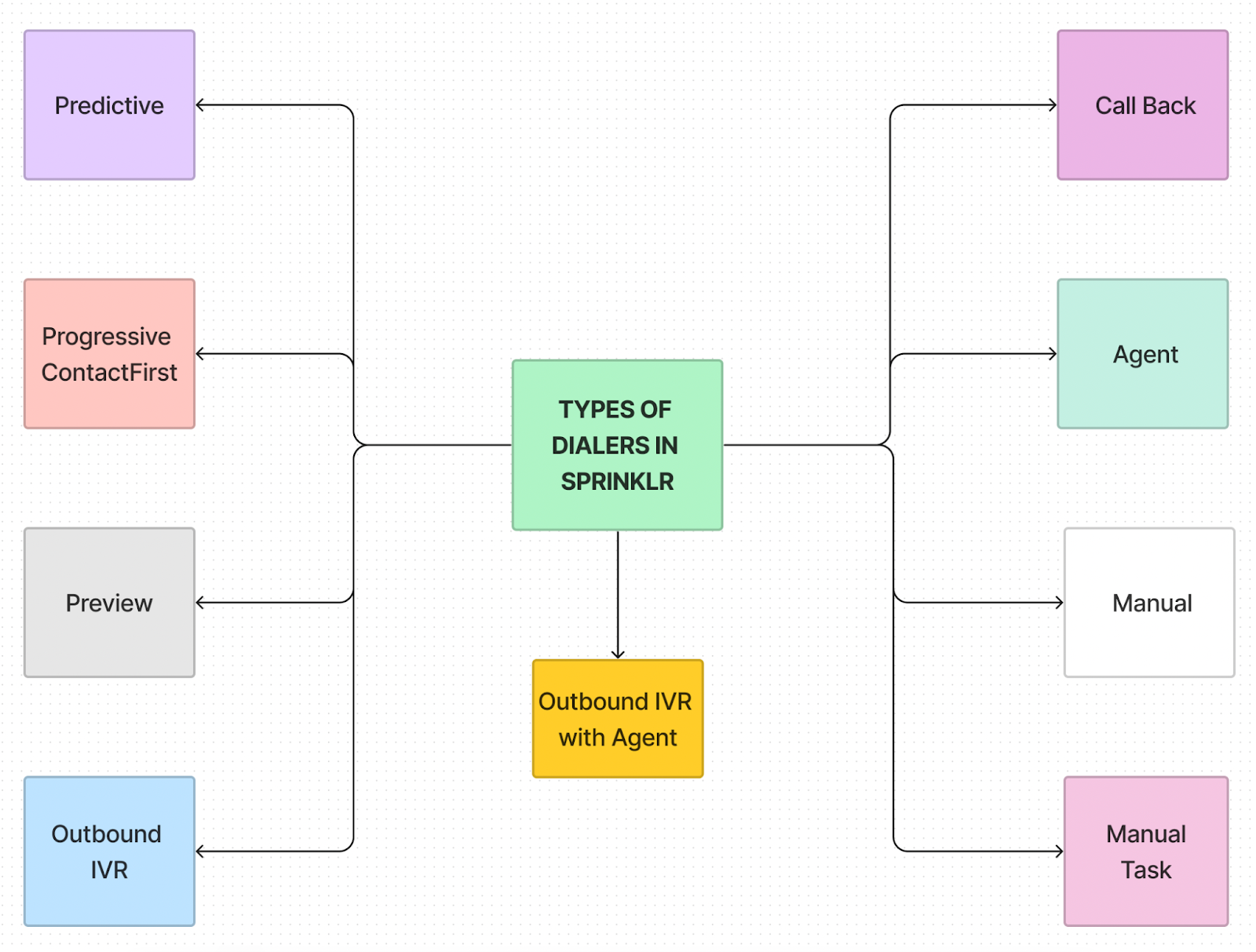
Sprinklr platform provides many types of dialers as mentioned below:
Preview
Predictive
Progressive Contact Fist
Outbound IVR
Agent
Manual
Manual Task
Callback
Outbound IVR with Agent
Set Customer Language for Outbound Call Transcripts
You can now specify the language for generating transcripts at the dialer level, in addition to the workspace level. The language will be set based on lead attributes. When a call is made, the system will check if the language is set at the dialer level and whether the selected attribute value matches the customer's attribute. If both conditions are met, the language set at the dialer level will be used; otherwise, the workspace-level language will be applied. To enable this feature, users must request support at tickets@sprinklr.com. Currently, this functionality is supported on the backend and will be available in the user interface soon.
Target persona
Campaign Manager
Supervisor
Sales Manager
Getting started with dialers
Click the New Tab icon. Under the Sprinklr Service tab, click Voice Care within Listen.

Navigate to Dialer Profiles from the left pane.
To add a new dialer, click Add Dialers in the top right corner.

Add all the relevant details to create the dialer.
Dialer Profile Translation Support
Dialer Profiles can be localised to support multiple languages, enabling profile names to appear in a user's preferred language across dialling, reporting, and configuration interfaces.
Translation support for Dialer Profiles is available through the platform's standard translation framework. To activate this capability, include the Dialer Profile asset class in:
TRANSLATION_ENABLED_ASSET_CLASSES
Once enabled, Dialer Profiles can leverage the same localisation features that are available for other translatable assets.
Add or Update Translations
You can configure translations for an existing Dialer Profile from the Dialer Profiles page.
Go to Voice Settings > Dialer Profiles.
Find the Dialer Profile you want to translate.
Open the Options menu associated with the profile.
Select Edit Translation.
The translation management screen opens, allowing you to create or modify translated profile names for supported languages.
Translation Details
When creating a translation, specify the following information:
Language (mandatory)
Source Name (read-only)
Translated Name (mandatory)
You can maintain translations in multiple languages, with each language managed independently for easier localisation and updates.
How Translations Are Displayed
If a translation exists for a user's selected language, the translated Dialer Profile name is displayed automatically wherever the profile appears within the application.
When no translation is available for the chosen language, the system falls back to displaying the original Dialer Profile name.