Configure Persona Apps for Workforce Management
Updated
Persona Apps define how different user roles interact with Workforce Management features in Sprinklr. By configuring Persona Apps, you can ensure that Agents, Workforce Managers, and Administrators have access to the right tools, workflows, and information based on their responsibilities.
This document is intended for users who design and manage how different contact center roles access Sprinklr Workforce Management (WFM) functionalities. It describes how to configure Persona Apps for Workforce Management. It explains how to create new Persona Apps and how to configure or edit existing apps for agent and workforce manager use cases. The document focuses on setting up Persona Apps to support Workforce Management workflows.
Sprinklr provides a standard Persona App, designed for Workforce Managers such as forecasters, planners, and intraday managers. You can customize or extend this standard Persona App, or create additional Persona Apps, to better support your organisation’s workforce planning and operational workflows.
 Note: You will have to configure the Agent Hub capability in the relevant agent‑facing Persona App to enable agents to use this feature.
Create Persona Apps
Creating Persona Apps allows you to define role‑specific workspaces tailored to Workforce Management needs. By creating a Persona App, you can control which features, menus, and workflows are available to users. You can create Persona Apps for agent‑specific requirements, and although a standard Workforce Manager Persona App is provided out of the box, you can also create additional Persona Apps customized for manager‑specific use cases.
This section explains how to create a new Persona App and establish the foundation for configuring a focused, efficient experience aligned with the responsibilities of each role.
Follow these steps to create new Persona Apps:

Go to All Settings in the Listen column on the Launchpad.
To access Persona App Manager in the New View of the Settings page, search for "Persona App Manager" in the Settings page.
To access Persona App Manager in the Classic View of the Settings page, go to Manager Customer and then search for "Persona App Manager". This will open the Persona App Manager landing page.

Click the Create button at the top right of the page to open the Create New Persona App window.
Fill in the required fields on the Create New Persona App window. Fields marked with a red dot are mandatory. Below are the descriptions of the fields on this window:
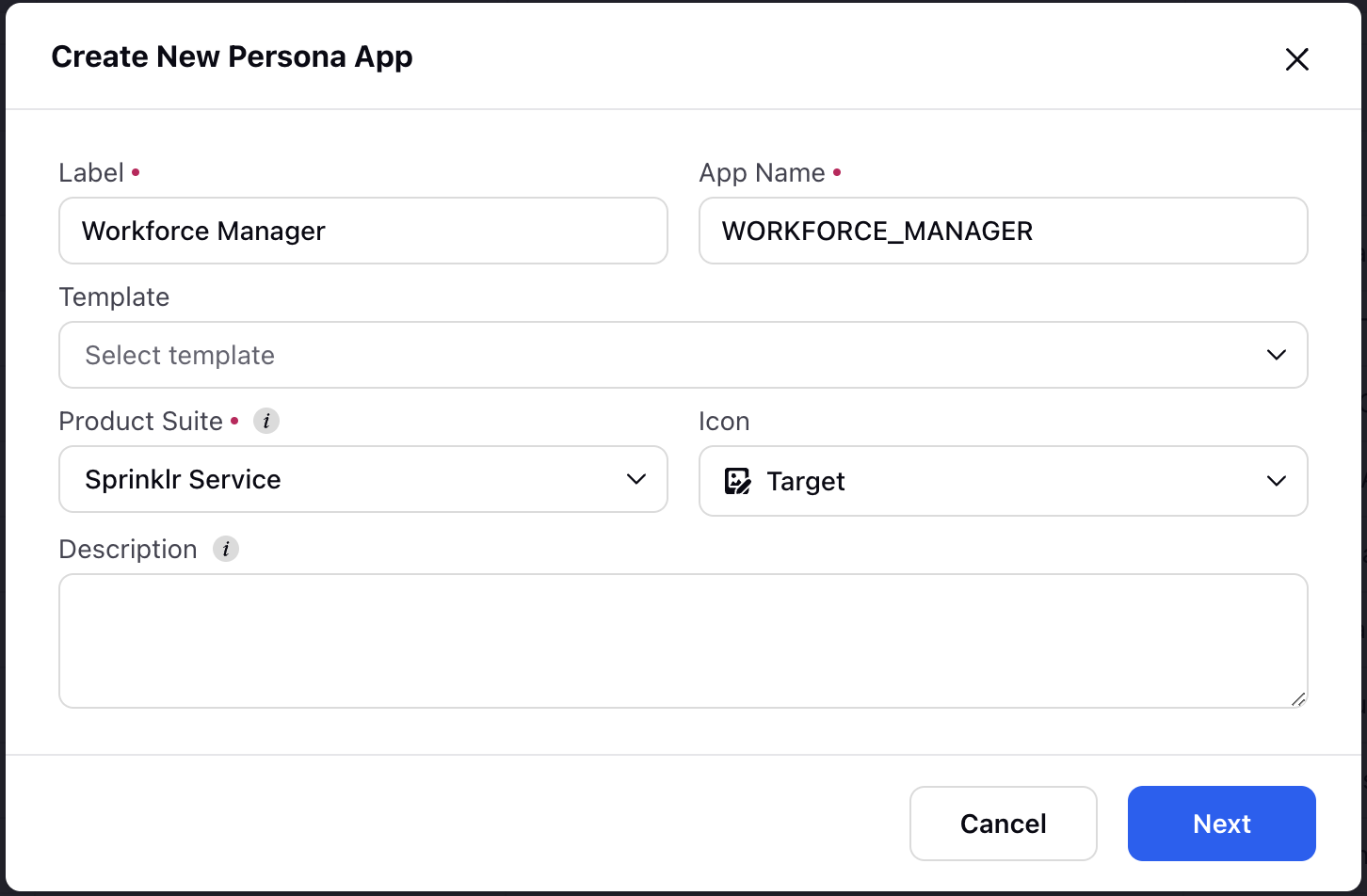
Label: Enter the name of the Persona App. It can be Workforce Manager, Inbound Agent, or any other name, as required. (Required)
App Name: The App Name is automatically generated based on the Label of the Persona App. For example, if the Label is ‘Workforce Manager’, the App Name will be ‘WORKFORCE_MANAGER’. You can also enter a custom App Name. (Required)
Template: Select a template to reuse an existing Persona App configuration.
Product Suite: Select Sprinklr Service. (Required)
Icon: Select an icon from the list that will show on your Persona App card.
Description: Provide a description for your Persona App, which will appear below the app name on the card.
Click the Next button at the bottom right of the window. This will create a draft of the Persona App on the environment and open the Persona App configuration page. You can now configure it as you need.
 Note: The Persona App will not be visible on the Launchpad yet since it is saved as a draft. It will appear once it has been published.
Add Menu Items in Persona Apps
Once the Persona App draft has been created, the next step is to add menu items (such as Forecast, Scheduling, Master Schedule, My Schedule, and so on). Menu items appear on the Left Pane of the Persona Apps.
The Left Pane is divided into the following sections:
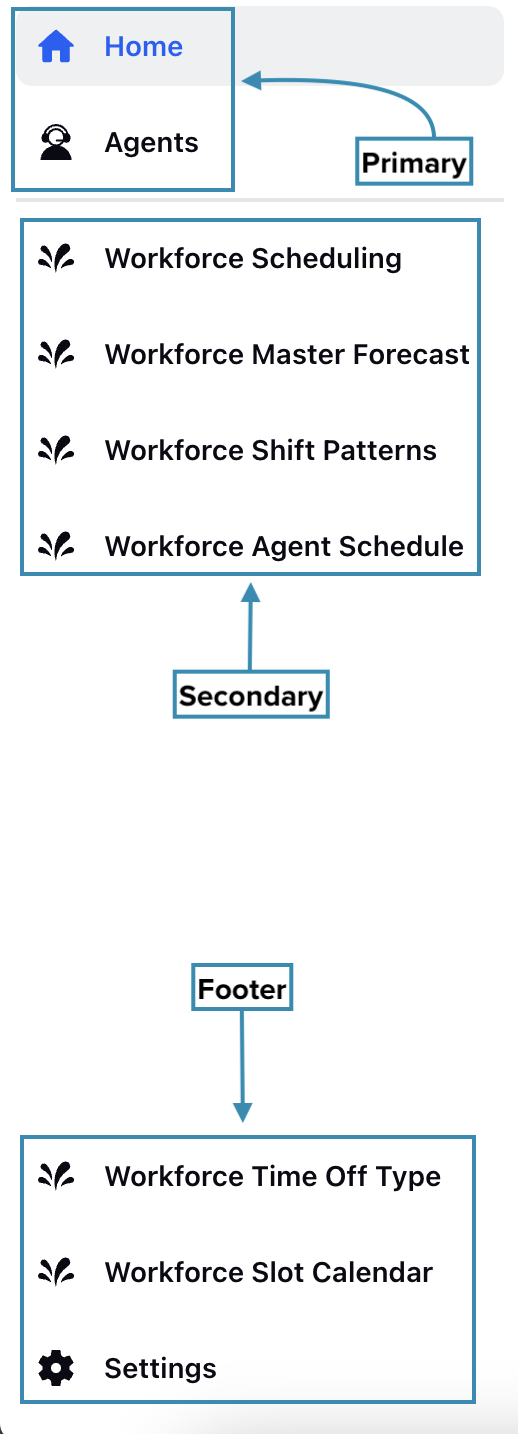
Primary: This is the top section of the Left Pane. Menu items with the Primary item group selected will appear in this section.
Secondary: This is the middle section of the Left Pane. Menu items with the Secondary item group selected will appear in this section.
Footer: This is the bottom section of the Left Pane. Menu items with the Footer item group selected will appear in this section.
Step 1
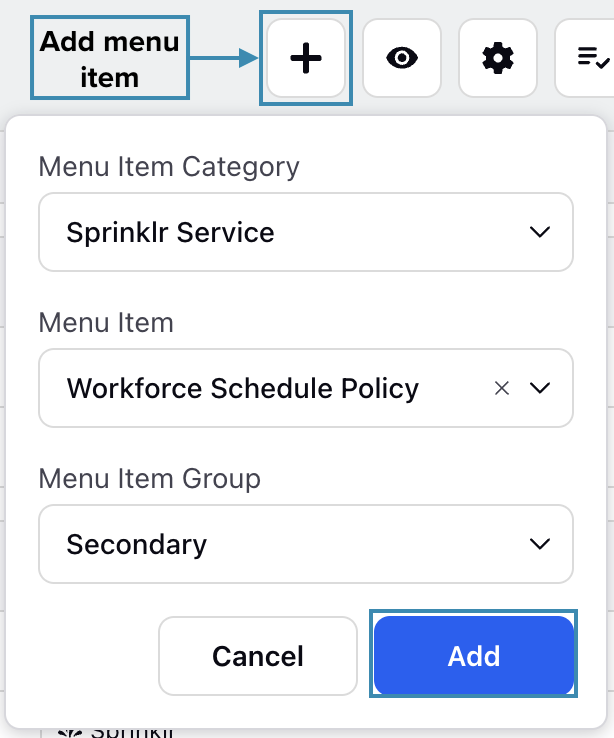
Click the Add button at the top of the Persona App configuration page to open a sub-menu. Below are the descriptions of the fields on this sub-menu:
Menu Item Category: Choose the category from which you want to add the menu item. Most menu items related to Workforce Management will be under the Sprinklr Service category, but some items, such as Home and Settings, will be under the General category. If you are unsure of the category, select All. Only one can be selected at a time.
Menu Item: Select the menu item to be added, such as Workforce Request Dashboard and Workforce Forecast. Refer to this section for details on the available Menu Items relevant for Workforce Management. Only one can be selected at a time.
Menu Item Group: Select where the menu item will appear (Primary, Secondary, or Footer). Only one can be selected at a time.
After selecting the required options in the sub-menu, click the Add button to add the item.
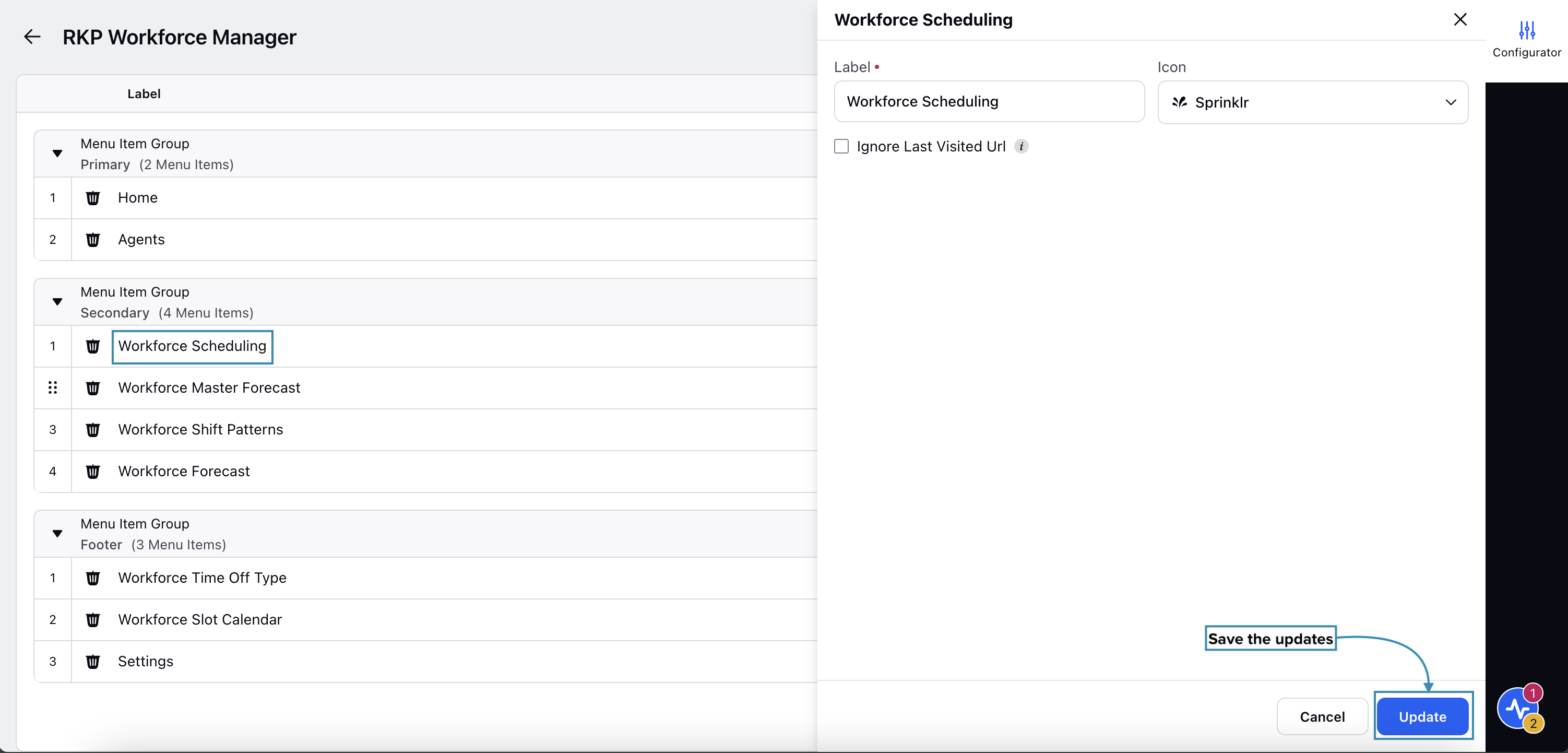
Once you have added a menu item, you can update its name and icon by clicking it on the configuration page. This will open the Configurator section from the Third Pane. Enter the new name in the Label field and select the icon in the Icon field. Click the Update button at the bottom right of the Third Pane to save the new name and icon.
Step 2
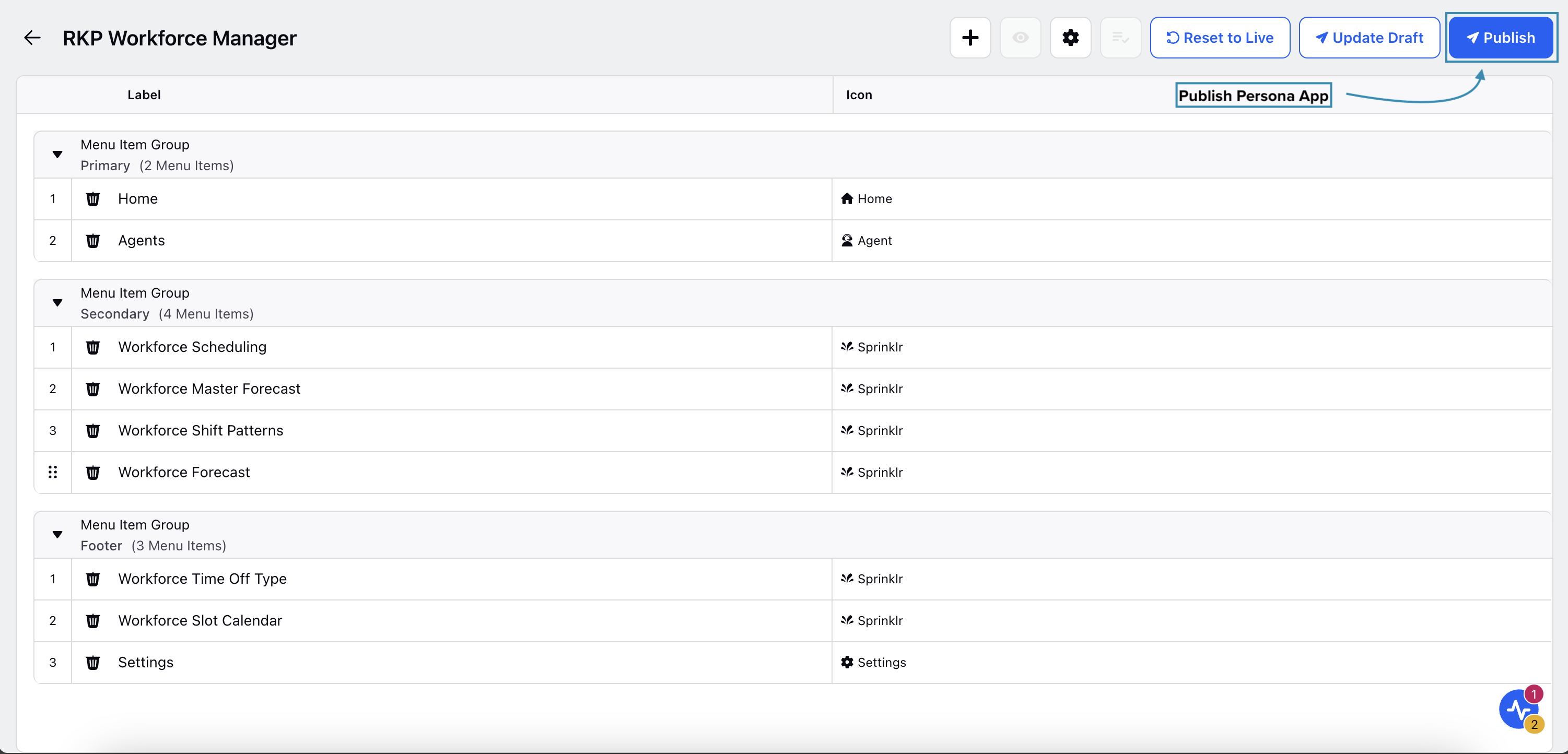
Once you have added the required menu items, click the Publish button at the top right of the Persona App configuration page. This will open the Publish Persona App Config window.
Step 3
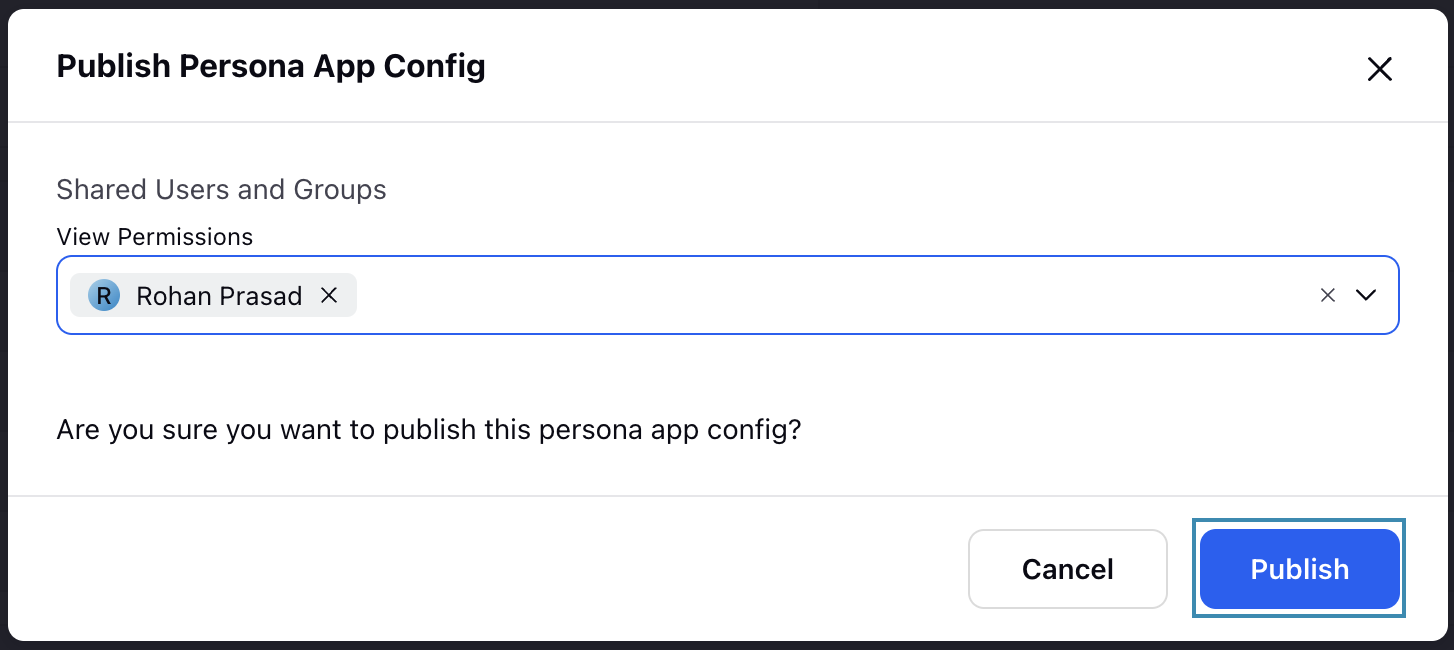
Select the User(s)/User Group(s) who can view the Persona App on their Launchpad in the Publish Persona App Config window.
Step 4
Click the Publish button at the bottom right of the window to publish the Persona App with your preferences.
Edit Persona Apps
Editing a Persona App allows you to update an existing role‑specific workspace to meet evolving Workforce Management requirements. By editing a Persona App, you can modify menus, features, and configurations to refine the user experience for agents or managers. This section explains how to edit Persona Apps to ensure users have continued access to the right tools and workflows as business needs change.
Follow these steps to edit Person Apps:
Navigate to the Persona App Manager landing page.
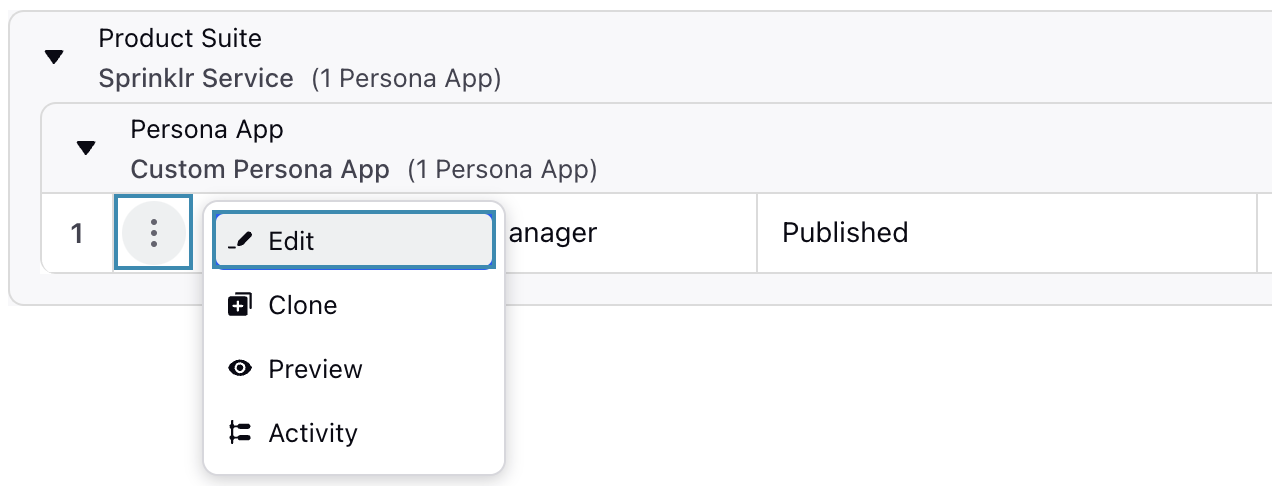
Hover over the vertical ellipsis (⋮) icon corresponding to the required Persona App.
Select Edit from the list of options to open the Persona App configuration page.
Update the necessary details for the selected Persona App. The fields are the same as those used when creating a Persona App.
After entering the updated details, click the Publish button at the top right of the page to open the Publish Persona App Config window.
Select the User(s)/User Group(s) who can view the Persona App on their Launchpad.
Click the Publish button at the bottom right of the window to save your updates.
This completes the process of editing the Persona App.
Persona App Menu Items
This section describes the Persona App menu items commonly used when configuring Persona Apps for Workforce Management. These menu items define the features and workflows available within a Persona App and can be configured for agents, managers, or both, depending on the intended use case. Understanding these menu items helps you design role‑specific Persona Apps that provide users with access to the right tools and functionality.
Note: Some features may appear under different names when you select them. For example, Schedule Policies appears as Workforce Schedule Policy, and Master Schedule appears as Workforce Agents Schedule. In such cases, you can rename the item after adding it to match your preferred terminology.
In the following table, the Menu Item Name column lists the name as it appears in the selection list, while the Standard Feature Name column shows the commonly used standard name for the feature.
Menu Item Name | Standard Feature Name | Role |
Workforce Agent Schedule | My Schedule | Agents |
Workforce Schedule Preference Calendar | My Preferences | Agents |
Workforce Slot Calendar | Slot Calendar | Agents |
Workforce Request Dashboard | My Requests | Agents |
Create Sub-Navigation Menu
You can create sub‑navigation menus in the Left Pane to group related features under a single parent menu. Sub‑navigation helps organize workflows, improves discoverability, and simplifies navigation for users. For example, the Agent Hub uses sub‑navigation to group agent‑specific features under one menu.

To add a sub-navigation menu to the Persona App, select Sub Navigation in the Menu Item field, and proceed as mentioned in the Step 1 of this section.

After you add the Sub Navigation item, you can add sub‑menu items by selecting it on the configuration page. This action opens the Configurator section in the Third Pane. Select "+Add Item", then choose the required menu item.
You can also update the name and select a different icon using the Label and Icon fields.
Select Update at the bottom right of the Third Pane to save the sub‑menu items, along with any name or icon changes.
Configure Agent Hub
The Agent Hub is a centralized workspace that helps agents manage their day-to-day workforce activities from a single location. From the Agent Hub, agents can view schedules and available slots, submit preferences, track adherence, and submit requests such as Shift Bids or Time Off.
Note: You will have to configure the Agent Hub capability in the relevant agent‑facing Persona App to enable agents to use this feature.
This section explains how to configure the Agent Hub and the following sub-sections:
My Schedule
Slot Calendar
My Schedule Preferences
My Requests.
Follow these steps to configure Agent Hub in your Persona App:
Follow the steps to edit the required Persona App to open the Persona App configuration page.
Click the Add button at the top of the Persona App configuration page to open a sub-menu.
Select Sub Navigation in the Menu Item field. The other fields can be configured as required. Refer to this section for more details on configuring the other fields.

Click the Sub Nav Button item to open the configuration from the Third Pane.
Fill in the required fields. Fields marked with a red dot are mandatory. Below are the descriptions of the fields on this window:

Label: Enter Agent Hub. This the name that will appear on the Left Pane of the Persona App. (Required)
Icon: Select Agent Schedule. This is the icon to show in the Left Pane of the Persona App. (Required)
Ignore Last Visited URL: Select this checkbox to prevent users from returning to the last screen they accessed within a menu item. It is unselected by default.
Hide on Mobile: Select this checkbox to hide Agent Hub in mobile view for the Persona App. It is unselected by default.
Click +Add Item to open the Menu Item selector and configure the following Agent Hub sub-menu items:

Note: After adding an item, select it to modify its name and icon.Configure My Schedule: Select Workforce Agent Schedule, rename it to My Schedule, set the icon to Agent Schedule. (Required)
Slot Calendar: Select Workforce Slot Calendar, rename it to Slot Calendar, set the icon to Slot Calendar. (Required)
My Schedule Preferences: Select Workforce Schedule Preference Calendar, rename it to My Schedule Preferences, set the icon to Schedule Preference Calendar. (Required)
My Requests: Select Workforce Request Dashboard, rename it to My Requests, set the icon to Requests. (Required)
Once you have added a menu item, select Update you can update at the bottom right of the Third Pane to save the new name and icon.
Click the Publish button at the top right of the Persona App configuration page. This will open the Publish Persona App Config dialog box.
This will create an item in the Left Pane of the selected Persona App, displaying Agent Hub with the configured sub-items.
Configure Agent’s Time Off Calendar
You can configure the Time Off calendar to only show the data of individual agents, allowing them to view the status of their submitted requests in a calendar format. This calendar displays only the Time Off details of the agent accessing it. Agents can filter their Time Off Requests by status (Approved, Rejected, or In Review) for easier tracking. Agents can also submit new Time Off Requests, edit or delete existing ones from this page.
Follow these steps to configure the agent’s Time Off calendar:
Follow the steps to edit the required Persona App to open the Persona App configuration page.

Click the Add button at the top of the Persona App configuration page to open a sub-menu.
Select the Menu Item as “Workforce Leave Management”. The other fields can be configured as required. Refer to this section for more details on configuring the other fields.
Click the Workforce Leave Management item added in the selected Menu Item Group. This will open the configuration from the Third Pane.
Fill in the required fields. Fields marked with a red dot are mandatory. Below are the descriptions of the fields on this window:

Label: This is the name that will appear on the Left Pane of the Persona App. It is set to Workforce Leave Management by default and can be modified to something like Time Off Calendar, or any other name based on your preference. (Required)
Icon: Choose the icon to show in the Left Pane of the Persona App. (Required)
User Type: Select Agent. (Required)
Ignore Last Visited URL: Select this checkbox to prevent users from returning to the last screen they accessed within a menu item.
Click the Update button at the bottom of the Third Pane.
Click the Publish button at the top right of the Persona App configuration page. This will open the Publish Persona App Config dialog box.
Click the Publish button in the dialog box to publish the Persona App with your preferences.
This will create an item in the left pane of the selected Persona App, displaying details on Time Off Requests submitted by the agent.