Queue Standard Metrics Configuration
Updated
Parameters such as Service Level Agreement (SLA) based on Assignment and Response and Short Abandon Time can be updated for individual Work Queues, allowing for tailored reporting specific to each Work Queue's Service Levels. This customization ensures that changes made to the parameters of one Queue do not impact the metrics of other Work Queues within your Workspace. It also allows for the implementation of separate service levels for each Work Queue, which can be beneficial for many organizations. Refer to Standard Metrics in Reporting to configure parameters at the workspace level and report level.
 Note: This feature is currently available only for the Service Analytics Data Source.
Note: This feature is Dynamic Property (DP) controlled. Contact your Success Manager to enable it in your environment. This feature can only be leveraged in reporting widgets that are built using the new Service Analytics data source.
By enabling this level of granularity, you can optimize performance tracking and reporting for each Work Queue independently, ensuring that the unique requirements and performance indicators of each Work Queue are accurately reflected without compromising the overall reporting structure.
Follow these steps to open the standard metrics configuration page for a Queue:
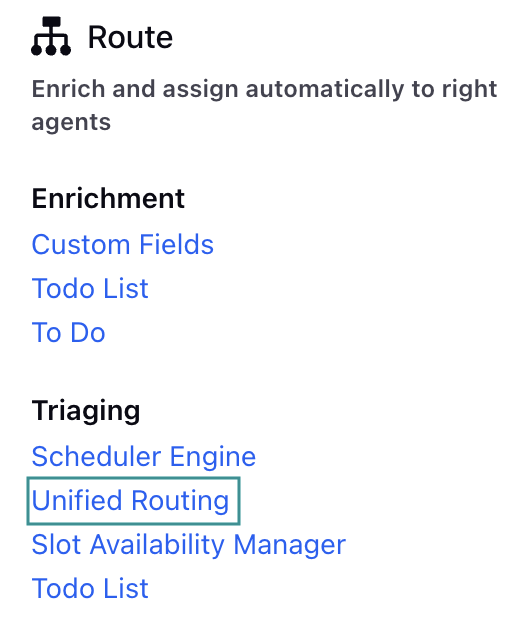
Go to Unified Routing on the Launchpad under the Route column. Alternatively, search for 'Unified Routing' in the Launchpad search bar.
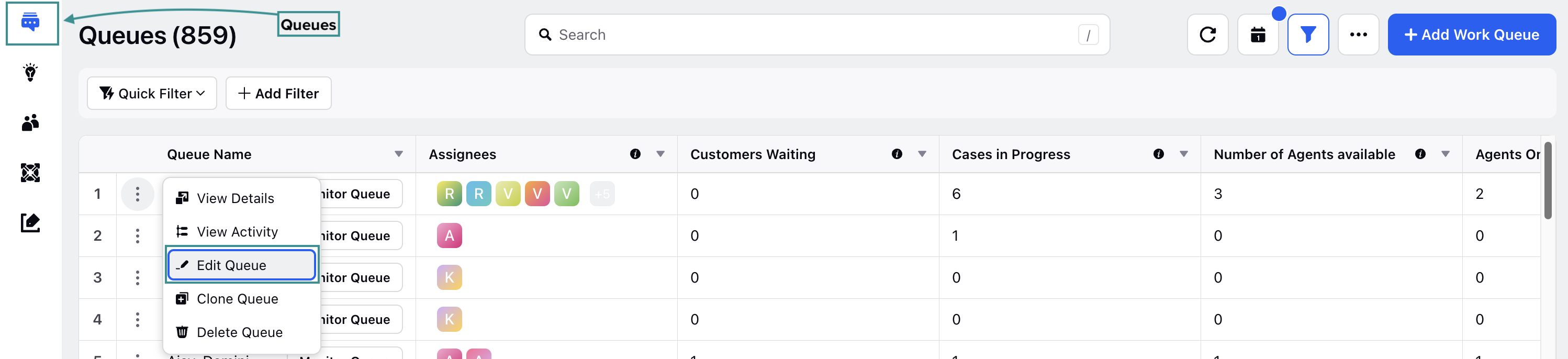
Select Work Queues from the Left Pane to show the Work Queues Record Manager.
Hover over the vertical ellipsis (⋮) icon corresponding to the Queue whose Service Level configuration needs to be updated. This will show a list of options.
Select Edit Work Queue from the list to open the Queue editing page.
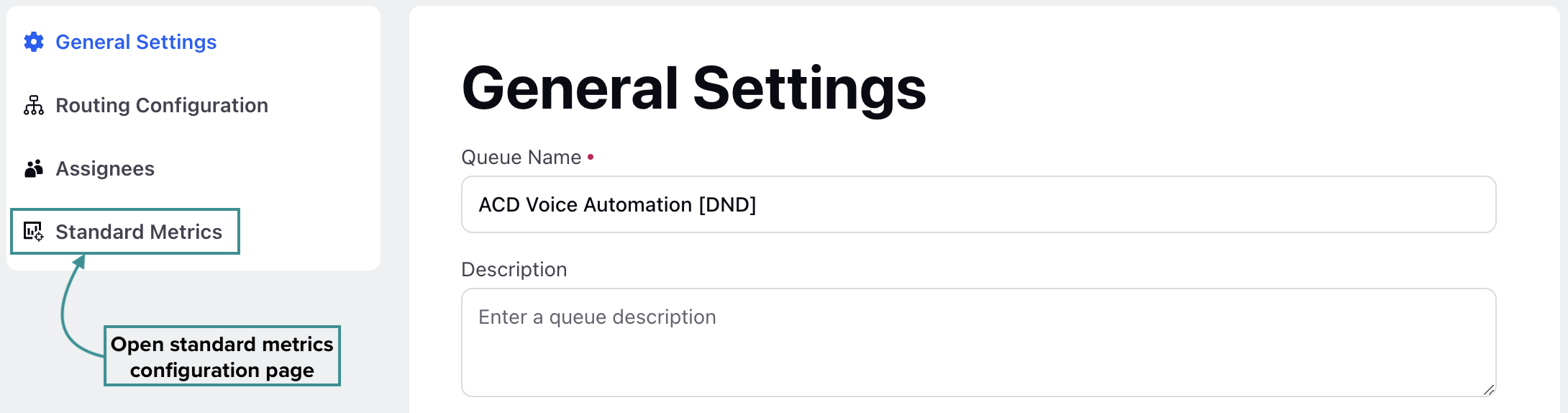
Select Standard Metrics from the menu on the left. This will open the page to configure standard metrics for this Queue.
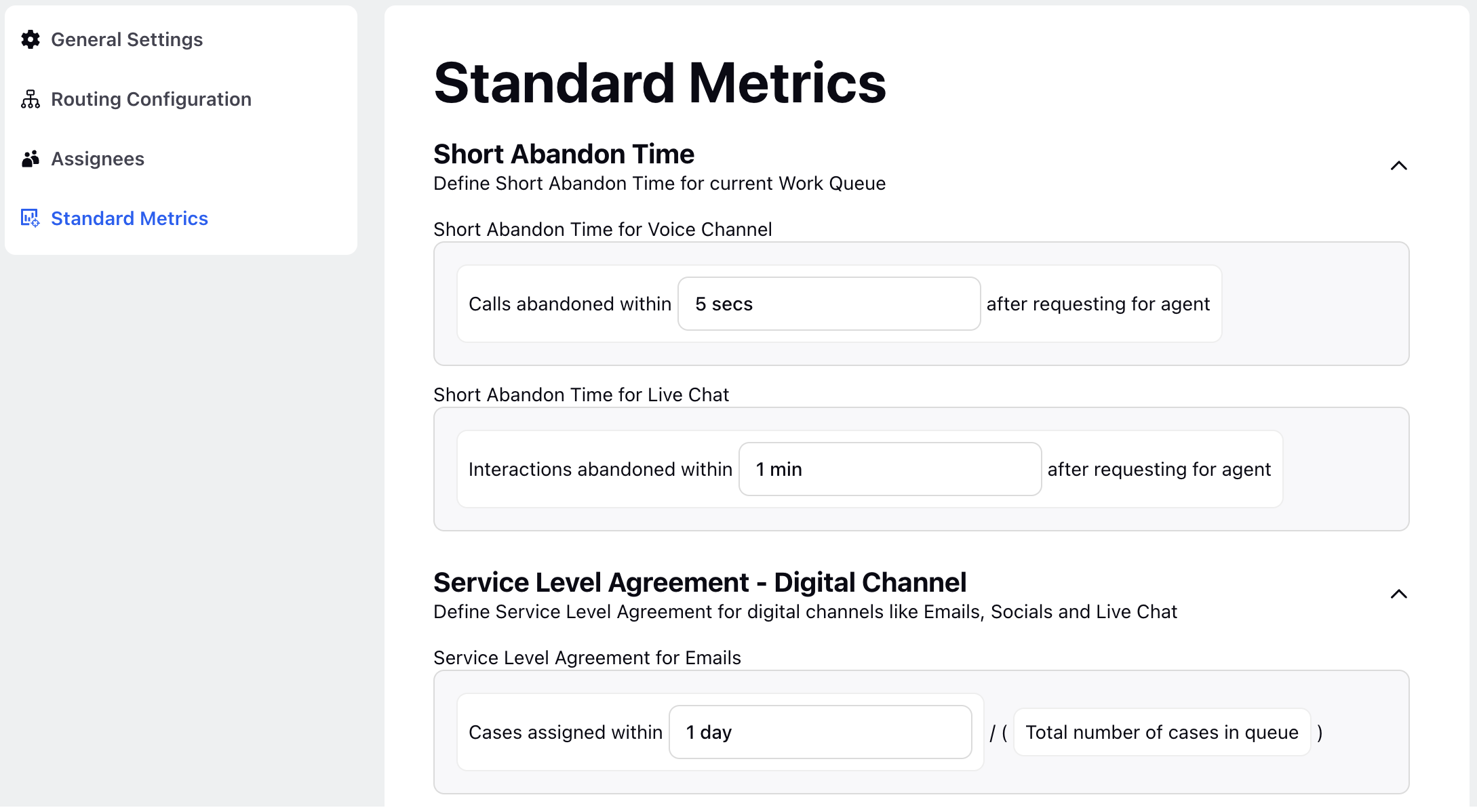
Note: Any updates made to the Short Abandon Time or Service Level on this page will not affect any other Work Queue in the Workspace.
Standard Work Queue Reporting Metrics
There are 3 standard options for configuring metrics related to reporting for the work queue:
Short Abandon Duration: The specified time threshold which is used to determine when a contact should be classified as abandoned.
Assignment SLA: The duration used to determine when the contact qualifies for SLA calculation based on assignment threshold defined separately for all channels.
First Response SLA: The defined time threshold applied when calculating the SLA based on first response made on the contact which is applicable for digital channels only.
Configure Short Abandon Duration
Short Abandon Duration refers to the duration within which a call is considered abandoned if the caller hangs up before a specified short time threshold. This helps contact centers identify and exclude very brief calls from their performance metrics, as these calls often do not provide meaningful data for evaluating agent performance or customer satisfaction.
The Short Abandon Duration specified on this page will be considered to calculate Live Chat and Voice channel SLA for that particular Queue.
Short Abandon Time for Voice Channel

Short Abandon Time can be configured individually for each Work Queue for Voice Channel. For Voice Channel, specify the Short Abandon Time in the Short Abandon Time for Voice Channel field. For example, if you enter 5 seconds, the Short Abandon Time for the voice channel will be [Contacts abandoned within “5 secs” after requesting for agent].
Note: The default Short Abandon Time for the voice channel is 5 seconds.
Report Group | Impacted Report | Impacted Metrics/Dimensions |
Queue Report | Voice Queue (Per Assignment) | Total Calls Short Abandoned (Per Assignment) |
Queue Report | Voice Queue (Per Call) | Total Calls Short Abandoned (Per Call) |
Queue Report | Voice Queue Performance | Contacts Short Abandoned |
Contacts Abandoned within SLA# |
Metrics marked with [#] indicate that the configured SLA interval will apply to them as well. For example, if the SLA is set to “30 seconds”, the 30-second filter will also apply to that metric.
Short Abandon Time for Live Chat

Similarly, for Live Chat, specify the Short Abandon Time in the Short Abandon Time for Live Chat field. For example, if you enter 1 minutes, the Short Abandon Time for the Live Chat will be [Contacts abandoned within “1 mins” after requesting for agent].
Note: The default Short Abandon Time for the live chat channel is 60 seconds.
Report Group | Impacted Report | Impacted Metrics/Dimensions |
Queue Report | Digital Queue | Interactions Short Abandoned |
Queue Report | Digital Queue Performance | Chats Contacts Short Abandoned |
Contacts Abandoned within SLA |
Configure Assignment SLA
This section allows you to configure Service Level Agreements (SLAs) for both digital and voice channels based on agent assignment on the particular contact. The threshold is captured for assignment SLA from the request time to the agent assignment timestamp for both voice and digital channels separately. Further, separate config is added corresponding to different digital channels and then calculation is clubbed to showcase in one single digital metric only.
Assignment Duration Threshold for Emails

You can update how SLA is calculated for emails in the Service Level Agreement for Emails field. Specify the interval to be considered for SLA in this field. For example, if you enter 1 day, the SLA will be calculated as [(Contacts assigned within “1 Day” after requesting for agent) / (Total number of contacts in the queue)]
Note: The default SLA interval for emails is 24 hours.
Report Group | Impacted Report | Impacted Metrics/Dimensions |
Queue Report | Digital Queue | Service Level Digital |
Interactions Assigned within SLA# | ||
Interactions Abandoned within SLA# | ||
Queue Report | Digital Queue Performance | Service Level - Accepted |
Contacts Assigned within SLA# |
Metrics marked with [#] indicate that the configured SLA interval will apply to them as well. For example, if the SLA is set to “1 Day”, the 1-day filter will also apply to that metric.
Assignment Duration Threshold for Socials

Similarly, you can configure SLA for social channels (such as Facebook, X (formerly Twitter), WhatsApp, Reddit, and more) from the Service Level Agreement for Socials field. Mention the interval that should be considered for SLA for social channels in this field. For example, if you enter 2 hours, then SLA will be calculated as [(Contacts assigned within “2 hrs” after requesting for agent) / (Total number of contacts in the queue)]
Note: The default SLA interval for social channels is 2 hours.
Report Group | Impacted Report | Impacted Metrics/Dimensions |
Queue Report | Digital Queue | Service Level Digital |
Interactions Assigned within SLA# | ||
Interactions Abandoned within SLA# | ||
Queue Report | Digital Queue Performance | Service Level - Accepted |
Contacts Assigned within SLA# |
Metrics marked with [#] indicate that the configured SLA interval will apply to them. For example, if the SLA is set to “2 hrs”, the 2-hour filter will also apply to that metric.
Assignment Duration Threshold for Live Chat

For Live Chat SLA, you can choose to consider Short Abandon Time for SLA calculation. Use the 'Include Short Abandons' switch to determine whether Short Abandons are included in the Live Chat SLA calculation.
Specify the interval to be considered for SLA in the Assignment Duration Threshold for Live Chat field.
1. If Short Abandons are included: Threshold applied is 2 minutes, Live Chat SLA will be calculated as [(Contacts assigned within “2 mins” after agent request) / (Total contacts - contacts abandoned within Short Abandon Time)]
2. If Short Abandons are not included: Live Chat SLA will be calculated as [(Contacts assigned within “2 mins” after agent request) / (Total contacts)].
Note: The Short Abandon Time will be the interval specified in the Short Abandon Time for Live Chat field in the above section.
Note: The default SLA interval for live chat channels is 120 seconds.
Report Group | Impacted Report | Impacted Metrics/Dimensions |
Queue Report | Digital Queue | Service Level Digital |
Interactions Assigned within SLA# | ||
Interactions Abandoned within SLA # | ||
Queue Report | Digital Queue Performance | Service Level - Accepted |
Contacts Assigned within SLA# |
Metrics marked with [#] indicate that the configured SLA interval will apply to them. For example, if the SLA is set to “120 secs”, the 120 secs filter will also apply to that metric.
Assignment Duration Threshold for Voice

For Voice SLA, you can choose to consider Short Abandon Time for SLA calculation. Use the 'Include Short Abandons' switch to determine whether Short Abandons are included in the voice channel SLA calculation. Specify the interval to be considered for SLA in the Assignment Duration Threshold for Voice field.
1. If Short Abandons are included: Threshold applied is 20 seconds, Voice SLA will be calculated as [(Contacts answered within “20 secs” after agent request) / (Total number of contacts - contacts abandoned within Short Abandon Time)]
2. If Short Abandons are not included: Voice SLA will be calculated as [(Contacts answered within “20 secs” after agent request) / (Total number of contacts)]
Note: The Short Abandon Time will be the interval specified in the Short Abandon Time for Voice Channel field in the above section.
Note: The default SLA interval for the voice channel is 20 seconds.
Report Group | Impacted Report | Impacted Metrics/Dimensions |
Queue Report | Voice Queue (Per Assignment) | Service Level (Per Assignment) |
Number of Calls Abandoned While Ringing Within SLA (Per Assignment)# | ||
Total Calls Abandoned Within SLA (Per Assignment)# | ||
Total Calls Answered Within SLA (Per Assignment)# | ||
Number of Calls Abandoned In Queue Within SLA (Per Assignment)# | ||
Queue Report | Voice Queue (Per Call) | Service Level (Per Call) |
Number of Calls Abandoned In Queue Within SLA (Per Call)# | ||
Total Calls Answered Within SLA (Per Call)# | ||
Total Calls Abandoned Within SLA (Per Call)# | ||
Number of Calls Abandoned While Ringing Within SLA (Per Call)# | ||
Queue Report | Voice Queue Performance Report | Contacts Answered within SLA# |
Service Level - Answered |
Metrics marked with [#] indicate that the configured SLA interval will apply to them. For example, if the SLA is set to “20 sec ”, the 20 sec filter will also apply to that metric.
Configure First Response SLA
This section allows you to configure Service Level Agreements (SLAs) for both digital and voice channels based on first response on the particular contact. If you respond after this time, the contact is counted as breaching the Response SLA. It ensures you stay within the expected response window and helps maintain consistent service quality.
The threshold is captured for First Response SLA from the queue assignment time to the first agent response timestamp for digital channels. Further, separate config is added corresponding to different digital channels and then calculation is clubbed to showcase in one single metric only.
Response Duration Threshold for Emails

You can update how SLA is calculated for emails in the Service Level Agreement for Emails field. Specify the interval to be considered for SLA in this field. For example, if you enter 1 day, the SLA will be calculated as [(Contacts responded within (1 day) from queue assignment time / (Total contacts assigned to queue)].
 Note: The default SLA interval for emails is 24 hours.
Report Group | Impacted Report | Impacted Metrics / Dimension |
Queue Report | Digital Queue Performance Report | Contacts Answered within SLA# |
Service Level - Answered |
Metrics marked with [#] indicate that the configured SLA interval will apply to them. For example, if the SLA is set to “1 day”, the 1-day filter will also apply to that metric.
Response Duration Threshold for Socials

You can update how SLA is calculated for emails in the Response Duration Threshold for Social field. Specify the interval to be considered for SLA in this field. For example, if you enter 2 hrs, the SLA will be calculated as [(Contacts responded within "2 hrs" from queue assignment time / (Total contacts assigned to queue)]
Note: The default SLA interval for social channels is 2 hours.
Report Group | Impacted Report | Impacted Metrics / Dimension |
Queue Report | Digital Queue Performance Report | Contacts Answered within SLA# |
Service Level - Answered |
Metrics marked with [#] indicate that the configured SLA interval will apply to them. For example, if the SLA is set to “2 hrs”, the 2 hrs filter will also apply to that metric.
Response Duration Threshold for Live Chat

You can update how SLA is calculated for emails in the Service Level Agreement for Live Chat field. Specify the interval to be considered for SLA in this field. For example, if you enter 3 mins, the SLA will be calculated as [(Contacts responded within "3 mins" from queue assignment time / (Total contacts - Contacts abandoned within Short Abandon Time)].
For Live Chat SLA, you can choose to consider Short Abandon Time for SLA calculation. Use the 'Include Short Abandons' switch to determine whether Short Abandons are included in the voice channel SLA calculation. Specify the interval to be considered for SLA in the Assignment Duration Threshold for Live Chat field.
1. If Short Abandons are included: Threshold applied is 3 mins , Live Chat SLA will be calculated as [(Contacts responded within “3 mins ” from queue assignment time) / (Total number of contacts - contacts abandoned within Short Abandon Time)]
2. If Short Abandons are not included: Live Chat SLA will be calculated as [(Contacts responded within “3 mins” from queue assignment time) / (Total contacts)].
Note: The Short Abandon Time will be the interval specified in the Short Abandon Time for Live Chat field in the above section.
The default SLA interval for live chat is 120 seconds.
Report Group | Impacted Report | Impacted Metrics / Dimension |
Queue Report | Digital Queue Performance Report | Contacts Answered within SLA# |
Service Level - Answered |
Metrics marked with [#] indicate that the configured SLA interval will apply to them. For example, if the SLA is set to “3 mins”, the 3 mins filter will also apply to that metric.
Saving Configurations
After you have configured the Short Abandon Time and Service Levels for the selected Queue as per your requirement, click the Save button at the bottom right of the page to save your configuration.

This completes this section on configuring Short Abandon Time and SLAs for digital and voice channels for individual Work Queues. Refer to Standard Metricss in Reporting to configure parameters at the Workspace level.