Manage SMS Distributions and Access Distribution Reports
Updated
The Distribution Record Manager offers a centralized view to create, manage, and monitor your SMS distributions. You can easily track key metrics, edit existing distributions, and analyze performance data, all in one convenient location.
Business Use Cases
Streamlines the method of distributing surveys and reminders through SMS, enhancing response rates.
Improves customer interaction by utilizing SMS, a popular messaging service, to effortlessly collect feedback.
Enables companies to dispatch customized and multilingual survey invitations, reminders, and expressions of gratitude.
Increase survey response rates by leveraging SMS’s high engagement levels, while also reaching diverse audiences through built-in multilingual support and translation capabilities.
Prerequisites
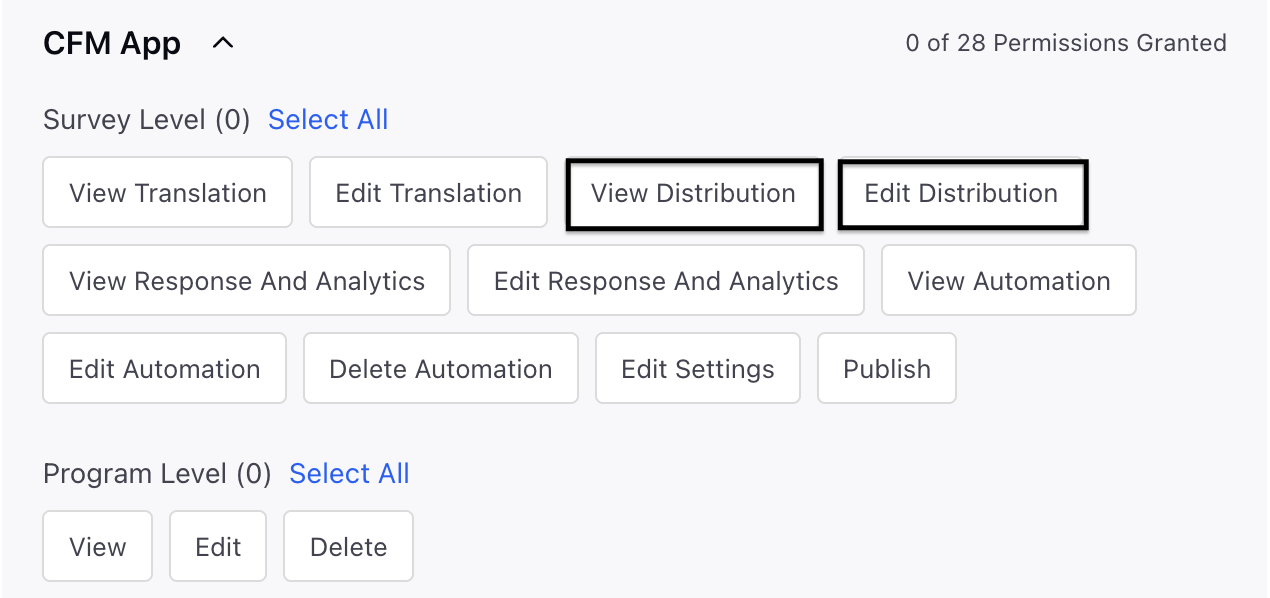
You need to have Edit and View Distribution permissions in order to access SMS Distribution.
Setting Up
When you navigate to the Distribution Record Manager, you'll see a unified list of all distributions across channels, including SMS, along with their current status and relevant metrics.
Record Manager Columns and Metrics
Refer to these article for details on the columns and metrics available for SMS distribution.

Distribution Level Quick Actions
You can click the Vertical Ellipsis(⋮) to access the quick actions:

Quick Action | Description |
Edit | Edit distribution details |
Clone | The clone feature allows you to create an identical copy of an existing WhatsApp distribution. |
View | View SMS distribution form details |
Pause | The pause feature allows you to stop the distribution immediately if issues arise, halting any further SMS from being sent.
|
Distribution Report | The Distribution Report provides live status updates on each invite sent via the WhatsApp distribution. Each WhatsApp invite is tracked as a unique row item with its data (sent, failed, quarantined), and includes the response status (received, started, unopened). For successful submissions, the response ID is provided.
|
Delete | Remove the distribution |


Distribution Report
The Distribution Report provides a real-time view of every survey invite sent through SMS (or Email, WhatsApp, or generated via Personalized Links as applicable). Each invite appears as an individual row, allowing you to track delivery outcomes, understand customer engagement, and access associated response details.
The report displays the status of each attempted invite, including successful sends, failures, quarantines, and suppressions, along with the corresponding response status such as survey opened, in progress, or completed. For all completed surveys, the Response ID is available directly from the report.

Column | Definition | ||||||||||||||
Name | The ‘Profile Name’ of the profile/transaction on which the invite was sent. | ||||||||||||||
Contact | The SNID of the customer’s profile. It will generally be email address or mobile number, depending on the channel. In cases where the profile has more than one channel this could show the ID of the primary profile. | ||||||||||||||
Invite Status | The following Invite statuses are supported. You can hover over the status to get more details in certain scenarios.
| ||||||||||||||
Response Status | The following Response statuses are supported. You can hover over the status to get more details in certain scenarios.
| ||||||||||||||
Invite Sent Time | The timestamp on which the survey was triggered from Sprinklr. This is specifically significant for triggered or workflow-driven invitations where surveys are not sent at once but are sent on a real-time ongoing basis. | ||||||||||||||
Survey Response Time | The timestamp on which the survey was responded or partially completed. | ||||||||||||||
Survey Start Time | The timestamp on which atleast one question was answered. | ||||||||||||||
Survey Filled Language | The language of the survey at the time of submitting. The user and change this from the top right of their survey form. | ||||||||||||||
Response Id | If the survey was responded, this is the ID of that response. You can copy this ID and search for it in the responses tab to view the response and other meta-data associated to it |