Setting up a Case Update Rule triggered SMS Distribution
Updated
Setting up a Case Update Rule–triggered SMS distribution refers to configuring an automated communication workflow in the CFM platform that sends an SMS notification for case updates.
Business Use Cases
Post-Care Feedback Automation: Rule-based integration enables the automatic deployment of surveys through Sprinklr Service workflows. For example, a survey can be automatically triggered when a case's status changes to 'Resolved'. This system ensures that every interaction is promptly followed by a feedback request, eliminating the need for any manual intervention.
Actionable Insights from Service Cases: Initiating CFM Surveys immediately after case updates provides a robust method for monitoring satisfaction levels across a spectrum of case types, geographical regions, and individual agents. This streamlined, automated workflow, which progresses from case closure to survey distribution and then to comprehensive response analytics, empowers you to pinpoint any service deficiencies and subsequently enhance agent performance.
Key Features
Improves operational efficiency: Integrates seamlessly between Sprinklr Service and CFM, reducing dependency on separate tools or manual survey dispatches.
Automates post-case feedback collection: Eliminates manual effort by triggering CFM SMS surveys directly through case update rules in Sprinklr Service.
Drives continuous improvement: Enables closed-loop insights — linking case management performance to customer satisfaction outcomes.
Ensures real-time customer insights: Collects immediate feedback after case closure, helping brands measure satisfaction at the moment of experience.
Boosts response rates: Personalized SMS with case placeholders make it easy for customers to share feedback quickly.
Prerequisites
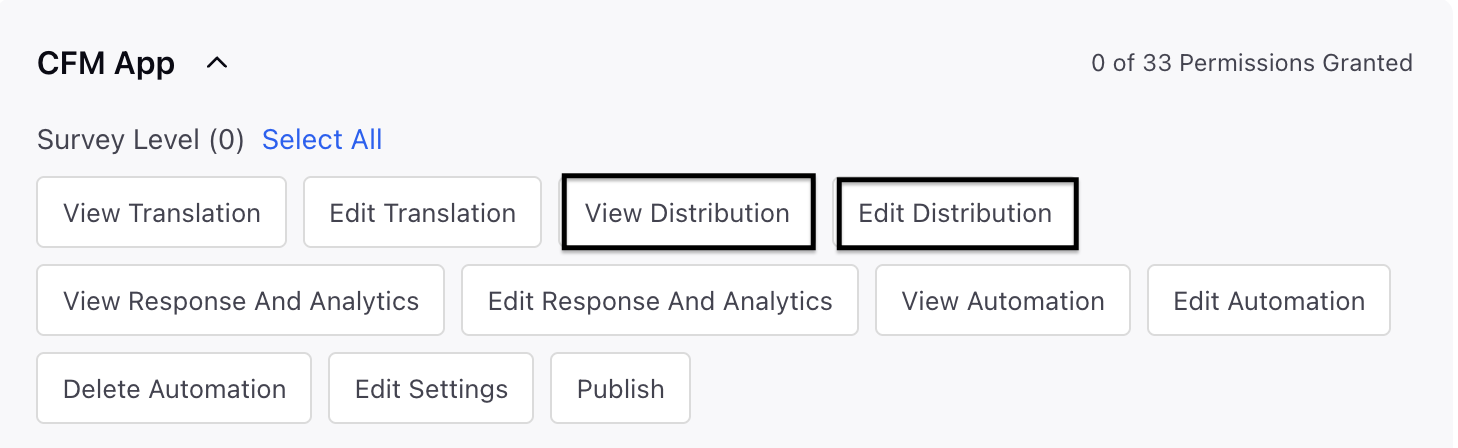
In order to access the WhatsApp distribution, you must have access to the following View and Edit Distribution permissions at Survey Level.
Setting Up Case Update Triggered Standard Distribution
Before you can select the trigger-based option in the schedule, you must follow the steps detailed in this article to set up the standard trigger-based distribution.
Go to Schedule Distribution page and choose Type as Trigger Based option while scheduling the distribution.

Proceed to the Sender Account and choose the SMS account you intend to use for sending the message.

Setting Up Case Update Rule
Access the Rule Engine, then click on '+ Create New Rule'. Proceed to create a new Case Update Rule by selecting 'Case Update' as the content type.


CFM Survey Conditions
In the Rule Engine, you can set up CFM survey conditions. These conditions enable the triggering of specific survey actions (such as sending reminders or thank-you messages) based on the invite's status, the response's status, or the time elapsed since a survey invite was originally dispatched. To configure a CFM survey condition, follow these steps:

On the Rule Engine page, click the Add Element option and select Add Condition.
Go to Edit Condition in right pane and fill in the details:
Name: Provide a name to the Condition.
Navigate to Conditions Applies to CFM Surveys and select one of the following conditions:
CFM Survey Action
Once your survey conditions are established, you can set up Rule Engine actions to automatically send out survey invitations, reminders, or thank-you messages. These automated communications will be triggered by specific case events and evaluation logic. Below are the steps to configure a CFM Survey Action:

On the Rule Engine page, click the Add Element option and select Add Action.
Go to Edit Action in right pane and fill in the details:
Name: Provide a name to the Action.
Navigate to Actions to CFM Survey and select one of the following action.
Key points to note
Separate Rules Required for Each Action: “Trigger Survey Invitation,” “Send Survey Reminder,” and “Send Thank You Message” actions must be configured in separate rules. Configuring multiple CFM survey actions within the same rule may lead to execution order issues, where a subsequent action (e.g., reminder or thank-you) could be triggered before the previous action (e.g., survey invite) has completed.
Reminder and Thank You Require Separate Configuration: Reminder and thank-you messages are not triggered automatically after the survey invite. They require independent Rule Engine actions to be configured explicitly.
Conditions Must Be Defined to Control Reminder Delivery: Appropriate Survey Status conditions (e.g., Failed, Quarantined, Suppressed, Unsubscribed, Completed) should be added to ensure that reminders and thank you messages are sent only to eligible recipients and not to users who have opted out or already completed the survey.
While creating an SMS distribution, you can use the preview feature to see how your message will appear on a recipient’s SMS screen. This helps ensure that the content is visually clear and properly formatted before sending.
To test the full distribution flow, including message delivery, timing, reminders, and survey link behavior—set up a test distribution and send it to a small group of test phone numbers. Verify that the message is delivered correctly, the formatting displays as expected, and all links function properly. Confirm the complete recipient experience, including reminders and thank‑you messages.
Once you’ve validated the test results, clone the distribution, make any necessary adjustments, and then deploy it to your intended audience.