TikTok as Benchmarking Source
Updated
TikTok is now integrated into the Benchmarking and Insights in Sprinklr, making it easy to view and analyze public video-level data from eligible TikTok Creator Marketplace (TTO) creators. You can bring TikTok creator data (returned by TikTok discovery page) as brands directly into your reports, compare it alongside other social media channels, spot top-performing content, and evaluate creator performance, all within Sprinklr Insights.
This also lets you measure TikTok creator performance using the same benchmarking framework you use across other platforms, keeping your competitive and creator analysis consistent and straightforward.
Business Use Cases
The following business use cases are enabled by this integration:
Benchmarking creators against each other: Once creator profiles are added as brand accounts, users can plot multiple TikTok creators' side-by-side on benchmarking dashboards, enabling direct comparisons of follower growth, video engagement, and content output over time.
Account-level and media-level insights in one place: By pulling data from both the Public Account Insights and the Public Media Insights, users gain a consolidated view of creator profile stats and individual video performance without leaving the Sprinklr platform.
Stronger cross-platform campaign analysis: Incorporating TikTok creator data alongside other social media channels gives you a more complete picture of social media performance for different brands and competitors. This helps identify what content is resonating, refine strategies, and make smarter decisions backed by cross-platform intelligence.
Overview of TikTok Creator Accounts for Benchmarking
Parameters | Details |
Source | TikTok |
Source of Data | TikTok Business APIs |
Eligibility | TTO (TikTok Creator Marketplace) registered public creator accounts only |
Latency | Refreshed once a day |
Historical Data | Supported for messages and Stats |
Backfill Support | 2 years |
Engagement Refresh | Once a day |
Profile Metadata | Username, profile picture, bio, follower count |
Media Types | Videos (public TikTok posts by the creator) |
Message Type | Public video posts by TTO Creator Marketplace creators |
TikTok Creator-specific Engagement Stats
Account-level Metrics
Name | Type | Definition |
Account Follower Count | Metric | Total number of followers for the TikTok creator account at the time of data fetch. Maps to Sprinklr's common Account Follower metric for cross-platform comparison. |
Author Name | Dimension | The display name as shown on the creator's public TikTok profile. |
Follower count | Metric | Follower count for the profile |
Video / Media-level Metrics
Name | Type | Definition |
Video Title | Dimension | The caption or title text associated with the video post. |
Create Time | Dimension | Timestamp when the video was originally published by the creator. |
View Count | Metric | Total number of views on the video at the time of data fetch. |
Like Count | Metric | Total number of likes on the video. |
Comment Count | Metric | Total number of comments on the video. |
Share Count | Metric | Total number of shares/reposts of the video. |
Hashtags | Dimension | List of hashtags tagged in the video caption. |
Steps to add Brands
Navigate to Sprinklr Insights and select Brands under Learn within Manage.

Click + Add Brand and then navigate to Select a Brand Type page where you can select a Brand.


Go to Select a Brand Type section and select the most appropriate option.

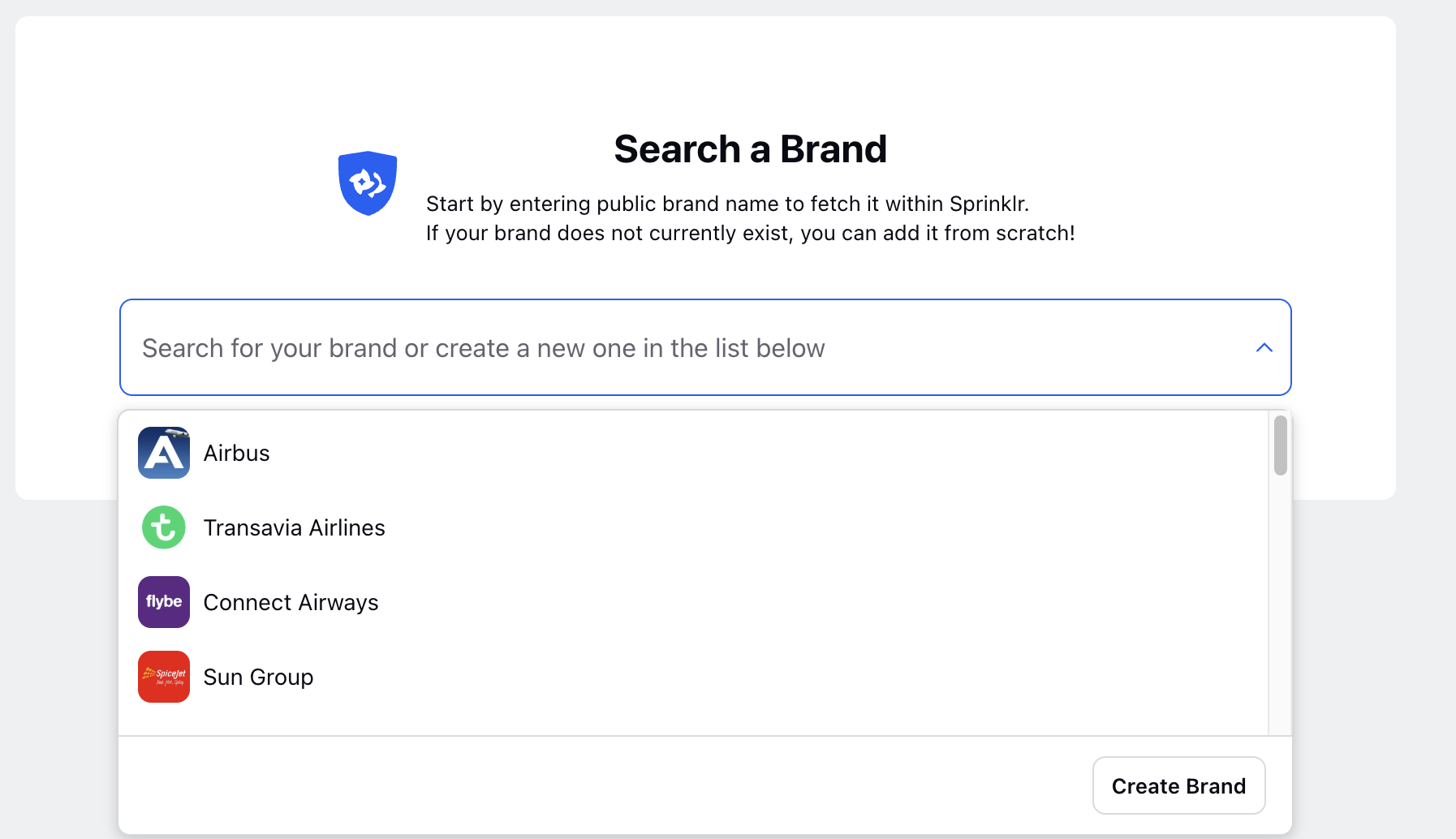
Select Brand and search TikTok brand.
In the Brand Details page fill in the details of the brand and click Next.
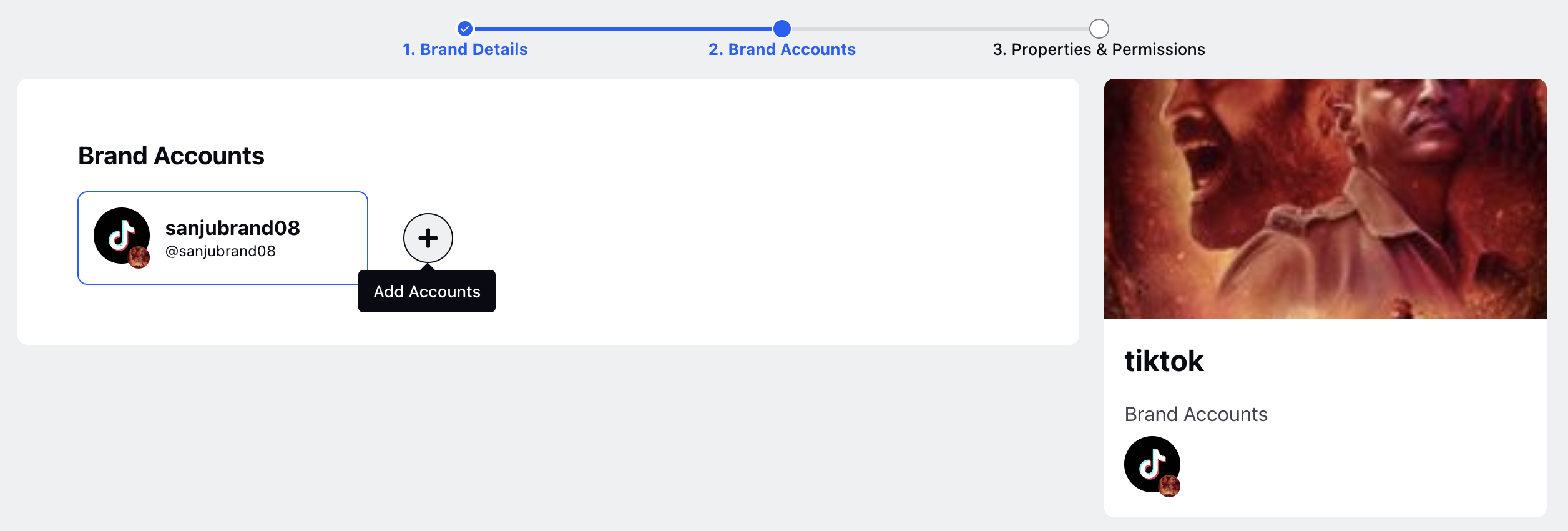
Go to Brand Account page and Click Add Account option(+ sign).
In the chose account from database option select the account by clicking + URL. If the account is alread added here and its authenticated, just add the URL in the enter URL section and click Next.
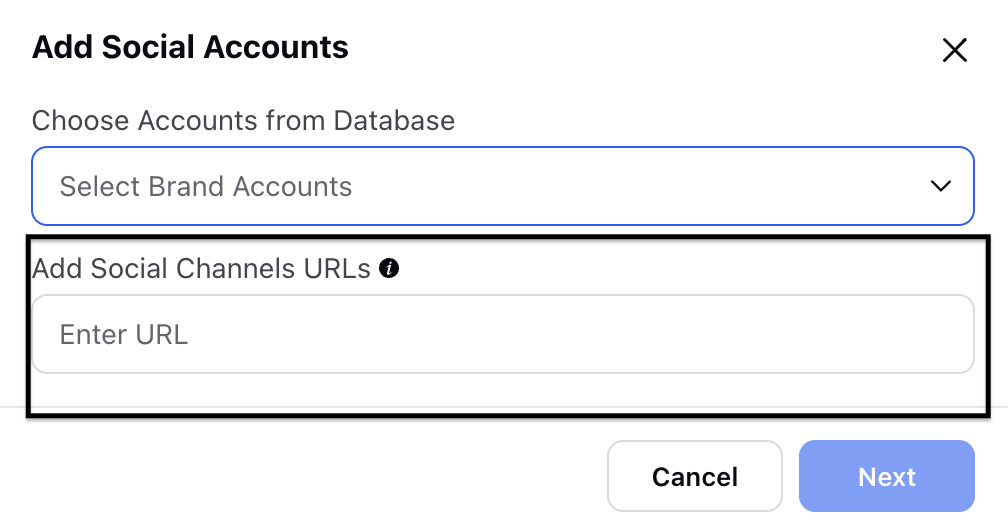

 Note: When adding TikTok URLs, especially if you run into any issues, please ensure you’re using the following format: https://www.tiktok.com/[@accountname] .
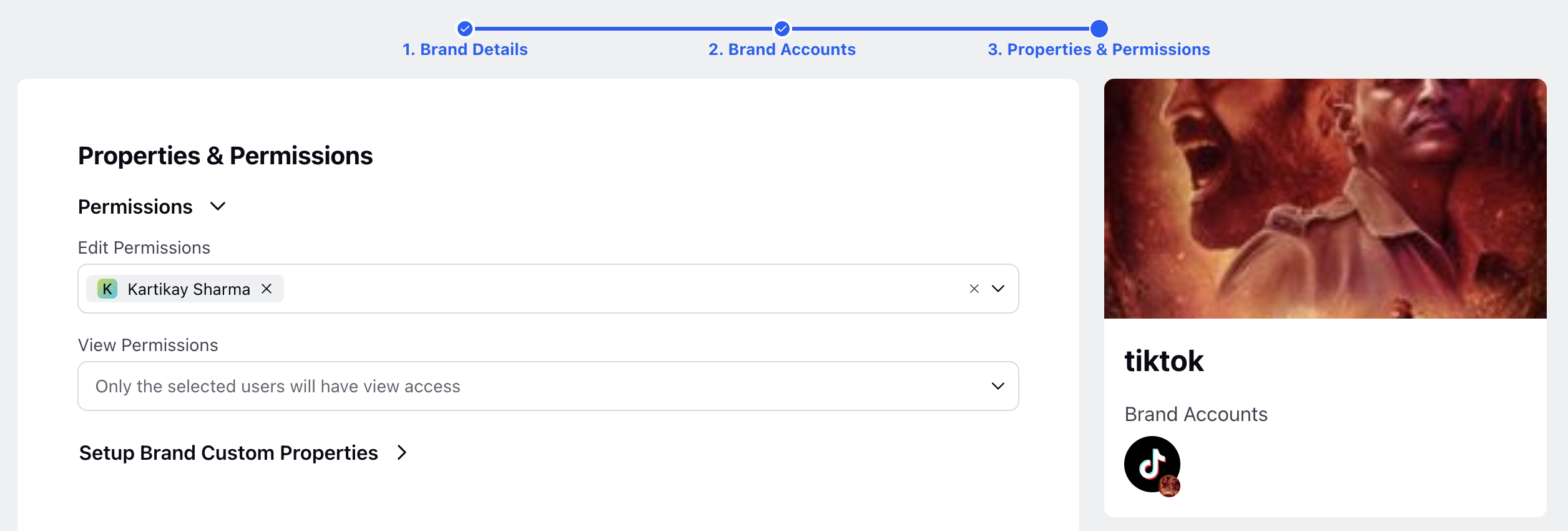
Go to the permissions section and provide Edit and View permissions to the users, user groups, and workspace, and select the relevant Custom Properties.