Auto-Translate an Article
Updated
It is possible to automatically translate an article using Google Translate. This feature allows users to easily convert articles from one language to another, facilitating communication between people of different cultures and languages.
To auto-translate articles
On the Create Article window, select the languages you want to translate the article into from the Translate To field.
Knowledge Base supports the following languages:
Language
Language Code
Arabic
ar
Arabic (Egypt)
ar_EG
Arabic (Saudi Arabia)
ar_SA
Azerbaijani
az
Basque (Spain)
eu-ES
Bengali
bn
Bulgarian
bg
Burmese
my
Catalan (Spain, Valencia)
ca-ES-valencia
Catalan (Spain)
ca-ES
Central Kurdish
ckb
Chinese
zh
Chinese (Hong Kong)
zn_hk
Chinese (Simplified)
zh_CN
Chinese (Traditional)
zh_TW
Croatian (Croatia)
hr-HR
Czech (Czech Republic)
cs_CZ
Danish (Denmark)
da_DK
Dutch
nl
Dutch (Belgium)
nl-BE
Dutch (Nederlands)
nl_NL
English
en
English (Australia)
en_au
English (Canada)
en-CA
English (India)
en_IN
English (Ireland)
en_IE
English (United Kingdom)
en_GB
English (US)
en_US
Estonian
et
Finnish (Finland)
fi_FI
French
fr
French (Belgium)
fr-BE
French (Canada)
fr_CA
French (France)
fr_FR
Galician (Spain)
gl-ES
Georgian
ka
German
de
German (Germany)
de_DE
Greek (Greece)
el_GR
Hebrew (Israel)
he_IL
Hindi (India)
hi_IN
Hungarian (Hungary)
hu_HU
Icelandic (Iceland)
is_IS
Indo Bahasa (Indonesia)
id_ID
Italian
it
Italian (Italy)
it_IT
Japanese
ja
Japanese (Japan)
ja_JP
Kannada (India)
kn_IN
Kazakh
kk
Korean
ko
Korean (Korea)
ko_KR
Latvian
lv
Lithuanian
lt
Malayalam (India)
ml_IN
Malay Bahasa (Malaysia)
ms_MY
Mongolian
mn
Northern Kurdish
kmr
Norwegian Bokmål (Norway)
nb_NO
Persian
fa
Polish (Poland)
pl_PL
Portuguese
pt
Portuguese (Brazil)
pt_BR
Portuguese (Portugal)
pt_PT
Romanian (Moldava)
ro_MD
Romanian (Romania)
ro_RO
Russian
ru
Russian (Russia)
ru_RU
Serbian
sr
Slovak (Slovakia)
sk_SK
Slovenian
sl
Spanish
es
Spanish (Mexico)
es_MX
Spanish (Spain)
es_ES
Swedish (Sweden)
sv_SE
Tagalog (Philippines)
tl_PH
Tamil (India)
ta_IN
Telugu (India)
te_IN
Thai (Thailand)
th_TH
Turkish (Turkey)
tr_TR
Ukrainian (Ukraine)
uk_UA
Urdu
ur
Uzbek
uz
Vietnamese (Vietnam)
vi_VN
For more information, see Create an Article in Sprinklr Knowledge Base.
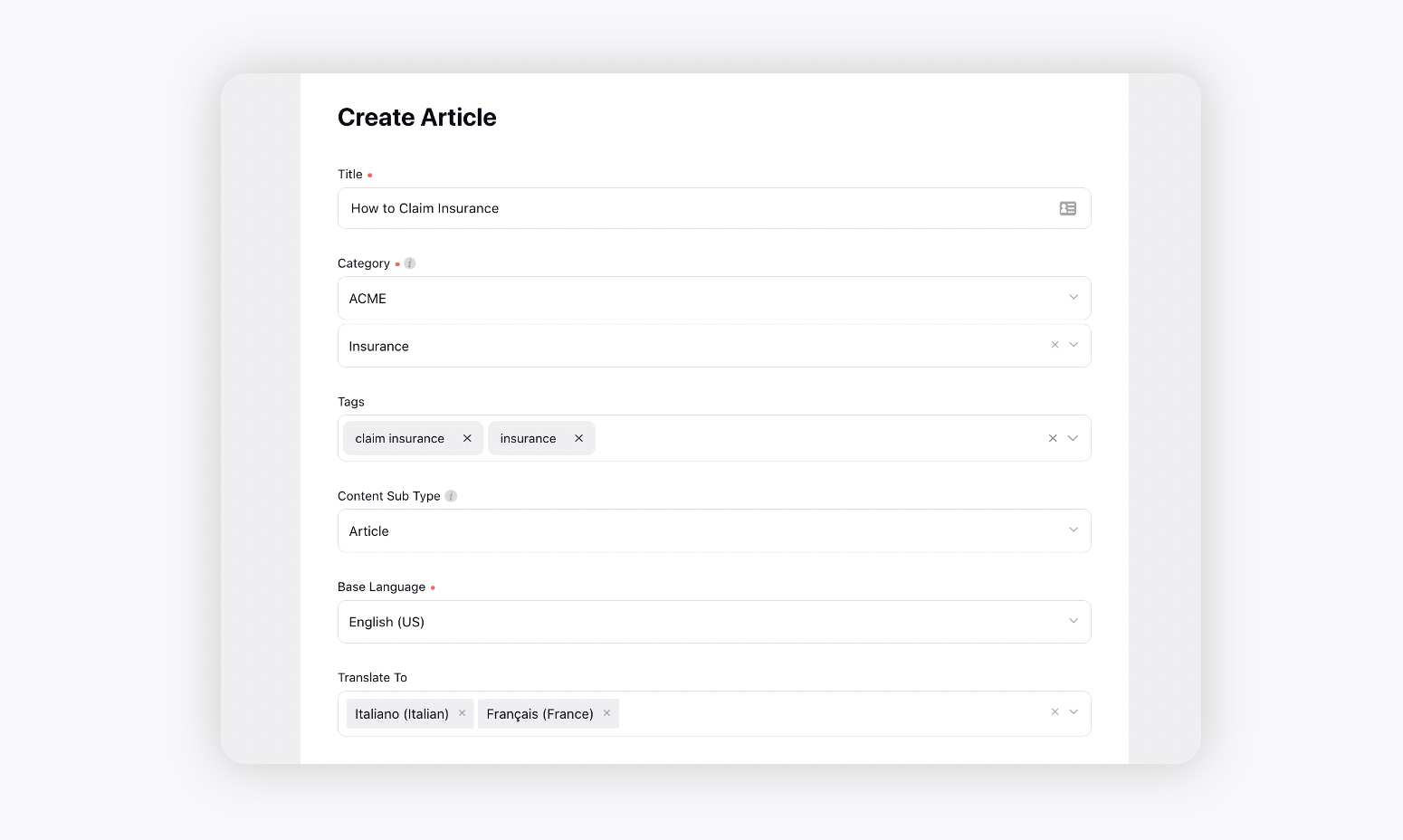
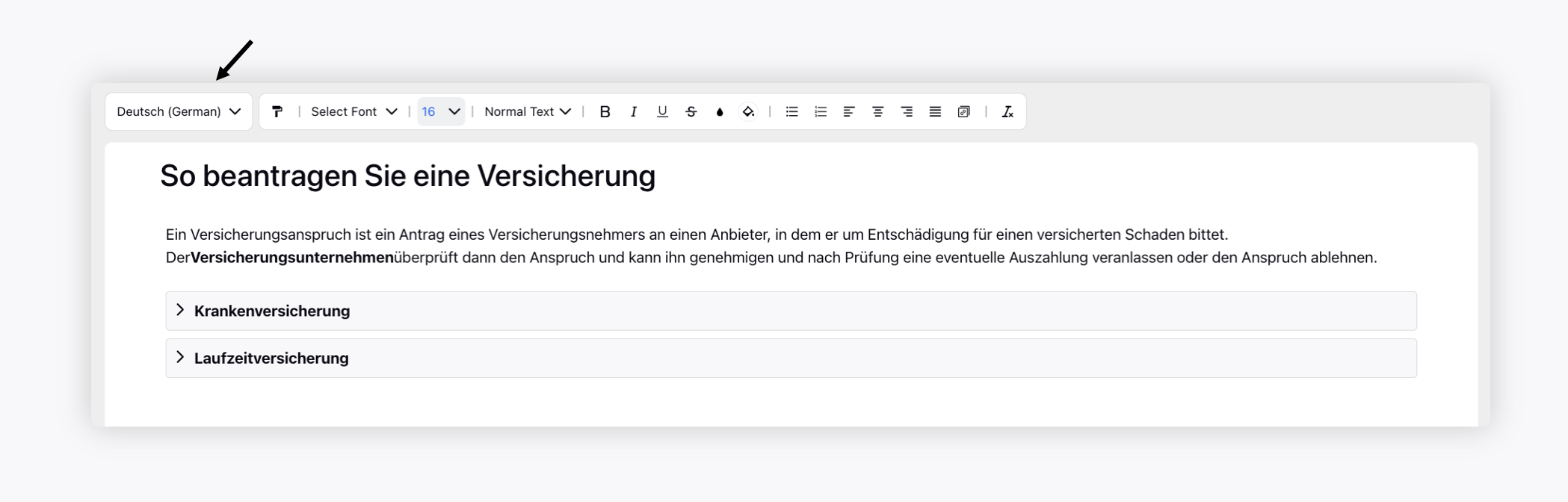
After creating the article in the base language, you can translate it to the selected languages. You can add more languages from the top left corner.

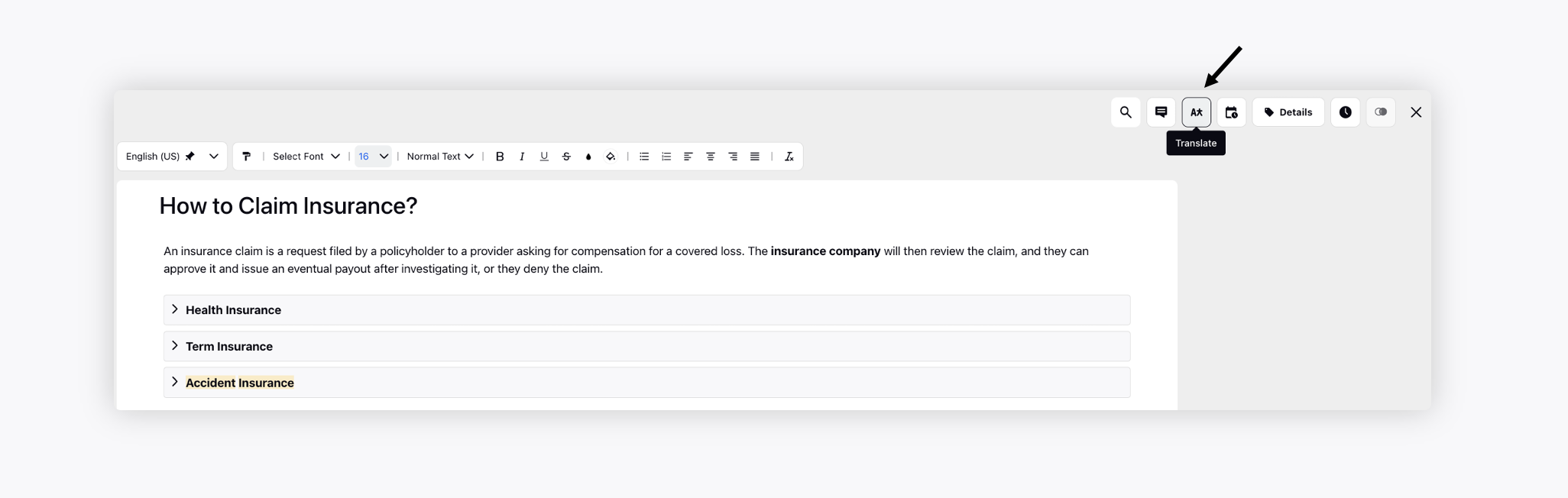
Next, for auto-translating an article using Google Translator, click the Translate button on the top.
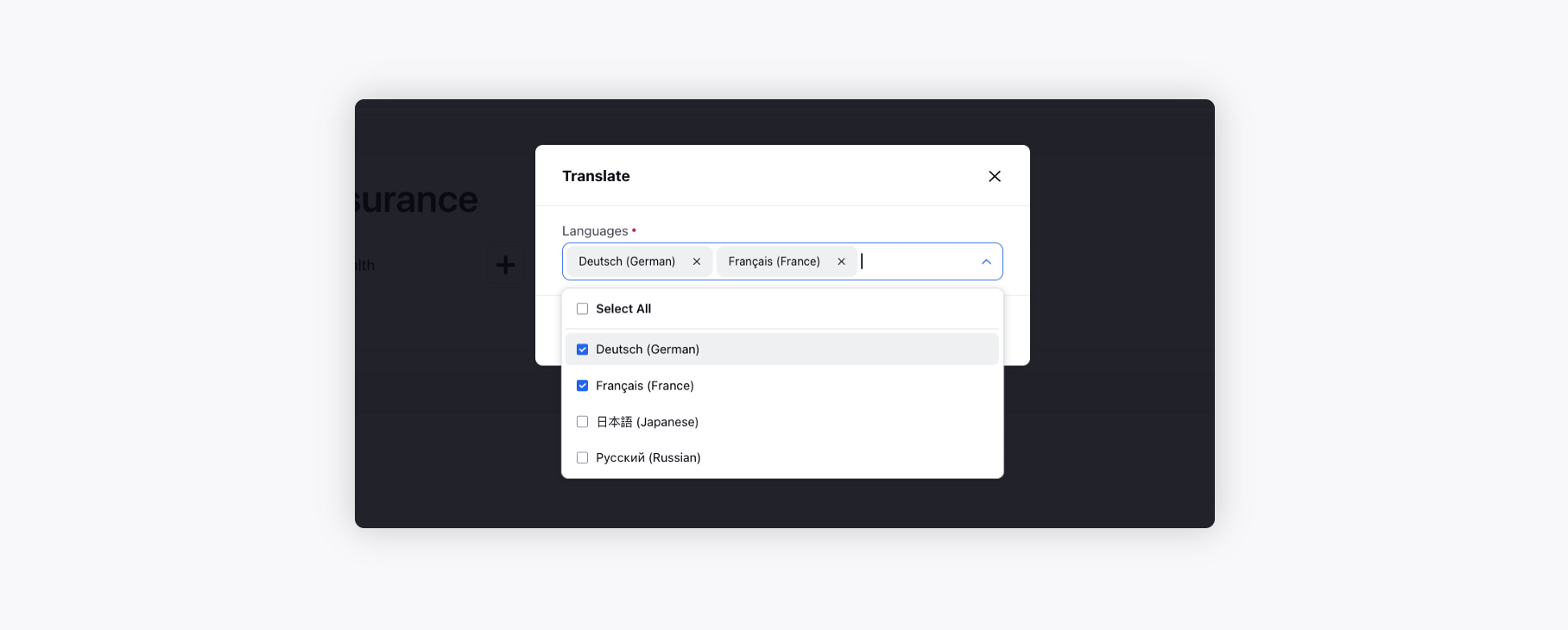
Select the desired languages and click Translate.
Next, switch to the translated language from the top left corner, review the translation and click Save.
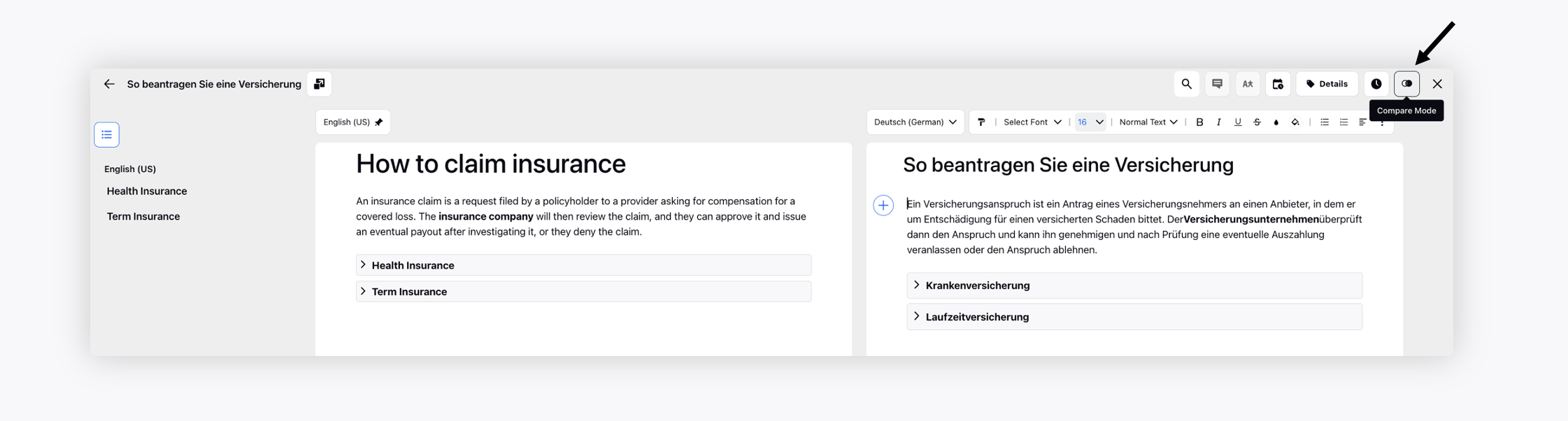
While translating your article into another language, you can open it in the compare mode to review it alongside the base language. Simply open the base article, click the Compare Mode icon in the top right corner, and the base language article will appear in view mode on the left. You can then change the country and language for the article on the right to facilitate a side-by-side comparison with the base article.