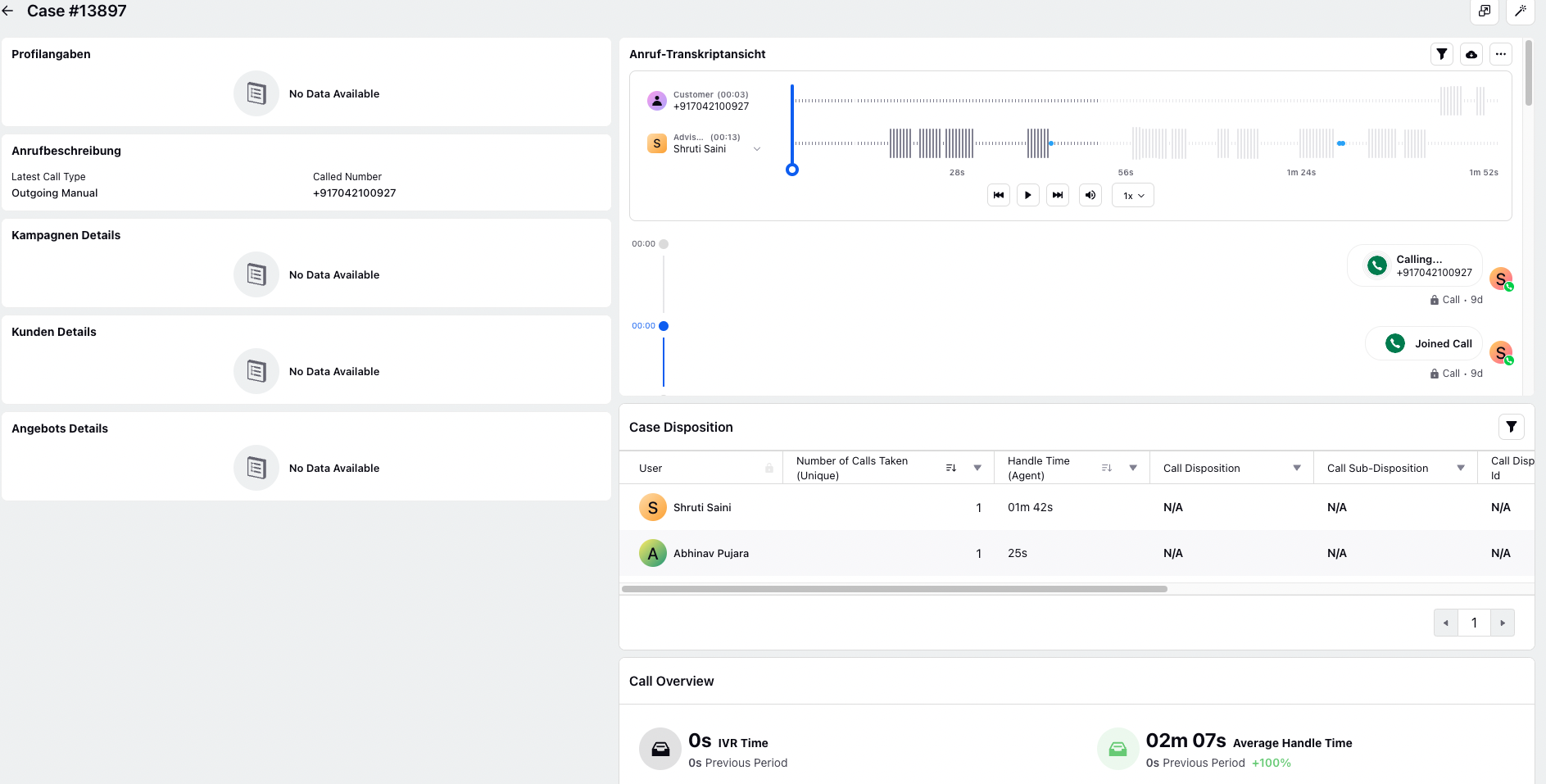
Voice Recording Segmentation
Updated
Increasing regulatory requirements and data privacy concerns have made unrestricted access to voice recordings a significant risk. This legacy approach complicates the enforcement of data privacy, security, and governance policies.
To mitigate these challenges and strengthen data governance, Sprinklr offers enhanced voice recording controls. These capabilities provide a secure, compliant, and role-based framework for managing access to voice recordings, ensuring alignment with GDPR and other global data protection standards.
Dynamic Recording Segmentation
Voice recordings are segmented to ensure only authorized individuals—such as participants, managers, or auditors—can access specific portions. When a participant joins or leaves a call, a new segment is created. Users can only view segments they are permitted to access, preventing unauthorized exposure of other participants’ contributions.
Transcript Segmentation
Transcripts are segmented to match the corresponding recordings. While users can access the full transcript, any sections tied to inaccessible recordings will be anonymized. This ensures sensitive information remains protected while maintaining transparency for authorized users.
 Note: This feature is Dynamic Property (DP) controlled. Contact your Success Manager to enable this feature for your environment. Alternatively, you can submit a request at tickets@sprinklr.com.
Hide Transcripts for Inaccessible Segments
In addition to segmenting transcripts, you can choose to hide transcript content for segments that users are not authorized to access. This ensures that sensitive information remains concealed and aligns with your organization’s data privacy policies.

How It Works
When enabled, the system masks transcript text for any recording segment that a user cannot access based on segmentation permissions. This adds an extra layer of security by preventing unauthorized viewing of transcript details.
Steps to Enable Transcript Masking
Navigate to Voice Care
From the Sprinklr Launchpad, go to Voice Care.
Open Voice Configurator
In the left navigation pane, select Voice Configurator, then choose Voice Recording Settings.

Enable Transcript Masking
On the Record Manager screen of Voice Recording Settings: Locate the option Mask transcripts for inaccessible segments.
Hover over the three dots and click Edit.
The Mask transcripts for inaccessible segments is displayed.
Click the Mask transcripts for inaccessible segments toggle button to enable this setting and to conceal transcript content associated with segments that the user is not authorized to access.

Accessibility to Segments
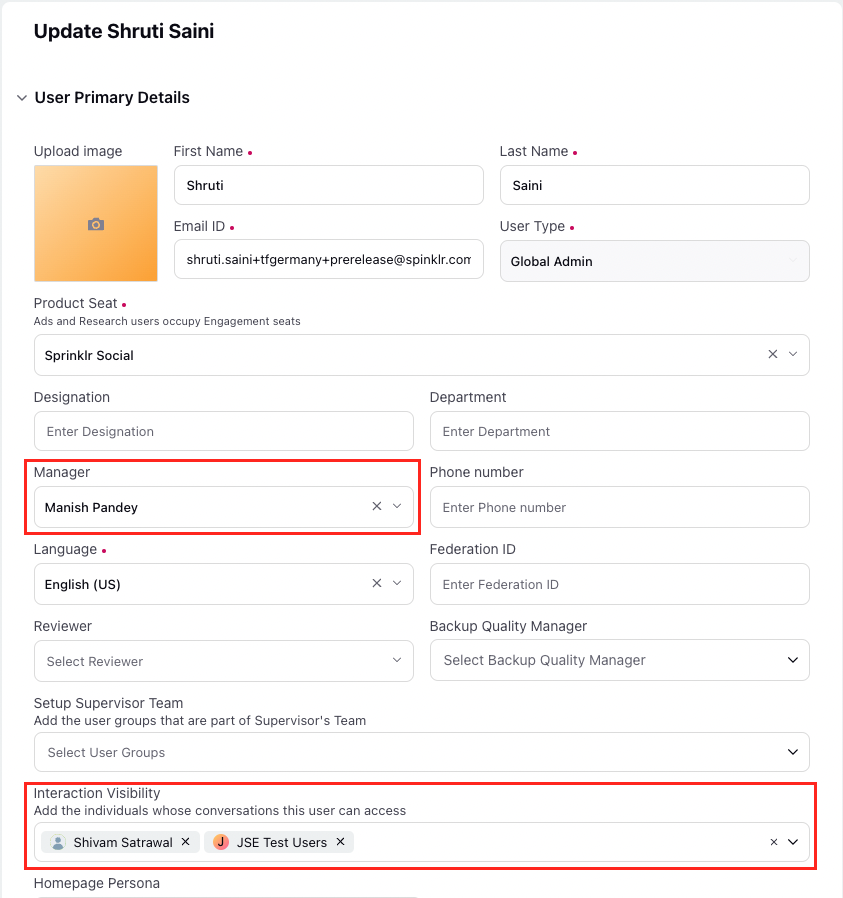
Accessibility to segments is governed by the following fields:
Manager: Agents’ managers and all users within the manager’s upward hierarchy have access to the segments of recordings related to the agent.
Interaction Visibility: This field allows for the selection of agents or agent groups. Users can access all segments associated with agents listed in this field.
Segment Permissions
When multiple participants are present in the same segment of a call, accessibility is granted based on the following permissions:
View Segments with Transition: Allows users to view a segment if there is even one agent in that segment whose recordings the user is authorized to access.
View Segments without Transition: Allows users to view a segment only if all agents in that segment are ones whose recordings the user is authorized to access.
View All Segments: This permission provides complete access to all segments of recordings and is particularly relevant to administrators and leaders who require full visibility for oversight and analysis. If a user has this permission, they will be able to access all segments of all calls, irrespective of the values defined in the Manager/Interaction Visibility field.
The above permissions can be accessed under: Quality Management > Recording Segments
.png)
Segment Rendering
The segments are rendered either on the Care Console or QM View:
In Care Console, segments are rendered based on the permission View Segment Recording. If this permission is not present, users will not be able to view any segment recordings in Care Console. This permission can be accessed under: Sprinklr Voice > Voice Recording
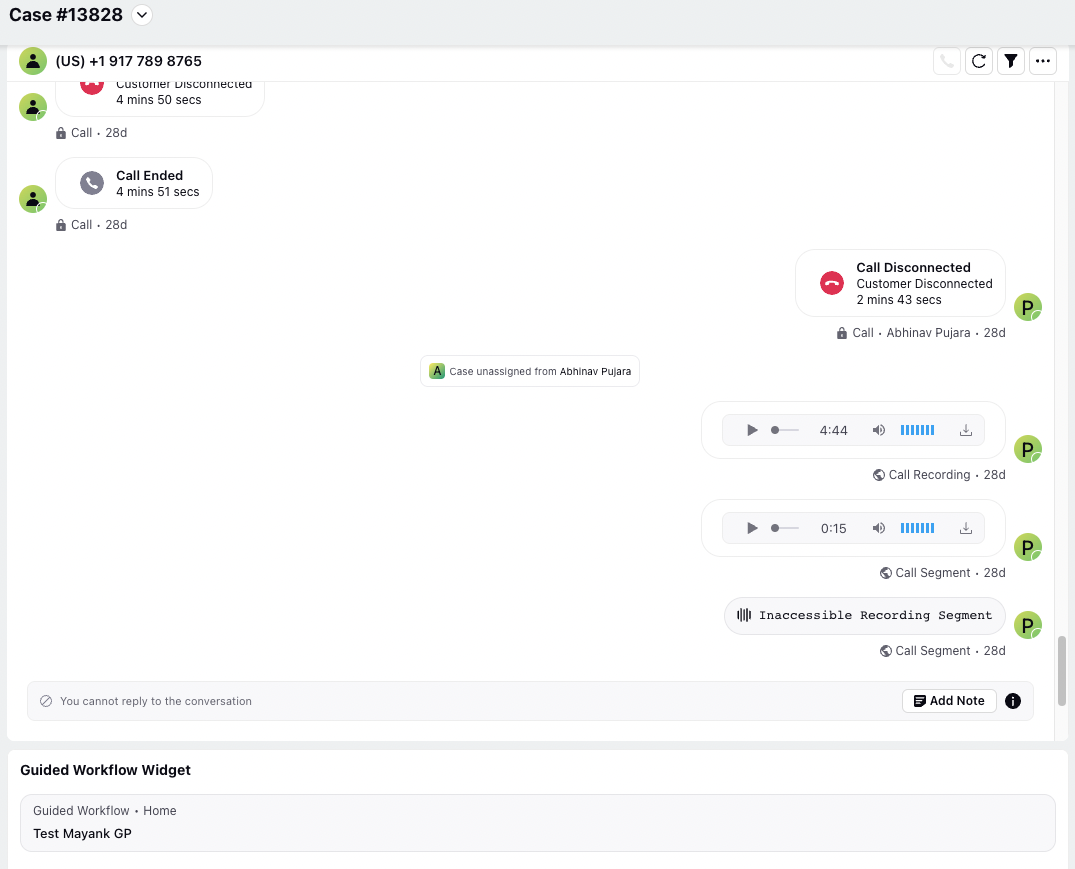
In the QM view, users will be able to access only the cases where there is at least one segment to which the user has access.