Live Chat Welcome Message
Updated
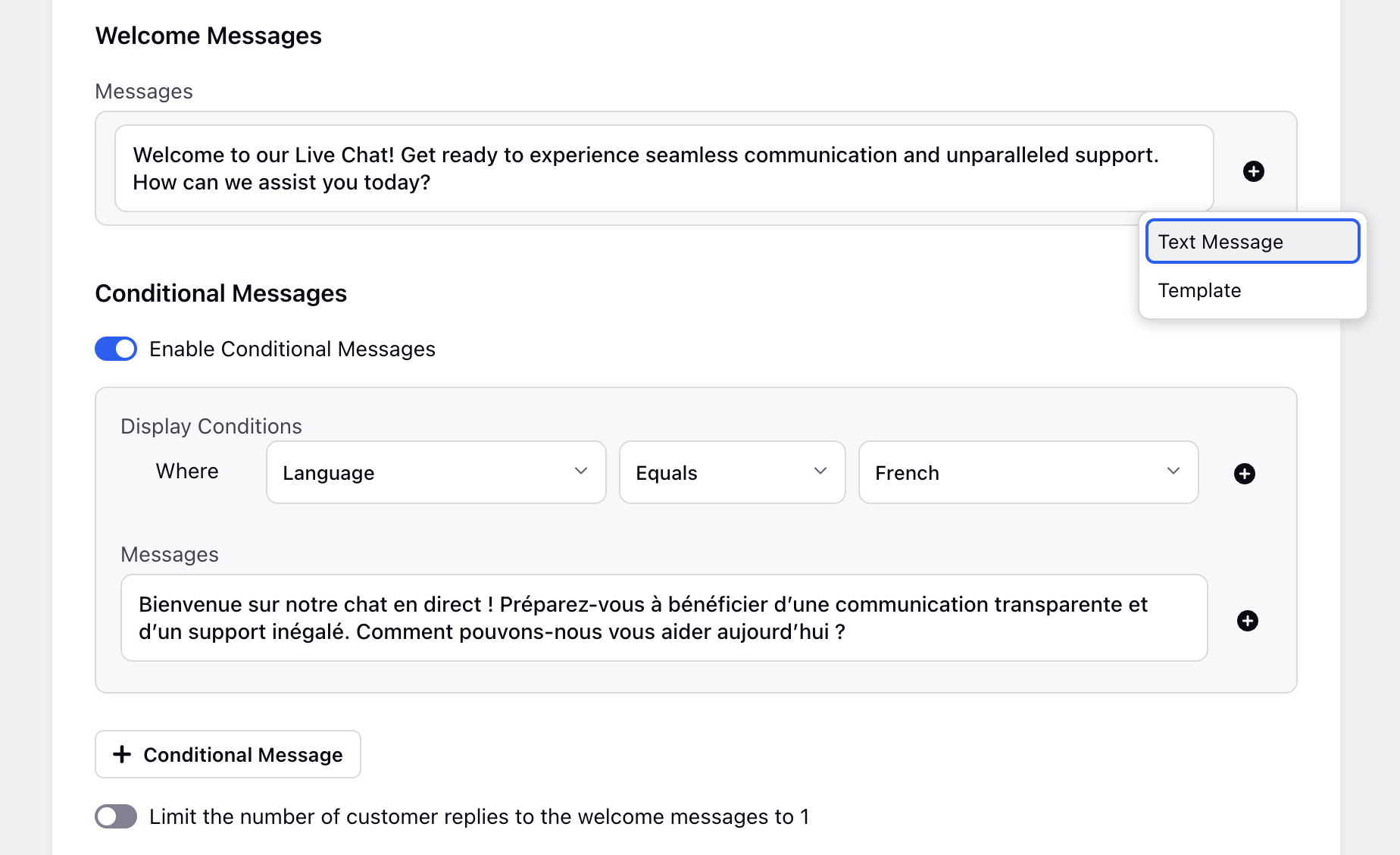
When a customer starts a conversation you can choose to display a welcome message. This welcome message can be in the form of text or one of the many rich text asset templates supported by Sprinklr's Live Chat.
Set a default welcome message
In the LiveChat builder's "Conversation Screen" section, you can create multiple welcome messages. You have the option to include either a text message or a pre-created template.
Limit the number of customer replies to welcome message
You can limit the number of customer replies to the welcome messages to one. If you need to configure it for multiple messages, this can be done by raising a support ticket and specifying the desired number of messages.
Set conditional welcome messages
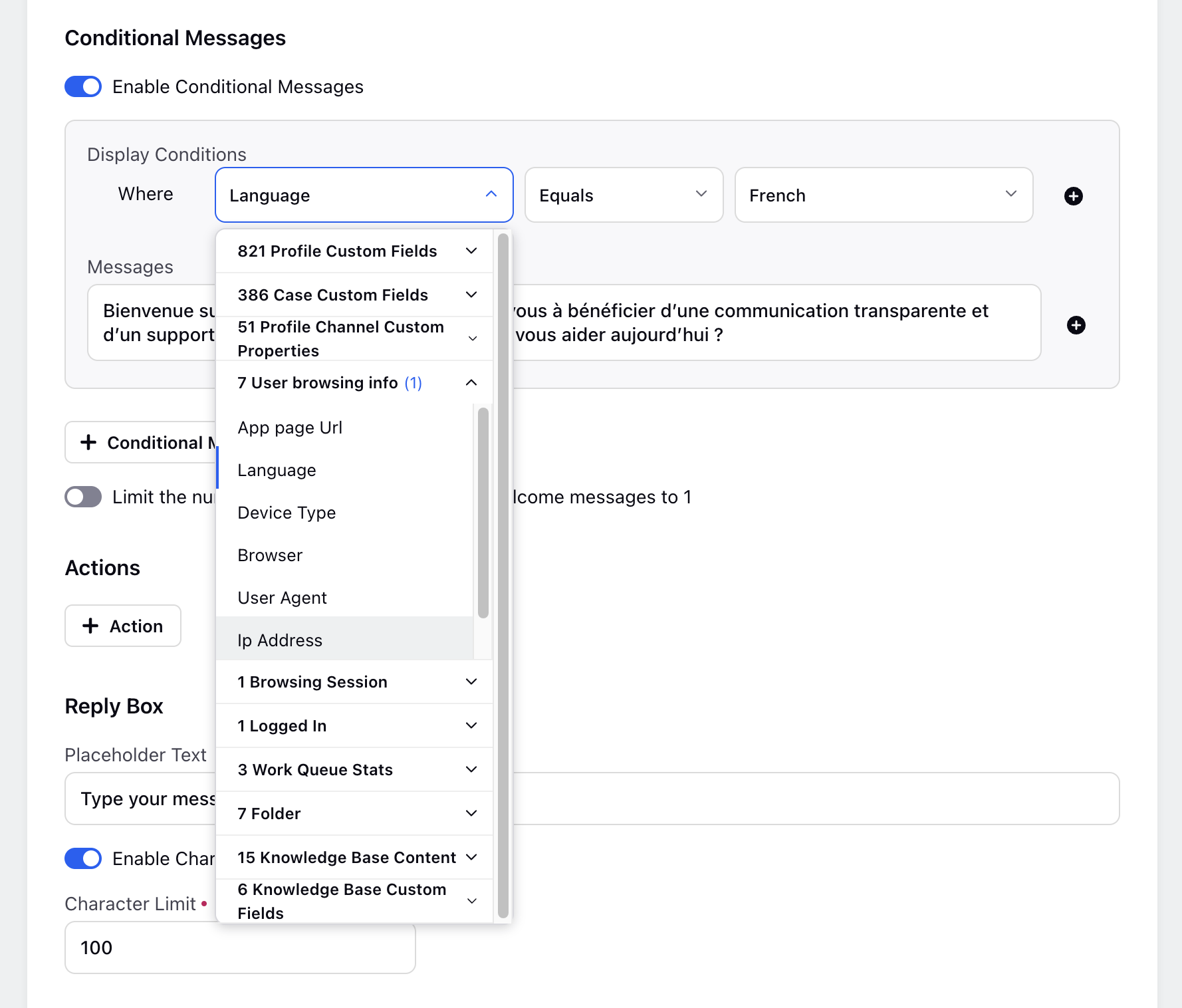
You might want to show different welcome messages to different set of users. Sprinklr offers you the flexibility to display conditional welcome messages based upon.
A profile custom field
Case custom field
User browsing Info
User details
Business Hours
Agent Availability
To do this, select Enable Conditional Messages and setup different welcome messages for different conditions
If, for a user, no conditions are met, then the default welcome message will be displayed.
Configure Different Welcome Messages for Multiple Business Hours
You can create conditional welcome messages and associate them with specific Business Hours schedules. When a visitor initiates a chat during the configured Business Hours, the corresponding welcome message is displayed. This allows you to deliver tailored greetings for different support schedules and operating hours.
To configure welcome messages using custom Business Hours:
Open Live Chat Builder for the desired Live Chat application. For steps to access Live Chat Builder, see To Add Sprinklr Live Chat Application.
Expand Personalize Your Live Chat > Conversation Screen.
Under Welcome Messages, set a default welcome message.

Toggle on Enable Conditional Messages.
Under Display Conditions, configure the following:
From the Select a Field drop-down, select In Business Hours?
Select the required operator and value.
From Type, select Custom.
From Business Hours, select the required Business Hours schedule.
Under Messages, enter the welcome message to display when the configured conditions are satisfied.

Click + Conditional Message to add another conditional welcome message. Configure the Business Hours condition and specify the welcome message to display for the selected schedule.

Click Update.
Once configured and saved, the corresponding welcome message is displayed when the configured Business Hours condition is met.
Capture user details mandatorily at conversation start
You can chose to capture user details at the start of every conversation. To do this, enable Contact Form and create a new contact form or chose from an existing template.
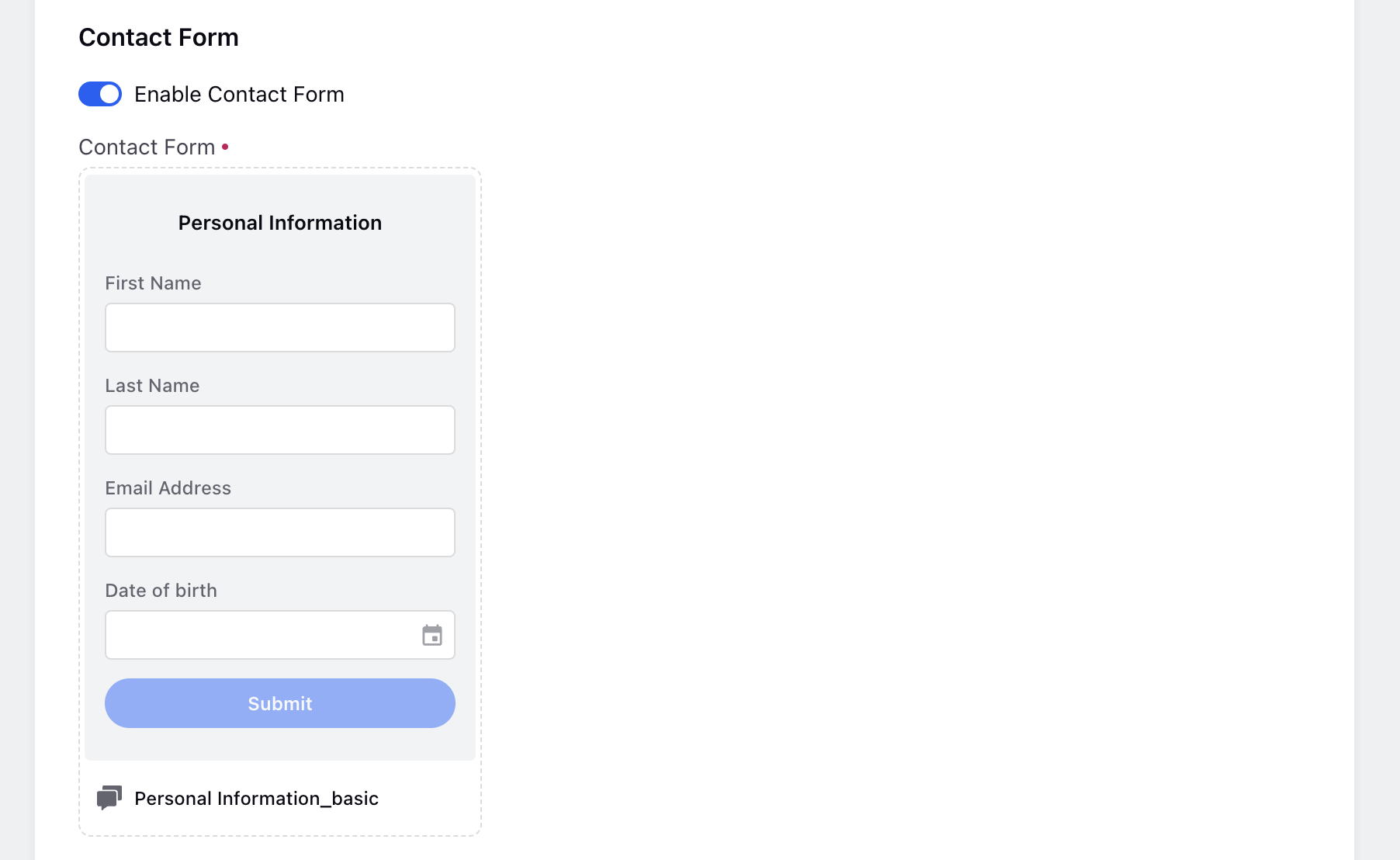
Please note, that this contact detail form will come up always, even if you already have the user details. In case you want to show a contact details form only when you don't have user details, please use the conditional welcome messages appraoch
Personalize your welcome message
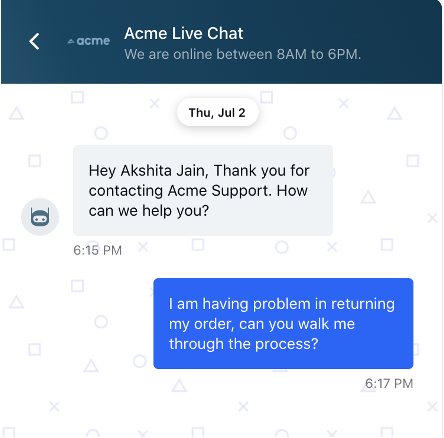
If you have user details of the customer, you can personlize your welcome message using these placeholders in your "Text" message or template
%%[toprofile_FULL_NAME:Full Name]
%%[toprofile_EMAIL:Email]
%%[toprofile_PHONE_NO:Phone No]
%%[toprofile_FIRST_NAME:First Name]
%%[toprofile_LAST_NAME:Last Name]
LLM-powered personalized welcome messages
Live Chat can be configured to show LLM‑powered welcome messages, generating greetings in real time based on user context rather than static or rule‑based text.
 Note: This feature requires backend configuration. To enable it in your environment, contact Sprinklr Support at tickets@sprinklr.com.
Instead of pulling a fixed message from a static asset, the system uses GenAI orchestration to create or retrieve the most relevant greeting. Factors such as user context, behavior signals, and business objectives are considered, allowing the message to adapt dynamically for each interaction.
With this approach, the welcome message becomes an intelligent conversation starter that varies for every user, delivering a more contextual and personalized chat experience.