Publishing a Static Flow Asset
Updated
Once a Flow is finalized, it transitions from the Draft State to the Published State, indicating that it is ready to be sent out and can now be shared with end customers for broader use. This transition marks the point at which the Flow becomes fully operational and accessible to its intended audience.
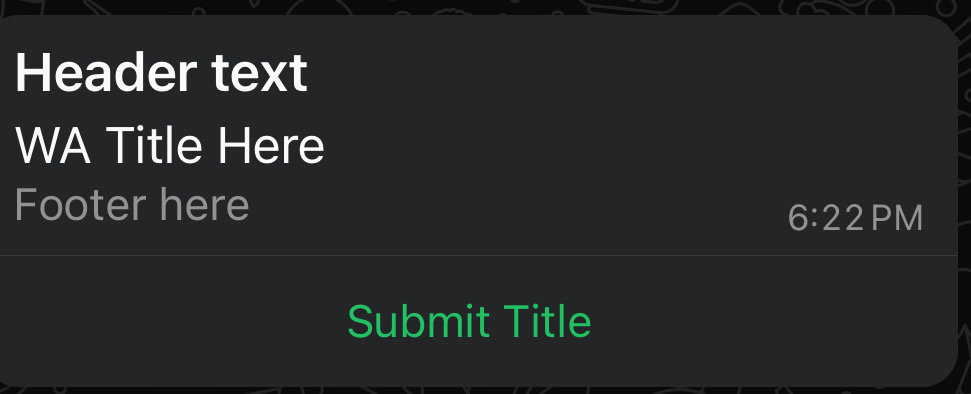
Initial Message Template Shown in Draft State:
.jpeg)
 Note: Once Flow is published it can no longer be modified or deleted. This is to prevent inconsistency from Flows changing over time (or errors from missing Flows).
Prerequisites
Before you begin, ensure the following prerequisites are met:
A WhatsApp Flow asset has been created.
Your business is verified.
High message quality is maintained.
Steps to Publish Flows
To publish a Flow, follow these steps:
1. Click the New Page (+) icon to open the Launchpad.
2. Under the Sprinklr Service tab, select the Persona App for Conversational AI.
3. Open the relevant Conversational AI application.
4. In the left navigation, click Manage.
5. Under Build, select Flows.
.png)
6. Click the Options icon next to the desired Flow and choose Publish.
.png)
The Flow Message Details window will appear, prompting you to configure the initial message sent to the end user.
7. Configure the following fields in the Flow Message Details window:
Field | Description |
Message Title | Enter the title of your message. |
Message Body | Write the main content of your message. |
Message Footer | Add any additional information in the footer. |
CTA Button Label | Specify the label for the Call‑to‑Action button. |

8. Click Publish in the bottom‑right corner.
9. Post‑Publish: The initial WhatsApp message with the updated fields will appear as shown below.