Widget Configuration
Updated
Reporting in Sprinklr Services, using Service Analytics as a data source centralizes data from all digital and voice channels and accounts. In Reporting, you can customize, expand, and drill into metrics by creating dashboards and widgets.
Sprinklr’s Dashboard creation flow and widget library make report creation easy and quick. Creating reports is now simpler, as you no longer need to remember thousands of metrics from various channels. Metrics and Dimensions are organized into groups, making it easy to identify the relevant ones.
 Note:
Note:
The maximum threshold for display on Reports in Sprinklr is 300 per page and 5000 overall for a Table Widget.
You can review monthly, quarterly, or yearly business performance using the "Month of year" Dimension or by toggling the Widget aggregation between a monthly or quarterly basis for better decision-making.
You can also access the Widget Library to easily customize and add the widget templates to your dashboard. It will help you reduce the learning curve needed to create insightful reports. Logically grouped data points, system-guided chart selection, and widget library, ensure quick and accurate report creation.
Admin Set-up: You must have the Widget Editor permission in Reporting permissions to access the Widget Editor and Library. You can learn more about Roles and Permissions.
Create a Reporting Widget
Prerequisites for creating Widgets:
Create permission under the Dashboard section in the Reporting module.
Existing Reporting Dashboard and access to it.
Follow these steps to create a Reporting Widget:
Go to Service Reporting in the Analyze column on the Launchpad. This will open the Reporting Dashboards Record Manager.

 Note: Service Analytics reports are now accessible under Service Reporting, replacing the previous Care Reporting section. Your Dashboard Manager experience stays the same. You can continue creating widgets and dashboards as before. When building new widgets or dashboards or accessing the Custom Metrics page, Service Analytics will be selected as the default data source. You can apply filters at the widget, section, and dashboard levels, navigate to the Service Settings screen, and use drilldowns on widgets built using Service Analytics.
Open the Dashboard on the Record Manager, where the Widget must be created. If the Dashboard is inside a folder, open the folder and open the Dashboard.
Click the Add Widget button at the top right of the page to open the Widget Builder page.
Enter the following details regarding the Widget:
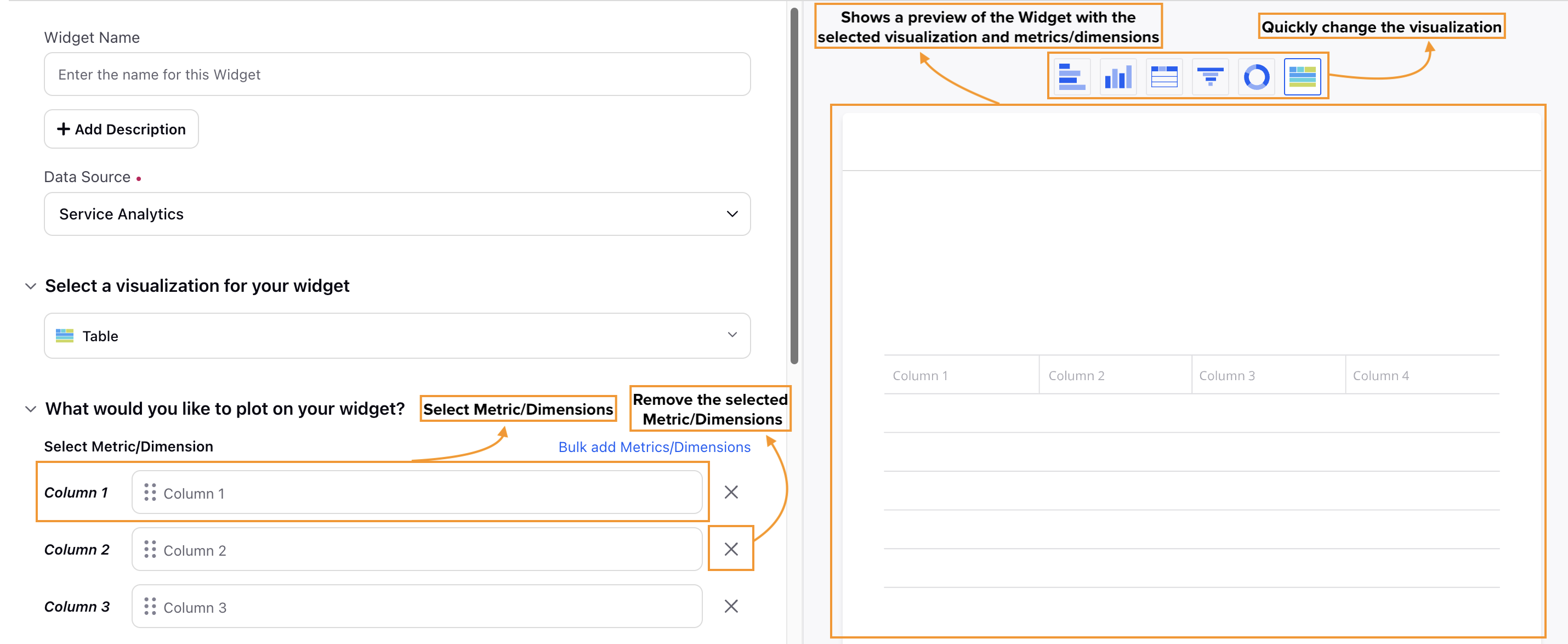
Widget Name: Enter the name of the Widget for identification.
Add Description: Click this button to display a field where you can briefly describe the Widget’s purpose and functionality. This description will be visible when you hover over the “?” sign on the Widget in the Dashboard.
Add Tutorial: Click this button to attach a tutorial video using the Media Uploader. This tutorial video will be visible when you hover over the “?” sign on the Widget in the Dashboard.
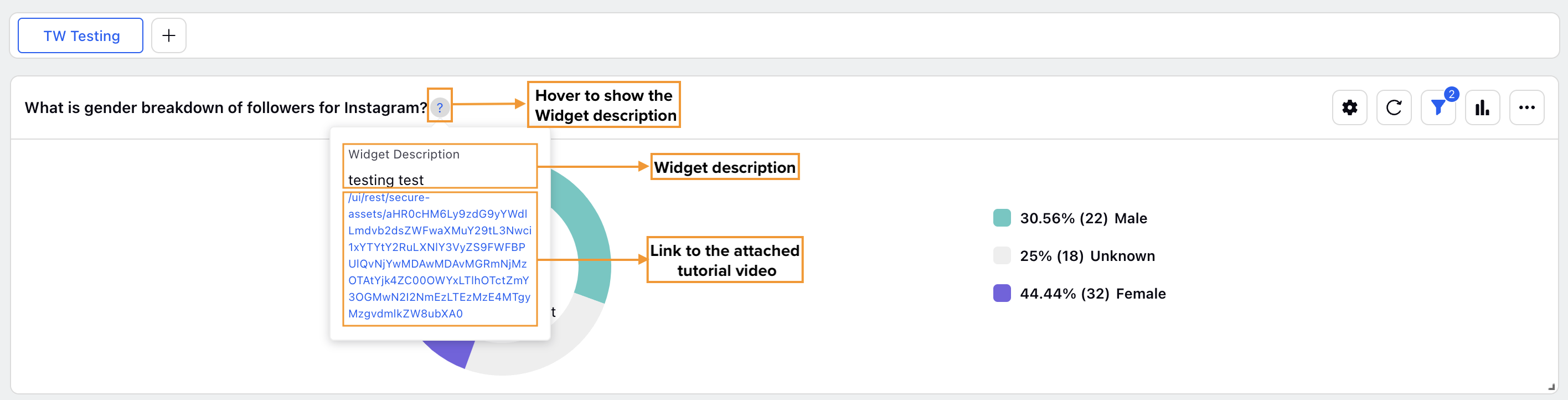 Note: The Add Tutorial button will be visible only after you click the Add Description button.
Data Source: Select the Service Analytics Data Source to be used for the Widget. The Service Analytics data source will be automatically set as the default when the user navigates from the Sprinklr Launchpad to Care Reporting, ensuring seamless access to centralized service data for comprehensive analysis and reporting.(Required)
Explore Service Analytics Data Source.
Note: The Service Analytics Data Source is currently Dynamic Property (DP)-controlled. Please contact your Success Manager to enable it in your environment.
Select the visualization you want to use from the list in the Select a visualization for your widget section. Table, Pie, Spline, and Bubble are some of the available visualization options. Explore available visualizations.
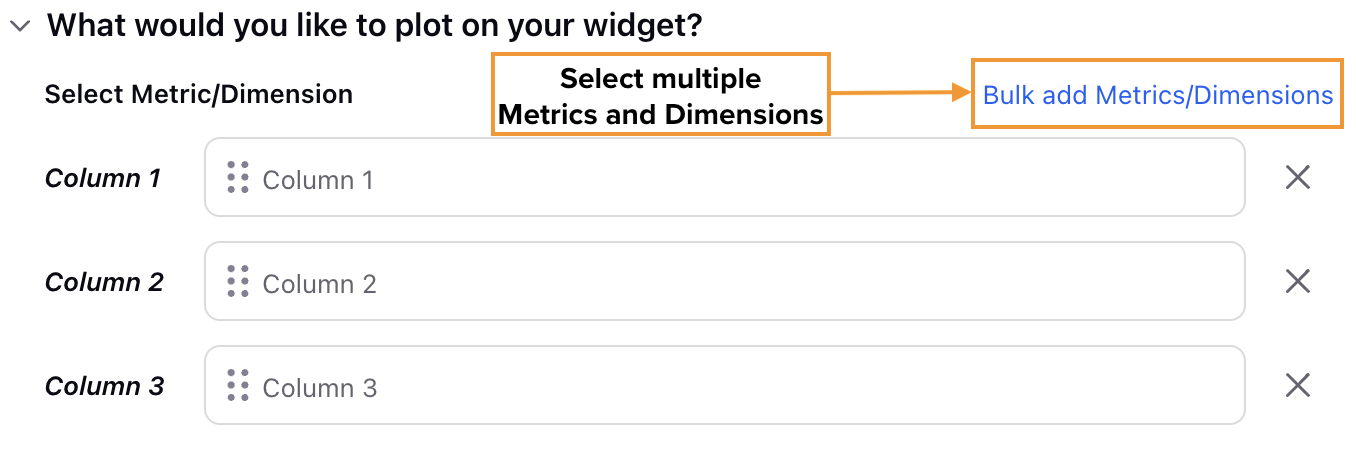
Select the Metric(s) and Dimension(s) to be plotted in the What would you like to plot on your widget? section. Click the Bulk add Metrics/Dimensions option to select multiple compatible Metrics and Dimensions. Refer to the Selecting Metrics and Dimensions section below for further details.
Note: The selected visualization determines the fields available in this section. For example, choosing the Table visualization displays fields like Column 1, Column 2, and so on, while selecting the Column visualization shows fields like X-Axis and Y-Axis.
There is support added for translating Reports, Report Groups, and Data Sources across both the Widget Builder and the Reporting screen, ensuring a more consistent multilingual experience throughout the reporting workflow.
If you attempt to combine metrics or dimensions from different reports that are incompatible or not supported together, you’ll receive error notifications. These may include warnings like “The dimension ‘X’ can’t be added because it belongs to a different report” or “This dimension is not compatible with one of the selected metrics”. In such cases, unsupported fields will be greyed out, and you’ll be prompted to navigate to the appropriate report to select fields that work together.
You’ll now see a smoother experience in the Widget Builder because it remembers your most recent selections for Metrics, Dimensions, and Custom Fields as you create widgets. Instead of reverting to default categories each time, your last choices stay active throughout the session, helping you build widgets faster with less repetition. These preferences reset automatically when you start a new session, such as after logging in again or returning after a period of inactivity.
Select the appropriate Configuration options for the visualization.
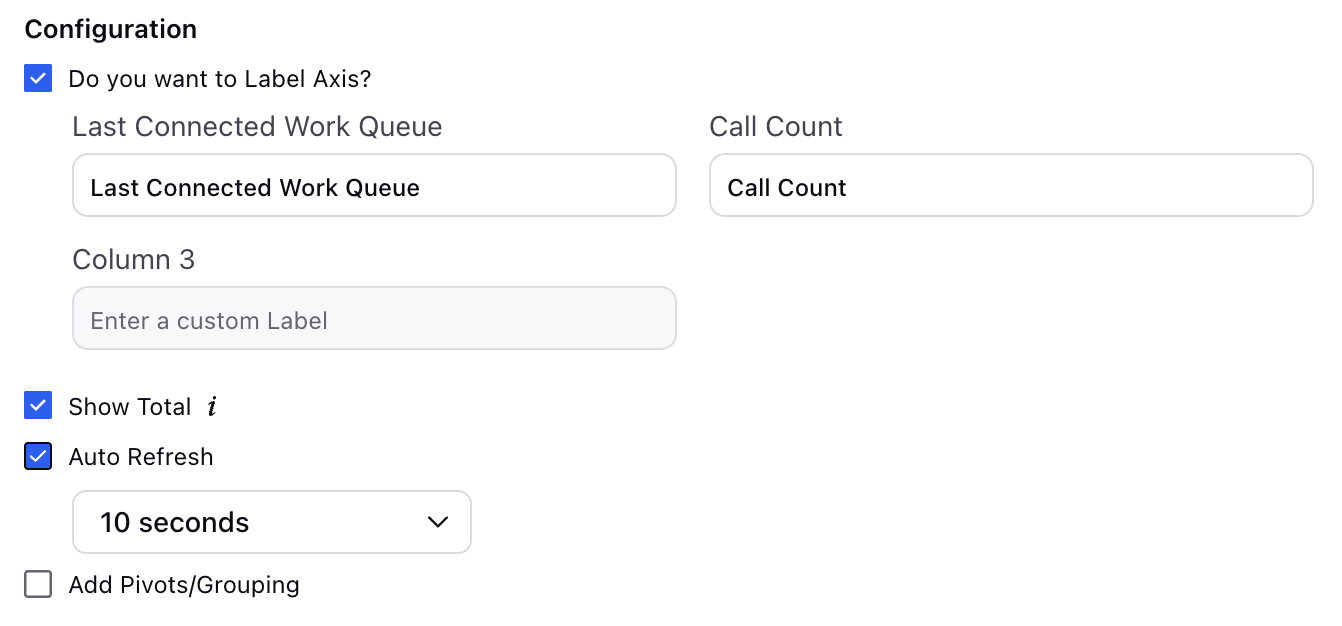 Note: The selected visualization determines the fields available in this section. For example, the Table visualization displays the Add Pivots/Grouping field, which won’t be present if Pie visualization is selected.
In the Define Advanced Options section, you can select Filters, define additional properties, modify display options, and more.
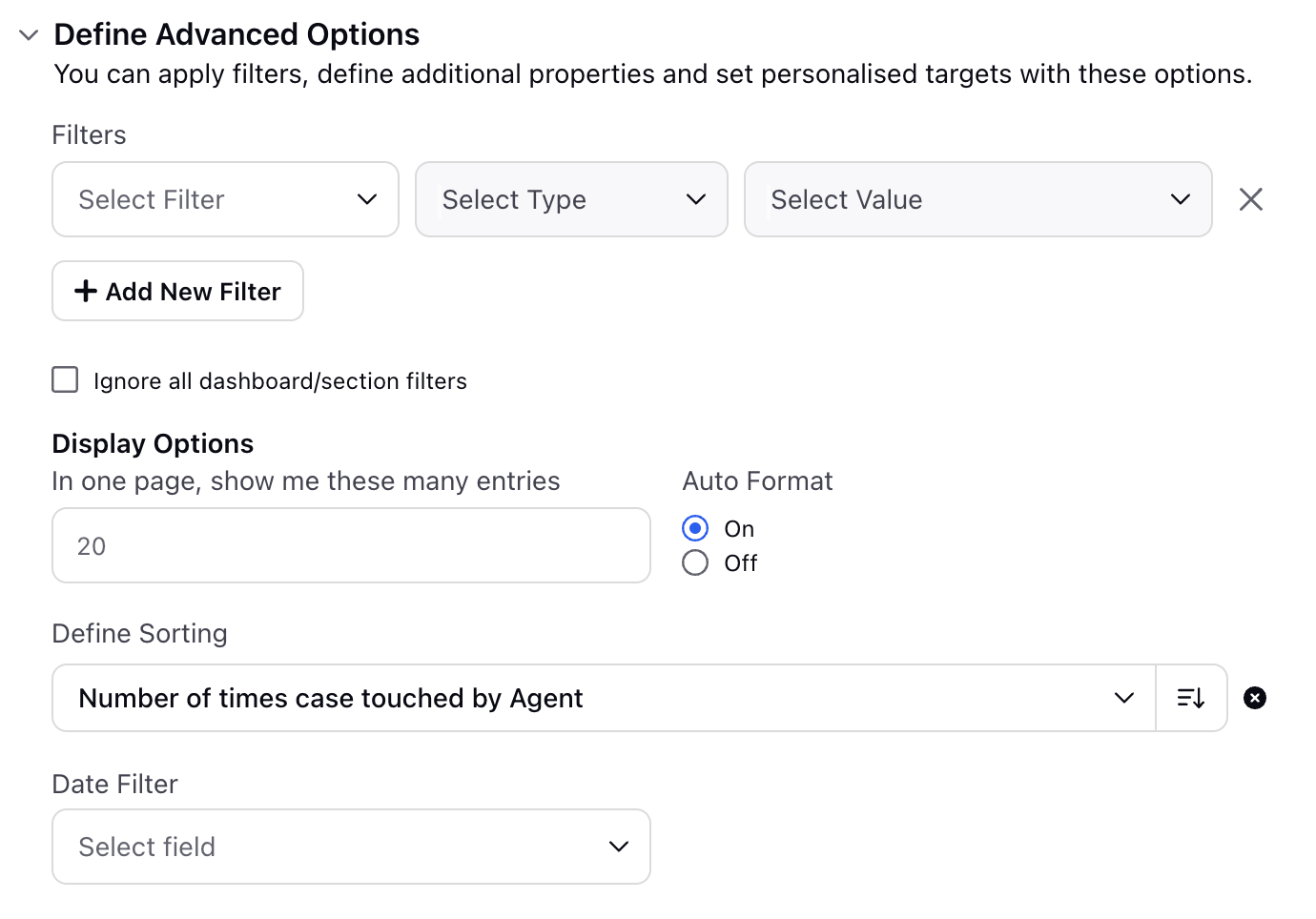
Applying Filters
Select Filter: Choose the type of filter you want to apply. It determines the category or attribute of the data that will be filtered.
Select Type: Select the operator to define how the filter will be applied to the value. The available operators are:
Containing: Shows records where the specified field includes the given value.
Not Containing: Shows records where the specified field does not include the given value.
Exists: Shows records where the specified field is present and has a value.
Select Value: Enter the value(s) that will be checked against the selected filter type using the chosen operator. The value(s) entered here will be used to match records based on the criteria defined by the filter type and operator.
Click the Add New Filter button to add more Filters.
Select the Ignore all dashboard/section filters checkbox if you want the selected Filter(s) to override any existing Dashboard-level or Section-level Filters.
Display Options
Enter the number of entries to be visualized on a page.
Auto Format: Auto Format determines the number of decimal points for data visualization. When Auto Format is enabled, data is displayed with 2 decimal points (1.23, 0.24, 4.02, and so forth). Turning Off Auto Format allows you to choose the number of decimal points, ranging from 0 to 5. Selecting 0 decimal points will display data as whole numbers (2,6, 45, 49, and so on).
Define Sorting: This field allows you to choose how to sort the data in the visualization. To sort the data, select the Dimension or Metric for sorting, then choose Ascending or Descending order. Ascending order will display the lowest value of the selected metric or dimension at the top while Descending order will show the highest value at the top.
Note: Only the Metrics and Dimensions that are used to plot the Widget can be utilized to sort the data.
The Drilldown section allows you to get further analytics on the Metrics used in the Widget. Select a Drilldown Lens in the Select Drilldown Lens field. Additionally, click the +Metric Drilldown button to a Metric for the Drilldown in the Metrics field and then select the appropriate Drilldown Lens in the Explore Lens field.
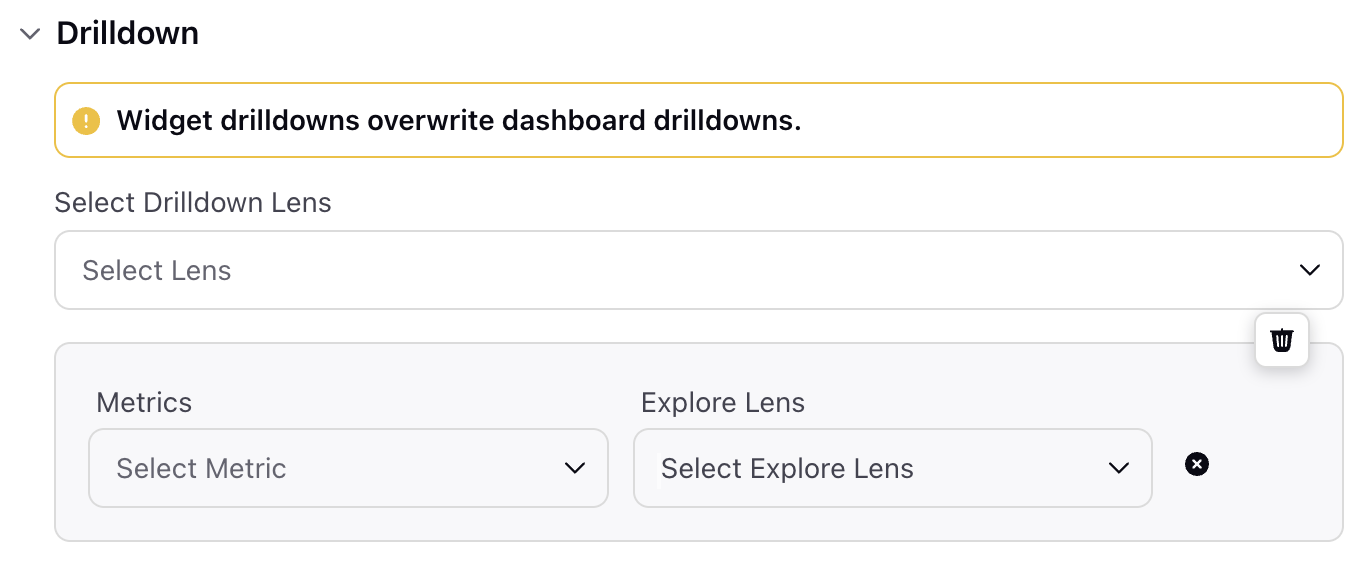 Note: The total number of Metrics that can be selected in this section equals the number of Metrics used to create the Widget.
Click the Add to Dashboard button at the bottom right of the page to create and add this Widget to the Dashboard.
Selecting Metrics and Dimensions
Note: The Service Analytics Data Source is currently Dynamic Property (DP)-controlled. Please contact your Success Manager to enable it in your environment.
Clicking a field to select a Metric or Dimensions opens the Add a Metric or Dimension window. On the left side of the window, you will find Report Groups containing the respective Reports along with favorites and recently used Metrics and Dimensions. Below are all the options available and their descriptions:
Note: You can search for metric and dimension values in the widget builder's search bar in the following ways:
Exact Name Search: When you search for a term like Case Count, the results will first prioritize and display reports that exactly match the term.
Partial Name Search: If no exact match is found (or after listing exact matches), the search will then include results that partially match the term.

Category Filter at Global Level: The Category Filter is available at a global level in the widget builder for Service Analytics. Metrics and dimensions will be pre-selected and automatically reflected across each report. This allows you to easily discover relevant metrics and dimensions, with enhanced flexibility to navigate between reports while maintaining consistent category filter values. You'll also have the option to select different values in the category filter, including the ability to choose multiple values at once, ensuring a smooth and consistent analysis experience.
Applying filters can refine your search for the required Metrics and Dimensions. Click the Category button to display the filtering options. Below are the available options available in the Category list (only one option can be selected at a time):
Dimensions
Metrics
Custom Metrics
Custom Dimensions
Audit Checklists (available only if Calibration Report or Evaluation Report is selected).
Surveys (available only if Survey Response Details (Separate Dimension) Report is selected).

If Custom Dimensions is selected, you can further select the type of asset from the Asset Type field, such as Case, User, and Account, to refine your search.

If Audit Checklists is selected, you can further select audit checklists from the Audit Checklist field to refine your search.

If Surveys is selected, you can further select the Survey from the available list from the Survey field to refine your search. Survey are now at the report level instead of Global level.

Once you have selected a filter, click the Apply button to apply it. For example, if you select Dimensions, only Dimensions will be available for selection. Click the Clear Filter button in the Category list to remove any selected filter.
Note: If you search for a Metric or Dimension while a Category is selected, the search results will only display items within the selected Category. However, the number of matched results shown next to the Report Groups and Reports will reflect the total number of matches in all the Categories, regardless of the selected Category.Favorites: This shows all the Metrics and Dimensions you have marked as Favorites. A star icon indicates metrics and Dimensions marked as Favorites.
Recent: This option shows Metrics and Dimensions that have been recently used.
Report Groups: Report Groups are a collection of related Reports. Clicking a Report Group will show a drop-down menu listing related Reports. For example, the Agent Performance Report Group will have the Agent Macro Usage, Agent Handle Time, and Voice Agent Performance Reports.
Refer to the Detailed Reports Glossary for details on available Metrics and Dimensions.
Once a suitable Report Group and Report is selected, you can select the required Metric or Dimension from the list. In Sprinklr Reporting, Metrics/Dimensions from different Data Sources and/or Reports are usually not compatible with each other and may not render properly in your Widgets. To facilitate your Widget creation process, once a Metric or Dimension is selected, only the compatible Metrics and Dimensions can be selected. The Metrics and Dimensions that are incompatible with the selected Metric/Dimension will be greyed out.
For instance, if you select the “Time Spent working on Case” Metric from the Agent Occupancy Report under the Agent Hygiene Report Group, you won’t be able to select the “Case Details” Dimension from the Inventory Report under the Campaign Performance Report Group.
When selecting a Metric, the following operators are available for your data:
Operator | Description |
Sum (selected by default) | The sum of all the records in the given date range. |
Cumulative Sum | The running total of a specified field, adding each value to the sum of all previous values. |
Average | The arithmetic mean of all records for the given date range. Formula: Sum of all the records in the given date range/The number of records in the given date range. |
Min | The minimum of all the records in the given date range. |
Max | The maximum of all the records in the given date range. |
Change | The relative change in the selected metric for the given date range. Formula: Sum of all the records in the previous date range - Sum of all the records in the given date range. |
Percentage | The percentage value of the record for the given date range. Formula: (Current record/Sum of all records in the given date range) x 100 |
% Change | The relative percentage change in the selected metric for the given date range. Formula: (Sum of all the records in the previous date range - Sum of all the records in the given date range)/Sum of all the records in the previous date range. |
Percentile | The current record as a given percentile of all the records in order of size. For example, the 95th percentile of Spent depicts that 95% of the observations may be found below this value for the selected date range. |
Time Aggregated Average | This refers to the calculation of an average value over a specific time period by aggregating data points or values within that period. Instead of calculating the average of individual data points, a time-aggregated average considers a set of data points over a defined time interval and calculates the average based on that aggregated data. |
Dimension Configurator
When Custom Dimensions are selected in the What would you like to plot on your widget? section, you can configure how the data will be displayed on the Widget. You can configure how each Custom Dimension is displayed, such as whether each data point appears in separate rows or the same row, separated by commas. Additionally, you can specify how cells with no data should be displayed.
Note: Dimension Configurator is currently Dynamic Property (DP)-controlled. Please contact your Success Manager to enable it in your environment.
Note: Dimension Configurator can be accessed for Custom Dimensions only. Its supported for Case, User level Custom Dimensions.
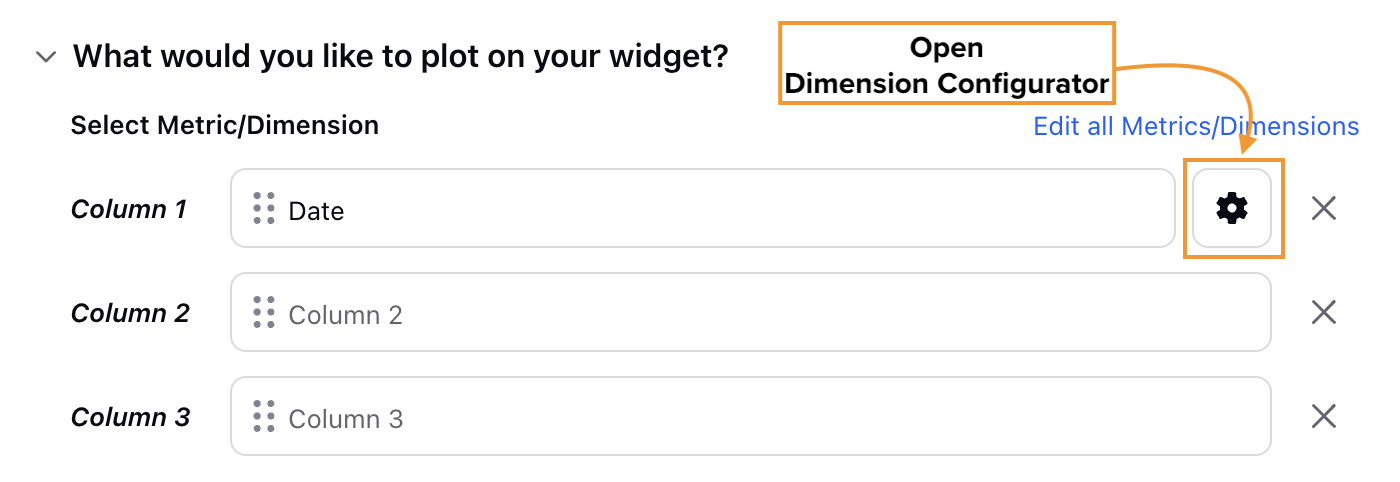
Click the Dimension Configuration button to open the Dimension Configurator dialog box, which includes the Empty Cell Handling, Data Display Format, and the Custom Field Value Type fields.
Follow these steps to configure how Dimensions are displayed:
Click the Configurations button to open the Dimension Configurator dialog box.
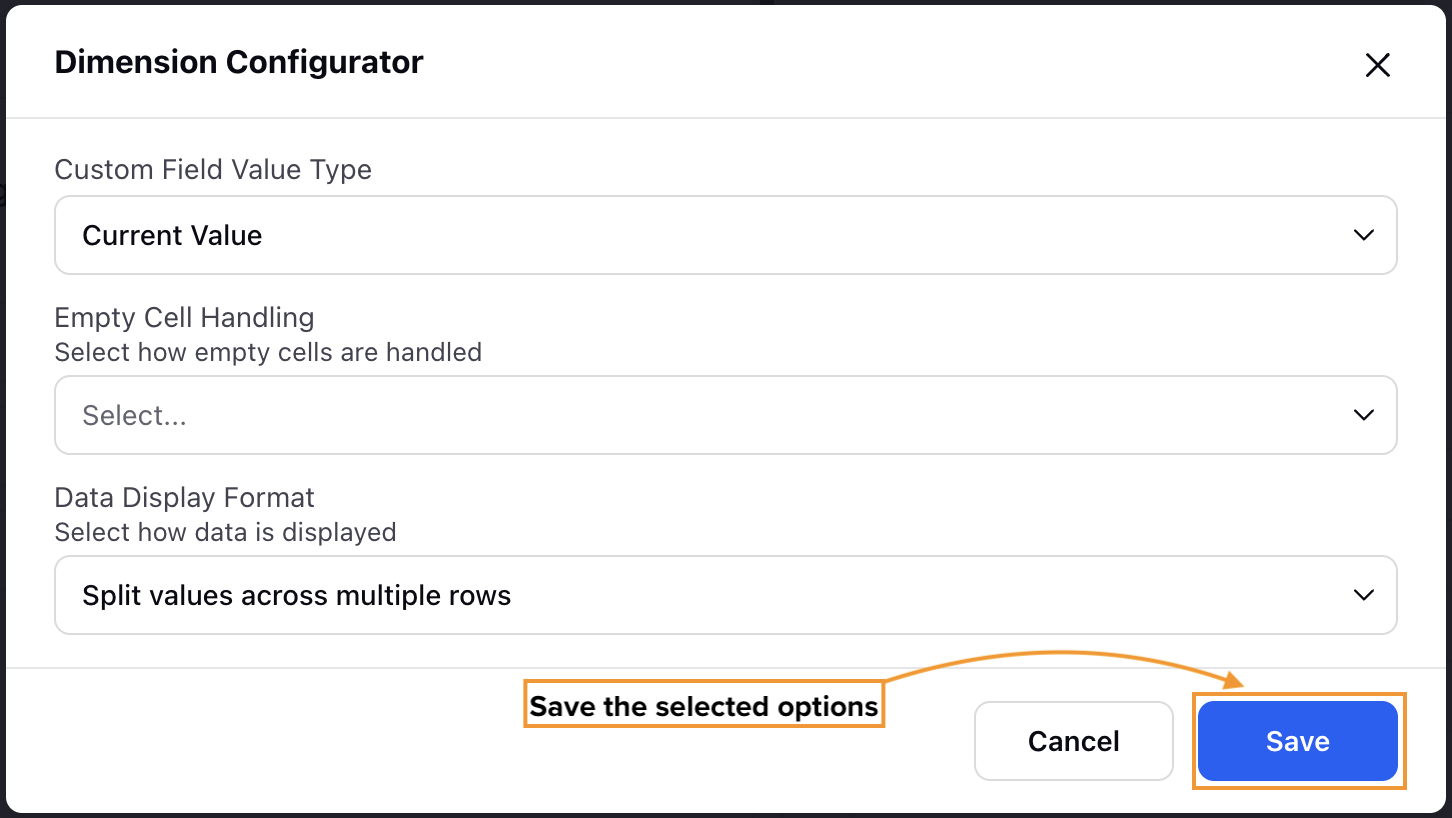
The Custom Field Value Type field determines if the current or snapshot value will be considered for the selected Custom Dimension. The Current Value option displays the current value assigned to the Custom Dimension, while the Snapshot Value option shows the value at the time of a specific action, such as user assignment, user unassignment, and similar events.
Note: Each Custom Dimension in the Widget can be configured individually.In the Empty Cell Handling field, you can select how the cells with no data will be displayed. Select Represent empty cells as “-” to show a “-” symbol in cells with no data or select Represent empty cells as “N/A” to show a “N/A” sign in the cells with no data.
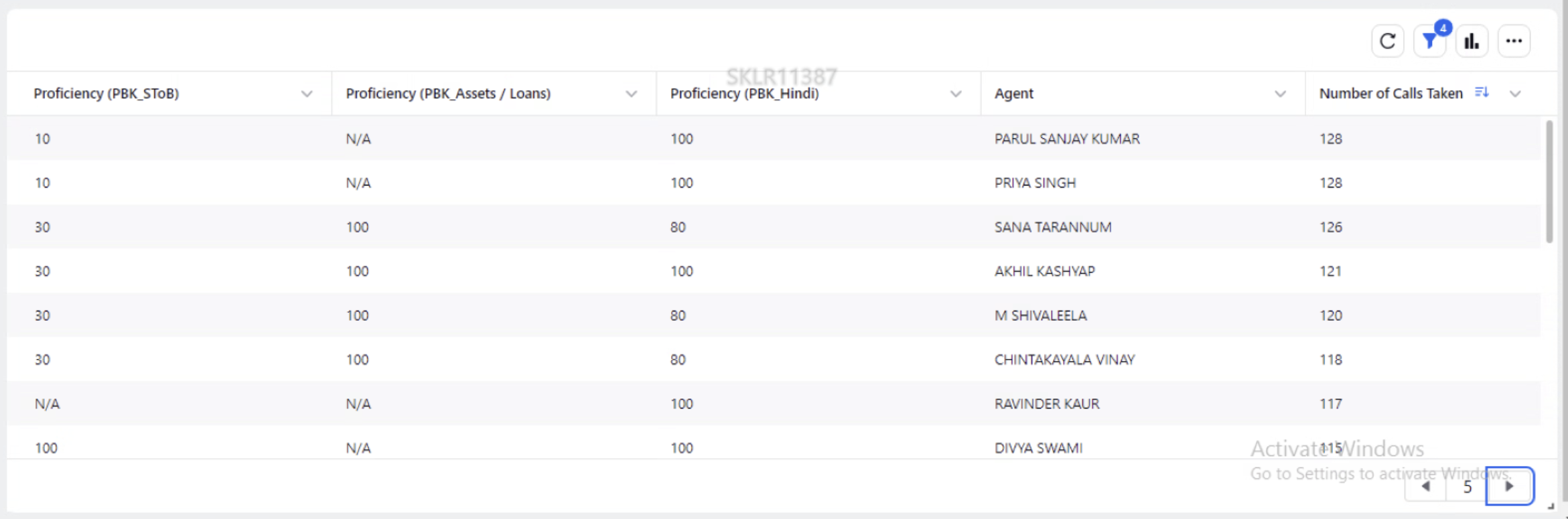
In the Data Display Format field, you can choose how to display multiple data points for the same Custom Dimension. Select Split values across multiple rows to display the data in separate rows, or choose Comma separated values in a single cell to show all related data in one cell, separated by commas.
Click the Save button at the bottom right of the dialog box to save your display preferences.
This completes the process of creating a Widget in Reporting.
Manage Widget Level Configuration
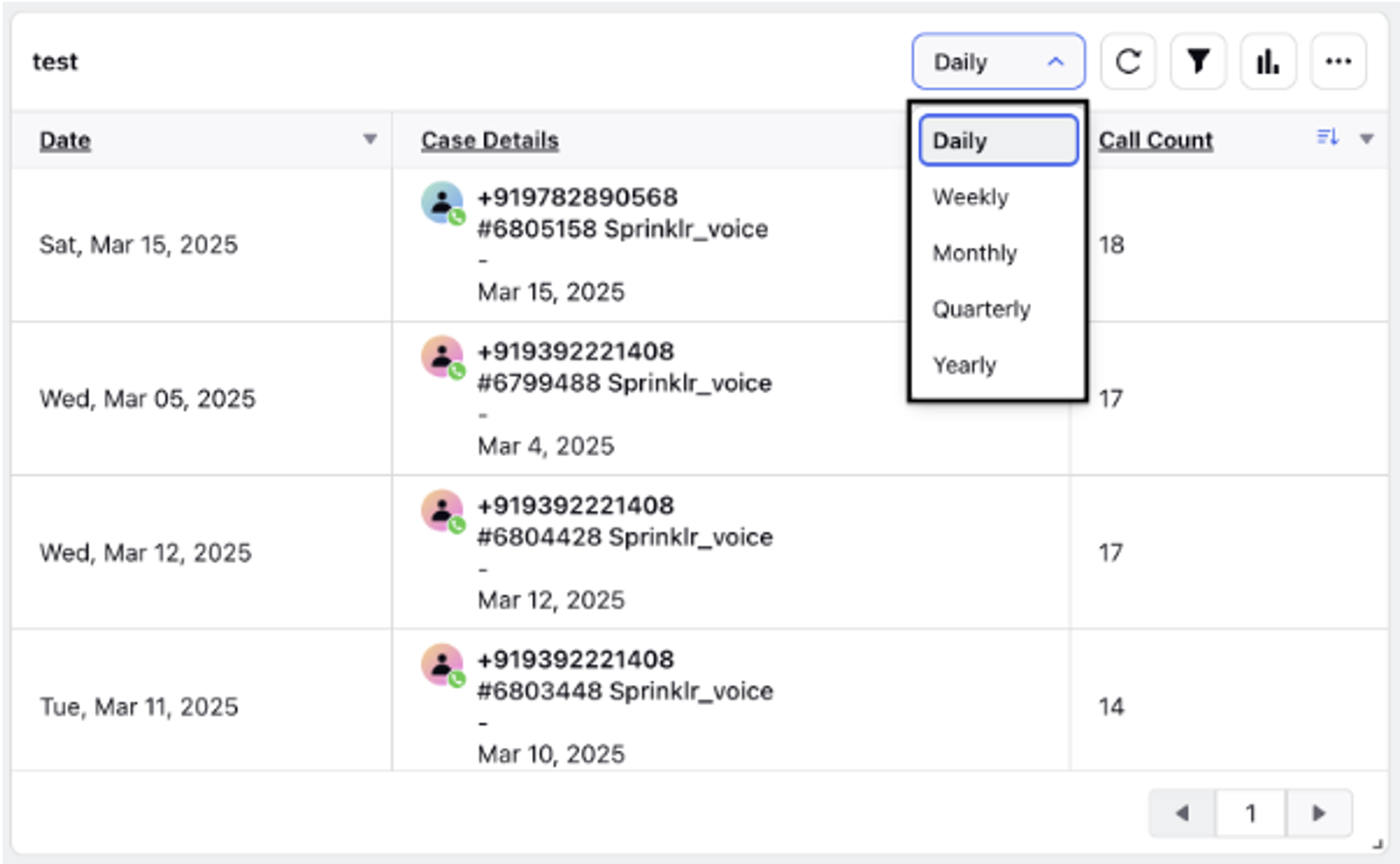
Date Aggregation Option: The data aggregation feature can now be directly accessed from the widget, making it more easily visible and accessible upfront. You can quickly sort the frequency of data on an hourly, daily, weekly, monthly, quarterly, or yearly basis. This enhancement improves the user experience by providing seamless time-based reporting and easier access to date aggregation settings within a single widget.
Note: The hourly split will be visible for the last 14 days or less, while the 15-minute and 30-minute splits will only be available for data from the last 7 days or less.
Note:
The number of documents that this widget can query is limited.
This query is estimated to process [estimated document count] documents, which exceeds the maximum allowed limit of [maximum allowed documents] (default: 50 million).
To resolve this issue, try one of the following:
Narrow the time range of your query.
Apply more specific filters to reduce the number of documents being processed.
Please note that filters applied to current custom properties do not reduce the document count used for limit calculations. This means the query will process the same number of documents regardless of whether these filters are