Setting Up Source Agnostic Account
Updated
Once the Source Agnostic channel is enabled in your environment, the next step is to create a Source Agnostic account. Follow the instructions below to complete the setup.
 Note: To enable this capability, contact your Success Manager.
Add a Source Agnostic Account
To add a Source Agnostic account in Sprinklr, follow these steps:
1. Click the New Page (+) icon to open the Sprinklr Launchpad.
2. Under Platform Modules > Listen, click Messaging Accounts.
3. In the top-right corner, click Add Account.
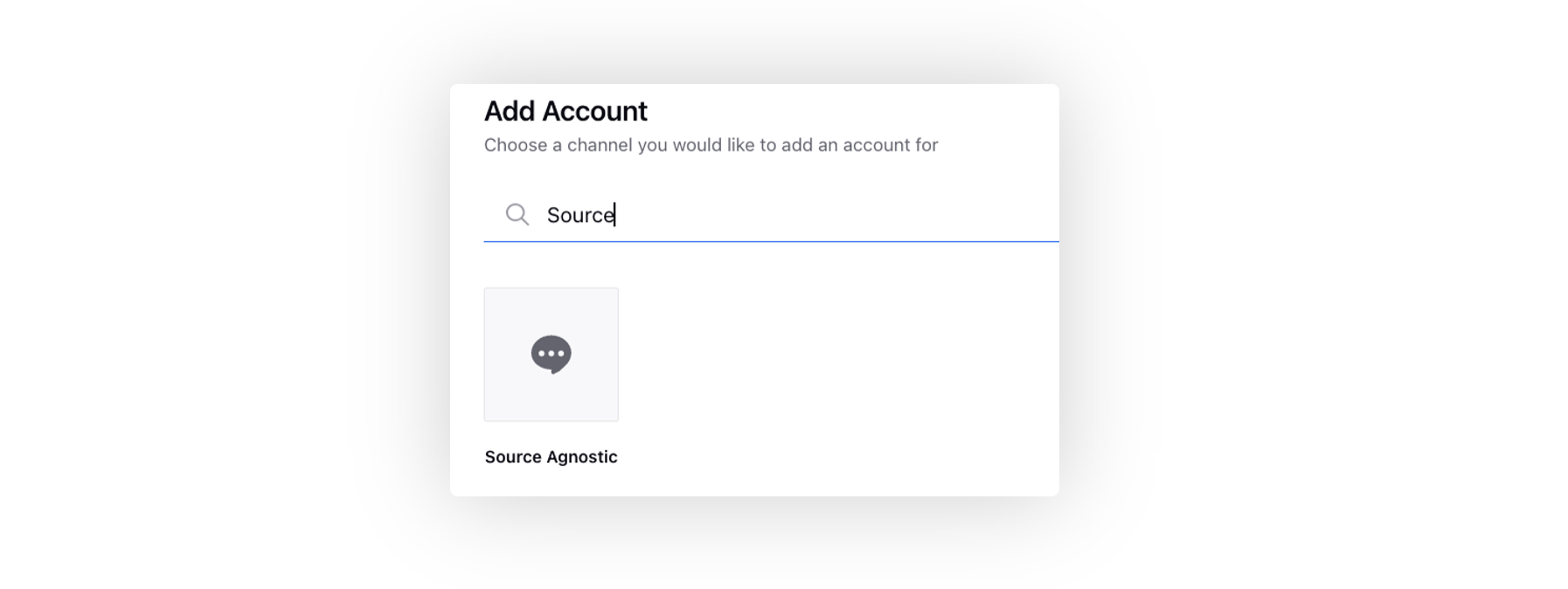
4. Search and select Source Agnostic.
5. On the Add Source Agnostic account window, fill in the following details:
Field | Description |
Display Name | Enter a unique name to be displayed in Sprinklr for the Source Agnostic account. |
Upload profile image | Add an optional profile image for the account. |
Allow Rich Text Formatting | Select this option if you want to allow rich text formatting for the responses. |
Allow Editing of Published Brand Message | Select this option if you want to allow editing of published brand messages. |

6. If the account is an SMS account, select SMS from the Channel Type dropdown.
Note: The Channel Type field can be edited only once. After it is set, it cannot be changed.
When Channel Type is set to SMS, the account inherits SMS behavior so the Care Console Reply Box functions the same as the SMS channel. The recipient selector (To field) is shown in the Reply Box by default. This field displays valid phone numbers, allowing agents to choose the correct recipient when multiple numbers are available.
7. Click Save at the bottom.
You will be redirected to the Update Account window, where you can configure other details such as permissions, shareability, custom properties, etc.
8. Click Save at the bottom to complete the setup for your Source Agnostic account.
Note: To know more on how to integrate the channel with Sprinklr, see the Source Agnostic Blueprint.