Manage Time Off Requests
Updated
Reviewing time off requests from agents is important for keeping things running smoothly and ensuring leave is given fairly. This section provides a step-by-step guide on reviewing and managing time off requests submitted by agents.
You can review Time Off requests using the following methods:
Real-time Adherence Dashboard: Ideal for reviewing requests from specific agents.
Request Dashboard: Suitable for reviewing Time Off requests from all agents within your team.
Review Time Off Requests from the Real-time Adherence Dashboard
The Real-time Adherence Dashboard provides comprehensive agent-related details. You can monitor agents' real-time adherence (RTA), assign policies, and review their Time Off information, including requests, remaining balance, and more.
Follow these steps to navigate to the Real-time Adherence Dashboard:

Go to the Workforce Manager Persona App on the Launchpad.

Select Agents from the Left Pane to open the Real-time Adherence dashboard.
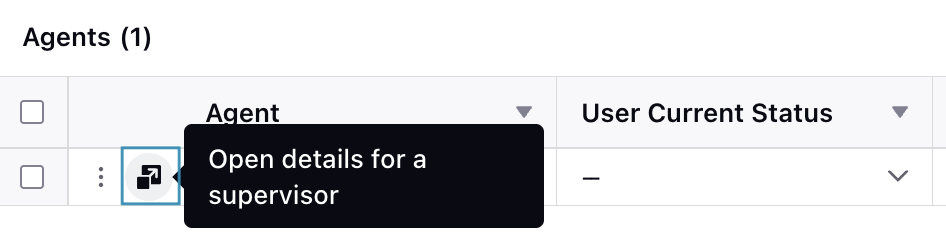
On the Real-time Adherence dashboard, click the Open details for a supervisor button to view the agent’s details from the Third Pane. Then, click the Agent Time Off tab in the Third Pane to open the agent’s Time Off details.
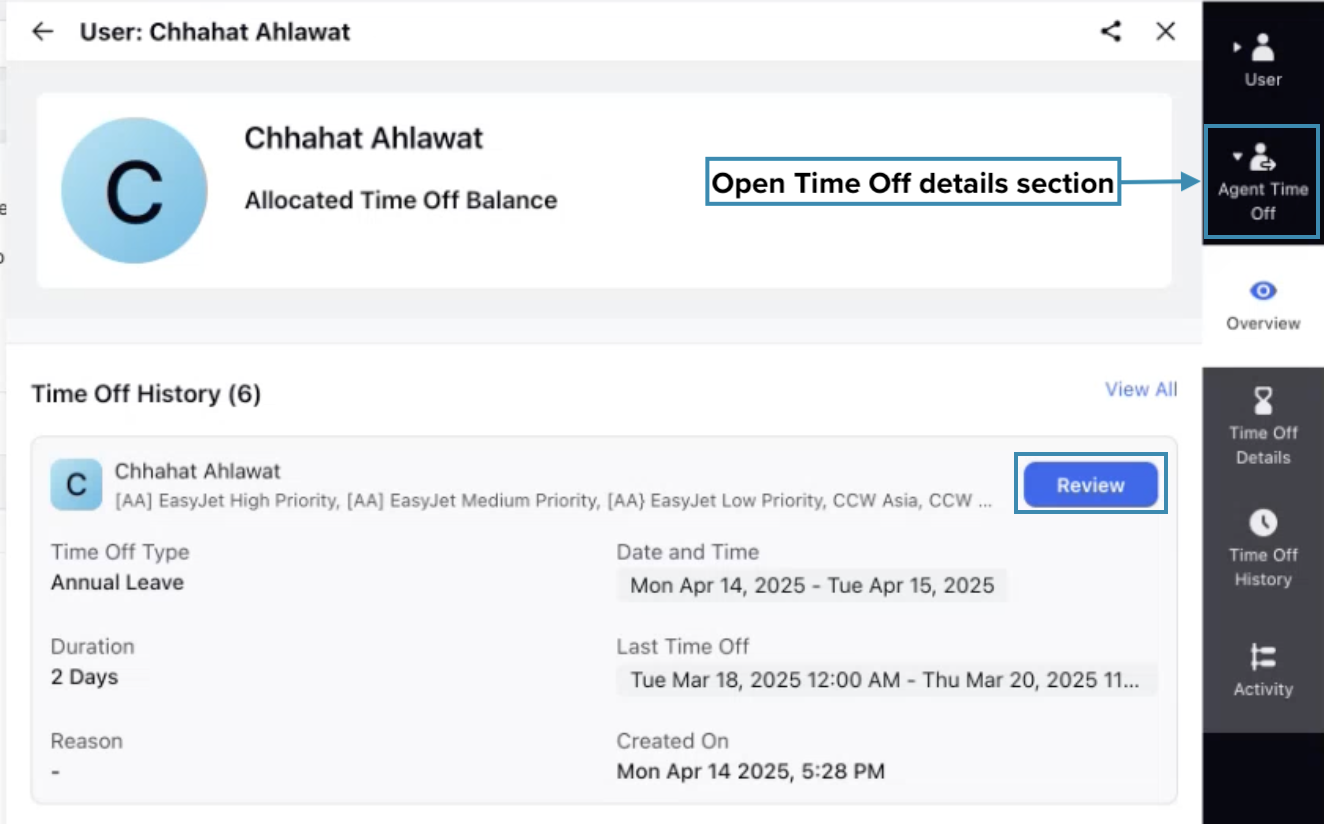
The Overview sub-section displays details of Time Off requests that are pending review. The Time Off History section provides information on Time Off requests that are either pending review or have already been reviewed.
Click the Review button corresponding to the Time Off request you wish to review. This action will open the Approve Leave Request dialog box. The dialog box will display details of the Time Off request, including the Time Off Activity, the duration, and the reason for the request.
In this dialog box, you can either click Approve to approve the Time Off request or Reject to deny it. Additionally, you can add a note in the Notes field while reviewing the request.
This completes the process of reviewing Time Off requests from the Real-time Adherence dashboard.
Review Time Off Requests from Request Dashboards
Time Off requests can be reviewed from the Request Dashboards. This method is ideal for reviewing Time Off requests from all agents within your team. To view existing Time Off requests, navigate to the relevant Request Dashboard. The appropriate column will display Time Off requests awaiting review. The specific Request Dashboard and column may vary based on your environment's configuration.

Click the Review button corresponding to the Time Off request you wish to review. This will open the Approval Leave Request dialog box. The dialog box will display details of the Time Off request, including the name of the agent, Time Off Activity, the duration, and the reason for the request.
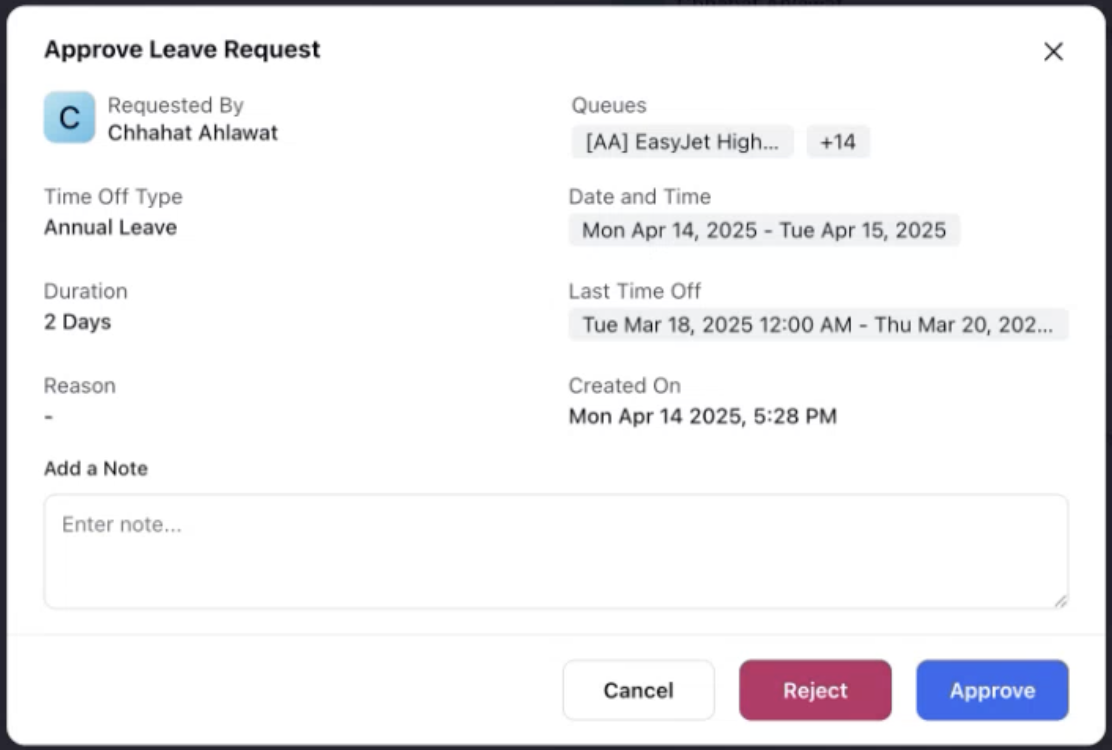
In this dialog box, you can either click Approve to approve the Time Off request or Reject to deny it. Additionally, you can add a note in the Add a Note field while reviewing the request.
View Time Off Balance of Agents
Time Off balance of agents can be viewed and updated from the Real-time Adherence dashboard. This section provides instructions on viewing and adjusting Time Off balances.
Follow these steps to view Time Off balance of agents:
Go to the Workforce Manager Persona App on the Launchpad.
Select Agents from the Left Pane to open the Real-time Adherence dashboard.
Click the Open details for a supervisor button corresponding to the agent’s name to view the agent’s details from the Third Pane.
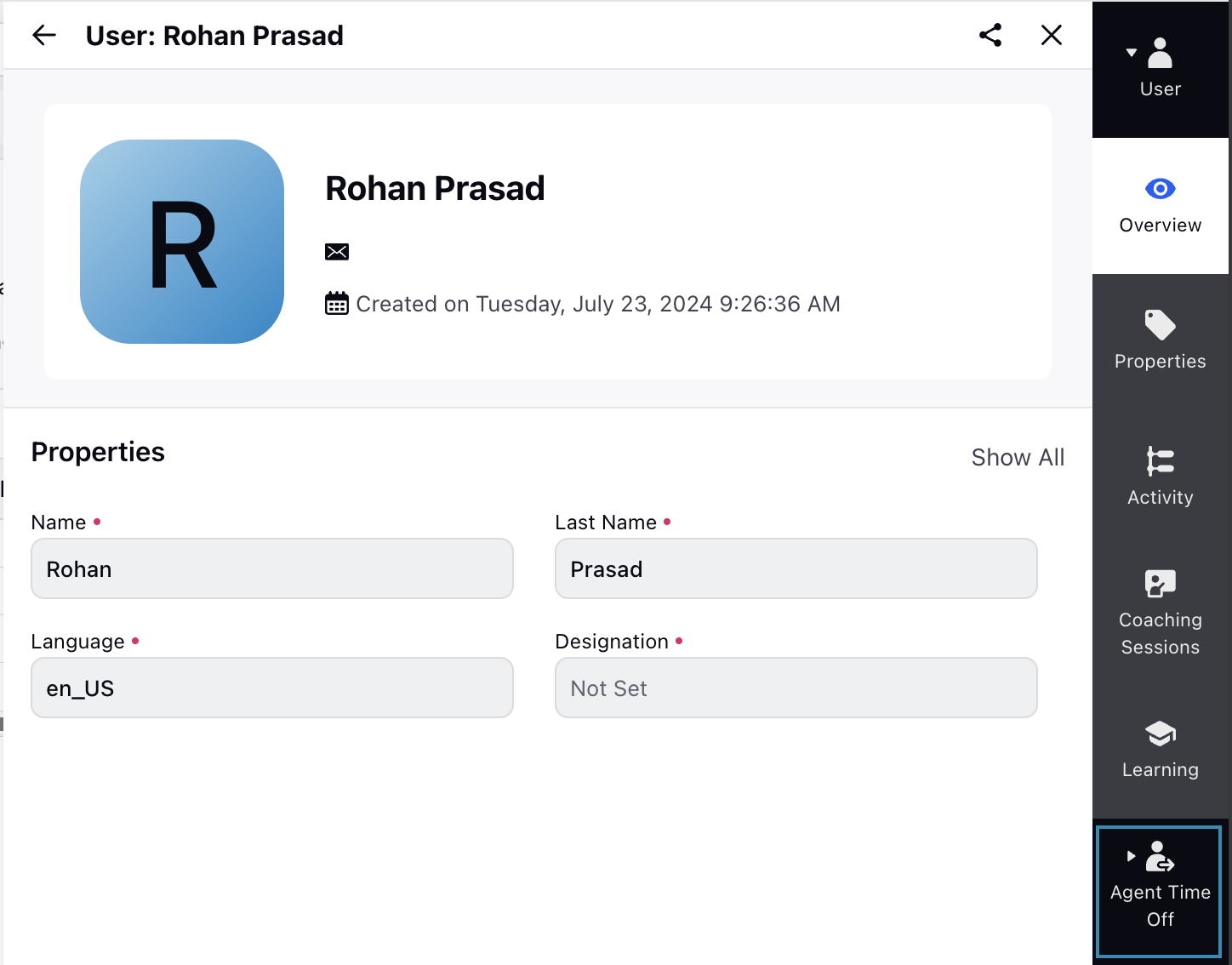
Click the Agent Time Off tab in the Third Pane to open the agent’s Time Off details.
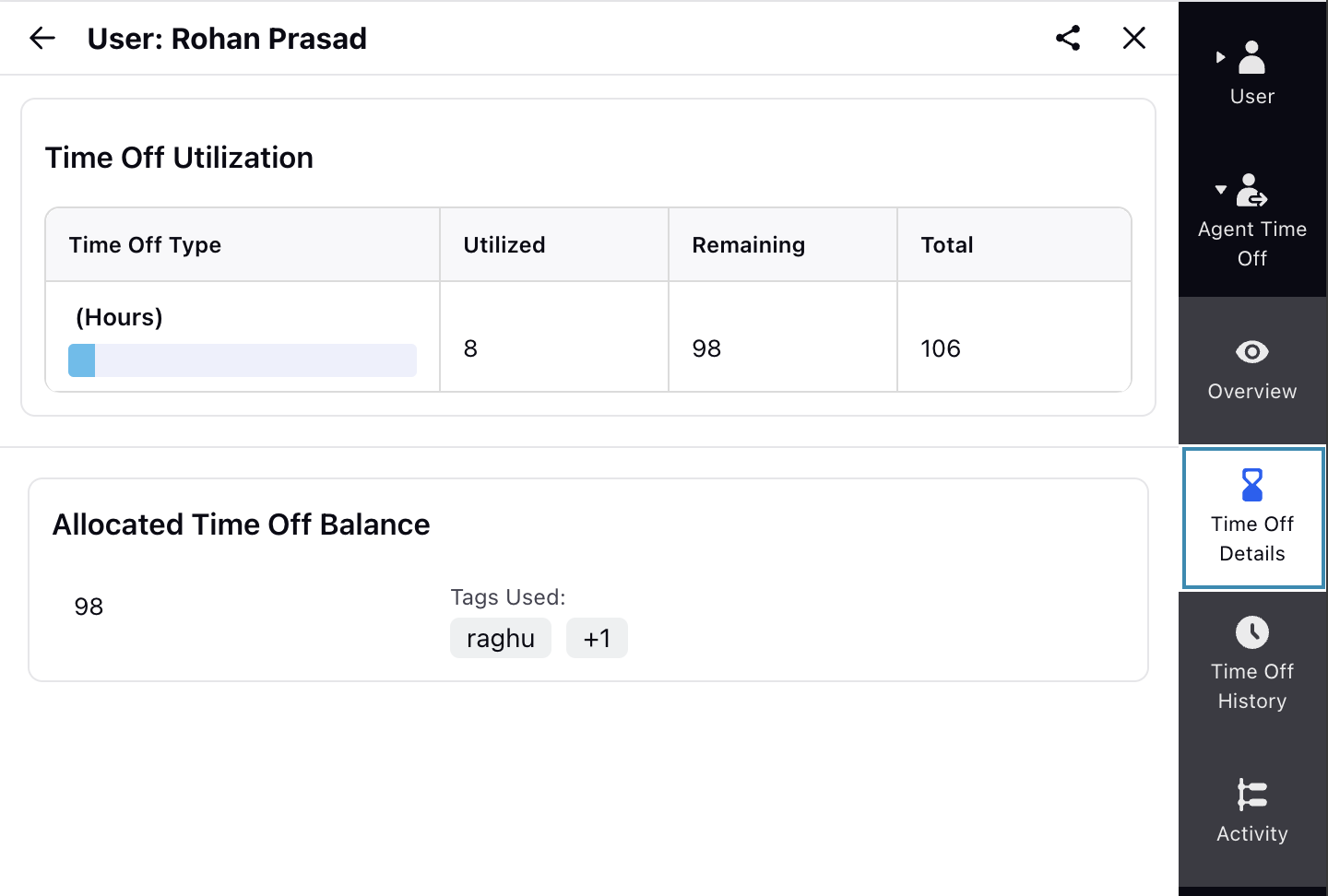
Select Time Off Details from the Third Pane.
This will show the agent’s Time Off details, such as utilized, remaining, and total Time Offs for each Time Off Activity.

The Allocated Time Off Balance section allows you to update the agent’s Time Off balance. Hover over the remaining Time Off number to show the Edit button. Click the Edit button to open the dialog box to update the Time Off balance.
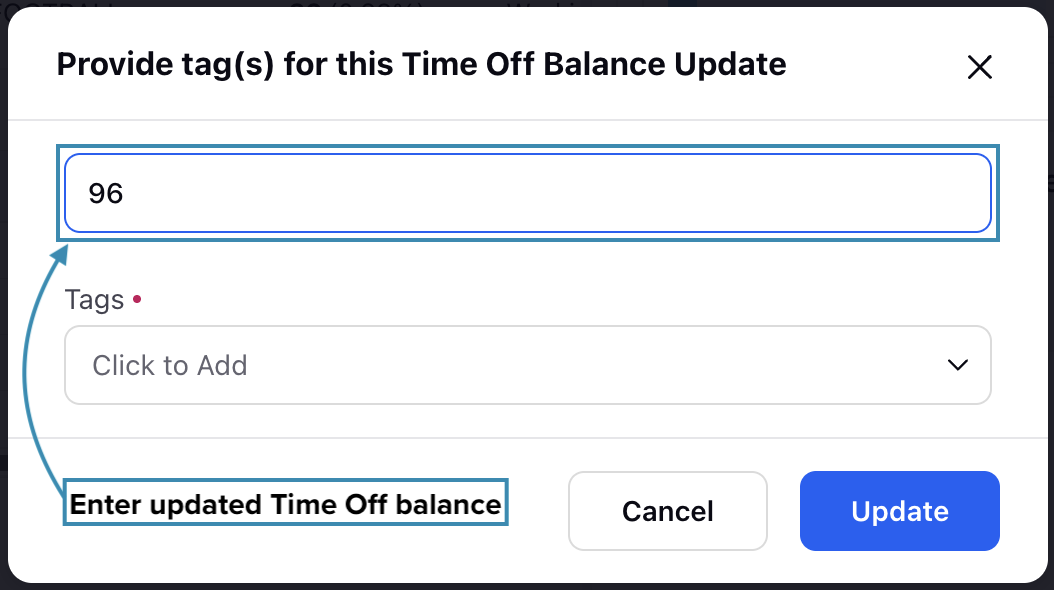
Enter the updated Time Off balance in the dialog box and select a tag. Once done, click the Update button to apply the changes. This will update the balance for the agent’s specified Time Off Activity.
 Note: The updated Time Off balance must be greater than the current balance.
This completes the process of viewing and updating agent's Time Off balance.
Raise Time Off Request on Agent’s Behalf
Supervisors can submit Time Off Requests on behalf of agents. This is helpful in situations where agents may not have system access due to network issues, technical problems, sudden emergencies, or when they are on vacation.
Prerequisites for raising Time Off Requests on agents’ behalf:
Workforce Management should be enabled for the environment.
You must have access to the Workforce Manager Persona App.
Submit Request For Agent permission under the Time Off Request section of the Workforce Management module.
Existing Time Off Policy assigned to the agents.
Follow these steps to raising a Time Off Request on an agent’s behalf:
Go to the Workforce Manager Persona App on the Launchpad.
Select Agents from the Left Pane and then Real Time Adherence from the left drawer.

Click the vertical ellipsis (⋮) icon corresponding to the agent you want to raise a Time Off Request for. This will show a list of options.
Select Raise Time Off Request.
This will open the page to create a Time Off Request for the selected agent only. The steps are identical to how agents create Time Off Requests. Refer to this section for detailed steps on creating Time Off Requests.
The Time Off Request created by the supervisor will follow the configured approval workflow and will appear on the agent's My Request page.
 Note: Supervisors can raise Time Off Requests for one agent at a time.
Note: Supervisors can submit Time Off Requests only for days the agent hasn’t already requested.
Time Off Alerts
Time Off Alerts help identify issues related to agents’ approved Time Off requests within a Schedule Scenario. These alerts highlight situations such as conflicts between scheduled shifts and approved Time Off, or cases where Time Off cannot be automatically assigned.
Note: Time Off alerts are hard alerts, meaning they must be resolved before the Schedule Scenario can be published.
Time Off Conflict
The Time Off Conflict alert is triggered when an approved Time Off request does not align with the agent’s currently assigned shift duration. This alert can be triggered when the approved Time Off request falls partially or entirely outside the agent’s scheduled Shift. For example, an agent may have a shift from 9:00 AM to 3:00 PM, but their approved Time Off request is for 2:00 PM to 5:00 PM.

To resolve this alert, you must adjust the shift’s start and/or end time so it matches the approved Time Off. You can do this by using the Revise Shift option or by dragging the shift boundaries directly in the graphical schedule view.
Note: Rejecting Time Off Conflict alerts will reject the agents' already approved Time Offs.

Once the Time Off request duration fully fits within the updated shift, the alert transitions to the Time Off Unassigned alert type. In this section, click the Add button associated with the alert to apply the Time Off to the agent’s schedule.
The Add All button becomes available when multiple alerts of the same type are present and all of them have been resolved.
Time Off Unassigned
The Time Off Unassigned alert is triggered when the Time Off request is created or approved after the Schedule Scenario has been created but not yet published, and the agent has no shift assigned.

To resolve this alert, click the Add button associated with the alert to apply the Time Off to the agent’s schedule. You can add the approved Time Off even if the agent has a Day Off on that day.
The Add All button becomes available when multiple alerts of the same type are present and all of them have been resolved.
If a day that was previously marked as a Day Off is later changed to a working shift, the system re-evaluates any existing Time-Off entries. In such cases, the system re-triggers Time-Off Alerts for the affected period to ensure the Time-Off is validated against the newly added shift.
Time Off Unassigned Trigger Logic
When a Time Off request is approved for a date range that exceeds the Schedule Scenario duration, Time Off Unassigned alerts are generated only for the overlapping dates within the Schedule Scenario. The following examples explain how the system determines the duration over which the alert validation check is applied.
Example 1: If a Time Off request extends beyond the end of the Schedule Scenario, the system evaluates it only up to the last day of the scenario. For example, if the schedule runs from August 1 to August 15 and the Time Off request spans August 4 to August 20, the system checks time off only from August 4 through August 15.
For night shifts on the last day of the Schedule Scenario, the system extends the validation window to include the shift’s end time on the following day. For example, if the last scheduled shift on August 15 runs from 11:00 PM to 5:00 AM on August 16, the system checks time‑off coverage up to 5:00 AM on August 16.
Example 2: If a Time Off request starts before the schedule begins, the system evaluates it only from the first day of the schedule onward. For example, if the Schedule Scenario runs from August 1 to August 15 and the Time Off request spans July 15 to August 7, the system checks time off only from August 1 through August 7.
Drag-and-Drop Time Off Activities to Shifts in Intraday View
The Scheduling page in Intraday View improves user efficiency by introducing drag-and-drop functionality for Activities from the integrated catalog. Click the Add Activities icon at the top and select the Time Off Activity from the catalog on the right, which are represented as distinct blocks with color coding and abbreviated names. Existing Time Off Activities will be appear under Out of Office Activity category under Time Off Activity section.

Drag these Activities to the desired agent's shift at the preferred time. Hovering over an activity displays its full name for clarity.
Assigning Out of Office Activity
When dragging and dropping an Out-of-Office activity from the Activity Catalog, click the arrow next to the activity and enable the Apply to Entire Shift toggle to assign it to the entire Shift.

Note: Time Off Activity always takes priority over all other assigned Activities. This means that regardless of the Activity already scheduled for an agent, dragging and dropping a Time Off Activity onto a Shift, or any portion of it, will override the existing Activity and be scheduled instead.
Time Off Request Logic
This section outlines the logic the system uses to calculate Time Off deductions from an agent’s balance. It covers both Full-Day and Partial-Day Time Off requests and explains how deductions are determined based on various factors such as published Schedule Scenarios, assigned schedule policies (Work Contract, Day Off, and Assignment), and the duration of the request.
Full-Day Time Off Request
When agents submit Time Off requests, the system evaluates multiple factors. These include whether the Schedule Scenario for the requested period has been published and whether any designated Days Off fall within that interval, among other considerations.
Full-Day Time Off Requests With a Published Schedule Scenario
When agents submit Full-Day Time Off Requests for a period that has a Schedule Scenario in Published state, the Time Off balance is deducted according to the Shifts and Days Off in published schedule. Agents can submit Time Off requests even if the selected date range includes Days Off.
For any dates within the requested period that are marked as Days Off, the system does not deduct the Time Off balance. Time Off balance is deducted only for scheduled working days, in accordance with the applicable Time Off Policy.
Note: For published Schedule Scenarios, approved Time Off requests will appear directly on the Master Schedule and the agent's My Schedule.
Full-Day Time Off Requests Without a Published Schedule Scenario
In this case, the Schedule Scenario may be in a Draft state or may not exist for the requested period. Agents can submit Time Off requests even if the selected date range includes Days Off or dates without a published schedule (that is, dates on which no Shift is assigned). For any dates within the requested period that are marked as Days Off, the system does not deduct the Time Off balance.
Full-Day Time Off Requests With Schedule Scenario in Draft State: When agents submit Full-Day Time Off for a period that has a Schedule Scenario in Draft state, and the request is approved, it will appear as Alerts in the Schedule Scenario. These Alerts must be resolved before the Schedule Scenario can be published.
When an agent submits a Time Off request for a period in which the Schedule Scenario is not yet published, the system cannot determine the agent’s exact working days. In this situation, the system performs a provisional Time Off balance deduction to allow the request to proceed without waiting for the schedule to be published.
The system determines the provisional balance to be deducted based on the week start day defined in the Day‑Off-type Schedule Policy (Static or Dynamic). Additionally, if the Assignment and Day Off Schedule policy specifies exact Day Off dates (deterministic), the system deducts those days directly. If exact dates are not defined (non-deterministic), the system applies weekly logic to deduct the Time Off balance.
Static Day Off Policy
When a static Day Off policy is assigned, and agents have predetermined Days Off, the system deducts Time Off accordingly. Because these Days Off are known in advance, the system uses the weekly Days Off defined by the assigned Day Off policy to accurately deduct the Time Off balance.
Dynamic Day Off Policy
When the Dynamic Day Off policy is assigned, the system first calculates the maximum number of working days per week. This value is determined as:
Maximum Number of Working Days Per Week = 7 − maximum allowed Days Off per week
For each week, the system then provisionally deducts Time Off from the agent’s balance. The number of days deducted is the lower of the following two values:
The maximum number of working days allowed in that week.
The number of days for which Time Off is requested in that week.
The calculation is performed week by week, starting from the configured start day of the week, when the requested Time Off duration spans across multiple weeks.
Note: If no Day Off Schedule Policy is assigned to agents, then all the days in the requested period are provisionally deducted from the agent's Time Off balance.
Final Deduction and Reconciliation
Once the Schedule Scenario of the requested duration is published, the system recalculates the actual number of Time Off balance to be deducted because at that point, the system know the exact dates on which Days Off will fall. Hence, this is the final balance that will be deducted from the agent's Time Off balance.
Final Time Off Balance Deduction = Total Requested Days - Final Days Off
After finalizing the Time Off balance calculation, the system reconciles the provisional and final deductions as follows:
If the final Time Off balance deduction is less than the provisional deduction, the excess Time Off balance is credited back to the agent.
If the final Time Off balance deduction is greater than the provisional deduction, the additional required balance is deducted from the agent.
Partial-Day Time Off Requests
Partial-Day Time Off Requests With Schedule Scenario in Published State
When agents submit Partial-Day Time Off Requests for a period that has a Schedule Scenario in Published state, they can only request for period with assigned Shifts. Agents can submit Time Off requests even if the selected date range includes Days Off.
For any dates within the requested period that are marked as Days Off, the system does not deduct the Time Off balance. Time Off balance is deducted only for scheduled working days, in accordance with the applicable Time Off Policy.
Note: For duration with published Schedule Scenarios, approved Time Off requests will appear directly on the Master Schedule and the agent's My Schedule.
Partial-Day Time Off Requests Without a Published Schedule Scenario
In this case, the Schedule Scenario may be in a Draft state or may not exist for the requested period. Agents can submit Time Off requests even if the selected date range includes Days Off or dates without a published schedule (that is, dates on which no Shift is assigned). For any dates within the requested period that are marked as Days Off, the system does not deduct the Time Off balance.
Just like with Full-Day Time Off requests, the system also checks the Day Off-type Schedule Policy assigned to the agent when they request Partial-Day Time Off for multiple days. It ensures that only the eligible working hours are deducted.
Time Off Balance Handling for Hour-Level Time Off Activities
Time Off deductions are calculated dynamically based on the schedule lifecycle to ensure accuracy. When a Schedule Scenario has not yet been published, the system deducts Time Off balance using the Paid Time defined in the agent's assigned Time Off policy. Once the Schedule Scenario is published, the Time Off request is automatically recalculated using the actual Paid Time of the assigned shift, rather than the full shift duration, and any existing Time Off requests are rebalanced accordingly. The Paid Time displayed in schedules always reflects the Paid Hours associated with the assigned shift.
To maintain accuracy, approved Time Off requests created before Schedule Scenario publication are automatically reevaluated when the schedule is published. This ensures that Time Off balance deductions align with the final scheduled shift, including variations in Paid and Unpaid Time. The system also preserves unpaid portions of a shift when Time Off is applied. For example, applying Time Off over an unpaid lunch period does not convert that period into Paid Time, and full-day Time Off continues to reflect the original Paid and Unpaid structure of the shift.
The system validates Time Off balances and identifies situations where schedule changes, published shifts, intraday modifications, or Time Off requests could result in an insufficient Time Off balance. When a potential negative balance is detected, an Insufficient Time Off Balance alert is displayed, showing the projected deficit and providing options to resolve the issue, such as adjusting the shift, increasing the employee's available balance, or rejecting the leave request. For published Schedule Scenarios and new Time Off requests, the system validates the balance before approval and prevents Time Off allocations that exceed the available entitlement.
Note: This logic of handling hour-level Time Off Activities is controlled by the following Dyanmic Property:
WFM_TIME_OFF_BALANCE_ALERT_BLOCKS_PUBLISH
Contact your Success Manager or reach out at tickets@sprinklr.com to enable it in your environment.
Rejection Workflow
If an agent’s approved Time Off is removed in a published Schedule Scenario, the system will automatically reassign a Shift based on the following logic:
First, it restores the original shift that was assigned when the Time Off was approved (if applicable).
If that Shift is not available, it assigns the next or previous day’s shift (if applicable).
If neither option applies, the system assigns a Shift based on the agent’s Assignment-type Schedule Policy.
Time Off Request Review Logic
Time-Off requests configured with Tiered Approval progress through sequential approval levels defined in the selected Tiered Approval within the Time Off Policy. Each configuration determines how approvals proceed and which users can approve or reject requests at each stage.

Common Behavior Across Configurations
Requests begin in a Pending state after submission.
Any approver in a tier can approve to move the request to the next flow.
Any rejection immediately terminates the workflow.
If an agent modifies and resubmits the request, it restarts from the first flow.
If no changes are made, any approver in the current tier can approve.
The agent can delete the request at any time (before or after approval).
Review Override
Users with “All User Accessible” permission can:
Approve or reject requests at any stage.
Bypass all approval flows
Once overridden, only users with “All User Accessible” permission can modify the decision.